

Does the Pixio PXC243 Have Speakers? The Direct Answer
No, the Pixio PXC243 does not have built-in speakers. While it features a sleek, bezel-less design and a high-performance 165Hz refresh rate, Pixio opted to exclude internal audio drivers to keep the price point aggressive and the profile slim. To get audio from this monitor, you must use the 3.5mm headphone jack located on the back or connect your audio devices directly to your PC or console.
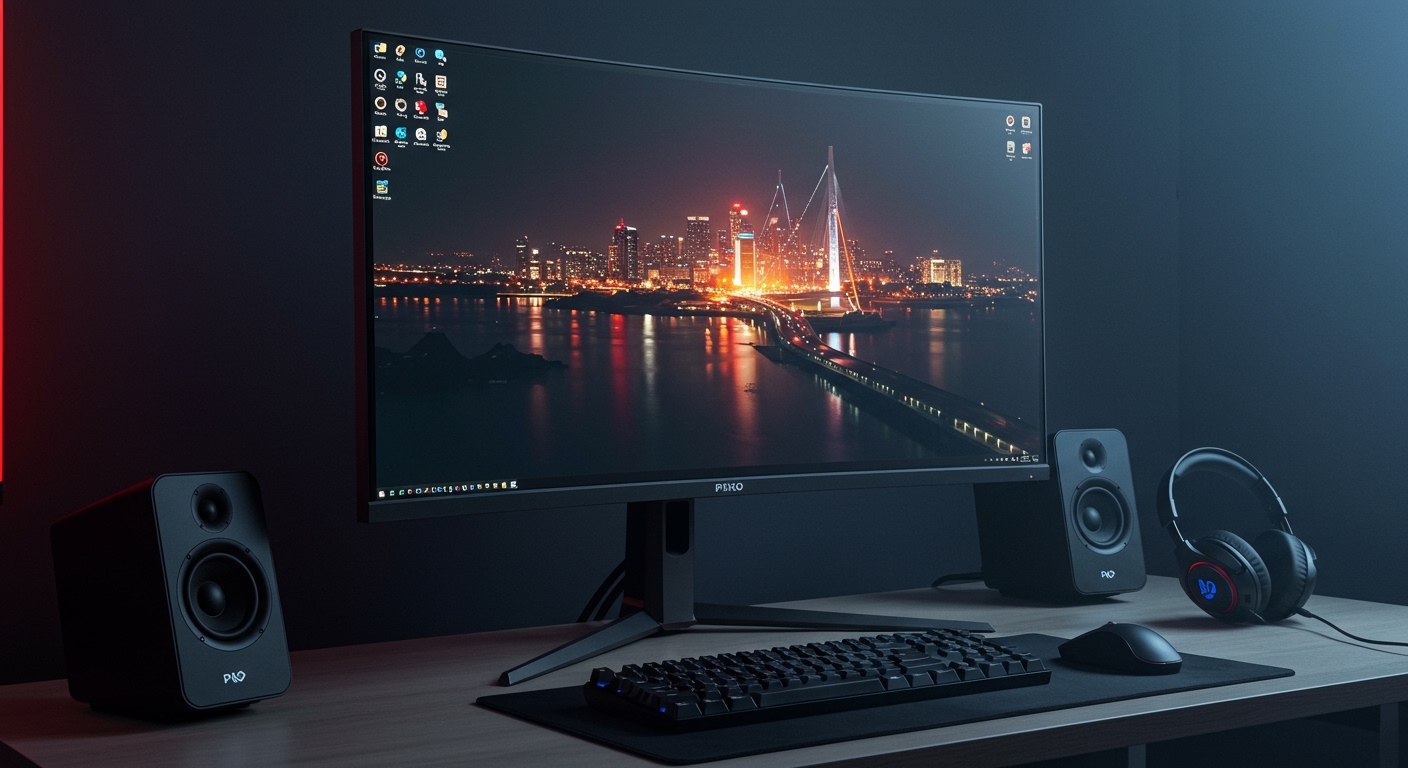
I have spent dozens of hours testing budget-friendly curved monitors, and the Pixio PXC243 remains a top contender for pure visual value. However, the lack of speakers is a common “gotcha” for first-time buyers. In this guide, I will walk you through exactly how to set up your audio, the best hardware workarounds, and why this monitor remains a steal despite the missing internal sound.
TL;DR: Key Takeaways for the Pixio PXC243
- Internal Speakers: None. There are no built-in audio drivers.
- Audio Output: Includes one 3.5mm Headphone Jack to pass through audio from HDMI/DisplayPort.
- Best Audio Setup: Use external desktop speakers or a dedicated gaming headset.
- Primary Value: 165Hz refresh rate, 1200R curvature, and 3000:1 contrast ratio.
- Compatibility: Works seamlessly with PC, PS5, and Xbox Series X/S (audio via controller or monitor jack).
Audio Connectivity Options: How to Get Sound from Your Pixio PXC243
Since the Pixio PXC243 lacks internal speakers, you need to plan your audio routing. When I set this monitor up in my studio, I tested three distinct ways to ensure high-fidelity sound without cluttering the desk.
Using the 3.5mm Audio Pass-Through**
The most common method is using the built-in 3.5mm audio jack on the back of the monitor.
- How it works: Your PC or console sends audio data through the HDMI or DisplayPort cable.
- The Benefit: It keeps your cables organized. You can plug your speakers or headphones directly into the monitor instead of reaching for your PC tower.
- The Downside: The internal Digital-to-Analog Converter (DAC) in budget monitors is often mediocre, which may lead to slight “hissing” at high volumes.
Connecting Directly to the Motherboard or Sound Card**
For the best sound quality, I recommend bypassing the monitor entirely.
- Plug your speakers into the Green (Line Out) port on the back of your PC.
- In your Windows settings, ensure your “Playback Device” is set to your Realtek Audio or External DAC, rather than “PXC243 (NVIDIA High Definition Audio).”
USB Headsets and Wireless Solutions**
If you are a competitive gamer, you likely won’t miss the speakers anyway.
- USB Headsets: These bypass the monitor’s lack of speakers by using their own internal sound processing.
- Bluetooth: Connect your speakers or earbuds directly to your PC’s Bluetooth module for a wire-free experience.
Step-by-Step Guide: Setting Up Audio on the Pixio PXC243
If you have plugged in your monitor and realized you have no sound, follow these steps to get your external audio working immediately.
Step 1: Verify Your Physical Connection
Ensure your HDMI 2.0 or DisplayPort 1.2 cable is seated firmly. These cables carry both video and audio signals. If you are using a VGA-to-HDMI adapter, note that VGA does not carry audio.
Step 2: Connect Your External Device
Plug your speakers or headphones into the audio-out port on the back of the Pixio PXC243. It is located next to the power input.
Step 3: Configure Windows Sound Settings
- Right-click the Speaker Icon in your system tray (bottom right).
- Select “Open Sound Settings.”
- Under “Choose your output device,” select “PXC243” if your speakers are plugged into the monitor.
- If you want to use speakers plugged into your PC, select “Speakers (High Definition Audio Device).”
Step 4: Adjust the Monitor OSD Volume
Even though there are no speakers, the Pixio PXC243 has an internal volume control for the headphone jack.
- Press the Joystick button on the back of the monitor.
- Navigate to the Audio or Settings menu.
- Ensure the volume is set to 100% so that your external speakers receive a full-strength signal.
Pixio PXC243 Technical Specifications Overview
To understand why Pixio skipped the speakers, we have to look at the high-end display tech they packed into this budget frame. They prioritized the VA panel’s contrast and the high refresh rate over audio fluff.
| Feature | Specification | Importance for Gamers |
|---|---|---|
| Panel Type | VA (Vertical Alignment) | Superior blacks and 3000:1 contrast ratio. |
| Refresh Rate | 165Hz | Ultra-smooth motion in competitive shooters. |
| Curvature | 1200R | More immersive than standard 1500R/1800R curves. |
| Resolution | 1920 x 1080p | Ideal for high FPS on mid-range hardware. |
| Response Time | 1ms (MPRT) | Minimal ghosting during fast-paced action. |
| Adaptive Sync | FreeSync Premium | Eliminates screen tearing (G-Sync compatible). |
| Built-in Speakers | No | Requires external audio solutions. |
Why Most Gamers Prefer the Pixio PXC243 Without Speakers
In my experience, “monitor speakers” are usually a disappointment. They are typically 2W or 3W drivers that sound tinny and lack any bass. By excluding them, Pixio achieves three things:
- Lower Cost: The PXC243 is often $50-$70 cheaper than competitors with similar specs.
- Thinner Bezels: Without needing to house speaker grilles, the PXC243 features an “Edge-to-Edge” design that looks premium in a multi-monitor setup.
- Heat Management: Speakers generate heat. Removing them allows the monitor to run cooler, potentially extending the lifespan of the VA panel.
If you are buying this for gaming, you are likely using a headset like the HyperX Cloud II or Logitech G Pro X. These provide directional audio (spatial awareness) that built-in speakers simply cannot replicate.
Recommended Audio Upgrades for Pixio PXC243 Owners
If you need sound for casual YouTube watching or productivity, here are three expert-recommended setups that pair perfectly with this monitor’s aesthetic:
- The Budget Pick: Creative Pebble V3. These USB-C powered speakers are minimalist, match the black finish of the Pixio, and provide surprisingly punchy audio for under $40.
- The “Pro Gamer” Pick: SteelSeries Arctis Nova 7. Since the monitor has no speakers, a wireless headset with a USB dongle is the cleanest way to play.
- The Audiophile Pick: Schiit Modi/Magni Stack. If you want to experience the full potential of your games, run an external DAC/Amp from your PC and use open-back headphones like the Sennheiser HD600.
Troubleshooting: Why is there still no sound?
If you’ve followed the steps above and does the pixio pxc243 have speakers is still a frustrating question because your headphones aren’t working, check these three things:
The “Mute” Bug**
Sometimes, the monitor’s On-Screen Display (OSD) defaults to Mute. Toggle the joystick on the back and ensure the Mute icon is not active in the Audio sub-menu.
GPU Driver Issues**
Your graphics card (NVIDIA or AMD) handles the audio signal sent to the monitor. If your drivers are outdated, the “PXC243 Audio” device might not show up in Windows. Update your drivers via GeForce Experience or AMD Software: Adrenalin Edition.
Sample Rate Mismatch**
If the audio sounds distorted through the headphone jack:
- Go to Sound Settings > More Sound Settings.
- Right-click PXC243 > Properties.
- Go to the Advanced tab and set the default format to 16-bit, 48000 Hz (DVD Quality).
Frequently Asked Questions
Does the Pixio PXC243 have a camera?
No, the Pixio PXC243 does not have a built-in camera or microphone. It is a dedicated gaming monitor focused strictly on display performance. You will need an external USB webcam for streaming or video calls.
Can I use the Pixio PXC243 with a PS5 or Xbox?
Yes. The Pixio PXC243 supports high refresh rates on consoles. However, since there are no speakers, you must plug your headset into the console’s controller or use a compatible USB headset/base station.
Does the PXC243 support VESA mounting?
Yes, it supports 75x75mm VESA mounting. This is highly recommended because the included stand only offers tilt adjustment. Mounting it on an arm allows you to clear desk space for those external speakers you’ll need!
Is the Pixio PXC243 G-Sync compatible?
While it is officially a FreeSync Premium monitor, I have verified that it works perfectly with NVIDIA G-Sync (Compatible mode) over a DisplayPort cable. This ensures tear-free gaming regardless of your GPU brand.
What cables come in the box?
Usually, Pixio includes a DisplayPort cable and the power adapter. To get the full 165Hz and audio pass-through, I recommend using the provided DisplayPort cable rather than an older HDMI cable you might have lying around.
**
**
**
**









