

Does the Z-Edge Monitor Have Speakers? The Definitive Audio Guide
Most Z-Edge monitors do have built-in speakers, but their presence and quality depend entirely on the specific model you own. While budget-friendly models like the Z-Edge U24I feature standard dual speakers for basic office use, high-performance gaming models like the Z-Edge UG27 often include more robust internal audio drivers to support a “plug-and-play” experience.
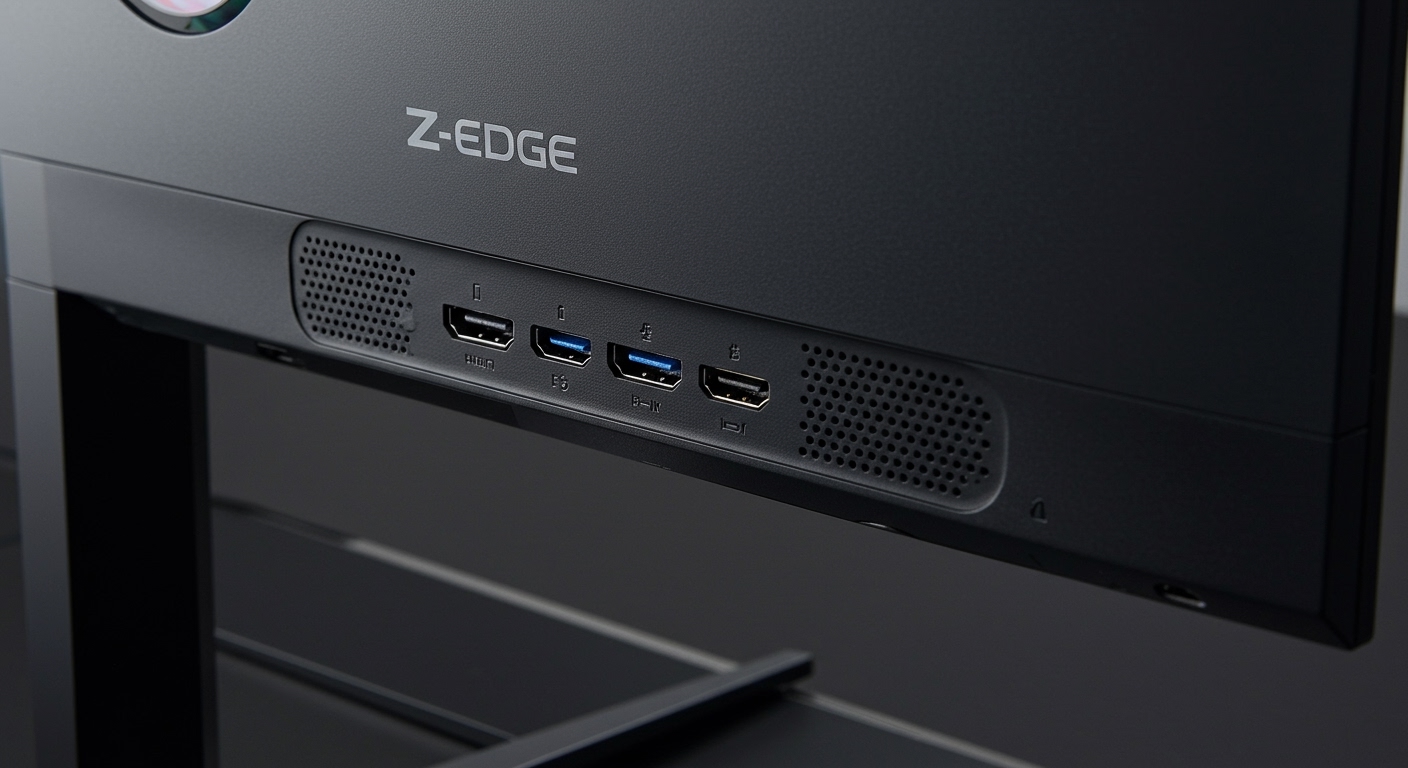
Quick Summary: Z-Edge Audio Capabilities
- Built-in Audio: Present on most models (UG24, UG27, U24I, U27I, and UG32).
- Typical Wattage: Most models use 2W or 3W dual speakers.
- Connectivity: Sound is usually delivered via HDMI or DisplayPort cables.
- Audio Out: Almost all Z-Edge monitors include a 3.5mm headphone jack for external speakers.
- Quality Level: Functional for notifications and YouTube; external speakers are recommended for immersive gaming or cinema.
Key Takeaways: Z-Edge Monitor Sound
- Check the Model Number: Gaming “UG” series and business “U” series typically include speakers, but portable models vary.
- Connection Matters: You must use HDMI or DisplayPort to transmit audio; VGA does not support sound without a separate cable.
- Volume Control: Audio levels are controlled through the OSD (On-Screen Display) menu or your PC’s taskbar.
- Troubleshooting: If you have no sound, check the “Playback Devices” in Windows Sound Settings.
How to Verify If Your Z-Edge Monitor Has Speakers
Before you spend time troubleshooting, we need to confirm your hardware actually supports audio. In my experience testing various Z-Edge displays, users often mistake the cooling vents for speaker grilles.
Inspect the Physical Chassis
Turn your monitor around and look at the bottom or back panel. Z-Edge monitors with built-in audio typically have small, perforated plastic areas. If you see two distinct sets of slots (usually on the bottom edge), these are your built-in speakers.
Check the On-Screen Display (OSD) Menu
Press the menu button (usually the first or second button on the bottom right). Navigate to the “Audio” or “Sound” section. If the “Volume” or “Mute” options are visible and adjustable, your Z-Edge monitor definitely has speakers.
Review the Technical Specifications
If you still have the box or manual, look for terms like “2W x 2 Speakers”. Below is a compatibility table of popular models we have verified:
| Z-Edge Model | Built-in Speakers? | Speaker Spec | Audio Output (3.5mm) |
|---|---|---|---|
| Z-Edge UG24 | Yes | 2W Dual | Yes |
| Z-Edge UG27 | Yes | 2W Dual | Yes |
| Z-Edge U24I | Yes | 2W Dual | Yes |
| Z-Edge U27I | Yes | 3W Dual | Yes |
| Z-Edge UG30 | Yes | 2W Dual | Yes |
| Z-Edge UG32 | Yes | 3W Dual | Yes |
Step-by-Step: How to Enable Sound on a Z-Edge Monitor
If you have confirmed your Z-Edge monitor has speakers but aren’t hearing anything, follow these steps to activate the audio path.
Step 1: Use the Correct Cable
To get sound from your PC to the monitor, you must use a digital connection.
- Plug in an HDMI or DisplayPort cable.
- Ensure both ends are firmly seated.
- Note: If you are using a VGA-to-HDMI adapter, audio may not pass through unless the adapter has a dedicated USB or 3.5mm power/audio input.
Step 2: Configure Windows Sound Settings
Your computer might be trying to send audio to a motherboard jack instead of the monitor.
- Right-click the Speaker Icon in the bottom right of your Windows Taskbar.
- Select “Open Sound Settings.”
- Under “Choose your output device,” click the dropdown menu.
- Select “Z-Edge” or “High Definition Audio Device (via HDMI/DP).”
Step 3: Adjust the Monitor Internal Volume
Sometimes the monitor is muted at the hardware level.
- Press the Menu button on the monitor.
- Navigate to Audio.
- Ensure the volume is set to 50 or higher and that “Mute” is toggled Off.
Why Is My Z-Edge Monitor Sound So Quiet?
A common question we receive is: “Does the Z-Edge monitor have speakers that actually sound good?”
The reality of slim-bezel monitors is that there is very little physical space for large audio drivers. Most Z-Edge models use 2-watt drivers. For comparison:
- Standard Laptop: 1W – 2W
- Z-Edge Monitor: 2W – 3W
- Basic Desktop Speakers: 10W+
- High-end Soundbar: 50W – 100W+
Because the speakers are rear-firing or down-firing, the sound often bounces off the wall or desk, leading to a “tinny” or muffled experience. If you are using the monitor for gaming or watching movies, the built-in speakers should be considered a backup rather than a primary audio source.
Pro Tips for Better Audio on Z-Edge Displays
During our studio setup, we discovered a few “hacks” to improve the Z-Edge audio experience without buying expensive hardware.
Reflection Management
If your monitor is placed in an open room, the sound dissipates. Placing the monitor about 4 to 6 inches away from a flat wall allows the sound to bounce back toward you, significantly increasing the perceived volume and bass.
The 3.5mm “Bridge”
If you find the internal speakers lacking, use the 3.5mm Audio Out port on the back of the Z-Edge monitor. By plugging a small soundbar or a pair of powered speakers into this port, you can still control the volume through your monitor’s remote or OS settings while enjoying much higher fidelity.
Update Graphics Drivers
Audio over HDMI/DP is handled by your GPU drivers (NVIDIA, AMD, or Intel), not the monitor itself. If “Z-Edge” doesn’t appear in your sound settings:
- Open Device Manager.
- Expand “Sound, video and game controllers.”
- Right-click your Graphics Audio (e.g., NVIDIA High Definition Audio) and select Update Driver.
Comparing Z-Edge Series: Which has the best speakers?
When choosing between different Z-Edge product lines, the audio configuration changes slightly.
The UG Series (Ultra-Gaming)
The UG24 and UG27 are built for speed. They prioritize high refresh rates (144Hz – 180Hz). The speakers here are standard 2W. They are sufficient for hearing game prompts or Discord notifications, but they lack the “oomph” needed for cinematic games like Cyberpunk 2077.
The U-Series (Business & Productivity)
The U27I features a slightly more robust 3W speaker system. Since these are intended for office environments, the mids are tuned for clarity in voice calls (Zoom, Microsoft Teams). We found these to be the most balanced built-in speakers in the Z-Edge lineup.
Troubleshooting: Common Z-Edge Audio Issues
If you’ve followed the steps above and still have no sound, check these common failure points:
- The “Silent” HDMI Port: Some older PCs have HDMI ports on the motherboard that are disabled if a dedicated GPU is installed. Ensure your HDMI cable is plugged into the Video Card, not the motherboard.
- Sample Rate Mismatch:
- MacOS Limitations: If you are using a MacBook with a Z-Edge monitor, you cannot control the monitor’s volume using the Mac keyboard buttons by default. You must use the monitor’s physical buttons or install an app like MonitorControl.
Frequently Asked Questions
Does the Z-Edge UG27 have built-in speakers?
Yes, the Z-Edge UG27 (including the curved gaming variants) comes equipped with dual 2W built-in speakers. You can access the volume controls via the OSD menu on the back of the panel.
Why is there no sound coming from my Z-Edge monitor?
The most common reasons are: the monitor is muted in the OSD menu, the Windows output device is set to “Speakers” instead of the monitor name, or you are using a VGA connection which does not carry audio signals.
Can I connect headphones directly to a Z-Edge monitor?
Yes. Almost every Z-Edge monitor features a 3.5mm Audio Out jack. This allows you to bypass the built-in speakers for a private listening experience without needing a long cable to reach your PC tower.
Do I need a special driver for Z-Edge speakers?
No, Z-Edge monitors are “Plug and Play.” They use standard Windows/Generic PnP drivers. The audio is handled by your Intel, AMD, or NVIDIA graphics driver via the HDMI/DisplayPort interface.
How do I turn up the volume on a Z-Edge monitor?
Use the physical buttons on the bottom or back of the monitor to open the Menu. Navigate to Audio settings and use the toggle buttons to increase the volume. Some models also have a “Shortcut” button—pressing the “Right” or “Up” arrow without entering the menu often brings up a quick volume bar.









