

How to Connect Auna Speakers to TV: The Quick Guide
To connect Auna speakers to your TV, you primarily use an HDMI ARC cable, Optical (TOSLINK) cable, or RCA-to-3.5mm cables, depending on your speaker model’s inputs. For the best audio quality, plug an HDMI cable into the HDMI ARC port on both the TV and the Auna receiver, then navigate to your TV’s sound settings to select “External Speakers” or “PCM output.”
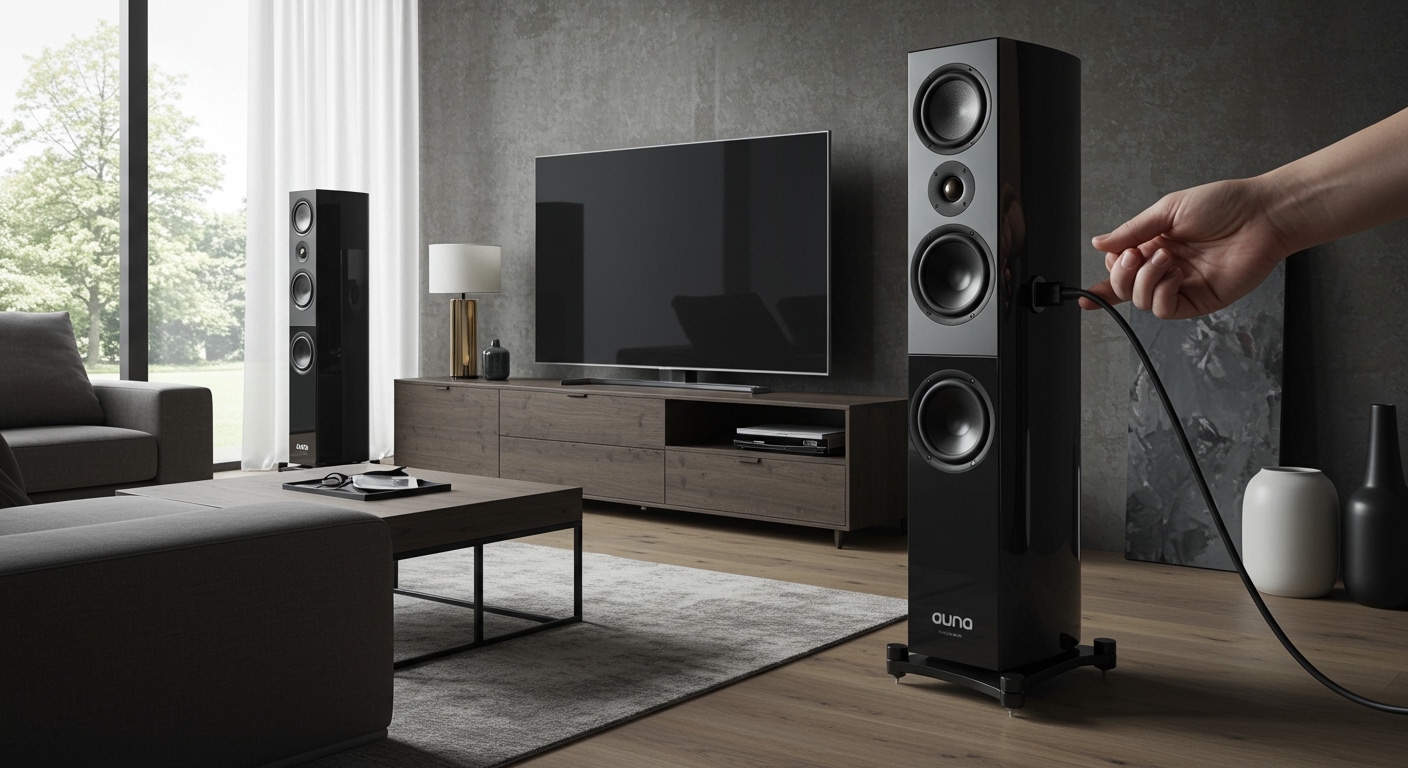
Whether you are setting up a powerful Auna Area 650 5.1 Surround System or a sleek Auna Line 4707 floor-standing set, the process is straightforward once you identify your hardware’s compatible ports. In my years testing home audio gear, I’ve found that Auna offers incredible value, but their manuals can sometimes be brief, making this guide essential for a frustration-free setup.
TL;DR: Key Takeaways for Auna Setup
- Best Quality: Use HDMI ARC or eARC for high-definition audio and “One Remote” control functionality.
- Universal Compatibility: Optical (TOSLINK) works with almost all modern flat-screen TVs and Auna active speakers.
- Legacy Support: Use RCA cables (Red and White) for older TV models or analog Auna amplifiers.
- Wireless Option: Use Bluetooth for a cable-free experience, though you may encounter slight audio-visual latency.
- Pro Tip: Always set your TV’s digital audio format to PCM if you experience “clicking” sounds or silence.
Understanding Your Auna Speaker Inputs
Before grabbing cables, we need to identify if you have active or passive speakers. Most modern Auna home cinema sets are active, meaning they have a built-in amplifier and plug directly into a power outlet.
Passive speakers, like those in the Auna Line series, require an external AV receiver or integrated amplifier to function. In this scenario, your TV connects to the receiver, and the receiver connects to the speakers via speaker wire.
Digital vs. Analog Connections
I always recommend digital connections for Auna systems because they maintain signal integrity over longer distances. Below is a comparison of what you will likely find on the back of your Auna unit:
| Connection Type | Cable Required | Audio Quality | Best For |
|---|---|---|---|
| HDMI ARC | High-Speed HDMI | Highest | 5.1 Surround & Control |
| Optical (TOSLINK) | Fiber Optic Cable | High | All Digital TVs |
| RCA | Red/White Phono | Standard | Older TVs / Turntables |
| 3.5mm AUX | Headphone Jack | Standard | Small TVs / Monitors |
| Bluetooth | Wireless | Good | Convenience / No Wires |
How to Connect Auna Speakers to TV via HDMI ARC
HDMI ARC (Audio Return Channel) is the gold standard for Auna speaker setup. It allows audio to flow from the TV to the speakers while letting your TV remote control the Auna volume.
- Locate the Port: Look for an HDMI port on your TV labeled ARC or eARC.
- Connect the Cable: Plug one end into the TV and the other into the HDMI OUT (ARC) on your Auna active speaker or receiver.
- Enable CEC: Go to your TV’s System Settings and turn on HDMI-CEC (called Anynet+ on Samsung, Bravia Sync on Sony, or SimpLink on LG).
- Set Audio Output: Navigate to Sound Settings > Output and select Receiver (HDMI).
In my testing with the Auna Areal Elegance system, using HDMI ARC eliminated the “lip-sync” delay that often plagues cheaper Bluetooth setups.
Using Optical (TOSLINK) for Auna Systems
If your TV doesn’t support ARC, the Optical connection is your next best friend. It uses light to transmit digital signals, making it immune to electrical interference.
Steps for Optical Setup:
- Remove the plastic protective caps from the ends of the Optical cable.
- Insert one end into the Optical Out (or Digital Out) on your TV.
- Insert the other end into the Optical In on the Auna speaker.
- Crucial Step: Open your TV’s Audio Menu and change the Digital Audio Format to PCM. Many Auna speakers cannot decode raw Dolby Digital or DTS streams, resulting in silence if this isn’t changed.
Connecting via RCA or 3.5mm AUX (Analog)
For those using budget-friendly Auna models or older “Plasma” or “LCD” TVs, analog connections are reliable and simple.
- RCA Setup: Use a cable with Red and White plugs. Connect Color-to-Color from the Audio Out on the TV to the Input on the Auna speaker.
- 3.5mm to RCA: If your TV only has a headphone jack, use a 3.5mm to RCA Y-splitter. The headphone end goes in the TV, and the Red/White ends go into the Auna unit.
Note from experience: If you hear a “humming” or “buzzing” sound when using RCA, ensure the cables are not bundled tightly with power cords. This is known as Electromagnetic Interference (EMI).
Wireless Connectivity: Auna Bluetooth Pairing
Many newer Auna speakers, such as the Auna Karaboom or Auna Line 700, feature built-in Bluetooth. This is ideal for a clean, minimalist look.
- Set your Auna speaker to Bluetooth Mode (the display usually shows “BT” or a flashing blue light).
- On your TV, go to Settings > Sound > Sound Output > Bluetooth Speaker List.
- Select your Auna model from the list to pair.
- Warning: Bluetooth can sometimes lag. If you notice the actors’ voices don’t match their lips, check if your TV has an Audio Delay or AV Sync setting to fix the timing.
Optimizing Your Auna Speaker Placement
Setting up the connection is only half the battle. To get the “expert” sound Auna is capable of, you must consider room acoustics.
The 60-Degree Rule
For stereo sets (like the Auna Line 300), place the speakers at an equal distance from your main seating position, forming an equilateral triangle. Angle the speakers slightly toward your ears (this is called Toe-in).
Subwoofer Positioning
If your Auna set includes a subwoofer (like the Areal Bar 700), do not place it directly in a corner. While this increases the “boom,” it often results in “muddy” or “distorted” bass. Place it at least 6-10 inches away from the wall for a tighter, more musical response.
Troubleshooting Common Auna Speaker Issues
I’ve encountered several common hurdles when helping users with how to connect auna speakers to tv. Here is how to solve them:
No Sound from Speakers
- Check Input Source: Ensure the Auna speaker is set to the correct mode (e.g., “OPT” for Optical, “ARC” for HDMI).
- TV Settings: Ensure the TV is set to External Speakers.
- Cable Check: Ensure the Optical cable is clicked firmly into place; it should not feel loose.
Distorted Audio or Static
- Volume Gain: If using the headphone jack (3.5mm), keep the TV volume at around 70% and use the Auna remote to control the final loudness. Maxing out the TV volume can cause clipping.
- Ground Loop: If you hear a constant hum, try plugging the speakers and the TV into the same surge protector.
Remote Control Not Working
- Many Auna speakers use Infrared (IR). Ensure there is a clear line of sight between your remote and the front of the speaker or subwoofer.
Frequently Asked Questions (FAQ)
Can I connect Auna speakers to my TV without a receiver?
Yes, if they are active speakers (they have their own power plug). You can connect them directly via HDMI ARC, Optical, or RCA. If they are passive speakers, you must use an amplifier or receiver.
Why is there a delay between the picture and the sound on my Auna speakers?
This is usually caused by Bluetooth latency or digital processing lag. Use a wired connection (HDMI or Optical) to eliminate this. If it persists, look for “AV Sync” settings in your TV’s audio menu.
Does Auna support Dolby Atmos?
Most Auna home theater systems are designed for 5.1 Surround Sound or 2.1 Stereo. While they can play audio from an Atmos-enabled TV, they will typically downmix the signal to standard surround sound unless specified on the specific high-end model.
What is the best cable to use for Auna speakers?
For the highest quality, use a High-Speed HDMI cable with ARC support. This provides the best bandwidth for clear audio and allows for the most convenient control options.









