

How to Connect Casio Keyboard to Speakers: The Quick Answer
To connect a Casio keyboard to speakers, you must identify the Audio Out or Phones jack on the back of your keyboard and link it to the speaker’s Input using a compatible cable. Most modern Casio Privia or Casiotone models use either a 1/4-inch (6.35mm) TRS or a 3.5mm mini-jack, which connects to powered monitors, PA systems, or home stereos via RCA or XLR adapters.
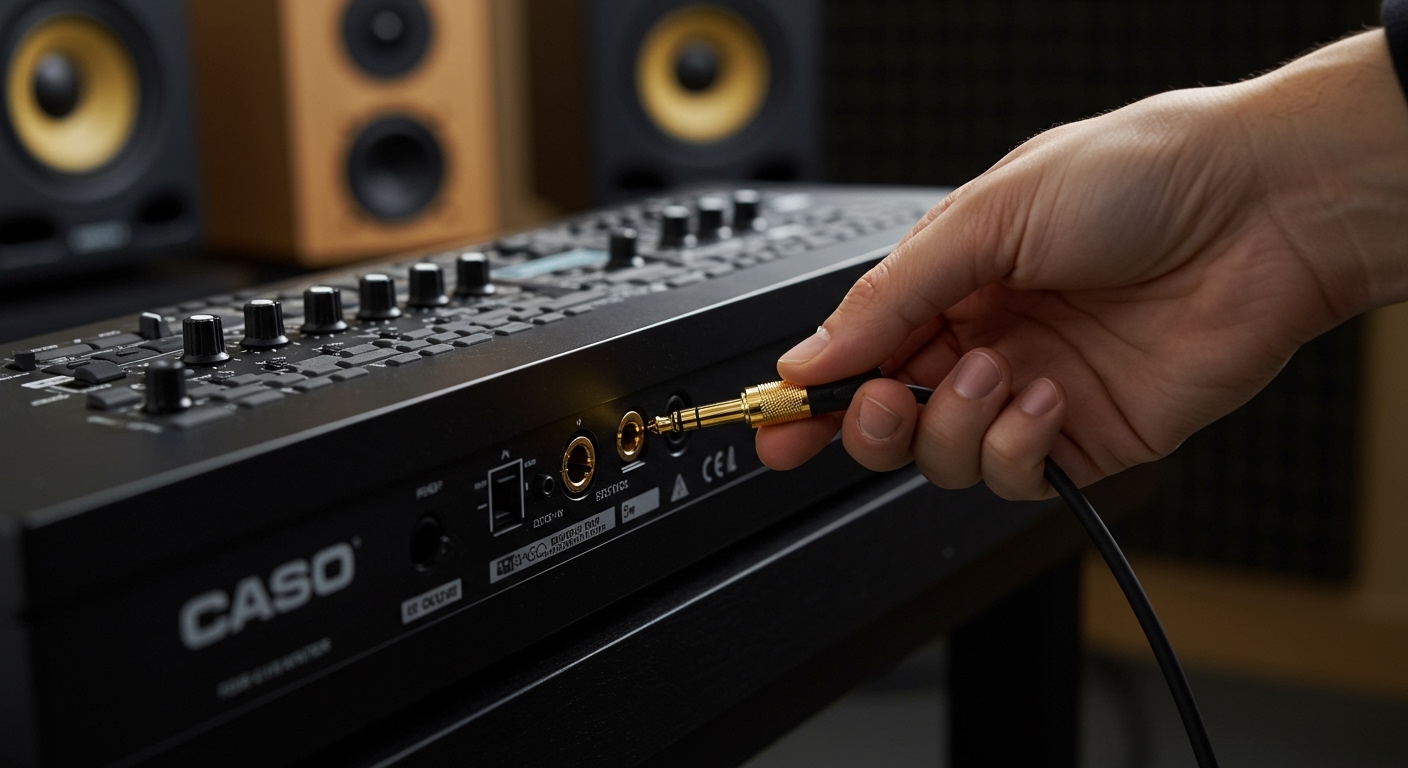
TL;DR: Key Takeaways for Fast Setup
- Identify the Port: Look for labels like “Phones/Output,” “L/Mono,” or “Line Out.”
- Choose the Cable: Usually a 1/4” to 1/4” instrument cable for pro speakers or a 3.5mm to RCA for home theaters.
- Power Sequence: Always turn the keyboard on first, then the speakers to avoid damaging the drivers.
- Volume Control: Start with the keyboard volume at 50% and adjust the speaker gain gradually.
- Mono vs. Stereo: Use the L/Mono jack if you only have one speaker; use both L and R for a full stereo field.
Understanding Your Casio Keyboard’s Output Ports
Before buying cables, you must know what signal your Casio keyboard sends. In my experience testing various Casio Celviano and CT-X models, the output configuration varies significantly between entry-level and professional units.
The Phones/Output Combo Jack
Most portable Casio keyboards (like the CT-S series) feature a single 3.5mm (1/8″) or 1/4″ stereo jack labeled “Phones/Output.” This port is designed to drive high-impedance headphones, but it works perfectly fine for external speakers if you use the right adapter.
Dedicated Line Out (L/Mono & R)
Higher-end models, such as the Casio Privia PX-S3100, feature dedicated Line Out ports. These are usually two 1/4-inch TS (unbalanced) jacks.
- L/Mono: Use this jack alone if you are connecting to a single keyboard amp or one speaker.
- R: Use this in conjunction with the Left jack for a true stereo experience through studio monitors.
USB-MIDI vs. Audio Out
A common mistake I see beginners make is trying to send sound through the USB Type-B port. On most older Casio models, the USB port only sends MIDI data (information about which notes you hit), not actual audio. However, some newer Casiotone models support USB Audio, allowing you to send sound directly to a computer, which can then output to speakers.
Essential Gear: Choosing the Right Cables
The “Best” cable depends entirely on the input of your speakers. Using the wrong cable can result in a weak signal or a frustrating 60Hz hum.
| Speaker Type | Keyboard Output | Required Cable/Adapter |
|---|---|---|
| Studio Monitors | 1/4″ Line Out | Dual 1/4″ TS to 1/4″ TS Patch Cables |
| PA System/Mixer | 1/4″ Line Out | 1/4″ TS to XLR (Male) or DI Box |
| Computer Speakers | 3.5mm Phones | 3.5mm TRS to 3.5mm TRS |
| Home Stereo/Hi-Fi | 1/4″ or 3.5mm | 3.5mm (or 1/4″) to Dual RCA |
| Portable Bluetooth Speaker | 3.5mm Phones | 3.5mm TRS Aux Cable |
Pro Tip: I always recommend using shielded cables (like those from Hosa or Mogami) to prevent electromagnetic interference from your phone or Wi-Fi router.
Step-by-Step Guide: How to Connect Casio Keyboard to Speakers
Follow these steps to ensure a clean, distortion-free sound.
Step 1: Power Down and Volume Reset
Turn off both your Casio keyboard and your external speakers. Rotate the volume knobs on both devices to the lowest setting. This prevents “surges” that can blow a speaker tweeter.
Step 2: Plug into the Keyboard
Insert your cable into the Output jack. If you are using a Casio Privia with dual outputs, plug the “Left” cable into the L/Mono jack and the “Right” cable into the R jack.
Step 3: Connect to the Speakers
Plug the other end of the cable into the Input section of your speakers.
- For Active (Powered) Speakers: Plug directly into the “In” jack.
- For Passive Speakers: You must plug the keyboard into an Amplifier or Receiver first, which then connects to the speakers.
Step 4: The Power-On Sequence
This is a golden rule in professional audio: “Sources on first, Amps on last.”
- Turn on the Casio keyboard.
- Turn on the Speakers/Amplifier.
- Set the keyboard volume to roughly 60-75%. This provides a strong “Line Level” signal without clipping.
Step 5: Adjust Gain and EQ
Slowly raise the volume on your speakers while playing a few chords. If the sound is muffled, check the Master EQ settings on your Casio (if available) and set them to “Standard” or “Line Out.”
Connecting to Specific Speaker Types
Using Studio Monitors (Yamaha HS5, KRK Rokit)
Studio monitors usually require balanced XLR or 1/4″ TRS inputs. Since most Casio keyboards output an unbalanced TS signal, you might experience noise over long cable runs. For the cleanest sound, use a DI Box (Direct Injection). This converts the keyboard’s high-impedance signal to a low-impedance balanced signal.
Using a Guitar or Keyboard Amp
Keyboard amps (like the Roland KC series) are designed for the wide frequency range of a digital piano. Use a standard 1/4″ instrument cable. Avoid using Guitar Amps if possible; they are voiced for mid-range frequencies and can make your Casio’s high notes sound “tinny” and the bass notes “muddy.”
Using Bluetooth Speakers (Aux In)
Most Casio keyboards do not transmit Bluetooth Audio (only Bluetooth MIDI). To use a Bluetooth speaker, you must use a physical 3.5mm Aux cable. If your speaker only has Bluetooth, you will need a Bluetooth Transmitter plugged into the keyboard’s headphone jack, though be warned: latency (lag) will make playing almost impossible.
Troubleshooting Common Connection Issues
We have all dealt with “the hum” or “the silence.” Here is how I fix the most common issues during setup.
Issue: No Sound is Coming Out
- Check the Jack: Ensure you aren’t plugged into the Sustain Pedal jack by mistake. They look identical on many Casio CTK models.
- Local Control: If your keyboard is connected to a computer, ensure “Local Control” is turned ON in the MIDI settings.
- Muting: Some Casio models automatically mute the internal speakers when a cable is plugged into the Phones jack. If you want both internal and external sound, this may not be possible on entry-level models.
Issue: Loud Buzzing or Humming
- Ground Loop: This happens when your keyboard and speakers are plugged into different wall outlets. Try plugging both into the same power strip.
- Cable Quality: Swap the cable. A broken shield in a cheap cable acts like an antenna for noise.
Issue: The Sound is Distorted
- Input Overload: Your keyboard volume is too high for the speaker’s input. Lower the keyboard volume to 50% and increase the speaker volume instead.
Expert Advice for Best Audio Fidelity
If you want your Casio keyboard to sound like a Steinway Grand, the connection is only half the battle.
- Disable Built-In Reverb: When playing through large speakers in a room, the room provides natural reverb. Turn down the “Hall” or “Reverb” settings on your Casio keyboard to prevent the sound from becoming “washy.”
- Use Stereo Whenever Possible: Casio’s Acoustic and Intelligent Resonator (AiR) technology relies on stereo samples. If you sum it to mono, you lose the “spatial” feel of the piano strings.
- Invest in a Small Mixer: If you want to play along with backing tracks from your phone, a small 4-channel mixer (like a Mackie Mix5) allows you to plug in both your keyboard and phone and output them to one set of speakers.
Frequently Asked Questions (FAQ)
Can I connect my Casio keyboard to speakers via Bluetooth?
While you can use a WU-BT10 Bluetooth Adapter on some Casio models, it is primarily for MIDI and Audio In (playing music from your phone through the keyboard). Due to audio latency, it is not recommended to transmit the keyboard’s live sound to Bluetooth speakers wirelessly; the delay between hitting a key and hearing the sound will be too distracting.
What cable do I need for a Casio Privia PX-160?
The PX-160 features two 1/4-inch Line Out jacks (Left/Mono and Right). To connect to most professional speakers, you will need two 1/4″ TS male-to-male instrument cables.
Is it safe to plug a keyboard into a guitar amp?
It is safe, but not ideal. Guitar amps are designed for the specific frequency range of a guitar and often distort easily. A keyboard produces a much wider range of frequencies (from deep bass to crystal highs) which can overwhelm a guitar amp’s speaker, potentially causing damage at high volumes.
Why are my keyboard’s internal speakers still on?
On most Casio Celviano and high-end Privia models, using the Line Out jacks does not automatically mute the internal speakers. This is a feature, allowing the internal speakers to act as “monitors” for the player while the external speakers face the audience. To turn them off, you usually have to navigate the Function menu or plug a dummy adapter into the Headphone jack.









