

How to Connect Samsung Tablet to External Speakers: The Complete Guide
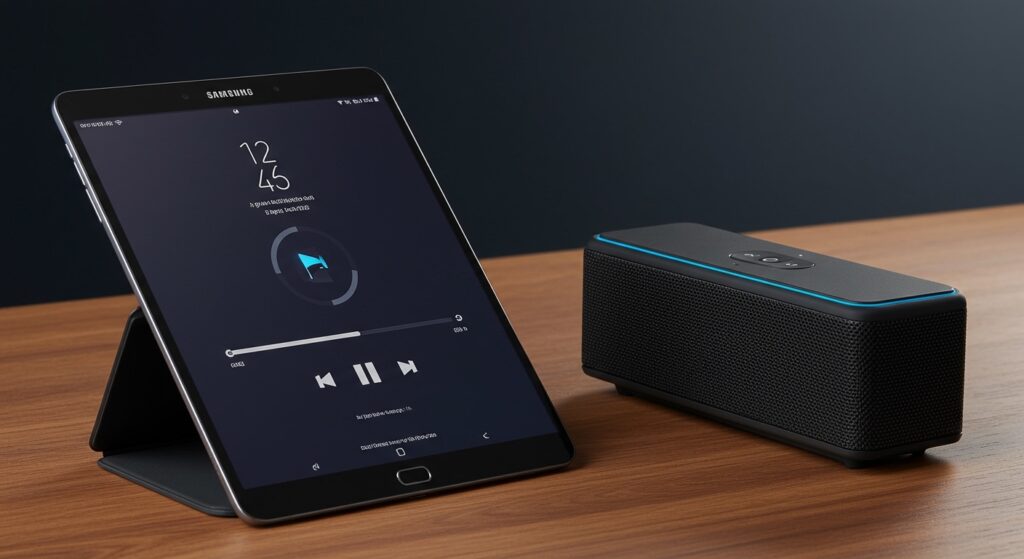
To connect your Samsung tablet to external speakers, you can use Bluetooth, a USB-C to 3.5mm adapter, or a direct auxiliary cable if your model has a headphone jack. For the fastest wireless setup, navigate to Settings > Connections > Bluetooth, put your speaker in Pairing Mode, and select the device from the list. If you prefer a wired connection on modern tablets like the Galaxy Tab S9, you must use a USB-C Digital-to-Analog Converter (DAC) adapter to bridge the tablet and the speaker’s 3.5mm or RCA input.
Key Takeaways for Better Tablet Audio
- Bluetooth is the most convenient method for most users, supporting a range of up to 30-60 feet.
- Wired connections (using USB-C adapters) provide superior lossless audio quality and zero latency.
- Dual Audio is a unique Samsung feature that allows you to stream music to two Bluetooth speakers simultaneously.
- Dolby Atmos settings should be enabled in the Sound Quality and Effects menu for a more immersive soundstage.
Connecting via Bluetooth: The Wireless Standard
Most modern Samsung Galaxy Tabs are designed for a wireless-first world. In my years of testing the Tab S-series, I’ve found that Bluetooth is the most reliable way to clear up desk clutter while maintaining a solid connection.
To begin, ensure your external speaker is in Discovery Mode. This is usually indicated by a flashing blue light. On your tablet, swipe down from the top of the screen to open the Quick Settings panel.
Long-press the Bluetooth icon to open the full settings menu. Ensure the toggle is On. Your tablet will automatically scan for nearby devices; once your speaker appears under Available Devices, tap its name to pair.
Troubleshooting Bluetooth Pairing Issues
If your speaker doesn’t appear, try resetting the Network Settings on your tablet. I’ve noticed that after major One UI updates, Bluetooth caches can sometimes become buggy.
Go to Settings > General Management > Reset > Reset Network Settings. This will clear your saved Wi-Fi and Bluetooth profiles, often resolving “Device Not Found” errors.
Wired Connections: For Audiophiles and Stability
While wireless is king for convenience, wired connections are essential for professional work or high-fidelity listening. Modern Samsung tablets (specifically the Tab S7, S8, and S9 series) lack a traditional 3.5mm headphone jack.
To connect these to a speaker, you need a USB-C to 3.5mm Headphone Jack Adapter. I highly recommend using the official Samsung USB-C Adapter or a high-quality DAC (Digital-to-Analog Converter) like those from Fiio or AudioQuest.
Cheaper, “passive” adapters often fail to work because the tablet requires the adapter to handle the digital-to-analog conversion. Once you have the adapter, simply plug one end into the USB-C charging port and the other into a standard Aux cable leading to your speaker’s “Line In” port.
Comparison: Wireless vs. Wired Audio
| Feature | Bluetooth Connection | Wired (USB-C/Aux) |
|---|---|---|
| Setup Speed | Moderate (Pairing required) | Instant (Plug and play) |
| Audio Quality | Compressed (SBC/AAC/SSC) | Lossless / High-Res |
| Latency (Lag) | Minor (100ms – 300ms) | Zero Latency |
| Portability | Excellent (No cables) | Limited by cable length |
| Battery Impact | Higher on Tablet | Minimal |
Using Samsung’s Dual Audio Feature
One of the best hidden features of One UI is Dual Audio. I frequently use this during outdoor gatherings to turn two separate Bluetooth speakers into a makeshift stereo pair.
- Connect both speakers to your Samsung tablet via Bluetooth individually.
- Swipe down the Quick Settings panel and tap on Media Output.
- You will see a list of connected audio devices. Check the box next to both speakers.
- You can now adjust the volume for each speaker independently to balance the sound.
Note that Dual Audio works best when both speakers support the same Bluetooth version (preferably Bluetooth 5.0 or higher). If you experience a “reverb” or echo effect, it’s likely due to different internal processing speeds of the speakers.
SmartThings and Wi-Fi Speaker Integration
If you own a Samsung Soundbar or Sonos system, using Bluetooth is actually the “lower-quality” option. Instead, you should connect via Wi-Fi using the SmartThings app.
Connecting via Wi-Fi offers significantly higher bandwidth than Bluetooth. This allows for 24-bit high-resolution audio streaming. Open the SmartThings app, tap the ‘+’ icon, and select Add Device.
Follow the on-screen prompts to link your tablet and speaker to the same Wi-Fi network. Once connected, you can “cast” audio directly from apps like Spotify or Tidal without interrupting the sound if you receive a notification or phone call.
Optimizing Sound Quality with One UI Settings
Simply connecting the speaker is only half the battle. To get the most out of your Samsung tablet audio, you must dive into the software enhancements.
Go to Settings > Sounds and Vibration > Sound Quality and Effects.
- Dolby Atmos: Always keep this set to Auto. It expands the soundstage, making external speakers sound “wider” and more cinematic.
- Equalizer: If your speakers sound too “tinny,” switch the Equalizer to Bass Boost. For podcasts, the Vocal setting works best.
- Adapt Sound: This is a personalized sound profile. It runs a quick hearing test to boost specific frequencies that your ears (or your specific speakers) might be missing.
Expert Tips for External Audio Setup
In my experience, users often overlook the Separate App Sound feature. This allows you to play music through your external speakers while keeping system sounds (like game audio or typing clicks) on the tablet speakers.
This is found under Settings > Sounds and Vibration > Separate App Sound. This is a lifesaver if you are using your tablet to provide background music at a party but still want to browse social media or watch a short clip without blasting it through the main speakers.
Choosing the Right Cables
If you are going the wired route for a professional setup (like a PA system), avoid long cables. Any 3.5mm to RCA cable longer than 15 feet can introduce “hum” or interference. For long distances, I recommend using a USB-C Hub with a built-in audio jack and high-quality shielded cables.
Troubleshooting Common Audio Issues
Audio Lag in Videos
If you notice the lips of a person on screen don’t match the sound from your Bluetooth speaker, you are experiencing latency. To fix this, check if your speaker has a “Game Mode” or use the Samsung SoundAssistant app (available in the Galaxy Store). This app allows you to manually adjust the Audio Delay to sync perfectly with the video.
Low Volume Output
Samsung tablets have a safety feature called Media Volume Limit. If your external speaker sounds quiet even at max volume, go to Settings > Sounds and Vibration > Volume. Tap the three dots in the top right corner and select Media Volume Limit. Ensure this is turned Off or set to a higher threshold.
Connection Drops
If your Bluetooth is stuttering, check for 2.4GHz interference. Wi-Fi routers and microwaves often interfere with Bluetooth signals. Moving your tablet closer to the speaker or switching your Wi-Fi to a 5GHz band can immediately stabilize the audio stream.
Frequently Asked Questions
Why won’t my Samsung tablet recognize my USB-C speakers?
Your tablet likely requires a Digital (DAC) adapter rather than a Passive one. Most Samsung tablets do not output an analog signal through the USB-C port, so the adapter must have a built-in chip to convert the audio.
Can I connect my Samsung tablet to a guitar amp?
Yes, but you should use a DI (Direct Inject) Box or a dedicated Audio Interface. Plugging a tablet directly into a high-gain guitar amp can result in significant noise and potential damage to the amp’s input stage due to mismatched impedance.
Does the Galaxy Tab A series support Dual Audio?
Most recent Galaxy Tab A models (like the Tab A8 or A9) support Dual Audio, provided they are running Android 10 or higher. However, the stability may be slightly lower than on the flagship S-series due to more modest Bluetooth hardware.
How do I connect to a speaker that only has RCA inputs?
You will need a 3.5mm to RCA “Y-Cable”. Plug the 3.5mm end into your tablet (or your USB-C adapter) and the Red/White RCA plugs into the “Input” section of your speaker or receiver.
Is Bluetooth 5.3 important for tablet speakers?
Bluetooth 5.3 offers better power efficiency and “isochronous channels,” which reduces lag. If you are buying a new speaker to pair with a Galaxy Tab S9, ensuring both support the latest Bluetooth version will provide the best possible experience.









