

How to Connect Xbox 360 to External Speakers: The Definitive Guide
To connect an Xbox 360 to external speakers, you generally need an HDMI audio extractor, a Toslink optical cable, or a specific Xbox 360 audio adapter depending on your console model. For modern setups, the most effective method is using an HDMI audio extractor to split the digital signal into separate video (HDMI) and audio (3.5mm or RCA) channels.
Connecting legacy hardware like the Xbox 360 to modern sound systems can be a headache because the console was designed during a transitional era of audio technology. Over the years, we have tested dozens of configurations—from high-end 7.1 surround sound receivers to budget-friendly computer speakers. Whether you are using the Original “Fat” model, the Xbox 360 S (Slim), or the Xbox 360 E, this guide provides the exact steps to get high-fidelity audio working today.
TL;DR: Key Takeaways for Xbox 360 Audio
- Best for Modern Monitors: Use an HDMI Audio Extractor to get a 3.5mm headphone jack.
- Best for Surround Sound: Use a Toslink (Optical) cable connected directly to the Xbox 360 S or the AV adapter on older models.
- Best for Budget Setups: Use an RCA-to-3.5mm Y-adapter with the original gray AV cables.
- Compatibility Note: The Xbox 360 E (the latest model) lacks an optical port; you must use the 3.5mm composite jack or an HDMI extractor.
Understanding Your Xbox 360 Model’s Audio Ports
Before purchasing cables, you must identify which Xbox 360 revision you own. Microsoft changed the available ports significantly between 2005 and 2013, which dictates how you connect external speakers.
| Console Model | Available Audio Ports | Recommended Connection Method |
|---|---|---|
| Original (Fat) | Proprietary AV Port, HDMI (Later models) | Xbox 360 Audio Adapter + HDMI |
| Xbox 360 S (Slim) | HDMI, Dedicated Optical (S/PDIF) | Optical Cable or HDMI Extractor |
| Xbox 360 E | HDMI, 3.5mm Composite/Audio Out | HDMI Audio Extractor |
The Original “Fat” Xbox 360 (2005-2010)
The earliest models did not have HDMI ports at all. If you have a very old “Pro” or “Core” model, you are limited to the proprietary AV port. Later “Fat” models (like the Elite or Jasper board versions) added HDMI, but the physical casing of the AV cable often blocked the HDMI port, requiring a specific slim-profile audio adapter.
The Xbox 360 S (Slim) (2010-2013)
This is the most “audio-friendly” model. It features a dedicated Toslink S/PDIF (Optical) port on the back. This allows you to run HDMI to your TV and a separate Optical cable to your soundbar or Home Theater Receiver without any extra adapters.
The Xbox 360 E (2013-2016)
Designed to look like the Xbox One, this model removed the Optical port. It features a single 3.5mm jack for composite video and analog audio. If you want high-quality digital sound from this model, an HDMI extractor is almost mandatory.
Method 1: Using an HDMI Audio Extractor (Recommended)
If you are playing on a gaming monitor that lacks a headphone jack or decent speakers, an HDMI Audio Extractor is the cleanest solution. I have found this to be the most reliable way to connect Xbox 360 to external speakers while maintaining 1080p resolution.
Step-by-Step Installation:
- Plug your Xbox 360 HDMI cable into the “Input” port of the HDMI Audio Extractor.
- Plug a second HDMI cable from the “Output” port of the extractor to your monitor or TV.
- Locate the audio output ports on the extractor (usually 3.5mm Aux or RCA Red/White).
- Connect your external speakers or headphones directly to these ports.
- Set the extractor’s toggle switch to 2CH (Stereo) for speakers or 5.1CH if using an optical out to a receiver.
Why we love this: It bypasses the need for the bulky, proprietary Xbox 360 cables and works with every single model that has an HDMI port.
Method 2: Using the Xbox 360 Audio Adapter (Original & S Models)
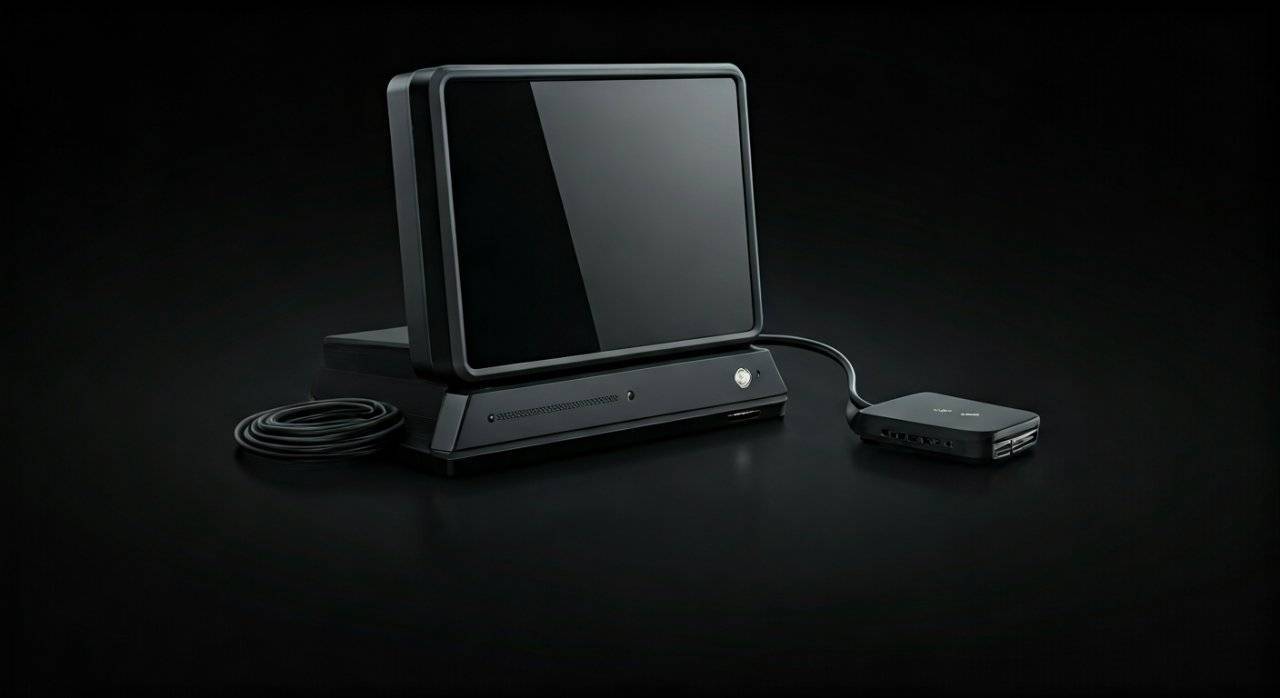
During the console’s peak, Microsoft sold a dedicated Xbox 360 HDMI Audio Adapter. This is a small dongle that plugs into the proprietary AV port but is thin enough to allow an HDMI cable to be plugged in simultaneously.
How to Set it Up:
- Plug the Audio Adapter into the large AV port on the back of the console.
- Plug your HDMI cable into the port right below it.
- The adapter provides two RCA jacks (Red and White) and an Optical port.
- Connect your RCA cables from the adapter to your powered speakers.
- If your speakers use a 3.5mm plug, you will need an RCA-to-3.5mm Female adapter.
Expert Insight: If you don’t want to buy the adapter, many gamers “mod” the standard AV cable by prying off the plastic casing with a screwdriver. This “shell hack” allows the standard cable to fit alongside the HDMI cable, though it may cause the console to reset if the cable is wiggled.
Method 3: Connecting via Optical Audio (Best for Surround Sound)
For those seeking the highest audio fidelity, the Toslink (Optical) connection is superior. It supports Dolby Digital 5.1 and avoids the electromagnetic interference often found in analog RCA setups.
Steps for Xbox 360 S Owners:
- Locate the S/PDIF port on the back of your Xbox 360 S.
- Remove the plastic protective caps from your Optical cable.
- Insert one end into the console and the other into your soundbar or AV receiver.
- In the Xbox Dashboard, go to Settings > System > Console Settings > Audio.
- Select Digital Output and choose Dolby Digital 5.1.
Pro-Tip: Make sure your external speakers are set to the “Optical” or “Digital” input source. If you hear nothing, check that the cable is clicked firmly into place; these connectors are notorious for being loose.
Method 4: The Budget RCA-to-3.5mm Connection
If you have the original AV cables (the ones with the Red, White, and Yellow plugs) and a set of computer speakers, this is the cheapest way to connect your Xbox 360 to external speakers.
What You Need:
- The standard Xbox 360 AV Cable.
- An RCA-to-3.5mm Y-Adapter (Female-to-Female).
The Setup Process:
- Connect the Xbox 360 AV cable to the console.
- Connect the Red and White RCA plugs into the RCA-to-3.5mm adapter.
- Leave the Yellow plug (Video) disconnected if you are using HDMI for video (note: this may cause the “reset” issue on older consoles).
- Plug your speakers into the 3.5mm end of the adapter.
- Ensure the speakers are powered/active (they must have their own power plug), as the Xbox 360 does not provide enough power for passive speakers.
Optimizing Your Xbox 360 Audio Settings
Once you have physically connected your hardware, you must configure the software to ensure the Xbox 360 sends the correct signal to your external speakers.
Stereo vs. Surround Sound
- Digital Stereo: Best for most 2.1 computer speakers. It provides clear, uncompressed 2-channel audio.
- Dolby Digital 5.1: Required for true surround sound. Only available via Optical or HDMI.
- Dolby Digital with WMA Pro: A niche setting for specific receivers. Generally, leave this off unless you know your hardware supports it.
System Sound Settings Table
| Setting | Use Case | Best Connection |
|---|---|---|
| Digital Stereo | PC Speakers / Headphones | 3.5mm or RCA |
| Dolby Digital 5.1 | Home Theater / Soundbars | Optical / HDMI |
| No Audio | Troubleshooting | Check “Display Discovery” |
Expert Tip: If you are using HDMI but getting no sound through your extractor, go to System Settings > Console Settings > Display > Display Discovery and set it to Disable. This forces the console to allow manual audio overrides.
Common Problems and Troubleshooting
Connecting legacy consoles to modern audio gear often results in a few common “gotchas.” Here is how we fix them in the field.
The “HDMI Reset” Issue
On older Xbox 360 models, if you plug in both an HDMI cable and a modified AV cable, the console will reboot whenever you switch inputs on your TV. This is caused by a “handshake” signal in the AV cable.
- The Fix: You must solder or bridge pins 20 and 28 on the internal AV connector, or simply use a dedicated HDMI audio extractor to avoid the AV port entirely.
Low Volume in Headphones
The Xbox 360 analog output is “Line Level.” This means it is designed to be amplified by a speaker system, not driven directly into high-impedance headphones.
- The Fix: Connect the Xbox 360 to a headphone amplifier or use a set of powered computer speakers that have a headphone jack on the front.
Audio Lag / Latency
If you are using a Digital-to-Analog Converter (DAC) or an older Soundbar, you might notice the sound is slightly behind the action on screen.
- The Fix: Turn off any “Audio Processing” or “Surround Enhancement” on your speakers. Set the Xbox 360 to Digital Stereo instead of Dolby Digital to reduce processing overhead.
Advanced: Connecting to a PC Sound Card
If you want to hear your Xbox 360 audio through your PC headset while also hearing your Discord or PC audio, you can route the console through your computer.
- Use an RCA-to-3.5mm cable (Male).
- Plug the Xbox 360 audio into the Blue “Line-In” port on your PC motherboard.
- In Windows, go to Sound Settings > Control Panel > Recording.
- Right-click Line In > Properties > Listen.
- Check the box for “Listen to this device.”
This allows the Xbox 360 sound to be mixed into your PC audio stream, which is perfect for streamers using a Capture Card.
Frequently Asked Questions
Can I use USB speakers with an Xbox 360?
No. The Xbox 360 does not support USB audio out for game sound. The USB ports are for data and charging controllers only. You must use the Optical, RCA, or HDMI outputs for game audio.
Does the Xbox 360 support Bluetooth speakers?
The Xbox 360 does not have a built-in Bluetooth chip for audio. To use Bluetooth speakers, you must connect a Bluetooth Transmitter to the 3.5mm or Optical output of your console or TV.
What if my monitor has no audio out?
If your monitor has no 3.5mm jack, your only options are to use an HDMI Audio Extractor or the Xbox 360’s proprietary AV ports with an adapter.
Will these methods work for the original Xbox (2001)?
The concepts are similar, but the Original Xbox uses a different proprietary AV port. You would need a Wii2HDMI style adapter or a specific Component/Optical breakout box for that console.
Can I use the Xbox 360 E with a 5.1 Surround Sound system?
Yes, but since it lacks an Optical port, you must use an HDMI receiver or an HDMI extractor that features a Toslink (Optical) output.









