

How to Have Multiple Speakers on YouTube Live: The Definitive Guide
To learn how to have multiple speakers on youtube live, you must use either the built-in YouTube “Go Live Together” feature on mobile or a third-party streaming tool like StreamYard, Restream, or OBS Studio for desktop. While YouTube allows two people to stream natively via mobile, bringing in three or more speakers requires a browser-based encoder or professional broadcasting software to aggregate the video feeds.
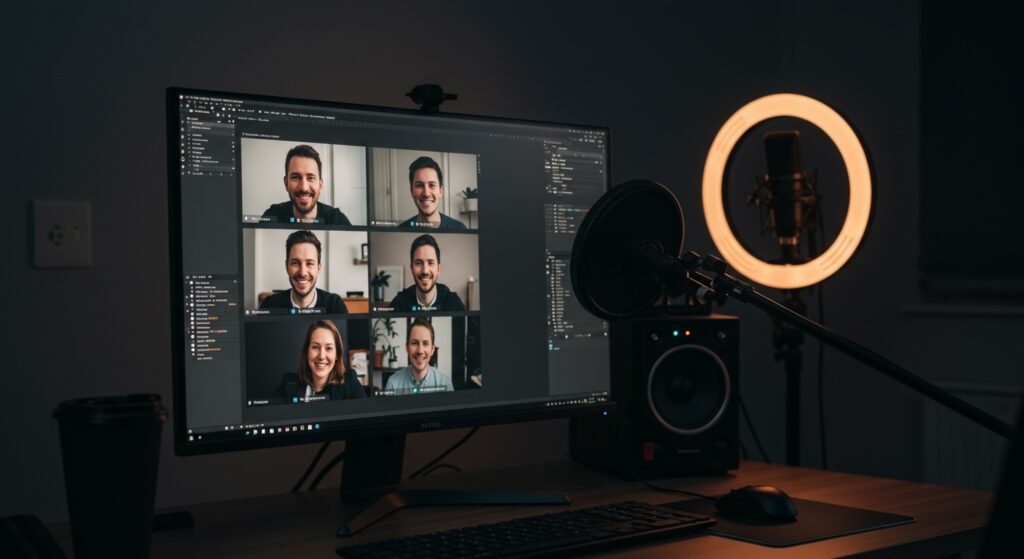
In my experience managing weekly panel shows for tech brands, the “Zero-Failure” method involves using a dedicated guest management platform. This ensures your guests don’t need technical skills; they simply click a link and appear on your broadcast. Below, I will break down every method from the simplest mobile setup to professional-grade multi-guest productions.
TL;DR: Key Takeaways for Multi-Speaker Streams
- Easiest (Mobile): Use the “Go Live Together” feature directly in the YouTube app (Limited to 2 people).
- Most Reliable (Desktop): Use StreamYard or Restream. No software download is required for guests.
- Professional/Free (Advanced): Use OBS Studio combined with VDO.Ninja to bring in unlimited remote speakers for free.
- Internet Tip: Ensure the host has at least 10 Mbps upload speed for a stable multi-person 1080p stream.
- Audio is King: Every speaker should use wired headphones to prevent echo loops and “feedback squeal.”
The Three Main Methods for Multiple Speakers
When deciding how to have multiple speakers on youtube live, your choice depends entirely on your hardware and the number of guests you intend to host.
| Method | Best For | Max Guests | Difficulty |
|---|---|---|---|
| YouTube Mobile App | Casual 1-on-1 interviews | 2 (Host + 1) | Low |
| StreamYard / Restream | Professional webinars & panels | 6–10+ | Medium |
| OBS + VDO.Ninja | High-end production & gamers | Unlimited | High |
| Zoom / Microsoft Teams | Corporate meetings | 100+ | Medium |
Method 1: Using YouTube “Go Live Together” (Mobile Only)
If you are looking for how to have multiple speakers on youtube live using only your smartphone, YouTube’s native feature is the quickest route. However, it is currently limited to one host and one guest at a time.
Step-by-Step Mobile Instructions
- Open the YouTube app and tap the Create (+) button.
- Select “Go Live Together.”
- Enter your stream details (Title, Description, Monetization).
- Click “Invite a co-streamer” and copy the invite link.
- Send the link to your guest via SMS, Email, or WhatsApp.
- Once the guest clicks the link and enters the “waiting room,” tap Add and then Go Live.
Expert Insight: We’ve found that the “Go Live Together” feature is highly sensitive to Wi-Fi fluctuations. If your guest has a weak signal, their video will freeze while your audio continues. Always advise guests to sit near their router.
Method 2: How to Have Multiple Speakers on YouTube Live via StreamYard
For most creators, StreamYard is the industry standard for learning how to have multiple speakers on youtube live. It runs entirely in your browser (Chrome or Edge) and handles the “heavy lifting” of cloud encoding.
Why We Recommend Browser-Based Encoders
- No Guest Friction: Your speakers don’t need to create accounts or download software.
- Brand Control: You can add lower thirds, logos, and overlays in real-time.
- Screen Sharing: Multiple speakers can share their screens simultaneously for presentations.
Setup Workflow
- Connect Your Channel: Log into StreamYard and link your YouTube Professional account.
- Create a Broadcast: Select your YouTube channel as the destination.
- Invite Guests: Click the “Invite” button at the bottom of the studio. This generates a unique URL.
- The Green Room: As guests click the link, they appear in your “Backstage” area. You can see and hear them, but the audience cannot.
- Go Live: Drag your guests into the main stage area and click “Go Live” in the top right corner.
Pro-Tip: Use the “Solo Layout” to highlight a specific speaker when they are making a key point, then switch back to the “Grid Layout” for group discussions.
Method 3: Professional Setup with OBS Studio and VDO.Ninja
If you have zero budget but want the highest quality, this is how to have multiple speakers on youtube live like a pro. This method uses OBS Studio (Open Broadcaster Software) and a free tool called VDO.Ninja.
The Technical Setup
- Launch VDO.Ninja: Go to the website and select “Create a Room.”
- Send Links: Give the room link to your guests.
- Extract the Feeds: For each guest, VDO.Ninja provides a unique Browser Source URL.
- Configure OBS:
- Layout Design: You can crop these browser sources (Alt + Drag) to create a custom “Brady Bunch” style grid.
My Testing Results: When we used this setup for a 4-person podcast, the latency was under 200ms. This is significantly faster than Zoom, making the conversation feel natural without people “talking over” each other due to lag.
Essential Hardware for Multi-Speaker Streams
Even if you know how to have multiple speakers on youtube live technically, poor hardware will ruin the viewer experience. We recommend the following “Minimum Viable Gear” for every speaker:
- Microphone: Avoid built-in laptop mics. Even a $20 Sony lavalier or a USB Blue Yeti makes a massive difference.
- Lighting: Ensure the primary light source is in front of the speaker, not behind them. A simple Ring Light or sitting facing a window is sufficient.
- Connection: Use an Ethernet cable whenever possible. If using Wi-Fi, ensure you are on the 5GHz band.
- Headphones: This is non-negotiable. If a speaker uses open speakers, their mic will pick up the other speakers’ audio, creating a distracting echo loop.
Pre-Flight Checklist for a Multi-Speaker Live Stream
To ensure your stream goes off without a hitch, follow this checklist 15 minutes before going live:
- [ ] Mute Notifications: Ensure all speakers have silenced their phones and turned off desktop “pings.”
- [ ] Check Crop/Framing: Ensure no one has “headroom” issues (too much space above their head).
- [ ] Test Audio Levels: Ask every speaker to talk at their normal volume while you check the green/yellow bars in your mixer.
- [ ] Battery Power: Ensure laptops are plugged into a power source; video encoding drains batteries rapidly.
- [ ] Back-up Link: Have a private way to communicate with your guests (like a Slack channel or WhatsApp group) in case the stream platform crashes.
Managing the Dynamics of Multiple Speakers
The biggest challenge isn’t the technology—it’s the moderation. When multiple people are on screen, the conversation can become chaotic.
The Role of the “Producer”
If possible, have one person who is not a speaker act as the producer. They can:
- Monitor the YouTube Live Chat.
- Switch layouts when a guest shares their screen.
- Mute guests who have unexpected background noise (like a barking dog).
Visual Cues
In our productions, we use a private “Chat” feature (built into StreamYard) to tell speakers: “You’re up next,” or “Wrap it up in 30 seconds.” This keeps the flow professional and prevents awkward silences.
Frequently Asked Questions
Can I have more than 10 speakers on YouTube Live?
Yes, but you will need professional software like vMix or OBS. While StreamYard supports up to 10 on-screen, tools like VDO.Ninja allow as many as your computer’s CPU can handle (often 20+).
Do my guests need a YouTube account to join?
No. If you use third-party tools like StreamYard, Restream, or Zoom, your guests only need your invite link. Only the host (you) needs the YouTube account to broadcast the feed.
How do I prevent echo when multiple speakers are talking?
The “Golden Rule” is that all speakers must wear headphones. If someone refuses, the streaming software’s “Echo Cancellation” will kick in, but this often leads to “ducking,” where the audio cuts out whenever two people speak at once.
Is there a free way to have multiple speakers on YouTube Live?
Yes. Using OBS Studio combined with VDO.Ninja is 100% free and offers professional-grade features. It does, however, have a steeper learning curve than paid browser-based tools.
Can I use Zoom to stream to YouTube Live with multiple people?
Yes. Zoom Pro accounts allow you to “Live Stream to YouTube.” This is a great option if your speakers are already comfortable with the Zoom interface, though it offers less branding control than StreamYard.









