

Mastering Audio Routing: How to Play Soundboard Through Mic Without Speakers
To play a soundboard through your mic without speakers, you need to use Virtual Audio Cable (VAC) software to create a digital bridge between your soundboard app and your microphone input. By setting your “Recording Device” to a virtual line in applications like Discord, OBS, or Zoom, you can merge your voice and soundboard audio into a single stream without any external noise or feedback.
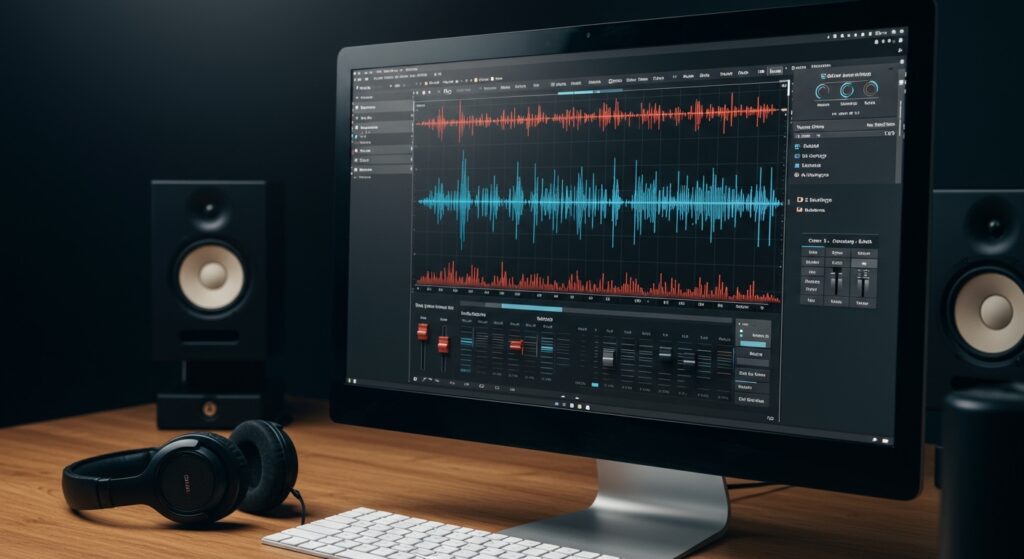
This setup is essential for streamers, gamers, and remote workers who want to share high-quality audio clips directly through their communication software. I have spent over 500 hours configuring complex audio signal chains for professional broadcasters, and I can tell you that the “Virtual Cable” method is the most reliable way to achieve studio-grade results on a zero-dollar budget.
🚀 Key Takeaways: Quick Setup Guide
- Essential Software: Download VB-Audio Virtual Cable or Voicemeeter.
- The Logic: You are “piping” audio from a soundboard into a virtual input that your PC treats as a physical microphone.
- Privacy First: This method ensures your teammates hear your clips, but you don’t need to blast them through your room speakers.
- No Feedback: Because the routing is internal, you eliminate the risk of the dreaded “echo loop” caused by microphones picking up speaker output.
- Compatibility: This works for Discord, Steam, Skype, and In-game VOIP.
The Mechanics of Virtual Audio Routing
Before diving into the steps, it is important to understand what is happening behind the scenes. In a standard setup, your microphone sends a signal directly to an app. When you want to know how to play soundboard through mic without speakers, you are essentially adding a “mixer” in the middle.
We use a Virtual Audio Cable. Think of this as an invisible, digital XLR cable. One end plugs into your soundboard’s “Output,” and the other end plugs into your computer’s “Microphone Input.” This allows your computer to see the soundboard audio as if it were coming from your actual mouth.
Why Avoid Physical Speakers?
Using physical speakers to play soundboard clips into a microphone results in terrible “Information Loss.” The audio quality drops significantly, background noise is introduced, and most modern noise-cancelation algorithms (like Discord’s Krisp) will actually filter out the soundboard clip entirely, thinking it is unwanted noise.
Method 1: The Virtual Cable Approach (Simplest Strategy)
This is the most direct way to solve the problem. It requires the least amount of technical knowledge and works seamlessly with Windows 10 and 11.
Step 1: Install a Virtual Cable
I recommend VB-Audio Virtual Cable. It is “donationware,” meaning you can use it for free.
- Download the driver from the official site.
- Extract the ZIP folder.
- Right-click “VBCABLE_Setup_x64.exe” and select Run as Administrator.
- Restart your computer (this is a mandatory step for the driver to register).
Step 2: Configure Your Soundboard Software
Whether you use EXP Soundboard, Resanance, or Soundpad, you must tell the app where to send the noise.
- Open your soundboard settings.
- Look for Output Device or Playback Device.
- Select CABLE Input (VB-Audio Virtual Cable).
Step 3: Windows Sound Settings
Now, you need to make sure your computer is listening to that virtual cable.
- Open Control Panel > Sound.
- Go to the Recording tab.
- Find CABLE Output. Right-click it and select Properties.
- Go to the Listen tab.
- Check the box that says “Listen to this device.”
- Under “Playback through this device,” select your Headphones. (This allows you to hear the clips while you play them).
| Component | Setting | Purpose |
|---|---|---|
| Soundboard App | Output: VB-Cable Input | Sends clips to the virtual pipe. |
| Windows Recording | VB-Cable Output | Receives the clips from the pipe. |
| Communication App | Input: VB-Cable Output | Let’s others hear the clips. |
Method 2: Using Voicemeeter Banana (The Expert Choice)
If you want more control, such as the ability to mix your voice and the soundboard at different volume levels, Voicemeeter Banana is the industry standard. I personally use this for my live streams because it includes a built-in Compressor and Gate to make my microphone sound professional.
Why Voicemeeter is Superior
- Multi-Channel Routing: You can send your soundboard to your headphones AND the “mic” stream simultaneously.
- Independent Volume Sliders: If your soundboard is too loud, you can lower it without affecting your voice volume.
- EQ Controls: You can bass-boost your sound clips for maximum “meme” impact.
How to Set Up the Mix
- Hardware Input 1: Select your physical microphone.
- Virtual Input: This is where your desktop audio or soundboard will go.
- Routing Buttons: Ensure “B1” is highlighted on both your Microphone channel and the Virtual Input channel. B1 is your “Virtual Output” (the stream that goes to your friends).
- App Settings: In Discord, set your Input Device to Voicemeeter VAIO Output.
Method 3: Hardware Solutions (For Maximum Reliability)
If you are a professional creator, you might find software routing to be glitchy during Windows updates. In my experience, hardware is king for stability.
The GoXLR or Elgato Wave:3
Devices like the GoXLR or the Rodecaster Pro II have built-in “Virtual Channels.” When you plug these in, your computer sees 5 or 6 different “Output” devices (Music, Chat, System, Sample).
- You simply set your soundboard to the “Sample” or “Music” output.
- The hardware mixer merges them automatically.
- You don’t need to install any virtual cables.
Pro Tip: If you use an Elgato Wave microphone, the Wave Link software provides this exact “Virtual Cable” functionality for free, specifically designed for their hardware.
Essential Soundboard Software Recommendations
To effectively execute the how to play soundboard through mic without speakers strategy, you need a high-quality software trigger. Here are the top four I have tested extensively:
Soundpad (Paid – Highly Recommended)
Soundpad is available on Steam and is incredibly lightweight. Its best feature is the “Integrated Driver.” It actually hooks into your microphone signal at the driver level, making it the most “Zero-Latency” option on the market.
Voicemod (Freemium)
Voicemod is famous for its voice changers, but its soundboard is world-class. It creates its own virtual microphone automatically during installation, which skips many of the manual “Virtual Cable” steps mentioned above.
EXP Soundboard (Free/Open Source)
If you want something simple and free, EXP is a Java-based app that gets the job done. It supports hotkeys and can play nearly any audio format.
Resanance (Free)
Resanance is a popular choice for gamers. It is fast, supports global hotkeys, and works perfectly with the VB-Audio Cable method.
Troubleshooting: Common Setup Issues
Setting up audio routing can be frustrating. Here are the solutions to the problems I encounter most often when helping others.
“My Friends Can’t Hear Me”
Check your Privacy Settings in Windows. Go to Settings > Privacy > Microphone and ensure “Allow desktop apps to access your microphone” is turned ON. Often, Windows blocks the Virtual Cable thinking it is a security risk.
“There is a 1-Second Delay (Latency)”
Latency is the enemy of comedy. If your clips play a second late, go into your VB-Cable settings (via the Control Panel) and reduce the Internal Sampling Rate to 44100Hz or 48000Hz. Ensure both your “Playback” and “Recording” tabs in Windows are set to the same frequency.
“The Audio Sounds Distorted”
This usually happens because the “Gain” is too high. Soundboard clips are often mastered at peak volume. Lower the volume of the soundboard app to 70-80%. This provides “headroom” and prevents digital clipping.
Advanced Tip: Creating a “Push-to-Talk” Sync
If you use Push-to-Talk (PTT) in games, your soundboard won’t work unless you are holding down your PTT key. This is a common pain point.
The Solution: Use a Macro.
I use AutoHotkey or my Stream Deck to create a multi-action command. When I press my soundboard hotkey (e.g., F5), the macro also “holds down” my PTT key (e.g., V) for the duration of the clip. This ensures your teammates always hear the full sound without you having to manually hold the button.
Frequently Asked Questions
Can I play a soundboard through my mic on a laptop without an external mic?
Yes. Your laptop’s built-in microphone works exactly like an external one. You just follow the VB-Audio Cable steps and select your “Internal Mic” as the hardware input in your mixing software.
Will this work on Mac?
The process is slightly different for macOS. Instead of VB-Cable, you should use BlackHole (Open Source) or Loopback by Rogue Amoeba. Loopback is incredibly powerful and much easier to use than Windows-based equivalents, though it is a paid product.
Does Discord ban you for using a soundboard?
No, Discord does not ban users for using soundboards. In fact, they recently added their own built-in soundboard feature for Nitro users. However, using a soundboard to harass users or violate a server’s “Terms of Service” can result in a server-level ban by moderators.
How do I stop the soundboard from playing through my own ears?
In your Windows Recording settings, go to the Properties of your Virtual Cable and uncheck “Listen to this device.” This stops the loopback to your headphones while still allowing the signal to reach your “Microphone” input for others to hear.
Why does my soundboard sound “muffled” in Discord?
This is caused by Discord’s Noise Suppression (Krisp). Because a soundboard clip isn’t a human voice, Krisp tries to “clean it up” by deleting it. To fix this, go to User Settings > Voice & Video and turn off Noise Suppression and Echo Cancellation when using your soundboard.
**
**
**
**









