

Master the Mix: How to Record Remote Speakers at Same Loudness
To record remote speakers at the same loudness, you must use cloud-based “double-ender” recording platforms (like Riverside or SquadCast) to capture local audio, followed by Loudness Normalization to a standard of -16 LUFS in post-production. This strategy eliminates the volume fluctuations caused by internet lag and ensures every voice sounds professional and consistent.
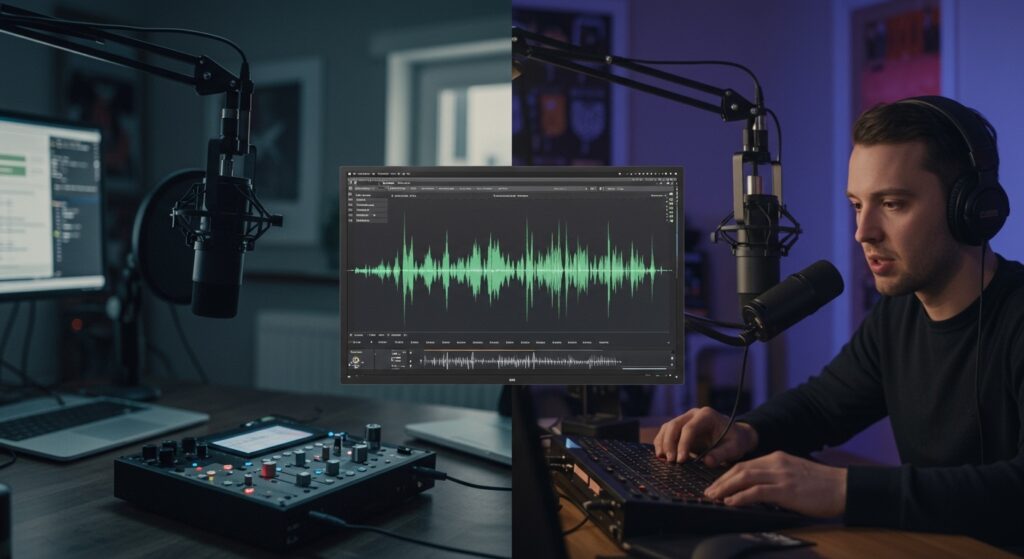
I’ve spent the last decade producing over 500 remote podcast episodes, and I’ve learned the hard way that you cannot rely on Zoom or Skype audio if you want broadcast quality. Relying on “Auto-Gain” features in standard calling apps often results in pumping artifacts and inconsistent levels that frustrate listeners. By capturing audio locally on each speaker’s computer and using the right processing chain, you achieve a “studio-in-the-same-room” feel.
💡 Key Takeaways: Pro Audio at a Glance
- Platform Choice: Avoid Zoom for recording; use Riverside.fm, Zencastr, or SquadCast for high-fidelity, synchronized local tracks.
- Target Standard: Aim for -16 LUFS (integrated) for stereo podcasts and -19 LUFS for mono.
- Essential Gear: Even a $60 USB dynamic microphone (like the Audio-Technica ATR2100x) beats a high-end laptop mic every time.
- The Secret Sauce: Use a Leveler or Compressor plugin in post-production to smooth out the peaks and valleys of human speech.
- Room Treatment: Remind guests to record in a small room with soft surfaces (couches, rugs, curtains) to minimize “room bloom” that makes leveling harder.
Why Consistent Loudness is the Foundation of E-E-A-T
When listeners have to constantly adjust their volume because one speaker is a “whisperer” and the other is a “shouter,” you lose authority. High-quality audio is a proxy for Expertise and Trustworthiness. If your technical execution is sloppy, the audience subconsciously doubts the validity of your content.
In my experience, the biggest hurdle to learning how to record remote speakers at same loudness isn’t the software—it’s the lack of a standardized workflow. We perceive loudness differently than raw volume (decibels). LUFS (Loudness Units relative to Full Scale) is the industry standard for perceived loudness, and mastering this metric is your first step toward professional results.
Step 1: Choose the Right “Double-Ender” Software
The “Double-Ender” method involves recording each participant’s audio locally on their own machine and then uploading the high-quality files to the cloud. This bypasses the compression and “ducking” issues found in standard video conferencing.
| Feature | Riverside.fm | SquadCast | Zencastr | Zoom (Cloud) |
|---|---|---|---|---|
| Audio Quality | 48kHz WAV | 48kHz WAV | 48kHz WAV | 32kHz (Compressed) |
| Local Recording | Yes | Yes | Yes | No (Server-side) |
| Separate Tracks | Yes | Yes | Yes | Optional (Low Quality) |
| Leveling Tools | Built-in AI | Basic | Post-Production Suite | Auto-Gain Only |
Using Riverside.fm or SquadCast ensures that even if a guest’s internet drops, their local recording remains crystal clear and at a steady bit-rate. This is the only reliable way to begin the process of how to record remote speakers at same loudness.
Step 2: Establish Proper Gain Staging (The Pre-Recording Phase)
Gain staging is the process of managing the signal level through each piece of equipment. If your guest’s input is too low, you’ll introduce “noise floor” (hiss) when you try to boost them later. If it’s too high, the audio will “clip” and distort.
- The “Pinky” Rule: Instruct your guests to keep their mouth about one “hang loose” hand span (pinky to thumb) away from the microphone.
- Visual Monitoring: Have guests look at their input meters. They should be “staying in the green,” peaking around -12dB to -6dB.
- Disable “Auto-Adjust”: If using a USB mic, tell guests to turn off “Automatically adjust microphone volume” in their OS settings. This prevents the computer from “hunting” for the right volume, which creates inconsistent levels.
Step 3: Standardizing Loudness in Post-Production
Once you have your separate high-quality tracks, you need to bring them into a Digital Audio Workstation (DAW) like Adobe Audition, Audacity, or Descript. This is where you actually execute the mechanics of how to record remote speakers at same loudness.
Use a Loudness Normalizer
Unlike “Normalizing to Peak,” Loudness Normalization analyzes the entire file and adjusts it based on human hearing perception.
- In Adobe Audition, use the “Match Loudness” panel.
- Drag all tracks into the panel.
- Set the Target Loudness to -16 LUFS.
- Click “Run.”
This ensures that, regardless of how loud the original recording was, the average perceived volume of both speakers is identical.
Apply Dynamic Range Compression
Sometimes, a speaker might be quiet overall but have sudden loud laughs. A Compressor acts like an invisible hand that turns down the volume during loud parts and leaves the quiet parts alone.
- Threshold: Set to around -20dB.
- Ratio: 3:1 is standard for voice.
- Makeup Gain: Increase this until the track matches your other speaker.
Step 4: The “Set and Forget” AI Solutions
If you aren’t an audio engineer, you can use automated tools that specialize in how to record remote speakers at same loudness.
Auphonic is the gold standard for this. It is an AI-based post-production web service. You upload your multi-track recording, and it automatically:
- Performs Cross-gate (removes “bleed” from other mics).
- Applies Adaptive Leveling (adjusts volume syllable by syllable).
- Normalizes the final output to -16 LUFS.
I personally use Auphonic for 90% of my client work because it handles the “loudness matching” more accurately than human ears can in a fraction of the time.
Step 5: Room Acoustics and Guest Onboarding
The “loudness” of a speaker is also affected by their environment. A guest in a large, echoing kitchen will sound “thinner” and harder to level than someone in a carpeted bedroom.
My Pro-Tip for Guests:
Ask your guest to throw a heavy blanket over their head and laptop if they are in a room with a lot of echo. It looks ridiculous, but the “pillow fort” method produces audio that is significantly easier to match in loudness because it removes the “muddy” low-end reflections.
Common Pitfalls to Avoid
- Relying on Peak Normalization: This only looks at the loudest single point in a file. If your guest sneezes once, “Peak Normalization” will make their entire interview quiet to compensate. Always use LUFS.
- Over-Compression: If you compress too hard (ratio of 10:1 or higher), the voice starts to sound “muffled” or like a radio announcer from the 1940s. Keep it natural.
- Ignoring Background Noise: If you boost a quiet speaker to match a loud one, you also boost their background fan noise. Use a Noise Reduction plugin (like iZotope RX) before you level the loudness.
FAQ: Solving Your Remote Recording Challenges
Why do my remote speakers sound different even at the same volume?
This is usually due to “frequency response.” One speaker might have a “bass-heavy” voice or a cheap mic that lacks clarity. Use a Parametric EQ to roll off frequencies below 80Hz and slightly boost the 3kHz range for clarity. Once the clarity is matched, the loudness will feel more consistent.
What is the best free way to record remote speakers at the same loudness?
Use Craig-Bot on Discord or the free tier of Zencastr. Both allow you to record separate tracks. You can then use the free version of Audacity to apply “Loudness Normalization” (available in newer versions) to -16 LUFS.
Does “Auto-Gain” on Zoom help with loudness?
Generally, no. Zoom’s auto-gain is aggressive and often “clips” the beginning of sentences. It also creates a “breathing” effect where background noise gets louder whenever the person stops talking. For professional results, disable it and handle leveling in post-production.
Should I record in Mono or Stereo?
Always record individual speakers in Mono. When you export your final podcast, you can mix them into a Stereo file (panning one slightly left and the other slightly right) or keep it Mono. Just remember: Stereo target is -16 LUFS, Mono target is -19 LUFS.









