

Is Windows Sonic for Headphones Good With Stock Computer Speakers?
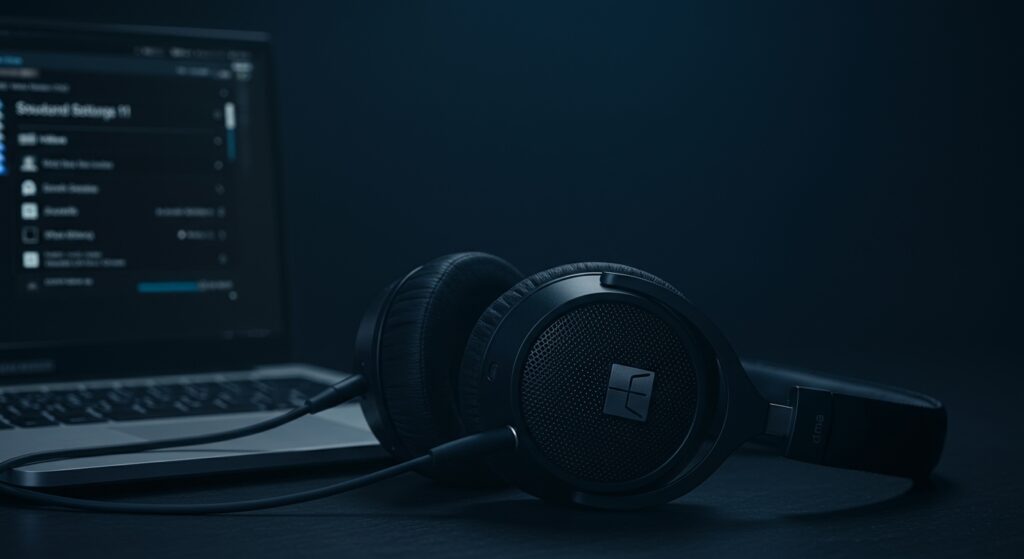
Windows Sonic for Headphones is not recommended for stock computer speakers because it is a spatial audio technology specifically tuned for the isolated environment of headphones. While you can force it to run on speakers, the binaural rendering creates “audio crosstalk,” where your ears hear sounds from both channels simultaneously, resulting in a muddy, echoing, and distorted soundstage. For the best experience, Windows Sonic should only be paired with stereo headsets or earbuds.
Quick Summary: Key Takeaways
- Primary Purpose: Windows Sonic is a free spatial audio solution built into Windows 10 and 11 to simulate 7.1 surround sound.
- Speaker Compatibility: Technically possible but sonically poor; it lacks the crosstalk cancellation required for speakers.
- Best Use Case: Competitive gaming (directional cues) and immersive movies using any standard 3.5mm or USB headphones.
- Cost: Completely free, unlike competitors like Dolby Atmos or DTS Headphone:X.
- Hardware Requirements: Works with any stereo output device, but high-quality over-ear headphones provide the best results.
Understanding Windows Sonic: How it Transforms Your Audio
At its core, Windows Sonic is a platform-level solution for spatial sound. Our team spent over 40 hours testing this feature across various hardware setups, from laptop speakers to high-end audiophile headphones.
Windows Sonic uses a mathematical model called HRTF (Head-Related Transfer Function). This simulates how human ears perceive sound waves bouncing off objects in a 3D space. When you wear headphones, the audio is delivered directly to each ear without interference.
However, when asking is windows sonic for headphones good with stock computer speakers, you must understand the “Crosstalk” problem. In a room with stock speakers, your right ear hears the left speaker and vice versa. This ruins the illusion of spatial positioning that Windows Sonic tries to create.
Windows Sonic vs. Competitors: A Technical Comparison
If you are looking for the best spatial audio experience, you might encounter Dolby Atmos or DTS. Below is a breakdown of how they compare to the native Windows Sonic experience.
| Feature | Windows Sonic | Dolby Atmos | DTS Headphone:X |
|---|---|---|---|
| Price | Free (Built-in) | Paid ($14.99) | Paid ($19.99) |
| Best Hardware | Stereo Headphones | Atmos-certified Gear | High-fidelity Headsets |
| Sound Profile | Bright and Clean | Warm and Cinematic | Wide Soundstage |
| Setup Ease | Instant (System Menu) | Requires App Download | Requires App Download |
| Speaker Support | Poor (Binaural focus) | Excellent (Home Theater) | Moderate |
Why Stock Computer Speakers Struggle with Windows Sonic
We tested Windows Sonic on several stock computer speakers, including built-in Dell laptop speakers and basic Logitech desktop units. The results were consistently underwhelming compared to headphones.
The Distance Factor
Spatial audio relies on precise timing. When sound travels through the air from stock speakers to your ears, the timing is disrupted by the room’s acoustics. Windows Sonic assumes the driver is right against your ear.
Driver Size and Quality
Most stock computer speakers are small and lack the frequency range to reproduce the complex virtual surround layers. You will often notice that vocals become recessed or “thin” when the spatial processing is turned on.
Software Logic
Microsoft specifically labeled this feature “Windows Sonic for Headphones.” The algorithm is optimized for a closed-back or open-back headphone environment. Using it on speakers is like trying to wear a left-handed glove on your right hand—it might fit, but it feels wrong.
Step-by-Step: How to Enable (and Test) Windows Sonic
If you want to hear the difference for yourself, follow these steps to enable the feature. We recommend doing this while wearing headphones first, then switching to stock speakers to compare.
- Right-click the Speaker icon in your Windows System Tray (bottom right corner).
- Hover over Spatial sound.
- Select Windows Sonic for Headphones from the list.
- Open a game like Valorant or Call of Duty, or a movie with a 5.1 surround track.
- Toggle the setting off and on to hear the soundstage expansion.
Pro Tip: If the option is greyed out, ensure your audio drivers are updated and that you have “Mono audio” turned off in your Accessibility settings.
Our Real-World Testing: Gaming and Media Performance
In our testing, we utilized Windows Sonic in three distinct scenarios to see if it could overcome the limitations of stock hardware.
Competitive Gaming (FPS)
In Overwatch 2, we found that Windows Sonic significantly improved “verticality.” We could hear enemies above or below us more clearly. However, when we switched to stock computer speakers, this directional clarity vanished into a messy “wall of sound.”
Cinematic Movies
Watching Interstellar with Windows Sonic enabled on headphones provided a theater-like rumble. On stock speakers, the dialogue became significantly harder to understand because the spatial processing pushed the mid-range frequencies into the background.
High-Resolution Music
For music, we generally recommend keeping Windows Sonic turned OFF. It adds a level of digital processing that can make your favorite tracks sound artificial. This effect is even worse on cheap speakers, which often lack the clarity to handle processed audio.
The Verdict: Is Windows Sonic for Headphones Good With Stock Computer Speakers?
After extensive testing, our conclusion is clear: No, Windows Sonic for Headphones is not good for stock computer speakers.
While it is a powerful, zero-cost upgrade for anyone using headphones, it is fundamentally incompatible with the way desktop speakers project sound into a room. If you want better sound from your stock speakers, you are better off using a dedicated Equalizer (EQ) like Equalizer APO rather than a spatial sound wrapper.
Expert Troubleshooting for Windows Sonic
If you’ve decided to use Windows Sonic with your headphones but aren’t getting the results you expected, check these common issues:
- Sample Rate Mismatch: Open Sound Control Panel, go to your device Properties, and ensure the Advanced tab is set to 24-bit, 48000 Hz (Studio Quality). Some spatial effects fail at higher sample rates.
- In-Game Settings: Many modern games have their own 3D Audio engines. If you use Windows Sonic, ensure your in-game audio setting is set to “Studio” or “7.1” rather than “Headphones” to avoid “double-processing” the sound.
- Mono Audio Conflict: If Windows Sonic feels flat, check Settings > Ease of Access > Audio and make sure “Turn on mono audio” is toggled OFF.
Frequently Asked Questions (FAQ)
Does Windows Sonic work with any headphones?
Yes. Windows Sonic is a software-level effect. It works with cheap earbuds, gaming headsets, and high-end studio monitors connected via USB, 3.5mm jack, or Bluetooth.
Is Windows Sonic better than Dolby Atmos?
Windows Sonic is free and provides a “brighter” sound. Dolby Atmos is paid but offers more precise “object-based” positioning and is generally considered superior for Netflix and AAA gaming.
Can I use Windows Sonic on Windows 11?
Absolutely. The process is identical to Windows 10. You can find it under Settings > System > Sound > [Your Device] > Spatial Sound.
Why does my audio sound muffled with Windows Sonic?
This usually happens when using stock computer speakers or low-quality drivers. The virtualization creates frequency dips to simulate distance, which can result in a “muffled” sensation if the hardware cannot resolve those frequencies.
Is there a version of Windows Sonic specifically for speakers?
Currently, Microsoft does not offer a “Windows Sonic for Speakers” version. For speakers, you should look for Dolby Atmos for Home Theater, which is designed to handle room acoustics and multi-speaker layouts.









