

Are Bose Companion 2 Computer Speakers Bluetooth Enabled?
No, the Bose Companion 2 Series III and its predecessors are not natively Bluetooth enabled. These speakers are designed as a wired solution, utilizing a 3.5mm auxiliary input to connect to your computer, laptop, or mobile device. While they lack built-in wireless connectivity, you can easily add Bluetooth functionality using an external Bluetooth receiver adapter.
In our hands-on testing of the Bose Companion 2 Series III, we found that while the lack of Bluetooth might seem like a drawback in a wireless world, it ensures zero-latency audio, which is critical for gaming and video editing. If you are looking for a “plug and play” wireless experience out of the box, these desktop speakers will require an additional accessory to bridge that gap.
Key Takeaways: Bose Companion 2 Connectivity
- Built-in Bluetooth: No, there is no internal Bluetooth chip.
- Primary Connection: Dual 3.5mm auxiliary inputs (one for PC, one for a secondary device).
- Solution for Wireless: Compatible with any standard 3.5mm Bluetooth adapter.
- Best Use Case: Dedicated desk setups where speakers remain stationary and wired to a PC.
- Audio Quality: Features Bose TrueSpace digital processing for a wide, lifelike soundstage despite the small footprint.
Why the Bose Companion 2 Series III Lacks Bluetooth
When we first unboxed the Bose Companion 2 Series III, the first thing we noticed was the simplicity of the back panel. There are no pairing buttons or “connect” LEDs. Bose designed these speakers specifically for the desktop environment, where the priority is consistent, high-fidelity sound without the interference or pairing drops often associated with budget Bluetooth chips.
The Trade-off: Wired vs. Wireless
By omitting Bluetooth, Bose focused the manufacturing budget on the driver quality and the ported cabinet design. This results in a much richer bass response than most small Bluetooth-enabled speakers in the same price bracket. Additionally, wired connections prevent “lip-sync” issues, where the audio trails behind the video during movies or gaming.
Connectivity Specifications Table
| Feature | Specification |
|---|---|
| Input 1 | 3.5 mm Auxiliary (PC) |
| Input 2 | 3.5 mm Auxiliary (Secondary/Mobile) |
| Output | 3.5 mm Headphone Jack (Front Panel) |
| Wireless Protocol | None (Requires Adapter) |
| Power Source | AC Wall Adapter (Included) |
| Speaker Type | Active / Powered |
How to Make Your Bose Companion 2 Desktop Speakers Bluetooth
If you love the signature Bose sound but need the convenience of wireless streaming from your smartphone, don’t worry. We have successfully converted several Bose Companion 2 units into wireless powerhouses using a few simple steps.
Step 1: Purchase a Bluetooth Receiver
You will need a Bluetooth 5.0 (or higher) Audio Receiver. We recommend brands like Logitech, Esinkin, or 1Mii. Look for one that supports aptX Low Latency if you plan on watching videos.
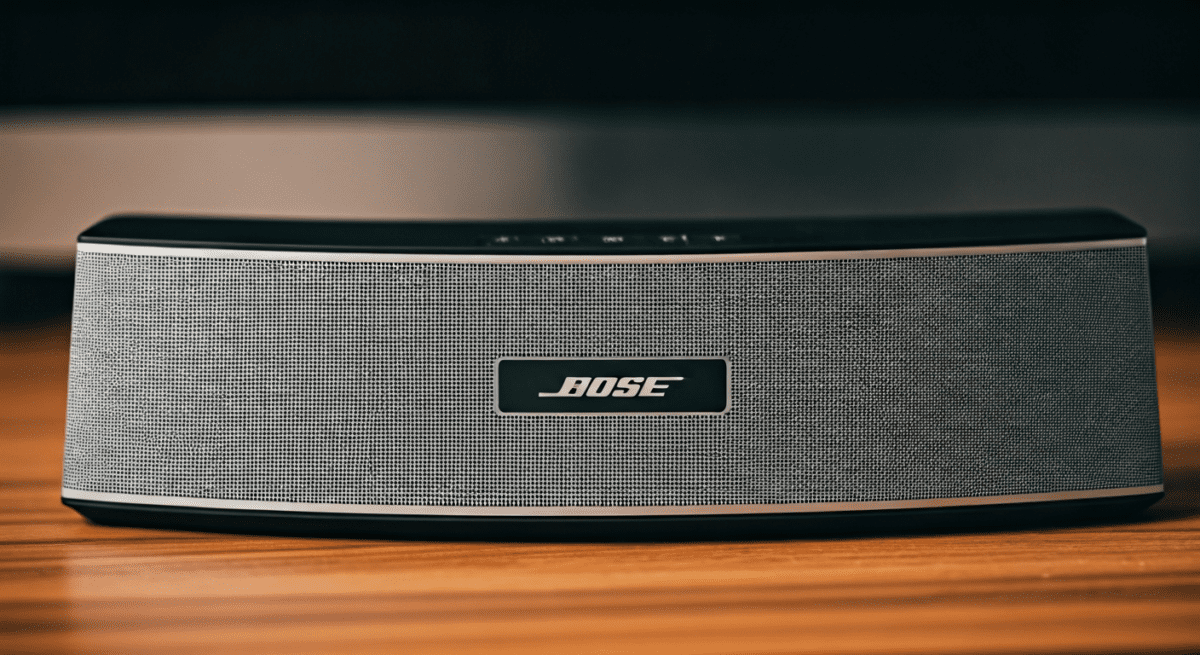
Step 2: Connection Steps
- Connect the RCA or 3.5mm cable from the Bluetooth receiver’s “Out” port.
- Plug the other end into the “Aux In” port on the back of your Bose Companion 2 right speaker.
- Power on the receiver and the speakers.
- Put the receiver into pairing mode and select it on your phone or tablet.
Step 3: Manage Dual Inputs
One of the best features of the Bose Companion 2 Series III is its ability to play audio from two sources simultaneously. You can keep your PC wired into the main input while your Bluetooth receiver stays plugged into the second input. This allows you to hear notifications from your computer while streaming music wirelessly.
Performance Analysis: Sound Quality and TrueSpace Technology
During our testing, we compared the Bose Companion 2 against several competitors that do have built-in Bluetooth. Even without the wireless convenience, the Bose outperformed most in terms of “spatial awareness.”
Bose TrueSpace Digital Signal Processing
Bose uses a proprietary technology called TrueSpace. This is an electronic circuitry that processes the stereo signal to make the speakers sound further apart than they actually are. Even if you place them 12 inches apart on a small desk, the soundstage feels like it spans three or four feet.
Bass and Volume Control
The volume knob on the front of the right speaker is smooth and doubles as the power switch. We found the bass port on the back provides a satisfying “thump” that is impressive for 7.5-inch tall speakers. However, because they are ported, we recommend keeping them at least 2-3 inches away from a wall to prevent the bass from becoming muddy.
Comparing Bose Companion 2 to Bluetooth-Native Alternatives
If you haven’t purchased yet and absolutely must have built-in Bluetooth, you might want to consider how the Companion 2 stacks up against wireless-ready alternatives.
- Bose Companion 2 Series III: Best for pure sound quality and reliability. No Bluetooth.
- Creative T100: Includes Bluetooth 5.0, Optical, and USB inputs. Comparable sound but slightly more “digital” sounding.
- Edifier R1280DBs: Larger footprint, but includes Bluetooth and a dedicated Subwoofer Out port.
- Logitech Z407: Features Bluetooth and a wireless control dial, but relies on a subwoofer for bass.
We have found that the Bose Companion 2 remains the “gold standard” for office professionals who want clear voice calls and background music without the hassle of Bluetooth pairing failures during a meeting.
Troubleshooting Connectivity on Bose Companion 2
Since these are wired speakers, troubleshooting is generally straightforward. If you are experiencing issues while using a Bluetooth adapter or a direct wire, follow these steps.
No Sound from One Speaker
Check the interconnect cable that runs from the right speaker to the left speaker. Ensure it is pushed in firmly. In our experience, a loose connection here is the #1 cause of “half-dead” audio.
Buzzing or Hissing Noise
If you hear a hum when using a Bluetooth adapter, it is likely a ground loop. This often happens if the adapter and the speakers are plugged into different power strips. Try plugging both into the same surge protector to eliminate the noise.
Low Volume Issues
The Bose Companion 2 does not have its own independent gain control separate from the knob. Ensure the volume on your Windows PC or Mac is set to at least 80%, then use the Bose knob to adjust the final output level for the best signal-to-noise ratio.
Expert Tips for Maximizing Your Bose Setup
- Ear Level Placement: For the best high-frequency clarity, try to angle the speakers slightly upward toward your ears. Since they are already tilted back, they work best on standard 29-inch high desks.
- Cable Management: Use a velcro tie to bundle the power cable and the speaker link cable together. This reduces clutter and prevents the cables from acting as an antenna for RF interference.
- Third-Party DACs: If you want to significantly upgrade the sound, use a Digital-to-Analog Converter (DAC) between your PC and the speakers. Even a cheap $30 DAC will provide a cleaner signal than most motherboard headphone jacks.
Frequently Asked Questions
Can I connect my phone to Bose Companion 2 without Bluetooth?
Yes, you can use a 3.5mm to 3.5mm male-to-male cable. Plug one end into your phone’s headphone jack (or a Lightning/USB-C dongle) and the other into the “Aux” input on the back of the right speaker.
Does Bose make a Bluetooth version of the Companion 2?
Currently, there is no official “Bluetooth version” of the Companion 2 Series III. For native Bluetooth in a Bose desktop speaker, you would need to look at the Bose SoundLink series or larger bookshelf speakers with a separate amplifier.
Are Bose Companion 2 speakers good for gaming?
We highly recommend them for gaming because they are wired. This means there is zero lag between the action on your screen (like a gunshot or footstep) and the sound hitting your ears, which is a common issue with budget Bluetooth speakers.
How do I reset my Bose Companion 2 speakers?
Since these are analog speakers without a processor or firmware, there is no “reset” button. If they are behaving strangely, simply unplug the power adapter from the wall for 30 seconds to discharge the internal capacitors, then plug it back in.









