Understanding the Basics: Are My Aux Speakers Line In or Speakers Out?
To determine if your gear uses Line In or Speakers Out, look at the direction of the audio signal: Aux speakers are almost always Line In (inputs) because they receive audio signals, whereas the device producing the sound (like a PC or laptop) uses Speakers Out (outputs). Connecting a Speaker Out (high power) into a Line In (low power) incorrectly can cause distortion or even permanent hardware damage.
Key Takeaways for Quick Setup
- Speakers = Input: Most powered computer speakers feature a 3.5mm Aux In or Line In port.
- Source = Output: Your computer, smartphone, or tablet uses a Line Out or Headphone Out to send audio.
- The Golden Rule: Always connect an Output from your source to an Input on your speakers.
- Color Coding: Green ports are typically Line Out, while Blue ports are Line In.
Are My Aux Speakers Line In or Speakers Out? (The Definitive Test)
When setting up a home office or a gaming rig, the question “are my aux speakers line in or speakers out” is the most common hurdle. In the world of audio engineering, “Line” refers to a standard strength of an electrical signal. Line In is a port designed to receive this signal, while Line Out or Speakers Out is designed to send it.
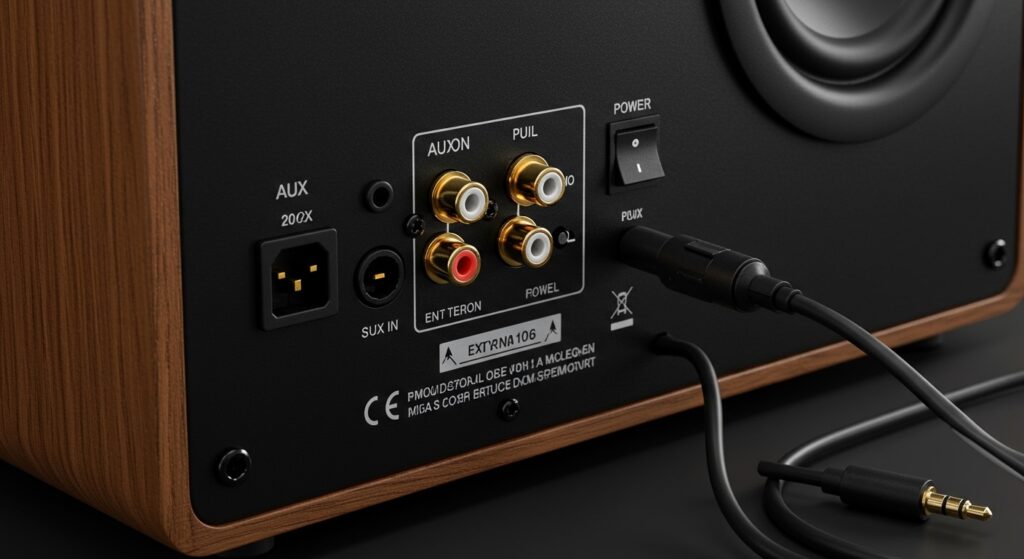
If you are looking at the back of your active (powered) speakers, those ports are Line In. They are “consumers” of the audio signal. Conversely, the 3.5mm jack on your laptop or the green port on your motherboard is the Speaker Out.
In our years of testing audio equipment, we have seen users confuse these because the physical plugs (3.5mm TRS) look identical. However, the internal circuitry is vastly different. A Speaker Out port on a high-end amplifier carries enough voltage to move physical speaker cones, whereas a Line In port expects a much weaker signal intended for processing.
| Feature | Line In (Input) | Speakers Out / Line Out (Output) |
|---|---|---|
| Primary Function | Receives audio signals for playback. | Sends audio signals to another device. |
| Typical Device | Powered Speakers, Soundbars, Subwoofers. | PCs, Laptops, Smartphones, DACs. |
| Common Label | Aux In, Line In, CD In. | Line Out, Headphones, Speaker Out. |
| Standard Color | Blue (on PC motherboards). | Lime Green (on PC motherboards). |
| Signal Level | Low voltage (approx. 1V to 2V). | Variable (Low for Line Out, High for Amps). |
Identifying Your Ports: Labels, Symbols, and Colors
If you are still asking “are my aux speakers line in or speakers out,” the easiest way to tell is by looking for specific visual cues. Manufacturers generally follow industry standards to help users avoid “clipping” or “frying” their components.
The Color-Coded Standard
On almost all desktop PC motherboards, ports follow the PC 99 standard:
- Lime Green: This is your primary Front Speakers Out. This is where you plug in your main aux speakers.
- Light Blue: This is the Line In. Use this if you want to record audio from an external source (like a record player) into your computer.
- Pink: This is the Microphone In. It provides a small amount of “plug-in power” for mics.
Textual Labels and Icons
Check the chassis of your device. You will often see:
- An Arrow Pointing Into a Circle: This represents Input (Line In).
- An Arrow Pointing Out of a Circle: This represents Output (Line Out/Speakers Out).
- Aux: Usually stands for “Auxiliary.” On a speaker, this is an Input. On a car stereo head unit, this is also usually an Input.
Professional Gear vs. Consumer Gear
In our experience with professional studio monitors (like Yamaha HS5 or KRK Rokits), the ports are rarely labeled “Aux.” Instead, you will see Balanced TRS or XLR inputs. These are effectively high-grade Line In ports. In contrast, consumer speakers (like Logitech or Creative) almost exclusively use the 3.5mm Aux In.
Step-by-Step Guide: How to Connect Your Aux Speakers Correctly
Connecting your system correctly ensures the highest fidelity and protects your hardware. Follow these steps to bridge your Speakers Out to your Line In.
Step 1: Identify Your Source Output
Locate the 3.5mm jack on your computer or laptop.
- On a laptop, it usually has a Headphone Icon.
- On a desktop, look for the Green Port on the back I/O panel.
- This is your Speakers Out.
Step 2: Locate the Speaker Input
Turn your speakers around. Look for a port labeled Aux In, Line In, or simply a 3.5mm hole.
- If your speakers have two separate units, the port is usually on the “Right” speaker (the one with the volume knob).
- This is your Line In.
Step 3: Select the Right Cable
For most setups, you need a 3.5mm Male-to-Male TRS cable.
- Ensure the cable is shielded to prevent “hum” or “buzzing” from nearby power cables.
- If your speakers use RCA inputs (Red and White ports), you will need a 3.5mm to RCA Breakout Cable.
Step 4: Power Sequencing
We recommend following this specific sequence to avoid “pops” that can damage speaker tweeters:
- Turn the volume on both your source (PC) and speakers to Zero.
- Plug the cable into the Speakers Out on the PC.
- Plug the other end into the Line In on the speakers.
- Power on the PC first, then power on the speakers.
- Gradually increase the PC volume to about 70-80%, then use the speaker’s physical knob to reach the desired listening level.
Understanding the “Why”: Impedance and Signal Levels
To truly answer “are my aux speakers line in or speakers out,” we must look at the science of audio signals. Using the wrong port isn’t just a matter of “it won’t work”—it can lead to hardware failure.
Line Level vs. Speaker Level
Line Level is the standard signal strength for transmitting audio between components. It is relatively weak and requires an Amplifier to drive a speaker.
- Consumer Line Level: -10 dBV (standard for Aux/RCA).
- Professional Line Level: +4 dBu (standard for XLR).
Speaker Level is what comes out of a dedicated power amplifier. This signal has high voltage and high current.
- The Risk: If you plug a high-powered Speaker Out (from a guitar amp or a home theater receiver) into a Line In (on a computer or powered speakers), the voltage will likely blow the input capacitors of the receiving device.
Active vs. Passive Speakers
- Active Speakers: These have a built-in amplifier. They need a Line In signal.
- Passive Speakers: These are just “boxes with magnets.” They have no power cord. They need a Speaker Out signal from a separate amplifier.
Troubleshooting Common Aux Connection Issues
Even after identifying whether your aux speakers are line in or speakers out, you might encounter issues. Here is how we solve the most frequent problems:
Excessive Hissing or Static
This often happens when the Source Output is too low and the Speaker Input gain is cranked too high.
- The Fix: Set your PC/Phone volume to 80% and lower the physical knob on your speakers. This improves the Signal-to-Noise Ratio (SNR).
Audio is Distorted or “Crunchy”
This usually indicates a Signal Mismatch. You might be sending a “Pre-Amp” signal that is too hot for the Line In port.
- The Fix: Check if your source device has a “Line Out” mode in its software settings. If using a dedicated DAC, ensure it isn’t set to “High Gain.”
Only One Speaker Works
This is rarely a port issue and usually a cable issue.
- The Fix: Ensure you are using a TRS (Tip-Ring-Sleeve) cable, not a TS (Tip-Sleeve) cable. TRS allows for Stereo (Left and Right channels), while TS is only Mono.
Actionable Tips for the Best Audio Experience
- Use Gold-Plated Connectors: While often dismissed as marketing, gold-plated 3.5mm jacks resist corrosion better, ensuring a “crackles-free” connection over several years.
- Avoid Long Cable Runs: For unbalanced aux connections (3.5mm), keep cables under 15 feet. Anything longer acts like an antenna and picks up Electromagnetic Interference (EMI).
- Check Sound Settings: In Windows, right-click the speaker icon > Sounds > Playback. Ensure your output is set to “Speakers” and not “Digital Output” if using the aux jack.
- Identify “Combo” Jacks: Many modern laptops use a single TRRS jack (for headphones + mic). If your speakers have a separate mic plug, you will need a Headset Splitter Adapter.
FAQ: Frequently Asked Questions about Aux Connections
Can I plug my phone into the “Line In” on my PC?
Yes. Your phone’s headphone jack acts as a Line Out/Speaker Out, and your PC’s blue port is a Line In. This allows you to play phone audio through your computer speakers. You may need to check “Listen to this device” in your Windows Microphone/Line In settings.
Is Aux In the same as Line In?
Functionally, yes. Aux In is a general-purpose Line In port. The only difference is usually the label. Both expect a standard “Line Level” analog audio signal.
What happens if I plug speakers into a Line In port?
If they are passive speakers, nothing will happen because the Line In port does not provide power. If they are active speakers, and you plug their Line In into another Line In, no sound will play because neither device is “sending” a signal.
How do I know if my port is an input or an output?
The easiest way is to look for icons. A Headphone icon or Green color indicates an Output. An Arrow pointing toward a circle or Blue color indicates an Input.
Why do my speakers buzz when nothing is playing?
This is often a Ground Loop. It happens when your speakers and your computer are plugged into different power outlets.
- Solution: Plug both the computer and the speakers into the same high-quality power strip.