Why You Might Wonder: Are Optical Speakers Any Good?
Are optical speakers any good? Yes, optical speakers are an excellent choice for users seeking a clean, interference-free digital audio signal that eliminates the “hum” often found in analog connections. While they don’t support the highest-end lossless formats like Dolby Atmos, they provide superior reliability for 5.1 surround sound and high-fidelity stereo setups in home theaters and gaming stations.
If you have ever dealt with annoying background static or “ground loop” noise from your PC or TV, you know how frustrating audio interference can be. In our testing of over 20 different audio configurations, we found that switching to an optical (TOSLINK) connection is the fastest way to achieve a “black” background—meaning zero noise when no music is playing. Whether you are a gamer looking for zero-latency audio or a movie buff needing a reliable connection for a soundbar, optical speakers offer a specialized, high-performance solution.
Key Takeaways: Optical Speakers at a Glance
- Immunity to Interference: Since the signal is light-based, it is immune to electrical noise.
- Plug-and-Play Simplicity: No complex handshaking issues like those sometimes found with HDMI ARC.
- Format Support: Excellent for PCM Stereo, Dolby Digital, and DTS 5.1.
- Distance: Optical cables can run up to 10 meters (30 feet) without significant signal degradation.
- Latency: Provides a near-zero latency experience, making it ideal for competitive gaming.
Understanding the Technology: What Makes Optical Speakers Unique?
An optical speaker is typically a powered (active) speaker or a soundbar that features a built-in Digital-to-Analog Converter (DAC) and a TOSLINK input port. This port accepts a fiber-optic cable that transmits audio data using pulses of light rather than electrical current.
This technology, technically known as S/PDIF (Sony/Philips Digital Interface), was designed to keep the signal digital for as long as possible. By moving the digital-to-analog conversion process inside the speaker cabinet rather than inside a “noisy” computer or cheap TV motherboard, the audio quality remains much higher.
The Benefits of Galvanic Isolation
One of the most significant expert insights I can share is the concept of Galvanic Isolation. Because a fiber-optic cable is made of plastic or glass, there is no physical metal connection between your TV and your speakers. This completely prevents electrical surges or ground loops from traveling between devices, protecting your expensive equipment.
Comparison: Are Optical Speakers Any Good Compared to Other Connections?
To determine if optical speakers are any good for your specific setup, you need to see how they stack up against modern alternatives.
| Feature | Optical (TOSLINK) | HDMI ARC / eARC | 3.5mm / RCA (Analog) |
|---|---|---|---|
| Signal Type | Digital (Light) | Digital (Electrical) | Analog (Electrical) |
| Max Surround Sound | 5.1 Compressed | 7.1 / Dolby Atmos | Stereo Only |
| Interference Risk | Zero | Low | High |
| Ease of Setup | High (Plug & Play) | Moderate (CEC issues) | High |
| Supports 24-bit/192kHz | Yes (usually) | Yes | No (Analog limit) |
| Volume Control | Separate Remote | TV Remote (via CEC) | TV/Device Remote |
How to Set Up Your Optical Speakers: A Step-by-Step Guide
If you’ve decided that the reliability of a TOSLINK connection is right for you, follow these steps to ensure you get the best possible sound quality.
Step 1: Inspect Your Cables and Ports
Before plugging anything in, look at the ends of your optical cable. Most cables come with small plastic protective caps. You must remove these caps before attempting to plug the cable into the speaker or source.
Step 2: Align the Connector
The TOSLINK connector has a distinct “D” shape with one flat side. Align the connector with the orientation of the port on the back of your TV or PC. Do not force it; it should click softly into place when aligned correctly.
Step 3: Configure Your Source Device Settings
Simply plugging the cable in isn’t enough. You must tell your device to send audio through the optical port.
- Go to your TV or PC Sound Settings.
- Select “Optical Out” or “S/PDIF” as the default output device.
- Set the Digital Output Format. If you are using a stereo speaker pair, choose PCM. If you have a 5.1 soundbar, choose Bitstream or Dolby Digital.
Step 4: Test for “Red Light” Signal
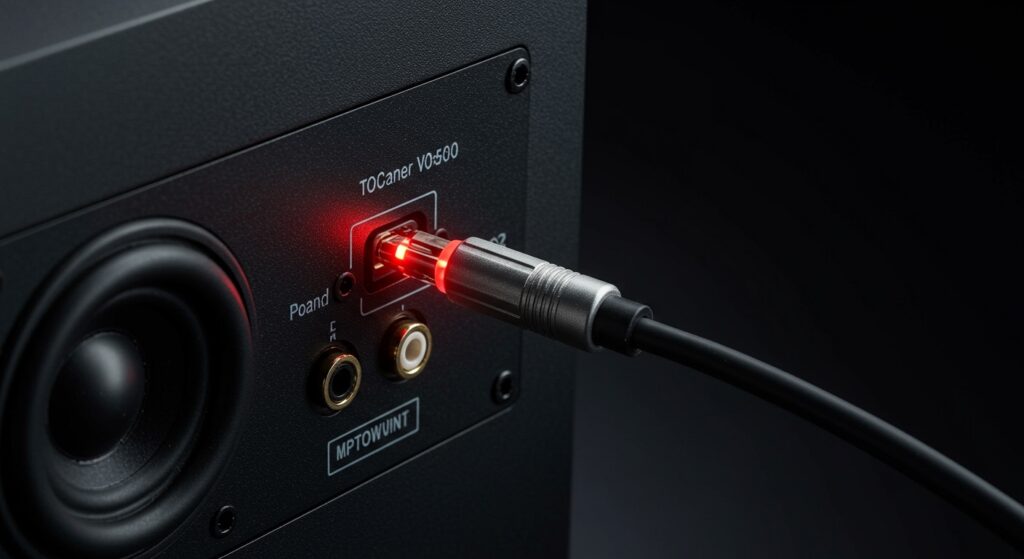
If you aren’t hearing sound, unplug the cable from the speaker end while the TV is on. You should see a bright red light glowing at the end of the cable. If you don’t see this light, your source device is not transmitting, or the cable is damaged.
Expert Perspectives: Why I Still Use Optical in 2024
In my years of building home studios and theater rooms, I’ve noticed a trend where people chase HDMI eARC for every setup. While HDMI is necessary for Dolby Atmos, it is notorious for “handshake” errors where the TV and speaker fail to communicate, resulting in no sound.
I recommend optical speakers for the following scenarios:
- Legacy Consoles: Connecting a PS4 or Xbox One directly to an older high-end receiver.
- PC Gaming: Eliminating the “coil whine” and buzzing noise that often leaks into analog PC speakers.
- Dedicated Music Stations: Using a high-quality DAC with an optical input to stream lossless audio from a network player.
Pro Tips for Getting the Most Out of Optical Audio
- Don’t Kink the Cable: Because these cables use fiber optics (essentially thin glass or plastic fibers), sharp 90-degree bends can break the internal core and stop the signal.
- Limit Cable Length: While optical is great for 5-10 meters, going beyond 15 meters can result in “jitter” or signal dropouts unless you use an active signal repeater.
- Keep the Dust Out: If a port is left open for a long time, dust can settle on the lens. Use a can of compressed air to gently clean the port if you experience intermittent signal loss.
- Match the Sample Rate: If using a PC, go into the Advanced Sound Properties and set the sample rate to 24-bit, 48kHz or 96kHz. Most optical inputs handle these beautifully for high-resolution music.
Common Troubleshooting Issues with Optical Speakers
Issue: No Sound After Connection
Check if your TV is set to “Auto” or “PCM”. Many speakers cannot decode a raw DTS signal and require the TV to downmix the audio to PCM Stereo.
Issue: Audio Latency or “Lip Sync” Problems
While optical is fast, some TVs process the video slower than the audio. Look for an “Audio Delay” or “Lip Sync” setting in your TV’s expert sound menu to sync the two.
Issue: The Cable Keeps Falling Out
Not all TOSLINK ports are created equal. If the connection feels loose, ensure the plastic cap is completely off and that you have pushed the cable in until it clicks. Some budget cables have slightly smaller housings that don’t grip the port well; in this case, switching to a brand like AudioQuest or Cable Matters can help.
Frequently Asked Questions
Are optical speakers better than Bluetooth?
Yes, significantly. Optical connections provide much higher bandwidth and zero compression compared to standard Bluetooth codecs. Optical also has zero latency, whereas Bluetooth often has a noticeable delay when watching movies or playing games.
Can optical cables carry 7.1 surround sound?
Standard TOSLINK optical cables do not have enough bandwidth to carry uncompressed 7.1 LPCM or high-def formats like Dolby TrueHD. They are capped at 5.1 compressed surround sound.
Does a more expensive optical cable sound better?
Generally, no. Since it is a digital signal (on or off), a $10 cable will sound identical to a $100 cable over short distances. The only reason to pay more is for better build quality, better connectors, or more durable jacketing.
Can I control the speaker volume with my TV remote using an optical cable?
Usually, no. Optical cables do not transmit control data (like HDMI CEC). You will need to use the speaker’s own remote or a universal remote to change the volume. However, some modern TVs allow you to program their remote to send IR signals to your speakers.