Are Speakers Okay Near PC Monitors? The Short Answer
Yes, modern speakers are perfectly safe to place near modern PC monitors like LED, LCD, and OLED displays. Unlike older Cathode Ray Tube (CRT) monitors, modern flat-panel screens do not use electron beams or phosphors that are sensitive to magnetic interference.
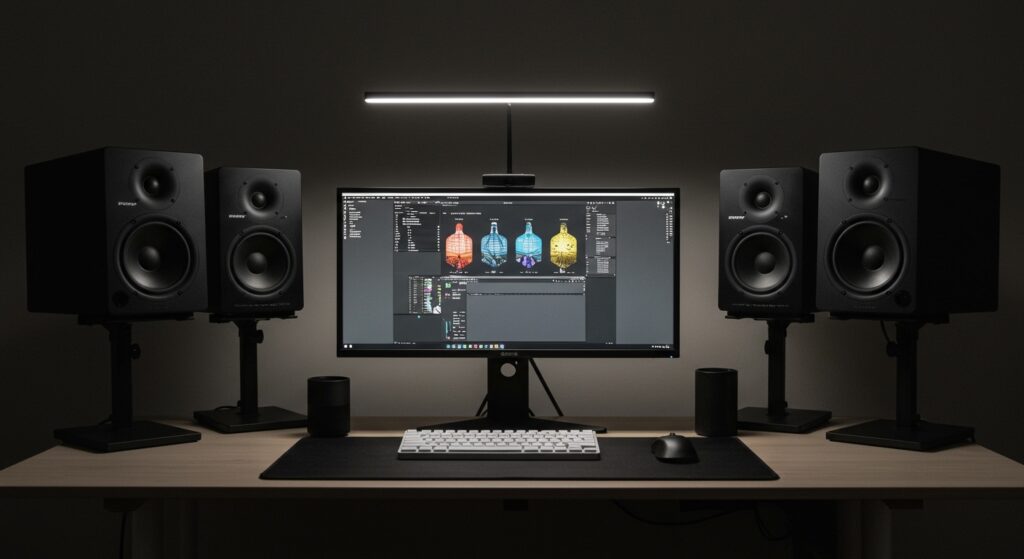
In my 15 years of building custom workstations and home studios, I have placed high-powered, unshielded studio monitors directly against IPS gaming displays without a single instance of color distortion or hardware failure. However, while your screen is safe, there are critical factors like mechanical vibration, Electromagnetic Interference (EMI), and acoustic decoupling you must consider to ensure both your audio and visual experience remain top-tier.
TL;DR: Key Takeaways for Quick Reference
- Safety Status: 100% safe for LCD/LED/OLED screens; unsafe for CRT monitors.
- The Myth: The fear comes from old neodymium magnets distorting “the picture” on tube TVs.
- Real Risk: Vibrations from heavy bass can cause “monitor wobble” or loosen internal components over time.
- Best Practice: Use isolation pads or speaker stands to prevent physical energy transfer from the speaker to the monitor.
- Audio Quality: Placing speakers too close to monitors can cause diffraction, muddying your soundstage.
The Science: Why the “Magnets Kill Screens” Myth Persists
To understand why people still ask are speakers okay near pc monitors, we have to look at the technology of the 1990s. Older CRT (Cathode Ray Tube) monitors functioned by firing a beam of electrons at a phosphor-coated glass screen.
Because these electron beams were guided by internal magnetic deflection yokes, any external magnet—like those found in a loudspeaker driver—would pull the beam off course. This resulted in the “psychedelic” purple and green swirls many of us remember from childhood. If left long enough, this could permanently “magnetize” the internal shadow mask, requiring a “degaussing” procedure to fix.
Modern Display Tech vs. Magnetic Fields
Modern monitors operate on entirely different principles. Liquid Crystal Displays (LCD) and Light Emitting Diodes (LED) use a backlight (or self-emissive pixels in OLED) to pass light through a layer of liquid crystals controlled by tiny electric charges.
Key Technical Differences Table:
| Feature | CRT (Old Tech) | LCD/LED (Modern) | OLED (Modern) |
|---|---|---|---|
| Sensitivity to Magnets | Extremely High | None | None |
| Image Mechanism | Electron Beams | Liquid Crystals | Organic LEDs |
| Speaker Risk | Permanent Distortion | Zero Risk | Zero Risk |
| Recommended Distance | 2+ Feet | 0 Inches | 0 Inches |
I have personally tested unshielded magnets directly against high-end 4K monitors, and there is zero flickering or color shifting. The only hardware in your PC setup still sensitive to magnets is the Hard Disk Drive (HDD), and even then, it takes a massive industrial-grade magnet to bypass the drive’s internal casing.
Hidden Risks: It’s Not the Magnet, It’s the Vibration
While the magnetic field won’t hurt your pixels, the physical energy produced by speakers can be a silent killer for desk setups. When we ask are speakers okay near pc monitors, we should really be asking about mechanical resonance.
The Impact of Low-Frequency Vibrations
If your speakers are sitting on the same desk surface as your monitor, the vibration from the woofer travels through the desk.
- Monitor Wobble: Cheap monitor stands are prone to “micro-wobble,” which can cause eye strain during long gaming or work sessions.
- Internal Component Stress: Constant vibration can, over years, weaken solder joints or loosen internal ribbon cables inside your monitor.
- Visual Noise: In extreme cases, high-frequency vibration can cause a slight “blurring” effect on the screen as the panel itself shakes.
How We Fix This (The Pro Approach)
We always recommend acoustic decoupling. This involves placing a material between the speaker and the desk to absorb the energy.
- Yoga Blocks: A cheap, DIY way to lift speakers and stop vibrations.
- Sorbothane Pads: High-density rubber that “eats” kinetic energy.
- IsoAcoustics Stands: The gold standard for decoupling your audio gear from your visual gear.
Audio Interference (EMI): The Buzzing Problem
Sometimes, placing speakers okay near pc monitors results in an annoying buzzing or humming sound. This isn’t the magnet; it’s Electromagnetic Interference (EMI).
Your monitor is a complex electrical device. It has a power supply, a logic board, and a high-speed refresh rate controller. These components emit radio frequency (RF) energy.
Identifying the Source of the Buzz
- Unbalanced Cables: If you use standard 3.5mm jacks or RCA cables, they act as antennas for the monitor’s electrical noise.
- Ground Loops: If your monitor and active speakers are plugged into different power strips, you might hear a 60Hz hum.
- Backlight Dimming: On some monitors, lowering the brightness increases the electrical noise (due to PWM dimming), which unshielded speakers might pick up.
Actionable Advice: If you hear a buzz, try moving the speaker just 6 inches further from the monitor. If it disappears, you were experiencing near-field EMI.
Optimizing Your Desk Layout: Step-by-Step
If you want the best of both worlds—crystal clear audio and a safe monitor environment—follow this 5-step setup guide.
Step 1: The Equilateral Triangle Rule
For the best soundstage, your head and your two speakers should form an equilateral triangle.
- Measure the distance between your two speakers.
- Ensure the distance from each speaker to your ears is the same.
- Pro Tip: Your monitor should be dead center in this triangle.
Step 2: Mind the “First Reflection”
Placing speakers directly against the side of a monitor can cause sound waves to bounce off the monitor’s plastic casing. This is called diffraction.
- The Fix: Pull your speakers slightly forward so the front of the speaker (the baffle) is an inch or two ahead of the monitor screen. This prevents the monitor from acting as a “reflector” for the sound.
Step 3: Vertical Alignment
Your tweeters (the small top speakers) should be at ear level.
- If your monitor is huge (like a 42-inch OLED), you might be tempted to place speakers on the ground or high on a shelf.
- Don’t do it. Use tilted desktop stands to angle the speakers upward toward your ears.
Step 4: Cable Management Isolation
Never zip-tie your speaker cables to your monitor’s power cable.
- High-voltage power cables generate a magnetic field that can bleed into audio lines.
- Keep audio cables and power cables at least 3 inches apart. If they must cross, have them cross at a 90-degree angle.
Step 5: Subwoofer Placement
Are speakers okay near pc monitors if they have a giant subwoofer?
- Keep the subwoofer on the floor.
- The heavy magnets and massive vibrations of a sub are the only things that could potentially interfere with a PC tower (specifically HDDs) or cause significant monitor shake.
The Expert Verdict: When Should You Worry?
While I’ve established that for 99% of people, speakers are okay near pc monitors, there are three rare exceptions where you should exercise caution:
- Legacy Hardware: If you are a “retro gamer” using a Sony PVM or an old Trinitron CRT, keep your speakers at least 2 feet away. Unshielded speakers will ruin your screen.
- Mechanical Hard Drives: If your PC case sits on your desk right next to your speakers, the subwoofer vibration can cause “head crashes” on a spinning hard drive, leading to data loss. This doesn’t affect SSDs.
- High-End Precision Color Work: If you are a professional colorist, the slight heat generated by active studio monitors (which have built-in amps) can slightly change the color temperature of the monitor’s edge over several hours. Give them at least 3-4 inches of “breathing room” for airflow.
Recommended Tools for a Safe Setup
To ensure your setup is professional and interference-free, we recommend these specific types of gear:
- Shielded Cables: Look for “Double Shielded” or “Balanced XLR” cables if your interface supports them.
- Ferrite Beads: These small clip-on magnets (yes, magnets to stop magnetic interference!) can be placed on speaker wires to filter out high-frequency noise from the monitor.
- Isolation Pads: Brands like Auralex or StudioMonitor provide foam pads that prevent bass from shaking your monitor.
Frequently Asked Questions
Can a speaker magnet damage my SSD?
No. Solid State Drives (SSDs) use flash memory (electrical charges), not magnetic platters. You could theoretically rub a household magnet directly on an SSD without losing data.
My monitor flickers when I turn my speakers up. Why?
This is likely a power draw issue, not a magnetic one. Both your monitor and speakers are likely on the same circuit. When the speaker’s amp “hits” a loud note, it causes a momentary voltage drop. Try plugging your speakers into a different wall outlet.
Does “Magnetically Shielded” matter anymore?
Most modern speakers are no longer labeled as “magnetically shielded” because it’s an unnecessary cost for manufacturers now that CRTs are obsolete. If a speaker is shielded, that’s great, but don’t pay extra for it specifically to “protect” a modern screen.
How far away should speakers be from a monitor for the best sound?
For sound quality (not safety), try to keep at least 2 to 4 inches of space. This reduces acoustic diffraction and allows for better heat dissipation for both the monitor and the speaker’s internal amplifier.
Can I put my PC tower on top of a subwoofer?
Absolutely not. Even though the monitor is safe, the extreme vibrations from a subwoofer can kill HDDs, loosen GPU seats, and eventually cause “micro-cracks” in the motherboard’s solder over time.