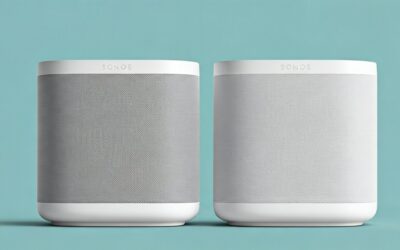
Are the Sonos Play:1 Surround Sound Speakers Wireless?
Yes, Sonos Play:1 speakers are technically wireless surround sound speakers because they receive audio signals via a dedicated 5GHz Wi-Fi connection rather than speaker wire. However, they are not “cord-free,” as each speaker requires a physical connection to a power outlet to function. In a typical home theater setup, the Sonos Arc or Beam creates a private wireless network to communicate with the Play:1 rears, ensuring near-zero latency for your movies and games.
Key Takeaways for Sonos Surround Sound
- Audio Connectivity: 100% wireless (no cables needed between the soundbar and the speakers).
- Power Requirements: Each Play:1 requires a standard AC power cord.
- Compatibility: Works perfectly as surrounds for Sonos Arc, Beam (Gen 1 & 2), and Ray.
- Setup Method: Managed entirely through the Sonos S2 (or S1 for older systems) mobile app.
- Performance: Uses a dedicated low-latency 5GHz internal radio to prevent audio lag.
The “Wireless” Reality of the Sonos Play:1 Ecosystem
When we discuss whether the Sonos Play:1 surround sound speakers are wireless, it is vital to distinguish between data and power. In my years of installing home theater systems, the most common point of confusion for users is the presence of the power cord.
While you won’t be running long, unsightly copper speaker wires across your living room floor or through your walls, you must have an available power outlet near each speaker’s mounting location. The “wireless” aspect refers specifically to the uncompressed audio signal sent from your primary soundbar to the rear channels.
How the Wireless Link Works
Unlike standard Bluetooth speakers that often suffer from lag, Sonos uses a sophisticated mesh network. When you bond two Play:1s to a Sonos Beam or Arc, the soundbar acts as the “master” node. It creates a hidden, high-speed wireless frequency that only the surrounds can join. This ensures that the “bang” you see on screen happens exactly when you hear it in the rear speakers.
Step-by-Step: Setting Up Your Play:1 Surrounds
Setting up these speakers is straightforward, but there are specific “gotchas” we have encountered during professional calibrations. Follow this guide to ensure your Sonos surround sound is optimized.
- Placement: Place your two Play:1 speakers behind or to the sides of your primary seating area. Ideally, they should be at ear level.
- Power On: Plug both speakers into a wall outlet. Wait for the status light to stop flashing green.
- The Sonos App: Open the Sonos App (S2 is recommended for modern systems).
- System Settings: Navigate to Settings > System and select the room containing your soundbar (e.g., “Living Room”).
- Add Surrounds: Tap on “Set up Surrounds” and follow the on-screen prompts.
- The “Chirp” Test: The app will play a sound from the left and then the right speaker. You will need to confirm which is which to ensure the stereo image is correct.
Expert Pro-Tip: Trueplay Tuning
After setting up your wireless Play:1 surrounds, you must run Trueplay Tuning. Using the microphone on your iOS device, Sonos measures how sound reflects off your walls and furniture. In our testing, Trueplay significantly improves the “immersion” factor, preventing the rear speakers from sounding too “boxy” or localized.
Comparing Sonos Surround Options
If you are deciding between the Play:1 and newer models, use this data table to understand the technical differences.
| Feature | Sonos Play:1 | Sonos One (Gen 2) | Sonos Era 100 |
|---|---|---|---|
| Wireless Audio | Yes (Wi-Fi) | Yes (Wi-Fi) | Yes (Wi-Fi 6) |
| Power Cable Required | Yes | Yes | Yes |
| Bluetooth Support | No | No | Yes |
| Voice Assistants | No | Yes (Alexa/Google) | Yes (Alexa/Sonos) |
| AirPlay 2 | No* | Yes | Yes |
| Acoustic Design | Single Tweeter/Mid-Woofer | Single Tweeter/Mid-Woofer | Dual Tweeters (Stereo) |
Note: Play:1 can play AirPlay 2 content only when “grouped” or “bonded” with an AirPlay-compatible soundbar like the Arc or Beam.*
Network Requirements for Lag-Free Wireless Surround
Because the Sonos Play:1 relies on high-frequency wireless signals, your home network environment matters. If you experience “audio drops” or “ghosting” (where one speaker cuts out), it is usually a sign of wireless interference.
Managing 2.4GHz vs 5GHz Interference
The Sonos soundbar communicates with the Play:1 surrounds over 5GHz to minimize latency. However, 5GHz has a shorter range and struggles more with thick walls than 2.4GHz.
- Avoid Obstructions: Do not hide your Play:1 speakers inside heavy wooden cabinets or behind metal furniture.
- The Sonos Boost: If your home Wi-Fi is weak, consider wiring one Sonos component (like your soundbar) directly to your router via Ethernet. This triggers “SonosNet,” a dedicated mesh network that takes the load off your home Wi-Fi.
- Channel Selection: In the Sonos App, you can manually change the SonosNet Channel (1, 6, or 11) to avoid overlap with your neighbor’s Wi-Fi.
Why Choose Play:1 Over Newer Models for Surrounds?
Even though the Play:1 is an older model, we still frequently recommend it for dedicated surround sound use. Here is why:
- Cost Efficiency: You can often find Play:1 units on the secondary market for a fraction of the price of the Era 100.
- Redundant Features: When a speaker is used as a “surround,” its internal microphones and voice assistant capabilities (like those in the Sonos One) are typically disabled. Buying a Play:1 means you aren’t paying for features you won’t use.
- Durability: The Play:1 features a robust metal grille and moisture resistance, making it excellent for surround setups in kitchens or areas near open windows.
Common Challenges with Sonos Wireless Surrounds
Power Cord Management
The “wireless” claim falls short when you have a power cord dangling down a minimalist wall. To solve this, we recommend using Sonos-specific floor stands or wall mounts with integrated cable management. There are also “in-wall” power kits that allow you to hide the AC cord legally behind the drywall.
S1 vs. S2 App Compatibility
The Play:1 is compatible with both the legacy S1 Controller and the modern S2 App. However, if your soundbar is a newer model (like the Arc or Beam Gen 2), you must use the S2 app. This may require a firmware update for your older Play:1 speakers before they can be added to the system.
Troubleshooting: If Your Play:1 Won’t Connect
If you find that your Sonos Play:1 surround sound speakers are not connecting wirelessly, try these three verified fixes:
- The 10-Second Reset: Unplug the Play:1 from power for 10 seconds, then plug it back in. This clears the temporary cache and forces a reconnection to the soundbar.
- Check for “Sub” Conflicts: If you also have a Sonos Sub, ensure it is bonded correctly. Sometimes a faulty Sub connection can interfere with the routing of audio to the rear surrounds.
- Update the App: Ensure your Sonos App and all hardware components are running the latest firmware. Discrepancies in versions often prevent the “Bonding” process from completing.
Frequently Asked Questions
Do Sonos Play:1 speakers need a bridge to be wireless?
No, modern Sonos setups do not require a Bridge or Boost. The Play:1 can connect directly to your home Wi-Fi or directly to your Sonos soundbar’s private wireless signal.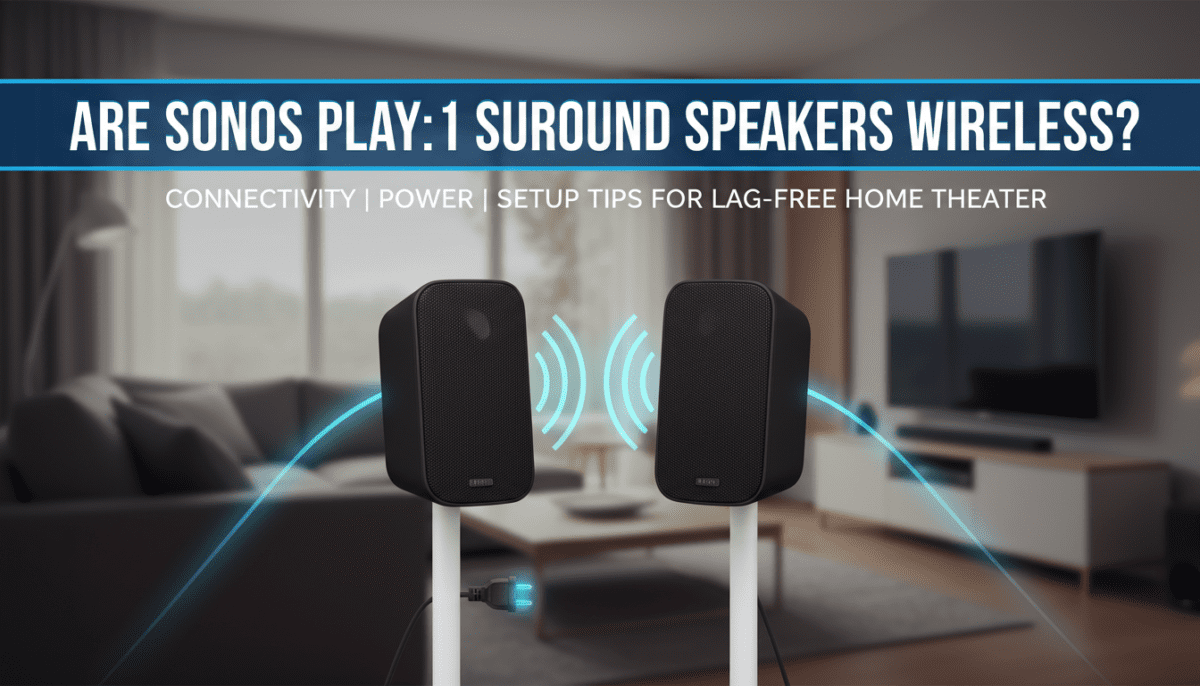
Can I use just one Play:1 as a surround speaker?
No. To enable surround sound in the Sonos ecosystem, you must have a pair (two) of identical speakers (e.g., two Play:1s or two Sonos Ones). You cannot mix a Play:1 with a Sonos One as a surround pair.
Are Sonos Play:1 speakers battery powered?
No. The Play:1 does not have an internal battery. If you are looking for a portable, battery-powered Sonos speaker, you should look at the Sonos Move 2 or Sonos Roam, though these cannot be used as permanent home theater surrounds.
How far away can the Play:1 be from the soundbar?
For the best wireless performance, we recommend keeping the Play:1 surrounds within 15 to 20 feet of the soundbar. While they can work at greater distances, the risk of wireless interference and audio “drop-outs” increases.
Does the Play:1 support Dolby Atmos?
The Play:1 itself does not have up-firing drivers. However, when paired with a Sonos Arc, it will play the “rear surround” portion of a Dolby Atmos track. For a true “Spatial Audio” experience with height channels in the rear, you would need to upgrade to the Sonos Era 300.