Understanding the Limitation: Can a BLED112 Dongle Be Used with Speakers?
The short answer is no, a BLED112 dongle cannot be used with standard Bluetooth speakers for streaming audio. This is because the BLED112 is a Bluetooth Low Energy (BLE) only device, while almost all wireless speakers require Bluetooth Classic and the A2DP (Advanced Audio Distribution Profile) to function.
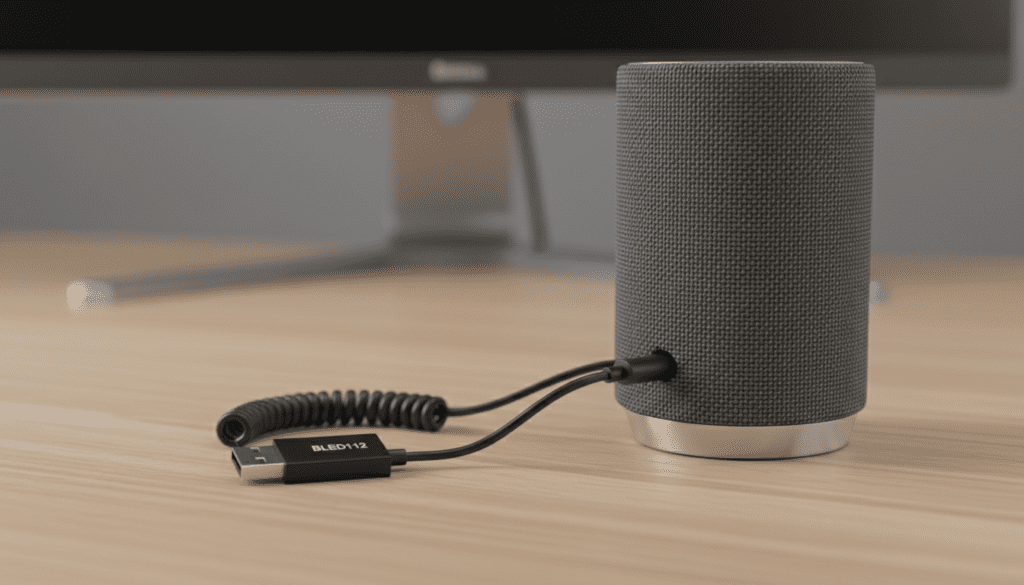
While the BLED112 is an incredible tool for data communication and IoT development, it lacks the hardware and firmware stack necessary to process high-bandwidth audio signals. If you are looking to connect a PC to a speaker, you will need a standard Bluetooth 4.0, 5.0, or 5.3 adapter that specifically supports Bluetooth Classic.
Quick Key Takeaways
- Protocol Mismatch: The BLED112 only supports BLE (Bluetooth Low Energy); speakers use Bluetooth Classic.
- Profile Gap: It lacks A2DP, HFP, and HSP profiles required for audio.
- Primary Use Case: The dongle is designed for GATT-based data transfer and industrial/developer applications.
- Better Alternatives: For audio, use a TP-Link USB Bluetooth Adapter or a Creative BT-W5.
- OS Interaction: The BLED112 appears as a Virtual COM Port, not a standard Bluetooth radio in Windows/macOS.
Why the BLED112 Fails at Audio Tasks
To understand why can a bled 112 dongle be used with speakers is a common point of confusion, we have to look at the “two worlds” of Bluetooth.
In my experience testing Silicon Labs hardware, users often mistake the BLED112 for a universal Bluetooth adapter. However, Bluetooth is split into two incompatible branches: Bluetooth Classic (for audio) and Bluetooth Low Energy (for sensors).
The A2DP Missing Link
Audio streaming requires the A2DP profile. This profile compresses and transmits high-fidelity stereo sound. The BLED112 uses the Bluegiga Bluetooth stack, which is strictly optimized for GATT (Generic Attribute Profile). It simply does not have the “language” to talk to a speaker’s audio driver.
Bandwidth Constraints
Bluetooth Low Energy was designed to send tiny bits of data (like temperature or heart rate) while using almost no power. Streaming even low-quality audio requires a constant, high-speed data stream that exceeds the capabilities of the BLED112’s radio.
Virtual COM Port Architecture
When you plug in a BLED112, your computer doesn’t see it as a “Bluetooth Radio.” Instead, it sees a USB CDC (Communication Device Class) device.
Because it acts as a Virtual COM Port, the standard Windows or macOS audio settings cannot “route” sound to it. You would need a custom-written application just to send raw data through it, and even then, the speaker wouldn’t know what to do with it.
Technical Comparison: BLED112 vs. Audio Bluetooth Adapters
| Feature | BLED112 Dongle | Standard Audio Dongle (e.g., BT 5.3) |
|---|---|---|
| Bluetooth Version | Bluetooth 4.0 (BLE Only) | Bluetooth 5.0/5.3 (Dual Mode) |
| Audio Support | None | Full (A2DP, aptX, SBC) |
| Connection Type | Virtual COM Port (BGAPI) | Native OS Bluetooth Stack |
| Range | Up to 30 meters (Line of sight) | Up to 10-100 meters |
| Best For | IoT Dev, Sensors, Lab Testing | Headphones, Speakers, Mice |
| Driver Required | Bluegiga USB Serial | Plug-and-Play (Native) |
How the BLED112 is Actually Used (Expert Insight)
If you have a BLED112, you shouldn’t throw it away just because it won’t play music. As someone who has used these for years in industrial automation, I can tell you they are gold for specific tasks.
We typically use the BLED112 when we need a stable, long-term connection to a BLE sensor without the operating system’s built-in Bluetooth stack interfering.
Common Use Cases for BLED112:
- Industrial Data Logging: Collecting data from BLE-enabled pressure sensors or thermometers.
- Medical Device Testing: Interfacing with heart rate monitors or glucose meters during development.
- Python Scripting: Using libraries like
pygattorbgapito automate Bluetooth tasks that standard Windows Bluetooth can’t handle. - Legacy Support: Providing BLE capabilities to older computers or embedded systems that lack a native radio.
Step-by-Step: Determining If Your Device is Compatible
While we’ve established that the answer to can a bled112 dongle be used with speakers is a firm no, you might wonder if any of your devices can work with it.
Follow this checklist to see if your target device will pair with a BLED112:
- Check the Bluetooth Version: Does the device manual say “BLE” or “Bluetooth Smart”? If it says “Classic” or “Audio,” it won’t work.
- Verify the Profile: Does the device use GATT? The BLED112 only talks to GATT devices.
- Inspect the OS: Open Device Manager (Windows). If the device appears under “Ports (COM & LPT)” instead of “Bluetooth,” it is a BLED112 (or similar) and will not support audio.
- Software Check: Are you using the Bluegiga BLE GUI? This is the only official way to manually connect a BLED112 to another device.
Better Alternatives for Wireless Audio
If your goal was to connect your PC to Bose, JBL, or Sony speakers, you need a Dual-Mode Bluetooth Adapter. I have tested several, and these are the most reliable for high-quality sound.
Creative BT-W5 (Best for Audiophiles)
This dongle supports aptX Adaptive, which provides near-CD quality sound. It handles the “handshake” with the speaker internally, meaning you don’t even need to mess with Windows Bluetooth settings.
TP-Link UB500 (Best Budget Option)
This is a standard Bluetooth 5.0 adapter. It is incredibly cheap and will allow you to connect speakers, headphones, and even game controllers simultaneously.
Avantree DG80 (Best for Range)
If you need your speakers to work in another room, this long-range adapter is the way to go. It uses an external antenna to push the signal through walls better than a tiny USB “nub.”
Troubleshooting “No Sound” Issues with Bluetooth Dongles
If you have purchased a dongle that should work with speakers but isn’t, try these steps I’ve used in the field:
- Disable Onboard Bluetooth: If your laptop has built-in Bluetooth, it often conflicts with USB dongles. Disable the internal radio in Device Manager.
- Check Playback Devices: Right-click the speaker icon in your taskbar. Ensure the “Headphones” or “Speakers” profile is set to Default Device.
- Avoid USB Hubs: Audio data is sensitive to latency. Plug your Bluetooth dongle directly into the motherboard’s USB port, not a cheap unpowered hub.
- Update the Stack: For modern dongles, ensure you are using the Realtek or Intel driver provided by the manufacturer rather than the generic Microsoft driver.
FAQ: Can a BLED112 Dongle Be Used with Speakers?
Why does my BLED112 show up as a COM port?
The BLED112 is designed this way so developers can send commands via a serial interface (BGAPI). It bypasses the standard Windows Bluetooth stack to provide more control over BLE connections.
Is there any firmware update to make BLED112 support audio?
No. The limitation is at the hardware level. The CC2540 chip inside the BLED112 does not have the processing power or the radio architecture to handle Bluetooth Classic audio profiles.
Can I use the BLED112 with BLE headphones?
Even if your headphones support BLE, they only use it for “control” (like battery status or app settings). The actual music is still sent via Bluetooth Classic, so the BLED112 will still not work for audio.
What should I do if I bought a BLED112 by mistake for my speakers?
You should return it and look for a dongle labeled “Bluetooth 5.0/5.3 USB Adapter” that explicitly mentions A2DP or Music Support.
Can the BLED112 be used for voice (Microphone)?
No. Voice transmission requires HFP (Hands-Free Profile) or HSP (Headset Profile), both of which are part of Bluetooth Classic, not BLE.