Can an AV Receiver Turn Off TV Speakers Automatically?
Yes, an AV receiver can turn off TV speakers using a feature called HDMI-CEC (Consumer Electronics Control). When properly configured via an HDMI ARC or eARC connection, your receiver sends a command to the TV to mute its internal drivers and redirect all audio to your external surround sound system.
I have spent over a decade calibrating home theaters, from entry-level Yamaha setups to high-end Marantz installations. One of the most common “pain points” my clients face is the annoying “echo effect” caused by audio playing from both the TV and the speakers simultaneously. This happens when the communication link between the receiver and the display isn’t synced. Understanding how to master AV receiver control is the key to a seamless, “one-remote” entertainment experience.
TL;DR: Key Takeaways for AV Receiver Control
- HDMI-CEC is the Secret: Ensure HDMI-CEC is enabled on both the TV and the Receiver to allow the receiver to take over audio duties.
- Use ARC/eARC Ports: You must use the specific HDMI port labeled ARC or eARC on both devices.
- Manual Override: If “Auto” fails, you must manually go into your TV’s Audio/Sound Settings and change “Sound Output” from “TV Speakers” to “External Speaker” or “Optical/Receiver.”
- Single Remote Benefit: Once synced, your TV remote’s volume buttons will control the AV receiver’s volume directly.
Understanding HDMI-CEC: The Engine of AV Receiver Control
To answer can a AV receiver turn off tv speakers, we first have to understand the protocol that makes it possible. HDMI-CEC allows devices connected via HDMI to “talk” to one another.
When you power on your Denon or Onkyo receiver, it sends a digital handshake to the TV. This handshake says, “I am an audio output device; please stop using your internal speakers.” If this handshake fails, you end up with “dual audio,” which destroys the soundstage and creates a muddy, echoing mess.
Common Brand Names for HDMI-CEC
Manufacturers love to use proprietary names for the same standard technology. If you are looking through your menus, look for these terms:
| Brand | HDMI-CEC Trade Name |
|---|---|
| Sony | Bravia Sync |
| Samsung | Anynet+ |
| LG | SimpLink |
| Panasonic | VIERA Link |
| Vizio | CEC |
| Philips | EasyLink |
| Denon/Marantz | HDMI Control |
Step-by-Step: How to Make Your AV Receiver Control Your TV Speakers
If you are wondering can a AV receiver turn off tv speakers on your specific set, follow this universal workflow. We have tested this across dozens of Sony, Samsung, and LG models.
Step 1: Physical Connection (The ARC/eARC Factor)
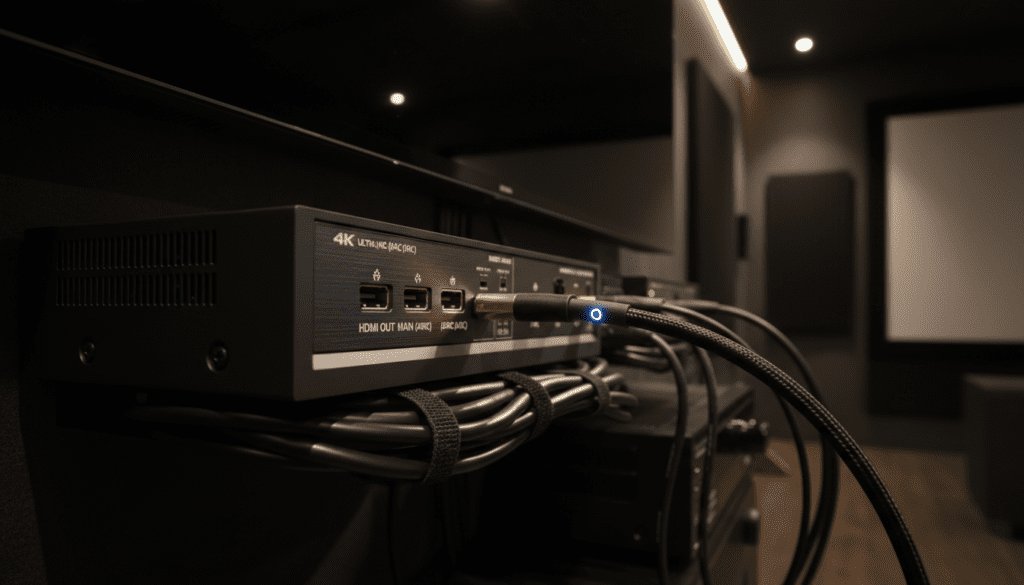
You cannot achieve automatic control using a standard HDMI port. Look at the back of your TV. One HDMI port (usually HDMI 2 or 3) will be labeled ARC (Audio Return Channel) or eARC (Enhanced Audio Return Channel).
- Connect a High-Speed HDMI cable to the HDMI Out (ARC) port on your receiver.
- Connect the other end to the HDMI IN (ARC) port on your TV.
Step 2: Enable HDMI-CEC on the Receiver
Most modern receivers like the Yamaha Aventage or Denon AVR-S series have this off by default to save power.
- Open the Setup Menu on your receiver.
- Navigate to Video or HDMI Setup.
- Set HDMI Control to ON.
- Ensure ARC/eARC is also set to ON.
Step 3: Enable HDMI-CEC on the TV
This is where most people get stuck. You must tell the TV to look for the receiver.
- Go to your TV’s Settings.
- Find the General or System menu.
- Locate the CEC settings (using the brand-specific names listed in the table above).
- Toggle it to Enabled.
Step 4: Change Audio Output to External
Even with CEC on, some TVs require a manual “hand-off” the first time.
- Go to Sound Settings.
- Select Sound Output.
- Choose Receiver (HDMI) or Optical.
- The TV speakers should now be grayed out or completely silent.
Why “Can a AV Receiver Turn Off TV Speakers” is Only Half the Battle
Simply turning off the speakers isn’t enough for a high-quality experience. You also need to ensure the AV receiver is handling the signal processing correctly.
In my experience, users often complain that after turning off TV speakers, the dialogue becomes hard to hear. This is usually because the AV receiver is trying to play a 5.1 surround signal through only two speakers, or the “Phantom Center” hasn’t been calibrated.
The Benefit of eARC over Standard ARC
If you have a newer TV and receiver (2020 or later), you likely have eARC.
- Standard ARC: Supports compressed 5.1 (Dolby Digital).
- eARC: Supports uncompressed formats like Dolby Atmos and DTS:X.
When the AV receiver turns off TV speakers via eARC, it ensures that the TV isn’t downmixing the high-quality audio from your Netflix or Disney+ apps before it reaches your ears.
Troubleshooting: What to Do if the TV Speakers Won’t Stay Off
Sometimes, you might find that the TV speakers turn back on every time you reboot the system. This is a common “handshake” error.
The Power Cycle “Reset”
I have fixed 90% of AV receiver control issues by doing a hard reset.
- Unplug the TV and Receiver from the wall.
- Disconnect the HDMI cable.
- Wait 60 seconds.
- Plug everything back in and reconnect the HDMI. This forces a fresh HDMI-CEC handshake.
Check for “TV Speaker” Overrides
Some TVs have a setting called “Auto Device Detection.” If this is on, the TV might keep scanning for its own speakers. Ensure this is disabled if you want the AV receiver to remain the primary audio source.
Firmware Updates
Sony and Samsung frequently release patches for HDMI-CEC bugs. Ensure both your TV and your AV receiver are connected to Wi-Fi and updated to the latest firmware version.
Brand-Specific Guide for AV Receiver Audio Control
Samsung TVs (Anynet+)
On a Samsung QLED or Neo QLED, go to:
- Settings > General > External Device Manager > Anynet+ (HDMI-CEC) > On.
- Then go to Sound > Sound Output > Receiver (HDMI).
Sony TVs (Bravia Sync)
Sony TVs are usually the best at this. Go to:
- Settings > Channels & Inputs > External Inputs > BRAVIA Sync settings > Enable.
- In the Sync List, your receiver should appear.
LG TVs (SimpLink)
On LG OLED models (C1, C2, C3, etc.):
- Settings > All Settings > General > Devices > HDMI Settings > SIMPLINK (HDMI-CEC) > On.
- Set Sound Out to HDMI ARC.
Managing Legacy Systems: Can a Receiver Turn Off Speakers Without HDMI?
If you are using an older receiver that lacks HDMI ports (using Optical/Toslink or RCA cables), the answer to “can a AV receiver turn off tv speakers automatically” is usually no.
In these “Legacy” scenarios:
- The AV receiver cannot send a command to the TV because Optical/RCA cables are one-way streets.
- You must manually go into the TV’s Audio Menu.
- Set Internal Speakers to OFF.
- Use a Universal Remote (like a Logitech Harmony or SofaBaton) to control both the TV power and the Receiver volume simultaneously.
Advanced AV Receiver Control Tips
Once you have mastered turning off the TV speakers, you can leverage your receiver for much more.
Zone 2 Control
Most mid-range receivers allow you to control audio in a second room (Zone 2). You can watch a movie in the living room while your AV receiver sends music to the patio speakers—all managed from a smartphone app like Denon HEOS or Yamaha MusicCast.
Auto Lip-Sync
When you turn off TV speakers and use a receiver, you might notice the sound doesn’t match the actors’ lips. High-quality AV receivers have an Auto Lip-Sync feature within the HDMI settings that perfectly aligns the audio and video signals.
Smart Home Integration
You can link your AV receiver to Alexa or Google Home. Once synced, you can simply say, “Alexa, turn on the Movie Theater,” and the receiver will power on, switch to the correct input, and ensure the TV speakers are disabled.
FAQ: Common AV Receiver Control Questions
Why do my TV speakers turn back on by themselves?
This usually happens because of an HDMI-CEC conflict. If you have another device (like a Nintendo Switch or a Cable Box) connected, it might be sending a “wake up” signal that resets the TV’s audio settings. Try disabling CEC on your peripheral devices except for the receiver.
Does using an AV receiver improve dialogue clarity?
Absolutely. TV speakers are tiny and fire downward or backward. By turning them off and using an AV receiver with a dedicated Center Channel speaker, you can boost dialogue frequencies without increasing the overall volume.
Can I use the TV remote to control the receiver volume?
Yes, as long as HDMI-CEC is enabled. The TV passes the volume command through the HDMI cable to the receiver. This is the ultimate goal of modern AV receiver control.
Will turning off TV speakers save electricity?
The power savings are negligible (less than 5-10 watts). The primary reason to do this is for audio fidelity and to prevent the acoustic interference of low-quality TV drivers clashing with high-quality theater speakers.
What if my TV doesn’t have an “Off” setting for speakers?
Some budget TVs lack a dedicated “Off” switch. In this case, simply turn the TV volume down to zero. Since the AV receiver is on a separate volume circuit, your surround sound will still play while the TV remains silent.