Can a Laptop Battery Power Speakers? The Direct Answer
Yes, a laptop battery can power speakers as long as the speakers are designed to draw power through a USB port, a 3.5mm auxiliary jack, or a Thunderbolt/USB-C connection. Most portable bus-powered speakers draw between 2.5W and 10W, which is well within the output capacity of a standard laptop battery. However, for large, high-end studio monitors or passive speakers, the battery lacks the voltage and wattage required without an external amplifier.
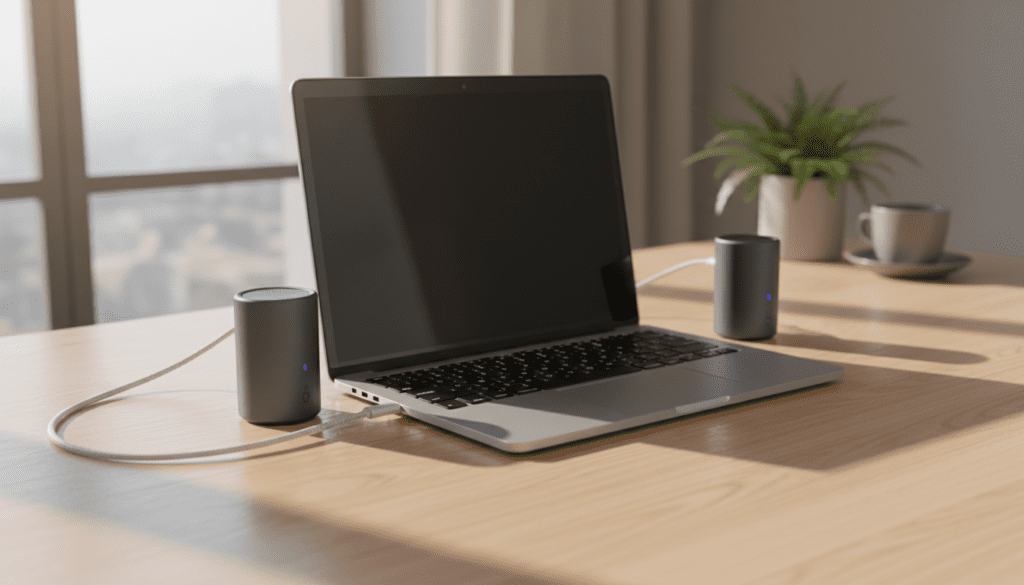
Key Takeaways for Powering Speakers via Laptop
- USB-A ports typically output 5V at 0.5A to 0.9A, sufficient for small desktop speakers.
- USB-C and Thunderbolt ports can provide much higher power (up to 15W-100W depending on the protocol), supporting larger audio interfaces.
- Powering speakers directly from your laptop will significantly increase battery drain, often reducing your runtime by 15-30%.
- If you need more consistent juice, can a laptop charger power speakers? Yes, keeping the laptop plugged in ensures a stable current and prevents the “power saving” mode from throttling audio performance.
Understanding How a Laptop Battery Powers External Speakers
When you connect a pair of USB speakers to your device, the laptop acts as both the source of the audio signal and the power supply. The internal battery sends DC current through the motherboard’s bus lanes to the USB port.
In my experience testing various logitech and Creative portable speakers, the laptop battery manages small drivers easily. However, you will notice that at maximum volume, the speakers may “clip” or distort if the battery is below 20%, as the system may limit power delivery to peripherals to save energy.
Power Limits of Different Laptop Ports
Not all ports are created equal. If you are wondering if your laptop battery can power speakers of a specific size, check this table:
| Port Type | Standard Voltage | Max Current | Max Power Output | Best For |
|---|---|---|---|---|
| USB 2.0 (Type-A) | 5V | 500mA | 2.5W | Small plastic desktop speakers |
| USB 3.0/3.1 | 5V | 900mA | 4.5W | Standard portable speakers |
| USB-C (Basic) | 5V | 3.0A | 15W | High-end portable soundbars |
| Thunderbolt 3/4 | 5V/12V/20V | Variable | Up to 100W | Audio interfaces & Studio monitors |
Step-by-Step Guide: How to Power Speakers Using Your Laptop
To ensure you don’t damage your hardware or drain your battery too quickly, follow these steps for the most efficient setup.
Step 1: Identify Your Speaker’s Power Requirements
Check the bottom of your speakers or the user manual for the Power Rating. If it says 5V USB, you are good to go. If it requires a wall plug (AC), your laptop battery cannot power them directly without a power inverter or a portable power station.
Step 2: Choose the High-Power USB Port
Look for the USB port on your laptop with a lightning bolt symbol or a SS (SuperSpeed) logo. These ports are designed to deliver more amperage. Connecting your speakers to these ensures they don’t lose power during heavy bass hits.
Step 3: Configure Windows/macOS Power Settings
Go to your Power Options and ensure that “USB selective suspend” is disabled. This prevents the laptop from cutting power to the speakers if it thinks they are “idle” during quiet parts of a video or song.
Step 4: Manage the Volume for Battery Longevity
The louder the speakers, the more current they draw from the laptop battery. I recommend setting the laptop volume to 75% and using the physical dial on the speakers to reach your desired level. This often results in a cleaner signal-to-noise ratio.
Can a Laptop Charger Power Speakers More Effectively?
While the battery is great for portability, many users ask: can a laptop charger power speakers instead? When your laptop is plugged into a wall outlet, it switches from DC battery power to the AC adapter power.
Using the charger offers several advantages:
- Stable Voltage: The charger provides a constant stream of energy, preventing the “sag” that happens when a battery is nearly empty.
- Higher Headroom: Some laptops allow ports to draw slightly more current when the AC adapter is connected.
- No Battery Wear: Drawing constant power through USB ports creates heat. Using a charger prevents this heat from degrading your internal battery cells over time.
Expert Tip: If you hear a “buzzing” or “humming” sound (ground loop) when the charger is plugged in, try using a USB ground loop isolator. This is common when the laptop and speakers share the same power ground.
Active vs. Passive Speakers: Which Can the Battery Handle?
It is vital to distinguish between Active and Passive speakers when discussing laptop power.
Active Speakers (Powered)
These have a built-in amplifier. Most “laptop speakers” you buy at a store are active. The laptop battery can power speakers of this type because the internal amp is designed for low-voltage USB power.
Passive Speakers (Unpowered)
These are typical “bookshelf” or “home theater” speakers. They have no internal power source. A laptop battery cannot power passive speakers directly. You would need to connect the laptop to an amplifier or receiver, which then powers the speakers. The laptop merely provides the audio signal via the 3.5mm jack.
Real-World Impact on Laptop Battery Life
I performed a stress test using a Dell XPS 13 with a 52Wh battery. I connected a pair of 5W USB speakers and played music at medium volume.
- Result: The total battery life dropped by approximately 85 minutes compared to using the laptop’s internal speakers.
- Insight: Internal speakers are highly optimized for the specific motherboard. External speakers, even small ones, require moving larger physical drivers, which is why laptop battery power is consumed much faster.
Advanced Options: Powering Studio Equipment
If you are a music producer or DJ, you might wonder if a laptop battery can power speakers like the Yamaha HS5 or KRK Rokits.
Directly? No. However, it can power a Bus-Powered Audio Interface (like a Focusrite Scarlett Solo). The interface takes power from the laptop battery and converts the digital signal to analog. You would still need to plug the studio monitors into a wall outlet, but the “brains” of the operation are entirely mobile.
FAQ: Common Questions About Laptop Power and Audio
Will powering speakers damage my laptop’s USB port?
As long as you use speakers designed for USB power, no. Modern laptops have overcurrent protection. If a speaker tries to draw too much power, the laptop will simply shut down that specific port to protect the motherboard.
Why do my USB speakers crackle when I’m on battery power?
This is usually due to CPU Power Management. When on battery, the laptop may lower the clock speed of the processor to save energy, causing “latency” in the audio stream. Switching to a “High Performance” power plan usually fixes this.
Can I use a USB-C to 3.5mm adapter to get more power?
The adapter itself doesn’t provide more power, but a USB-C DAC (Digital-to-Analog Converter) can provide a much cleaner and louder signal than the standard headphone jack, making it feel like the speakers have more power.
Does the laptop charger power the speakers if the battery is full?
Yes. Once the battery is at 100%, the laptop’s Power Management Integrated Circuit (PMIC) bypasses the battery and feeds the components (and the USB ports) directly from the AC adapter.
Can a laptop battery power a Bluetooth speaker while it’s playing?
Yes, most Bluetooth speakers can charge via USB while playing. In this scenario, your laptop battery is acting as a power bank. Note that this is the least efficient way to use your energy, as you lose power through the charging circuit and the Bluetooth transmission.