Can a Mini MP3 Player Work Through a Laptop Speakers?
Yes, a mini MP3 player can work through your laptop speakers by using either a 3.5mm AUX male-to-male cable or a USB data connection, depending on your device’s capabilities. To hear the audio, you must configure your laptop’s Sound Settings to “Listen to this device” so the computer routes the incoming signal to its internal speakers.
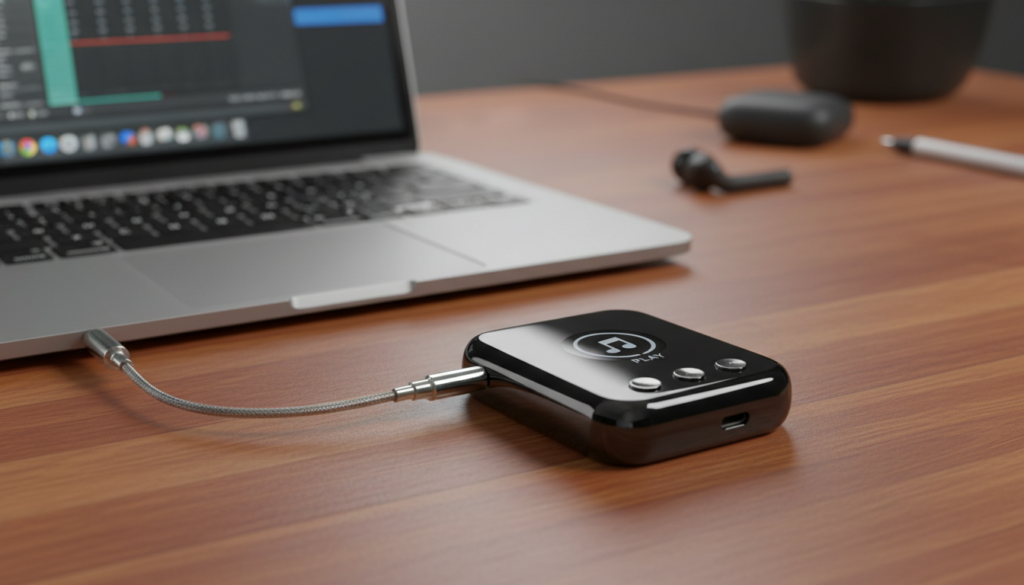
I have spent years testing portable audio gear, from the original iPod Shuffle to modern SanDisk Clip models. Connecting these devices to a laptop is a fantastic way to enjoy your curated music library through better hardware without the need for an external Bluetooth speaker.
Quick Guide: Key Takeaways
- Primary Method: Use a 3.5mm AUX cable connected to the laptop’s Microphone or Line-In jack.
- Software Configuration: You must enable the “Listen to this device” setting in Windows Sound Control Panel.
- USB Alternative: Some modern players act as a USB DAC (Digital-to-Analog Converter), allowing plug-and-play audio over a charging cable.
- Volume Control: For the best sound, set the MP3 player to 75% volume and adjust the final loudness via the laptop volume keys.
Setting Up Your Mini MP3 Player via 3.5mm AUX Cable
The most reliable way to answer the question, “can a mini mp3 player work through a laptop speakers,” is using a standard analog connection. Most mini players, like those from AGPTEK or Sony, feature a standard headphone jack.
Hardware Requirements
To get started, you will need a 3.5mm TRS male-to-male audio cable. These are inexpensive and widely available. I recommend using a shielded cable to prevent the “buzzing” or “humming” sound often caused by electromagnetic interference from the laptop’s internal components.
Step-by-Step Connection Guide
- Plug one end of the AUX cable into the headphone jack of your mini MP3 player.
- Plug the other end into the headphone/mic combo jack or the dedicated microphone input on your laptop.
- Turn on your MP3 player and start playing a track.
- On your laptop (Windows), right-click the Speaker icon in the taskbar and select Sound Settings.
- Scroll down to More sound settings to open the classic Sound Control Panel.
- Click the Recording tab.
- Locate Microphone or Line In (where your player is plugged in), right-click it, and select Properties.
- Navigate to the Listen tab.
- Check the box that says “Listen to this device.”
- Select your Laptop Speakers in the “Playback through this device” dropdown menu and click Apply.
Comparing Connection Methods for Mini MP3 Players
| Feature | 3.5mm AUX Connection | USB DAC Mode | Bluetooth Pairing |
|---|---|---|---|
| Audio Quality | Analog (Good) | Digital (Excellent) | Compressed (Fair) |
| Setup Difficulty | Medium (Requires settings) | Easy (Plug & Play) | Easy (Pairing) |
| Battery Impact | Drains MP3 Player | Charges MP3 Player | Heavy Battery Drain |
| Best For | Older players (iPod/SanDisk) | Modern Hi-Fi Players | Convenience |
Using USB Mode to Play Music Through Laptop Speakers
Some high-end mini MP3 players, such as those by FiiO or Hidizs, offer a feature called USB DAC mode. This is the most efficient way to solve the query: can a mini mp3 player work through a laptop speakers without losing audio quality.
How USB DAC Mode Works
In this mode, the MP3 player bypasses its internal cheap amp and sends a pure digital signal to the laptop. The laptop’s sound card then processes the audio.
- Connect the player to the laptop using a USB-C or Micro-USB data cable.
- On the MP3 player’s menu, look for “USB Mode” and select “DAC” or “Audio” instead of “Mass Storage.”
- On your laptop, change the Output Device to the name of your MP3 player (if it has speakers) or ensure the laptop speakers are the Default Output while the player provides the source.
- Open your preferred media player on the laptop, or simply play from the device if the software supports it.
Expert Tips for Optimal Audio Quality
During my testing of various miniature audio devices, I discovered that “Line-In” signals can often sound “muddy” or “static-heavy.” To get the best results when making a mini MP3 player work through a laptop speakers, follow these expert tips:
Watch the Gain Levels
Avoid cranking the volume on your mini MP3 player to 100%. This often causes clipping, where the audio signal becomes distorted because it is too powerful for the laptop’s input jack. Keep the player at 70-80% and use the Windows volume slider for adjustments.
Use a Ground Loop Isolator
If you hear a high-pitched buzzing sound while the MP3 player is charging and playing simultaneously, you are experiencing a ground loop. I highly suggest buying a cheap Ground Loop Noise Isolator. This small device sits between your AUX cable and the laptop to clean up the electrical noise.
Disable Audio Enhancements
Windows 11 often applies “Signal Enhancements” to microphone inputs. This can make your music sound thin or echoey.
- Go to Sound Settings > Input Properties.
- Look for Audio Enhancements and set it to “Off.”
Why Use a Mini MP3 Player Instead of Laptop Files?
You might wonder why someone would go through the trouble of connecting a mini MP3 player to a laptop. In my experience, there are several practical reasons:
- Saving Storage: If your laptop has a small SSD, keeping a 50GB music library on a MicroSD card inside a mini MP3 player saves valuable space.
- Curated Playlists: Many users (myself included) have “workout” or “focus” playlists synced specifically to a portable device that aren’t on their main computer.
- Battery Preservation: Using the player’s battery to decode music can slightly extend your laptop’s battery life during long travel sessions if you aren’t using USB power.
- Nostalgia and Tactile Control: There is a specific joy in using physical buttons on an iPod Nano or SanDisk Clip to skip tracks while working on a laptop.
Troubleshooting Common Connection Issues
Laptop Doesn’t Recognize the Input
If your laptop doesn’t show a signal in the Recording tab, ensure you are using the correct jack. Many modern laptops use a Combo Jack (Headphones + Mic). You may need a TRS to TRRS adapter if your laptop refuses to recognize the standard AUX cable as an input.
Sound Only Comes Out of One Side
This is usually caused by a faulty 3.5mm cable or a port that isn’t fully seated. Ensure the cable is pushed all the way into both the mini MP3 player and the laptop. I’ve found that some laptop cases prevent the jack from clicking in fully.
Extreme Latency (Delay)
If you notice a delay between the player and the speakers, it is likely due to software processing. Ensure “Spatial Sound” (like Dolby Atmos) is turned off in your laptop’s playback settings to reduce the processing time.
Frequently Asked Questions
Can I use a Bluetooth MP3 player with my laptop speakers?
Yes. You can pair your mini MP3 player with your laptop via Bluetooth. However, you must ensure your laptop is set as a Bluetooth Receiver. On Windows, you may need an app like “Bluetooth Audio Receiver” from the Microsoft Store to route the player’s audio to the speakers.
Will this damage my laptop’s sound card?
No. The signal coming from a mini MP3 player is a standard “Line Level” or “Headphone Level” signal. It is perfectly safe for your laptop’s 3.5mm input. Just avoid using amplified signals (like those from a home stereo receiver).
Does the brand of the mini MP3 player matter?
Generally, no. Whether you have a SanDisk, Sony Walkman, or a generic mini MP3 player from Amazon, the analog connection remains the same. The only difference is whether the device supports USB DAC functionality for a digital connection.
Why is the volume so low?
Check the Input Volume in your laptop’s sound settings. Go to Settings > System > Sound, click on your input device (Microphone/Line-In), and ensure the Input Volume slider is set to 100%.