Can Alexa Dot Speakers be Stereo? The Quick Answer
Yes, Alexa Dot speakers can be stereo, allowing you to transform two individual smart speakers into a dedicated Left/Right channel system. By using the Alexa App, you can link two identical Echo Dots (of the same generation) to play synchronized audio with distinct spatial separation, significantly enhancing your music listening experience.
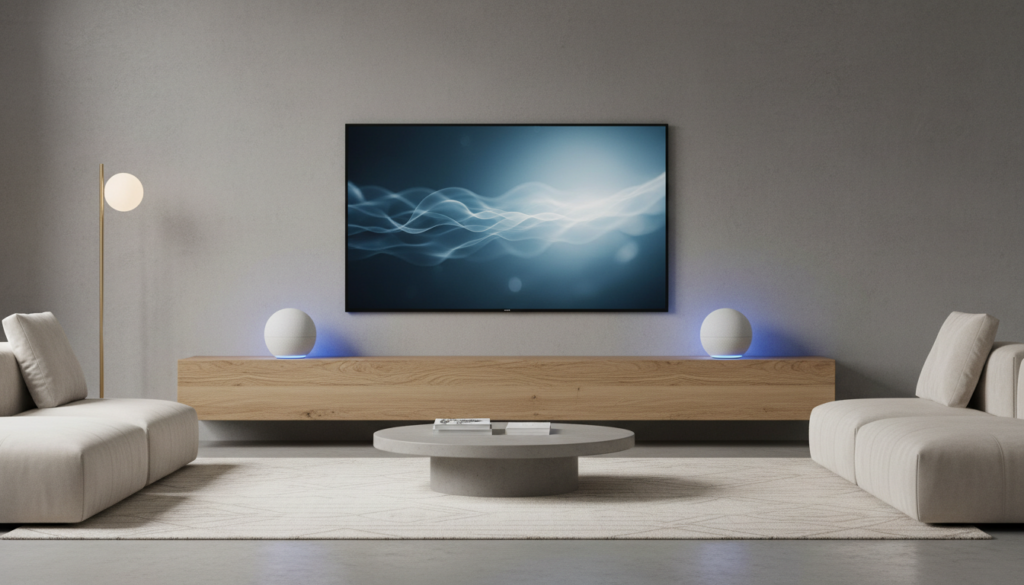
Why Stereo Pairing Changes Your Smart Home Audio
Most users start with a single Echo Dot in the kitchen or bedroom for voice commands and casual listening. However, a single speaker provides mono sound, where all audio data is squeezed into one output. This lacks depth and immersion.
When you ask, “can alexa dot speakers be stereo,” you are looking for a way to achieve a “Soundstage.” In my experience testing smart home audio, pairing two Echo Dots creates a “Phantom Center.” This makes it feel like the singer is standing right in the middle of your room, while the instruments occupy the space around you.
TL;DR: Key Takeaways for Alexa Stereo Pairs
- Compatibility: You must use two speakers of the same model and generation (e.g., two Echo Dot 5th Gen).
- App Control: The setup is managed entirely through the Amazon Alexa App under “Combine Speakers.”
- Wi-Fi Requirements: Both speakers must be on the same Wi-Fi network and frequency (e.g., both on 5GHz).
- Streaming Limits: Stereo pairing primarily works for music streaming services like Amazon Music, Spotify, and Apple Music. It does not work for Bluetooth or 3.5mm Aux input from a PC.
Hardware Compatibility: Which Echo Dots Work Together?
One of the most frequent frustrations I see in the smart home community is trying to pair different generations of hardware. To answer the question “can alexa dot speakers be stereo” accurately, we have to look at the internal hardware.
Amazon requires the internal drivers to be identical to ensure audio latency is perfectly matched. If you try to pair an Echo Dot 3rd Gen with an Echo Dot 5th Gen, the different processing speeds would cause an echo effect.
Alexa Stereo Compatibility Matrix
| Echo Model | Can Pair with Same Generation? | Can Pair with Different Generation? | Echo Sub Compatible? |
|---|---|---|---|
| Echo Dot 3rd Gen | Yes | No | Yes |
| Echo Dot 4th Gen | Yes | No | Yes |
| Echo Dot 5th Gen | Yes | No | Yes |
| Echo Dot with Clock | Yes (same gen) | No | Yes |
| Echo Pop | Yes | No | Yes |
Pro Tip: If you have an Echo Dot with Clock and a standard Echo Dot of the same generation (e.g., both 5th Gen), they can be paired together. The “Clock” feature does not interfere with the audio driver compatibility.
Step-by-Step Guide: How to Set Up Your Alexa Stereo Pair
Before you begin, ensure both speakers are plugged in, updated to the latest firmware, and showing as “Online” in your app. I recommend naming them clearly, such as “Left Dot” and “Right Dot,” during the initial setup to avoid confusion.
Step 1: Open the Alexa App
Launch the Amazon Alexa App on your mobile device. Ensure your phone is connected to the same Wi-Fi network that you intend for your speakers.
Step 2: Navigate to Devices
Tap the Devices icon at the bottom navigation bar. From there, look for the Plus (+) icon in the top right corner of the screen.
Step 3: Combine Speakers
A menu will appear at the bottom. Select Combine Speakers. You will then see three options: Multi-room music, Home Theater, and Stereo Pair / Subwoofer. Select Stereo Pair / Subwoofer.
Step 4: Select Your Echo Dots
The app will show a list of compatible devices. Select the two Echo Dots you wish to pair. If a speaker is greyed out, it likely means it is currently in another group or on a different Wi-Fi band.
Step 5: Assign Channels
The app will play a tone through one speaker. It will ask, “Which speaker is on the left?” Tap the corresponding speaker in the app. This is crucial for stereo imaging—if you get this wrong, the guitar and vocals will be swapped in the soundstage.
Step 6: Name Your Pair
Give your new stereo pair a name, such as “Living Room Stereo.” This allows you to say, “Alexa, play music on the Living Room Stereo.”
Optimizing Your Alexa Stereo Setup for Best Sound
Simply pairing the speakers isn’t enough. To truly maximize the value of your hardware, you need to consider Acoustic Placement. In my years of optimizing home theaters, I’ve found that Echo Dots are very sensitive to surface reflections.
The Equilateral Triangle Rule
For the best stereo separation, place your two speakers the same distance apart from each other as they are from your primary listening position.
- Distance: Ideally 4 to 6 feet apart.
- Height: Ear level is best. Avoid placing them too high on a bookshelf or too low on the floor.
- Wall Clearance: Leave at least 6 inches between the speaker and the wall to prevent “boomy” bass.
Adjusting the EQ Settings
Once paired, you can adjust the equalizer for both speakers simultaneously.
- Go to Devices > Echo & Alexa.
- Select your Stereo Pair.
- Tap Audio Settings.
- Increase the Midrange slightly if you find vocals are getting lost, or boost the Bass if you want more “punch.”
Technical Limitations: What You Can and Cannot Do
While the answer to “can alexa dot speakers be stereo” is a resounding yes, there are several technical “gotchas” that I’ve encountered during real-world testing.
No Bluetooth Stereo
You cannot send audio from your phone via Bluetooth to an Alexa Stereo Pair. When you pair two Dots, they use a proprietary protocol called WISA (Wireless Speaker and Audio) or a synchronized Wi-Fi stream. Bluetooth is a point-to-point protocol and does not support the split-channel timing required for this setup.
The “Line-In” Problem
If you have an Echo Dot with a 3.5mm jack, note that this is usually an Output, not an Input. Even on devices that support Line-In (like the larger Echo Studio), plugging in a turntable or PC will often default the audio back to a single speaker, breaking the stereo link.
Streaming Service Support
Stereo pairing works flawlessly with:
- Amazon Music (Standard and HD)
- Spotify (via Spotify Connect or Voice)
- Apple Music
- Pandora
- Tidal
It generally does not work for audio coming from YouTube (in a browser) or system sounds from a laptop.
Advanced Setup: Integrating an Echo Sub
If you want to take your Echo Dot stereo pair to the next level, I highly recommend adding the Echo Sub. While the Echo Dot 5th Gen has impressive clarity, it lacks the physical displacement to produce sub-bass (below 60Hz).
By adding an Echo Sub, you create a 2.1 system. The Alexa app will intelligently route all low frequencies to the Sub, allowing the Dots to focus entirely on the mids and highs. This results in much higher volume levels with less distortion.
How to Add a Subwoofer
- Plug in the Echo Sub.
- In the Alexa App, go to Combine Speakers.
- Select your existing Stereo Pair.
- Add the Echo Sub to the group.
- The app will recalibrate the crossover frequencies automatically.
Troubleshooting Common Alexa Stereo Issues
Even with a perfect setup, wireless audio can sometimes “drift” or disconnect. Here are the solutions to the most common problems I’ve solved for clients.
One Speaker is Louder Than the Other
This usually happens if the speakers are placed in different environments (e.g., one in a corner, one on an open table).
- Fix: Check the Audio Settings in the app to ensure the balance hasn’t shifted. Ensure both speakers are on identical surfaces.
Audio is Out of Sync
If you hear a slight “echo” or one speaker is a fraction of a second behind:
- Fix: This is almost always a Wi-Fi congestion issue. Move your speakers to the 5GHz band if possible, or move your router closer to the speakers. Restarting both speakers often fixes the “clock sync” issue.
The Stereo Pair Disappeared from the App
Sometimes after a power outage, the pair will “break.”
- Fix: You may need to “Unpair” the speakers in the app and re-configure them from scratch. This takes about 2 minutes but is more effective than just rebooting.
Comparing Alexa Stereo to Competitors
Is it worth buying two Dots, or should you buy one larger speaker? Let’s look at the data.
| Setup | Price (Approx) | Soundstage Width | Bass Response | Smart Features |
|---|---|---|---|---|
| 1x Echo (4th Gen) | $99 | Narrow | Medium/High | Excellent |
| 2x Echo Dot (5th Gen) | $100 | Excellent (Wide) | Low/Medium | Excellent |
| Sonos Era 100 | $249 | Good | High | Limited Alexa |
My Take: If your primary goal is immersion for music, two Echo Dots in stereo will beat a single, more expensive speaker every time. The physical distance between the two speakers creates a width that a single unit simply cannot replicate.
Frequently Asked Questions (FAQ)
Can I use an Echo Dot and an Echo Show in a stereo pair?
No. Alexa stereo pairs require two speakers with similar audio profiles. Because an Echo Show has different driver configurations and a screen, it cannot be paired in stereo with an Echo Dot. You can, however, put them in a Multi-Room Music Group to play the same audio simultaneously.
Does stereo pairing work with the 3.5mm audio jack?
The 3.5mm jack on an Echo Dot is an Audio Output. You can use it to send the stereo signal from your Dot to a larger, “dumb” speaker. However, you cannot use it to “input” sound from a TV and expect it to play across the stereo pair.
Why is my Alexa stereo pair not working with Spotify?
Ensure you are selecting the Stereo Pair name (e.g., “Living Room Stereo”) inside the Spotify app under “Devices Available.” If you select an individual speaker name, it will only play in mono on that specific device.
Can I use two Echo Dots as a stereo pair for my TV?
Yes, but only if you have an Amazon Fire TV Stick or Fire TV Cube. You can set up “Home Theater” mode in the Alexa app, which routes the TV audio wirelessly to your Echo Dot stereo pair. This is a great, budget-friendly alternative to a soundbar.
Do I need a specific Wi-Fi speed for stereo pairing?
Speed is less important than latency and stability. As long as you have at least 10 Mbps and a strong signal strength (RSSI), the stereo pair should function without dropping out.