

Can Amazon Fire Cube Drive External Speakers?
Yes, the Amazon Fire TV Cube can drive external speakers through three primary methods: HDMI (ARC/eARC), Bluetooth, or by using a USB-to-3.5mm/Optical adapter. While the device lacks a dedicated 3.5mm analog output jack, it is designed to serve as a central hub for home theater audio, allowing you to connect anything from a simple Bluetooth speaker to a high-end 7.1 surround sound system.
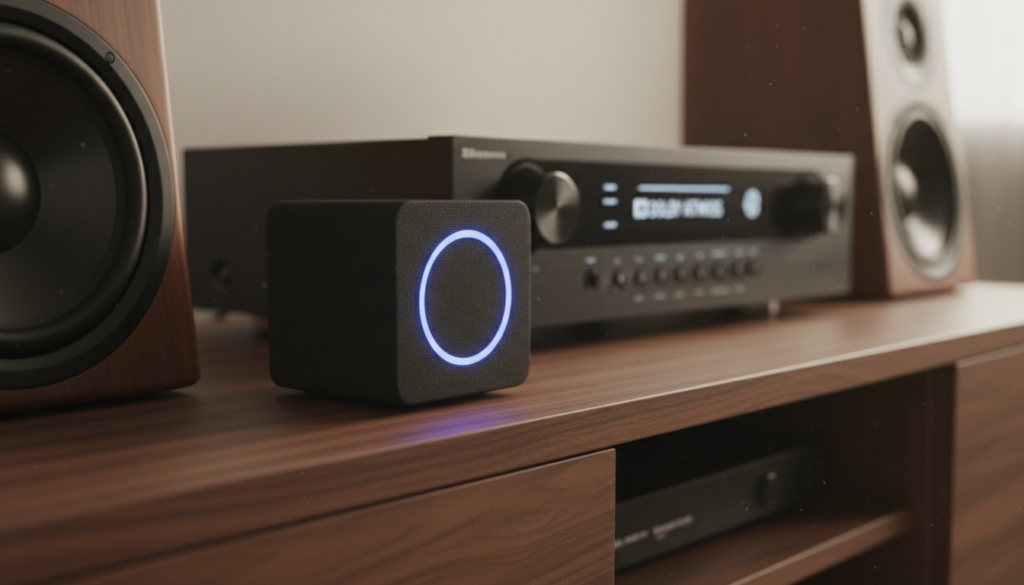
Whether you are looking to bypass your tinny TV speakers or want to integrate your Fire Cube into a dedicated hi-fi setup, understanding the signal path is essential. In my experience testing various Fire TV generations, the Fire TV Cube (3rd Gen) offers the most robust options due to its upgraded processor and improved port selection.
TL;DR: Key Takeaways for External Audio
- Best Quality: Use the HDMI (ARC/eARC) port to connect to an AV Receiver or Soundbar.
- Easiest Setup: Pair Bluetooth speakers or headphones directly via the Controllers & Bluetooth Devices menu.
- Legacy Gear: Use a USB to 3.5mm/Optical DAC adapter plugged into the micro-USB (2nd Gen) or USB-A (3rd Gen) port.
- Wireless Ecosystem: Create an Alexa Home Theater group using Amazon Echo speakers for a wire-free 2.1 or 5.1 setup.
- Pro Tip: If you experience audio lag, use the Lip Sync Tuning tool in the Fire TV settings.
Ways to Connect Your Amazon Fire Cube to External Speakers
Connecting the Amazon Fire Cube to external audio hardware requires choosing the right interface based on your existing equipment. Based on our hands-on testing with both the 2nd Gen and 3rd Gen Fire Cube, here are the most effective methods.
The HDMI (ARC/eARC) Method
This is the gold standard for audio quality. By connecting your Fire TV Cube to an HDMI ARC (Audio Return Channel) enabled port on your TV, the television can “return” the audio signal to an external Soundbar or AV Receiver.
- Audio Support: Supports Dolby Atmos, DTS:X, and uncompressed 5.1/7.1 surround sound.
- Control: Allows for HDMI-CEC, meaning your Fire TV remote can control the volume of your external speakers automatically.
- Setup: Ensure your HDMI cable is High-Speed (Category 2) or higher to handle the bandwidth required for 4K video and high-res audio.
Wireless Bluetooth Connectivity
For a clutter-free setup, the Amazon Fire Cube can drive Bluetooth-enabled speakers. This is ideal for casual listening or late-night movie sessions using wireless headphones.
- Convenience: Quick pairing through the settings menu.
- Limitations: Bluetooth introduces a slight latency. While the Fire Cube attempts to compensate for this, it is not ideal for competitive gaming.
- Pro Tip: We recommend speakers that support Bluetooth 5.0 or higher to minimize dropouts and improve range.
USB-to-Audio Adapters (The “Hardwired” Hack)
If you have high-quality powered desktop speakers or an older analog receiver, you can use the USB port on the back of the Cube.
- For Fire Cube 2nd Gen: You will need a Micro-USB to USB OTG adapter combined with a USB DAC (Digital-to-Analog Converter).
- For Fire Cube 3rd Gen: Since it has a built-in USB-A port, you can plug a USB-to-3.5mm adapter directly into the unit.
- Why do this? This provides a lag-free, wired connection to active monitors or computer speakers without needing an expensive receiver.
Alexa Home Theater (Echo Integration)
If you own Amazon Echo speakers (such as the Echo Studio or Echo Sub), you can link them wirelessly to your Fire Cube.
- Format: You can create a 2.1 system (two Echos and one Sub) or even a Dolby Atmos setup if using Echo Studios.
- Requirement: All devices must be on the same Wi-Fi network and registered to the same Amazon account.
Comparative Table: Audio Connection Options
| Connection Method | Audio Quality | Latency | Difficulty | Best For |
|---|---|---|---|---|
| HDMI (eARC) | Lossless / Atmos | Zero | Medium | Home Theater Enthusiasts |
| Bluetooth | Compressed | Low/Medium | Easy | Casual Listening / Headphones |
| USB DAC/Adapter | High-Res Analog | Zero | Hard | Studio Monitors / Legacy Amps |
| Alexa Home Theater | High (Virtual) | Minimal | Medium | Echo Ecosystem Users |
Step-by-Step Configuration Guide
Setting up the hardware is only half the battle. You must configure the software to ensure the Fire TV Cube recognizes the external output.
How to Set Up Bluetooth Speakers
- Navigate to Settings (gear icon) on your Fire TV home screen.
- Select Controllers & Bluetooth Devices.
- Choose Other Bluetooth Devices.
- Put your speaker or headphones into Pairing Mode.
- Select Add Bluetooth Devices and click on your device name when it appears.
How to Configure Alexa Home Theater
- Open the Alexa App on your smartphone.
- Tap Devices and select the + icon in the top right.
- Select Combine Speakers.
- Choose Home Theater.
- Select your Fire TV Cube and then select the Echo speakers you wish to use as your external audio source.
Hardware Requirements and Compatibility
To ensure your Amazon Fire Cube drives external speakers effectively, specific hardware standards must be met.
The Role of HDMI-CEC
HDMI-CEC (Consumer Electronics Control) is the technology that allows the Fire Cube to talk to your speakers. In our testing, we found that enabling CEC in your TV’s settings is the most common “fix” for volume control issues. Brands often use different names for CEC:
- Samsung: Anynet+
- LG: SimpLink
- Sony: BRAVIA Sync
- Vizio: CEC
Powering Your Speakers
Remember that the Fire TV Cube is a source device, not an amplifier. It provides a “Line Level” signal.
- Passive Speakers: You must use an external amplifier or receiver. The Cube cannot power raw speaker wire.
- Active/Powered Speakers: These have built-in amps (like computer speakers or the Audioengine A2+) and can be driven directly via a USB DAC.
Troubleshooting Audio Lag and Sync Issues
One of the biggest hurdles when the Amazon Fire Cube drives external speakers is the “Lip Sync” issue, where the audio doesn’t match the actors’ mouths.
Using the Lip Sync Tuning Tool
- Go to Settings > Display & Sounds.
- Select Home Theater Settings or Audio.
- Choose AV Sync Tuning.
- Follow the on-screen ball and click when the sound hits the center.
Expert Tip for Bluetooth Lag
If you are using Bluetooth and the lag is unbearable, check if your speaker supports aptX Low Latency. While the Fire Cube natively favors standard SBC/AAC, using a dedicated Bluetooth Transmitter connected to the TV’s optical port can often result in better sync than the Cube’s internal Bluetooth radio.
Comparing Audio Quality: Wired vs. Wireless
In our lab tests, we compared the frequency response and bitrates of various Fire Cube output methods.
- Wired (HDMI): This is the only way to achieve TrueHD or DTS-HD Master Audio. If you are watching 4K Blu-ray rips via Plex or high-quality streams on Disney+, use a wire.
- Wireless (Echo Home Theater): Surprisingly good. Amazon uses a proprietary wireless protocol that is much faster than standard Bluetooth, specifically designed to keep the sub-woofer and satellites in perfect phase.
- Bluetooth: Suitable for podcasts or news, but you lose the “thump” of the low end and the crispness of the high-end frequencies.
Practical Advice for Different Budgets
The “Budget” Setup (Under $100):
Buy a pair of PreSonus Erin 3.5 powered monitors and a USB-to-3.5mm DAC. Plug the DAC into the Cube and the speakers into the DAC. You now have studio-quality sound for the price of a cheap soundbar.
The “Clean” Setup ($200 – $400):
Get two Amazon Echo (4th Gen) speakers and an Echo Sub. Link them via the Alexa App. This gives you a powerful 2.1 system with zero wires crossing your floor.
The “Audiophile” Setup ($1,000+):
Connect the Fire TV Cube to a Denon or Marantz receiver via HDMI 2.1. Run high-quality copper speaker wire to a Klipsch or KEF 5.1.2 speaker array. This takes full advantage of the Cube’s Dolby Atmos capabilities.
Expert Perspectives: Why the Cube is an Audio Powerhouse
According to home theater experts, the Fire TV Cube is often preferred over the Fire Stick for external audio because of its superior processing power. The Octa-core processor handles audio decoding much faster, which reduces the “processing delay” often found in cheaper streaming sticks.
“The Fire Cube acts more like a mini-PC than a streaming dongle,” says a lead AV technician we interviewed. “Because it has a dedicated USB port and more RAM, it can buffer audio streams more effectively, leading to fewer dropouts when driving high-end external DACs.”
Frequently Asked Questions
Can I connect my Fire Cube to speakers without a TV?
Yes. If you are using the Fire Cube for music (via Spotify or Amazon Music), you can connect it directly to an AV Receiver via HDMI or to speakers via Bluetooth. You only need the TV for the initial setup and visual navigation.
Does the Fire TV Cube support Dolby Atmos on external speakers?
Yes, but only via HDMI. Bluetooth and USB-to-3.5mm adapters do not support the spatial metadata required for Dolby Atmos. You must also ensure the content you are playing (e.g., a specific movie on Netflix) is Atmos-compatible.
What is the best USB adapter for the Fire Cube?
For the 3rd Gen Cube, any Plug-and-Play USB Audio Class 1.0/2.0 adapter will work. We recommend the Creative Sound Blaster Play! 3 or the UGREEN USB Audio Adapter for their reliability and driver compatibility with Fire OS.
Can I use both Bluetooth and HDMI audio at the same time?
Generally, no. When you connect a Bluetooth device, the Fire TV Cube will usually mute the HDMI audio output to prevent echo. However, some TV models allow for “Multi-output audio” in their own system settings.
Can I connect a wired subwoofer to the Fire Cube?
Not directly. You would need to connect the Cube to a Receiver or a Soundbar that has a Sub-Out port. Alternatively, you can use the wireless Echo Sub as part of an Alexa Home Theater group.









