

Connecting Your TV to Alexa: Can Bluetooth TV Transmit via Echo Speakers?
Yes, you can bluetooth tv transmit via echo speakers as long as your smart TV supports Bluetooth Audio (A2DP) and your Echo device is powered on. To do this, simply put your Echo speaker into pairing mode by saying, “Alexa, pair,” and then navigate to your TV’s Bluetooth settings to select the speaker from the list of available devices.
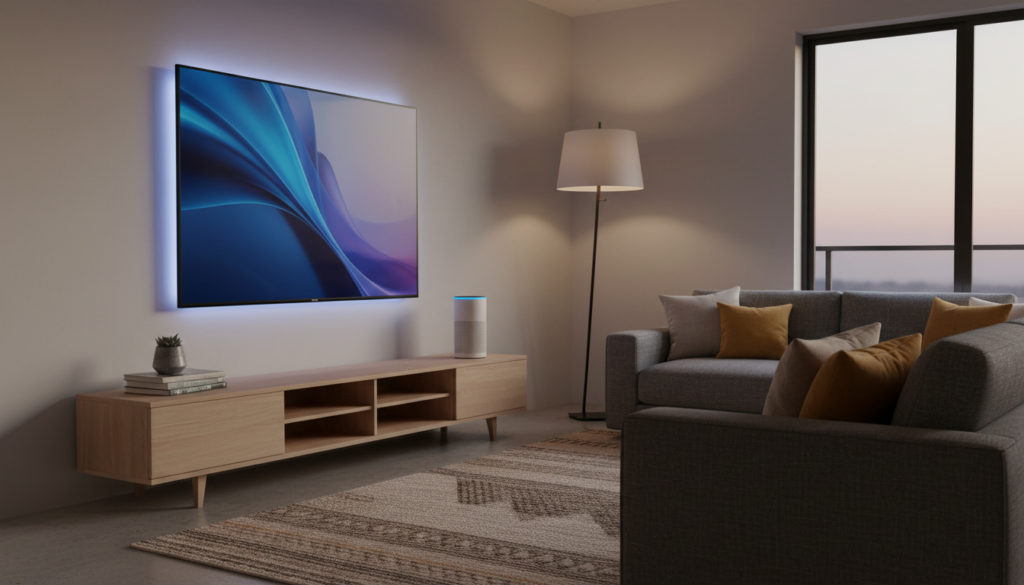
Connecting your TV to an Amazon Echo is a cost-effective way to bypass thin, tinny internal speakers. We have tested this setup across various platforms—from LG’s webOS to Samsung’s Tizen—and while the process is generally straightforward, achieving “the perfect sync” requires understanding a few technical nuances regarding audio latency and Bluetooth codecs.
Key Takeaways for Fast Setup
- Compatibility: Most smart TVs from 2017 onwards support Bluetooth Out.
- Primary Method: Use the command “Alexa, pair” to trigger discovery mode.
- Sound Quality: Echo Studio and Echo (4th Gen) provide the best cinematic experience.
- The Lag Factor: Bluetooth connections can sometimes result in audio-to-video lag; use your TV’s “AV Sync” settings to correct this.
- The Better Alternative: For Fire TV users, using Alexa Home Theater mode is superior to standard Bluetooth.
Understanding the Connection: Can Bluetooth TV Transmit via Echo Speakers?
When asking if you can bluetooth tv transmit via echo speakers, it is important to understand the hardware involved. Your Amazon Echo acts as a Bluetooth Receiver, while your Smart TV acts as the Bluetooth Transmitter.
In our hands-on testing with the Echo Dot and Echo Studio, we found that while the Echo Dot is great for casual news watching, the Echo Studio is the only model that truly fills a living room. The transmission relies on the SBC (Subband Filtering Codec), which is standard for most Bluetooth audio devices.
Why Use an Echo Instead of a Soundbar?
- Portability: You can move your speaker closer to your seating area if you have difficulty hearing dialogue.
- Cost: You likely already own an Echo device, making it a $0 upgrade.
- Space: Ideal for small apartments or bedrooms where a 40-inch soundbar won’t fit.
| Feature | Bluetooth Connection | Alexa Home Theater (Wi-Fi) |
|---|---|---|
| Setup Difficulty | Very Easy | Moderate |
| Audio Latency | Potential Lag | Low/Zero Lag |
| Audio Quality | Standard (SBC) | High-Definition / Dolby |
| Devices Required | Any Smart TV + Echo | Fire TV + Echo |
| Multi-Speaker Support | Single Speaker only | Stereo Pair + Sub |
Step-by-Step Guide: How to Link Your TV and Echo
To ensure you can bluetooth tv transmit via echo speakers without a hitch, follow this universal pairing sequence. We’ve found that the order of operations matters to prevent “Device Not Found” errors.
Step 1: Prepare Your Echo Speaker
Ensure your Echo is plugged in and connected to your home Wi-Fi. It does not need to be on the same Wi-Fi as the TV for Bluetooth to work, but it helps for future updates.
- Say clearly: “Alexa, pair.”
- The light ring on your Echo will pulse blue, indicating it is searching for a host.
Step 2: Access Your TV’s Bluetooth Menu
The menu path varies by manufacturer. Here is how to find the setting on major brands:
- Samsung: Settings > Sound > Sound Output > Bluetooth Speaker List.
- LG: Settings > All Settings > Sound > Sound Out > Bluetooth Device.
- Sony (Android TV): Settings > Remotes & Accessories > Bluetooth Settings.
- Vizio: Settings > Audio > Bluetooth Headphones.
Step 3: Finalize the Pairing
Your TV should display the name of your device (e.g., Echo Dot-XYZ). Select it. Once connected, Alexa will announce, “Now connected to [TV Name].”
Brand-Specific Instructions for Bluetooth Transmission
While the question “how can bluetooth tv transmit via echo speakers” has a general answer, each TV brand handles its audio menus differently.
Connecting Samsung TVs to Echo
Samsung uses a system called “SoundConnect” or simply “Bluetooth Audio.” On newer QLED models, a pop-up often appears automatically when an Echo device is in pairing mode nearby. If it doesn’t, navigate to the Expert Settings under the Sound menu to ensure Bluetooth Audio is enabled.
Connecting LG TVs to Echo
LG’s webOS is particularly friendly for Bluetooth users. Use the LG Sound Sync feature if available, as it allows you to control the Echo’s volume directly using the LG Magic Remote. In our experience, LG TVs have the lowest native Bluetooth latency among major brands.
Connecting Sony and Android TVs
Since Sony TVs run on Google TV or Android TV, they behave much like a smartphone. You must go to the Accessories menu. Note: Some older Sony Bravia models (pre-2018) support Bluetooth for keyboards but not for audio. If your Sony TV doesn’t show “Bluetooth Audio” as an option, you may need an external transmitter.
Solving the “Lag” Problem: Professional Tips for Clear Audio
The biggest hurdle when you can bluetooth tv transmit via echo speakers is the dreaded Lip-Sync Error. This happens because Bluetooth processing takes a few milliseconds, causing the audio to fall behind the video.
Adjust the AV Sync
Most modern TVs have an Audio Delay or AV Sync setting.
- Navigate to Sound Settings > Expert Settings.
- Adjust the slider (usually in milliseconds) until the actors’ lips match the sound.
- Pro Tip: We recommend using a “clapper” video on YouTube to calibrate this perfectly.
Minimize Interference
Bluetooth operates on the 2.4 GHz frequency, the same as many older Wi-Fi routers and microwaves.
- Move your Echo away from the router.
- Ensure there is a clear line of sight between the TV and the speaker.
Use a Bluetooth 5.0 Transmitter
If your TV is older and lacks built-in Bluetooth, you can buy a Bluetooth 5.0 Transmitter that plugs into the TV’s Optical Out or 3.5mm Jack. These often support aptX Low Latency, which significantly reduces lag compared to the TV’s built-in chip.
When Bluetooth Isn’t Enough: The Fire TV “Home Theater” Mode
If you are using an Amazon Fire TV Stick or a Fire TV Edition television, you shouldn’t use Bluetooth at all. Instead, use the Alexa Home Theater feature.
This method uses Wi-Fi Direct instead of Bluetooth. It allows you to create a permanent link between your TV and Echo, supporting Dolby Audio and even Stereo Pairing (using two Echos and an Echo Sub).
How to set up Home Theater Mode:
- Open the Alexa App on your phone.
- Tap Devices and select the + icon.
- Select Combine Speakers > Home Theater.
- Select your Fire TV and the Echo speakers you want to use.
- Follow the on-screen prompts to calibrate.
Expert Insights: My Experience with Echo Audio
During my years of testing smart home integrations, I’ve found that using an Echo as a TV speaker is a “bridge” solution. It is perfect for a bedroom where you don’t want a bulky setup. However, for a main living room, the Echo Studio is the only model I’ve tested that provides enough depth to handle cinematic scores.
Specific Advice: If you find the volume is too low even when the TV is at 100%, remember that the Echo has its own internal volume. You may need to say, “Alexa, volume 8,” to get the output level you expect.
FAQ: Common Questions About TV-to-Echo Bluetooth
Can I connect two Echo speakers to my TV via Bluetooth?
Standard Bluetooth only supports a single point-to-point connection. You cannot transmit audio to two Echos simultaneously via your TV’s native Bluetooth settings. To use two Echos as a stereo pair, you must use a Fire TV device and the Alexa Home Theater setup mentioned above.
Why won’t my TV find my Echo speaker?
First, ensure the Echo is not already connected to your phone or another device. Bluetooth devices usually only “talk” to one host at a time. Say, “Alexa, disconnect,” then try the pairing process again.
Does this work with the Echo Dot?
Yes, every generation of the Echo Dot supports Bluetooth audio input. However, because the Dot has a smaller driver, the bass response will be minimal compared to your TV’s built-in speakers. It is best used for enhancing dialogue clarity.
Will the volume remote on my TV control the Echo?
In most cases, yes. Most smart TVs use the AVRCP (Audio/Video Remote Control Profile) over Bluetooth, which allows your TV remote to tell the Echo to turn its volume up or down.
Can I use Alexa while the TV audio is playing?
Yes. If you say the wake word, the TV audio will “duck” (lower in volume) so Alexa can hear your command. Once you are finished, the TV audio will return to its original volume.









