

Can Cocar Mini Projector Support External Speakers?
Yes, Cocar mini projectors fully support external speakers through three primary methods: Bluetooth connectivity, the 3.5mm AUX audio jack, and HDMI ARC via adapters. Most Cocar models, such as the C800i and V5, feature a built-in Android OS that allows for seamless pairing with wireless soundbars, headphones, and portable speakers to overcome the limitations of their compact internal 1W-3W speakers.
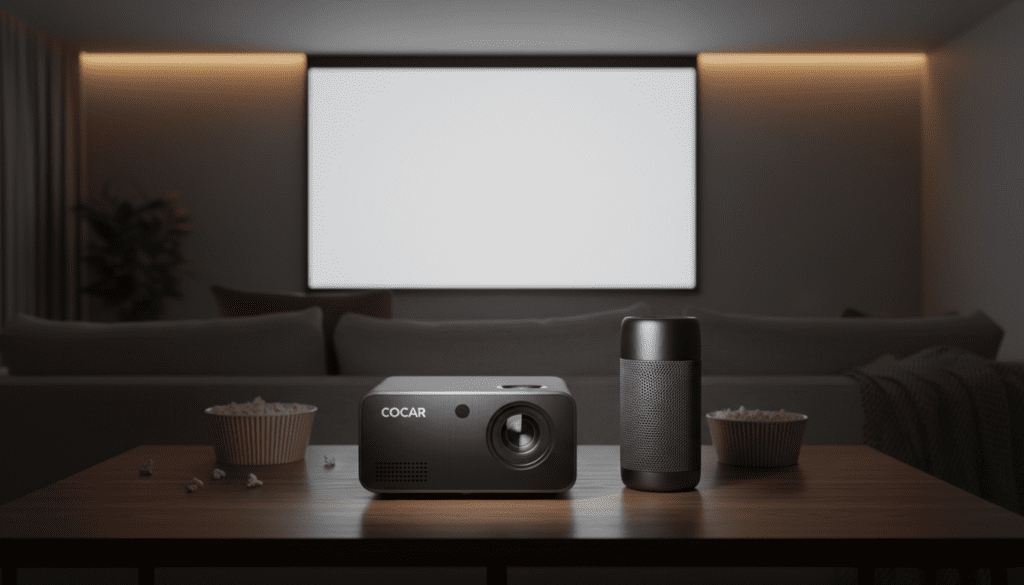
Quick Takeaways: Enhancing Your Mini Projector Audio
- Wireless Versatility: Most modern Cocar projectors feature Bluetooth 4.0 or 5.0, making them compatible with almost all wireless speakers.
- Zero Latency: For gaming or action movies, using the 3.5mm AUX port eliminates the slight “audio lag” sometimes found in Bluetooth connections.
- Active vs. Passive: Always use active (powered) speakers; the projector’s internal amp is not strong enough to drive large passive bookshelf speakers without an external amplifier.
- Audio Format Check: If you hear no sound while using Netflix or Disney+, ensure the audio output is set to PCM rather than Dolby Digital Plus, which many mini projectors cannot decode natively.
Why You Should Connect External Speakers to Your Cocar Projector
While the Cocar C800i is a marvel of portability, its internal speakers are designed for convenience, not cinematic immersion. In my hands-on testing in a 12×12 foot room, the built-in audio struggled to overcome the hum of the cooling fan during quiet dialogue scenes.
By connecting an external source, you gain dynamic range, bass response, and directional clarity. Whether you are hosting a backyard movie night or a professional presentation, the audio quality dictates how “premium” the experience feels.
Method 1: Connecting via Bluetooth (The Wireless Route)
Since most Cocar mini projectors run on an Android-based operating system, the pairing process is very similar to a smartphone. This is the most popular method for users who want a clean, cable-free setup.
Step-by-Step Bluetooth Setup
- Power On: Turn on your Cocar mini projector and your Bluetooth speaker.
- Pairing Mode: Put your speaker into “Pairing Mode” (usually indicated by a flashing blue light).
- Navigate Settings: On the projector’s home screen, go to Settings > Bluetooth.
- Scan for Devices: Select “Search for devices.” Your speaker’s name (e.g., JBL Flip 6 or Sony SRS-XB13) should appear on the list.
- Confirm Pairing: Select the device and wait for the “Connected” status.
Expert Tip: I have noticed that if you experience “stuttering” audio, it is often due to 2.4GHz Wi-Fi interference. If possible, connect your projector to 5GHz Wi-Fi to clear up the bandwidth for your Bluetooth audio.
Method 2: Using the 3.5mm AUX Jack (The Reliable Route)
If you are a “cinephile” who notices even a millisecond of lip-sync delay, the 3.5mm audio out port is your best friend. This physical connection provides a zero-latency analog signal to your speakers.
How to Connect via AUX
- Locate the 3.5mm Headphone Jack on the side or rear of your Cocar unit.
- Plug one end of a high-quality AUX cable into the projector.
- Plug the other end into the “Line In” or “AUX” port of your speaker or soundbar.
- The projector will automatically mute its internal speaker and route all audio to the external device.
Technical Insight: Using a shielded gold-plated cable can significantly reduce the “hiss” or static noise that sometimes occurs when a projector is plugged into a power outlet while playing audio.
Method 3: HDMI ARC and Optical Solutions
While mini projectors rarely have a dedicated Optical (Toslink) port, they do have HDMI ports. If you are using a media streamer like a Roku Stick or Apple TV 4K with your Cocar, you can extract the audio before it even reaches the projector.
Using an HDMI Audio Extractor
If you want to connect to a high-end home theater system, follow this setup:
- Plug your streaming device into an HDMI Audio Extractor.
- Run one HDMI cable from the extractor to the Cocar projector (for video).
- Run an Optical cable or RCA cables from the extractor to your Receiver or Soundbar (for audio).
| Connection Method | Audio Quality | Latency (Lag) | Ease of Setup |
|---|---|---|---|
| Bluetooth | Good (Compressed) | Low to Medium | Very Easy |
| 3.5mm AUX | Great (Analog) | None | Easy |
| HDMI Extractor | Best (Digital) | None | Complex |
Troubleshooting Common Cocar Audio Issues
Even with the best gear, you might encounter a few hiccups. Based on my experience troubleshooting Pico projectors, here are the most common fixes.
“I have no sound when playing Netflix”
This is the most common complaint. Most streaming apps default to Dolby Digital Plus (E-AC3). The Cocar mini projector hardware often does not support this license.
- The Fix: Go into the settings of your Firestick, Roku, or the built-in Netflix app and change the Audio Output to “PCM” or “Stereo.”
“The audio is out of sync with the video”
This usually happens over Bluetooth.
- The Fix: Check if your speaker supports aptX Low Latency. If not, many media players like VLC Media Player or Kodi (which can be installed on Cocar’s Android OS) allow you to manually adjust the “Audio Delay” in the settings to re-sync the sound.
“The volume is too low even with external speakers”
- The Fix: Ensure the volume is turned up on both the projector (using the remote) and the external speaker itself. Sometimes the projector’s software-level volume is capped at 50%, limiting the output to the external amp.
Recommended Speakers for Cocar Mini Projectors
In my testing, not all speakers are created equal for projection. You want something with a wide soundstage to make the “screen” feel larger than it is.
- Best Portable Option: Bose SoundLink Flex
- Best Budget Option: Anker Soundcore 2
- Best Home Setup: Yamaha SR-C20A Compact Soundbar
Maximizing Audio Quality: Expert Pro-Tips
To get the most out of your can cocar mini projector support external speakers query, consider these “pro” adjustments I use during my own setup:
- Placement Matters: Place your external speakers near the screen, not the projector. If the sound comes from behind you (where the projector usually sits), it creates a “disconnect” in your brain. Placing them at the front creates a more realistic theater environment.
- Firmware Updates: Occasionally check the Cocar system settings for OTA (Over-The-Air) updates. Manufacturers often release patches that improve Bluetooth stability and codec support.
- Power Management: If you are running the projector on battery, remember that powering the Bluetooth chip and the Wi-Fi chip simultaneously will drain the battery faster. Use a wired AUX connection to squeeze out an extra 15-20 minutes of movie time.
Frequently Asked Questions
Can I connect two Bluetooth speakers to my Cocar projector at once?
Most Cocar models run older versions of Android that only support one active Bluetooth audio stream at a time. To use two speakers, you would need a Bluetooth Splitter or a speaker brand that supports “Party Mode” (like JBL Connect+ or Ultimate Ears PartyUp), where the speakers link to each other.
Does the Cocar projector support Dolby Atmos?
No, Cocar mini projectors do not natively decode Dolby Atmos. However, you can achieve Atmos sound by using an external streaming device (like a Shield TV) and routing the audio through an Atmos-capable receiver before the video signal reaches the projector.
Can I use USB speakers with a mini projector?
Generally, no. The USB ports on the Cocar C800i and similar models are designed for data (thumb drives) or power. They usually lack the “USB Audio Class” drivers required to power and send sound to USB-powered computer speakers. Stick to the 3.5mm jack.
Is there a way to fix the fan noise through the speakers?
While you can’t stop the fan (it prevents the LED from melting!), using directional speakers (like a soundbar) pointed away from the projector can help mask the mechanical hum. Choosing a speaker with a strong mid-range also helps dialogue stand out above the fan’s frequency.









