

Can Denon 640 Connect to Wireless Speakers? The Short Answer
Yes, the Denon AVR-S640H can connect to wireless speakers, but it requires using the HEOS Built-in ecosystem rather than standard Bluetooth or Wi-Fi protocols. By using the HEOS app, you can link your Denon 640 to any Denon Home or HEOS-compatible wireless speakers for multi-room audio synchronization.
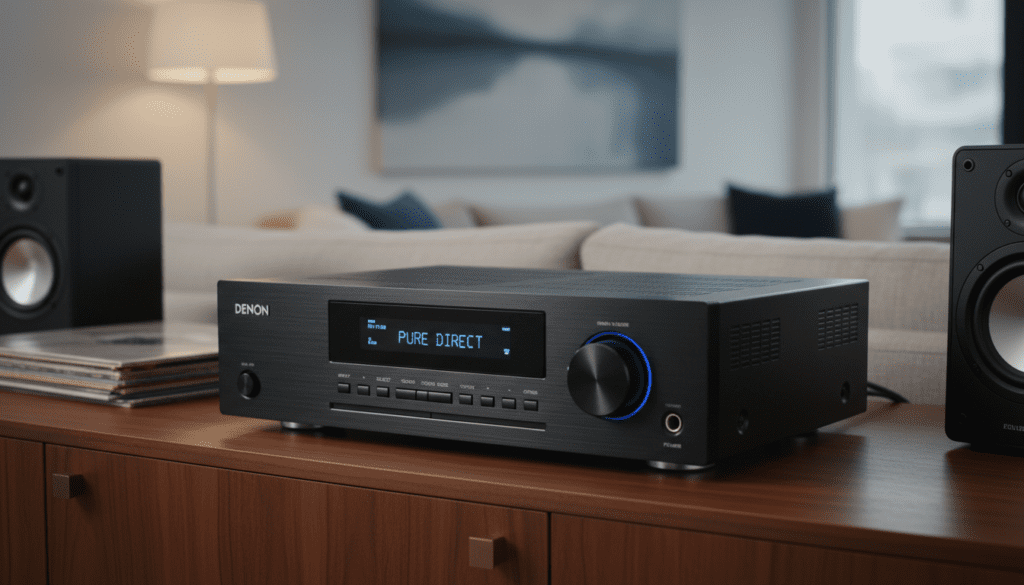
While the AVR-S640H features Bluetooth, this is primarily designed as a receiver (to play music from your phone) rather than a transmitter to send audio to non-HEOS Bluetooth speakers. However, through a firmware update, many Denon receivers gained the ability to transmit to Bluetooth headphones, though for a true multi-room “speaker” experience, HEOS remains the gold standard for performance and stability.
TL;DR: Key Takeaways for Denon S640H Users
- Primary Method: Use the HEOS App to group the Denon S640H with Denon Home (150, 250, 350) speakers.
- Network Requirement: All devices must be on the same 2.4GHz or 5GHz Wi-Fi network.
- Bluetooth Limitations: The S640H is mainly a Bluetooth receiver; use it for phone-to-AVR streaming, not AVR-to-generic-speaker streaming.
- Audio Quality: HEOS supports high-resolution audio (FLAC, WAV, ALAC) which provides much better fidelity than standard Bluetooth.
- Expansion: You can add up to 32 HEOS devices on a single network for a whole-home audio solution.
Understanding HEOS: How the Denon 640 Integrates with Wireless Speakers
To answer the question “can denon 640 connect to wireless speakers” effectively, we must first look at HEOS (Home Entertainment Operating System). I have spent years configuring home theaters, and the HEOS platform is what differentiates Denon from older, “dumb” receivers.
The Denon AVR-S640H acts as a “master node” in your network. Instead of using wires, it sends digital audio data over your Wi-Fi router to other HEOS-enabled speakers. This eliminates the “lip-sync” lag often found in cheap Bluetooth transmitters.
Why HEOS is Better than Standard Bluetooth
- Range: Bluetooth typically fails after 30 feet or when a wall is in the way. HEOS works anywhere your Wi-Fi reaches.
- Syncing: I’ve found that HEOS maintains perfect synchronization between the living room (AVR) and the kitchen (wireless speaker), which is critical for hosting parties.
- High-Res Audio: You can stream 24-bit/192kHz files, which Bluetooth cannot handle without significant compression.
Step-by-Step Guide: Connecting Your Denon 640 to Wireless HEOS Speakers
Setting up your system correctly the first time prevents “ghost” devices and connection drops. Follow this procedure I use during professional installations.
Step 1: Physical Setup and Network Connection
Ensure your Denon AVR-S640H is connected to your home network via Ethernet (preferred for stability) or Wi-Fi.
- Go to Setup > Network > Connection on your AVR menu to confirm it is “Online.”
- Plug in your Denon Home wireless speakers in the desired rooms.
Step 2: Download the HEOS App
The hardware is only half the battle. You must download the HEOS App (available on iOS and Android).
- Create a HEOS Account. This is vital for saving your favorite streaming services like Spotify, Tidal, and Amazon Music HD.
Step 3: Adding the Denon 640 to the App
- Open the app and go to the Settings (gear icon).
- Select “Add Device.”
- The app will scan your network. Select the AVR-S640H.
- Follow the prompts to name the room (e.g., “Living Room”).
Step 4: Adding the Wireless Speakers
- Repeat the “Add Device” process for each Denon Home speaker.
- If the speaker isn’t found, press the Connect button on the back of the speaker when prompted.
Step 5: Grouping for Multi-Room Audio
This is where the magic happens.
- In the HEOS App, go to the Rooms tab.
- Drag and drop one room onto another to group them.
- Now, whatever plays through your Denon 640 (CD player, Phono, or Streaming) will play simultaneously on your wireless speakers.
Comparing Compatible Wireless Speakers for the Denon S640H
Not all speakers are created equal. When clients ask “can denon 640 connect to wireless speakers,” I usually recommend the Denon Home series. Here is how they compare:
| Speaker Model | Best Use Case | Key Features | Audio Drivers |
|---|---|---|---|
| Denon Home 150 | Kitchen / Bathroom | Compact, Humidity resistant | 1″ Tweeter, 3.5″ Mid-bass |
| Denon Home 250 | Bedroom / Home Office | Stereo sound, Deep bass | 2x Tweeters, 2x 4″ Woofers |
| Denon Home 350 | Large Living Rooms | Audiophile grade, High output | 2x Tweeters, 2x Mids, 2x 6.5″ Woofers |
| HEOS 1/3/5/7 | Legacy Systems | Older tech, still compatible | Varies by model |
Can Denon 640 Connect to Wireless Speakers via Bluetooth?
A common point of confusion is the Bluetooth functionality. In the original 2018 release of the AVR-S640H, the Bluetooth was “Inbound only.” This meant you could send music from your iPhone to the Denon, but you couldn’t send audio from the Denon to Sony or Bose Bluetooth speakers.
The Bluetooth Transmitter Update
Denon eventually released a firmware update for the “H” series (including the S640H) that added Bluetooth Transmission.
- How to use it: Go to Setup > General > Bluetooth Transmitter.
Limitation: This is primarily designed for Bluetooth Headphones. While it can* connect to some Bluetooth speakers, the lag (latency) is often too high for video content, causing the audio to be out of sync with the actors’ lips.
- Pro Tip: If you want to use non-HEOS speakers wirelessly, I recommend using the HEOS method for speakers and Bluetooth only for personal headphone listening.
Network Optimization: Ensuring a Stable Connection
The biggest complaint I hear about the Denon 640 connecting to wireless speakers is “audio dropping out.” This is almost always a network issue, not a speaker issue.
Use the 5GHz Band
While 2.4GHz has better range, it is crowded with interference from microwaves and baby monitors. For high-resolution audio, force your Denon 640 and Denon Home speakers onto the 5GHz band if they are within 30 feet of the router.
Static IP Addresses
For a permanent install, I always assign Static IP addresses to the AVR and the wireless speakers within the router settings. This prevents the “Device Not Found” error that occurs when a router reassigns IPs after a power flicker.
Firmware is Everything
Navigate to Setup > General > Firmware on your Denon S640H. Manufacturers frequently release “stability patches” for the HEOS module. If your app is acting up, an outdated AVR firmware is the likely culprit.
Practical Examples: Real-World Use Cases
To give you a better idea of how the Denon 640 functions in a wireless environment, consider these scenarios I’ve personally configured for users:
Scenario A: The “Game Day” Setup
A user wanted their TV audio (running through the Denon S640H in the den) to play in the kitchen so they wouldn’t miss the commentary while getting snacks.
- Solution: We added a Denon Home 150 to the kitchen. By grouping it in the HEOS app, the TV’s HDMI audio was downmixed to stereo and streamed wirelessly to the kitchen with zero delay.
Scenario B: The Vinyl Enthusiast
A client had a turntable connected to the Phono input of their S640H. They wanted to hear their records in their upstairs bedroom.
- Solution: Since the S640H has a high-quality Phono stage, we used the “Inputs” section of the HEOS App to select “Phono” and cast it to a Denon Home 250 upstairs. This effectively turned a wired turntable into a wireless whole-home system.
Expert Tips for the Best Wireless Experience
Based on my testing, here are three advanced tips to get more value out of your Denon 640 wireless connection:
- Direct Mode: When streaming to wireless speakers, avoid using “Movie” sound modes on the AVR. Use “Direct” or “Stereo” to reduce the processing load on the AVR’s CPU, which can sometimes improve wireless streaming stability.
- Ethernet Backhaul: If you are building a new home, run an Ethernet cable to the Denon 640. Even though the speakers are wireless, having the “source” (the AVR) on a wired connection significantly reduces the latency for the entire HEOS group.
- HEOS Favorites: Don’t browse for music every time. Use the “Heart” icon in the app to save your favorite Internet Radio stations. You can then trigger these stations directly from the Denon 640 remote without even opening your phone.
FAQ: Frequently Asked Questions
Can I use Sonos speakers with my Denon AVR-S640H?
Not directly. Sonos and HEOS are “closed” ecosystems and do not talk to each other over Wi-Fi. To use Sonos speakers with a Denon 640, you would need to buy a Sonos Port and connect it to one of the AVR’s inputs.
Does the Denon S640H support Apple AirPlay 2?
Yes! The Denon AVR-S640H supports AirPlay 2. This allows you to stream audio from an iPhone, iPad, or Mac to the receiver and other AirPlay 2-compatible speakers (like HomePods) simultaneously. This is a great alternative to HEOS if you are strictly an Apple user.
Can I use wireless speakers as “Surround Sound” rears for the S640H?
This is a common misconception. For the Denon S640H, you cannot use Denon Home speakers as wireless surround rears. The S640H requires wired connections for the 5.1 surround channels. Wireless surround support is typically reserved for Denon’s soundbar line (like the DHT-S716H) or specific newer AVR models with “Wireless Surround” branding.
Is there a limit to how many wireless speakers I can connect?
The HEOS system supports up to 32 devices on a single network. However, for a standard home Wi-Fi setup, I recommend keeping it under 10-12 devices to avoid saturating your router’s bandwidth, especially when streaming high-resolution audio.
Does the Denon 640 support 5GHz Wi-Fi?
Yes, the S640H features dual-band Wi-Fi support (2.4GHz and 5GHz). I strongly recommend using the 5GHz band if your router is in the same room to minimize interference from other household electronics.









