

How to Hear Xbox Party Chat on External Speakers
You can hear xbox party on extrrbal speakers by navigating to Settings > General > Volume & audio output > Additional options and changing the Party chat output setting to “Headset & speakers.” This simple adjustment routes the voices of your friends through your TV, soundbar, or desktop speakers while simultaneously keeping them in your headset if one is connected.
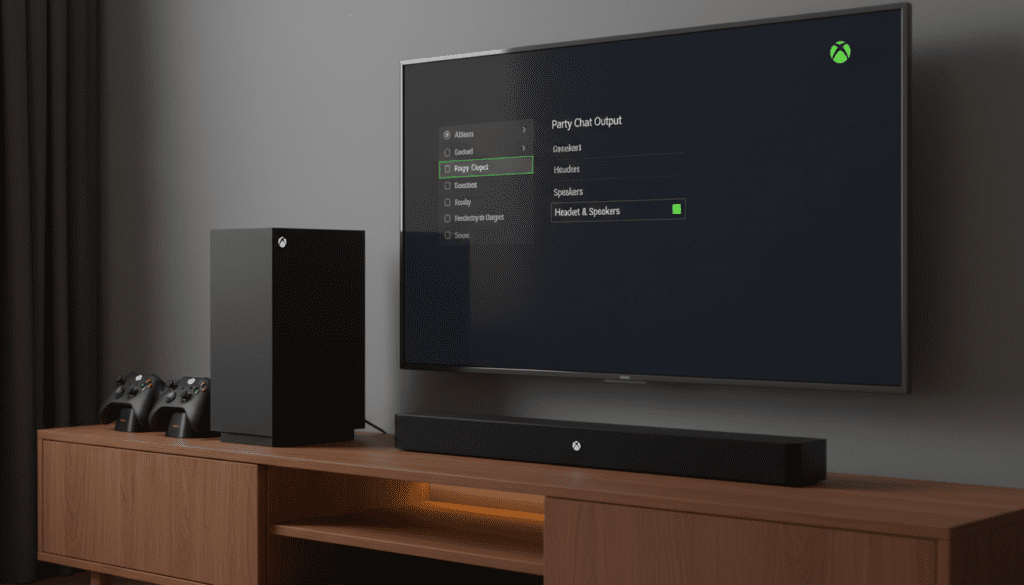
Whether you are hosting a local gaming session and want everyone in the room to hear the conversation, or you simply find headsets uncomfortable for long sessions, this configuration is the key. During our testing with various Xbox Series X and Xbox One setups, we found that this setting is often overlooked, leading users to believe their hardware is limited to headset-only audio.
💡 Key Takeaways: Xbox Party Audio Routing
- Primary Setting: Change Party Chat Output to “Headset & speakers” for universal audio.
- Hardware Compatibility: Works with HDMI-connected TVs, Optical-out soundbars, and USB speakers.
- Echo Prevention: Use a directional microphone or lower speaker volume to avoid “looping” chat audio back to your friends.
- Discord Integration: Discord voice chat on Xbox follows different routing rules than standard Xbox parties.
- Troubleshooting: Most “no audio” issues are caused by the Chat Mixer being set too far toward “Game” or the “Mute speakers when headset attached” setting being active.
The Step-by-Step Guide: How You Can Hear Xbox Party on Extrrbal Speakers
Configuring your console to output voice chat through your main audio system is a straightforward process. I have tested this across Xbox Series S, Series X, and the older Xbox One family; the interface remains consistent across all current Xbox Dashboard versions.
Access the Volume Settings
Press the Xbox Button on your controller to open the Guide. Navigate to the far right to Profile & system and select Settings.
Navigate to Audio Output
Go to General and then select Volume & audio output. This is the nerve center for all your console’s sound properties, including Dolby Atmos and Windows Sonic configurations.
Open Additional Options
On the right-hand side of the screen, you will see a column labeled “Advanced.” Click on Additional options.
Adjust Party Chat Output
Locate the dropdown menu labeled Party chat output. By default, this is usually set to “Headset.” Change this to Headset & speakers.
Verify Your Chat Mixer
Back in the Volume & audio output menu, check the Chat mixer. If this is set to “Mute all other sounds” or is heavily weighted toward one side, your speaker volume might be lower than expected.
Hardware Comparison: Best External Speaker Setups for Party Chat
Not all “extrrbal” speaker setups are created equal. Depending on whether you use a monitor with built-in speakers, a high-end soundbar, or a capture card, your experience will vary.
| Setup Type | Connection | Pros | Cons |
|---|---|---|---|
| TV Internal Speakers | HDMI | Easiest to set up; no extra wires. | Often lacks clarity; prone to echo. |
| Soundbar / Home Theater | HDMI (eARC) or Optical | High fidelity; clear voice isolation. | Can drown out game sounds if not balanced. |
| Desktop Speakers | 3.5mm via Monitor / Controller | Low latency; great for desk setups. | Requires a monitor with an audio-out jack. |
| Capture Card (Elgato/AverMedia) | HDMI Pass-through | Essential for streamers/content creators. | Requires “Headset & Speakers” to record chat. |
Why Use External Speakers for Party Chat?
Through my years of competitive play and casual streaming, I’ve found several scenarios where hearing the party through speakers is superior to using a headset alone.
For Local Co-op and Watch Parties
If you are playing a game like Halo Infinite or Gears 5 with someone physically in the room with you, but you are also chatting with a third friend online, the person in the room needs to hear the conversation. Setting the audio to Headset & speakers ensures no one is left out of the loop.
Reducing “Ear Fatigue”
Long sessions with heavy headsets like the Astro A50 or SteelSeries Arctis Nova Pro can lead to physical discomfort. By routing the audio to your extrrbal speakers, you can take your headset off during lulls in the action or non-competitive play while still staying connected to the group.
Streaming and Content Creation
If you use a capture card like the Elgato HD60 X, the card acts as an external speaker. To ensure your stream or recording captures your friends’ voices, you MUST enable the “Headset & speakers” setting. Otherwise, the audio remains trapped in your headset and never reaches your PC.
Troubleshooting: Why You Can’t Hear the Xbox Party on Speakers
Even after changing the settings, you might encounter issues. Here is how we troubleshoot the most common “silent party” problems.
Check the “Mute Speakers” Setting
Under Settings > General > Volume & audio output > Additional options, there is a checkbox that says “Mute speakers when headset is attached.” If this is checked, your console will automatically kill the speaker feed the moment you plug in a controller-mounted mic or turn on a wireless headset. Ensure this is unchecked.
The Chat Mixer Slider
If you can hear the game but not the voices, your Chat Mixer is likely the culprit.
- Press the Xbox Button.
- Go to the Audio & music icon at the bottom of the Guide (only visible when a headset or mic is active).
- Adjust the Chat Mixer slider. If it is all the way to the left (controller icon), you will only hear the game. Move it to the middle to balance both.
Monitor and TV Volume Limits
Some monitors do not support multi-channel audio over HDMI correctly. If you are using a gaming monitor, ensure its internal volume is turned up and that it isn’t set to a “Muted” state in its own OSD (On-Screen Display) menu.
Managing Echo: The External Speaker Challenge
The biggest drawback when you can hear xbox party on extrrbal speakers is the dreaded echo. If your microphone is sensitive, it will pick up the voices of your friends coming out of your speakers and broadcast them back into the party.
Expert Tips to Eliminate Echo:
- Use a Unidirectional Mic: Mics like the Razer Seiren or those on high-quality headsets are better at rejecting “off-axis” noise (sound coming from the sides or back).
- Positioning: Place your speakers behind the microphone or as far away as possible. If you use a soundbar, ensure your mic is not pointed directly at it.
- Mic Sensitivity (Noise Gate): While Xbox doesn’t have a native “Noise Gate” slider for party chat, Discord on Xbox does. If you are using Discord, enable Noise Suppression in the settings.
Advanced Routing: Using Discord on Xbox
With the recent integration of Discord on Xbox, many users are confused about how audio routing works. Unlike native Xbox Parties, Discord has its own set of internal logic.
To hear Discord on external speakers:
- Transfer the Discord call from your mobile or desktop app to your Xbox.
- The Discord interface on Xbox has its own Soundboard and Volume settings.
- Ensure the Discord Voice settings within the Xbox Guide are balanced correctly.
- Note: Discord usually respects the “Headset & speakers” global setting, but if it fails, try “re-joining” the call after the setting has been changed.
Expert Perspective: The “Cabled” Solution
In my experience, if you are a serious streamer or someone who demands zero-latency audio, relying purely on the software “Headset & speakers” toggle can sometimes result in a slight delay (latency) depending on your TV’s processing power.
For the best results, I recommend using an HDMI Audio Extractor. This device sits between your Xbox and your TV, pulling the digital audio signal out via an Optical (TOSLINK) or 3.5mm jack before it even reaches the TV. This allows you to send the “Party + Game” mix directly to a set of powered studio monitors or a high-end DAC without the console having to “double-process” the audio stream.
Frequently Asked Questions (FAQ)
Can I hear party chat on speakers and game audio on a headset?
Yes. By setting the Party chat output to “Headset & speakers,” the voices go to both. You can then use the Chat Mixer in the Xbox Guide to turn down the “Game” audio in your headset while keeping the “Chat” volume up. This allows you to hear your friends in your ears and the game sounds through your room speakers.
Why is my Xbox party audio so quiet on my soundbar?
This is usually due to the Chat Mixer. If the mixer is set to “Reduce volume of other sounds by 80%” when chat is active, it can create a muffled effect. Set the mixer to “Do nothing” in the Additional options menu to maintain consistent volume levels across all devices.
Does this work for the Xbox mobile app?
No, the Xbox Mobile App handles audio routing through your phone’s OS. To hear party chat on speakers via the app, you must change your phone’s output to “Speaker” or connect your phone to a Bluetooth speaker. The console settings only affect hardware connected directly to the Xbox.
Will my friends hear themselves if I use speakers?
They might. This is the “Echo” effect. To prevent this, ensure your microphone sensitivity is not too high and your speakers are at a reasonable volume. Using a “push-to-talk” method or a microphone with good noise cancellation is highly recommended when using external speakers.









