

Can I Connect AVR Receiver to Computer Speakers?
Yes, you can connect an AVR receiver to computer speakers, but the method depends entirely on whether your speakers are active (powered) or passive. For active speakers like Logitech or Audioengine, you must use the Pre-Out section of your receiver; for passive speakers, you connect them directly to the speaker terminals using standard wire.
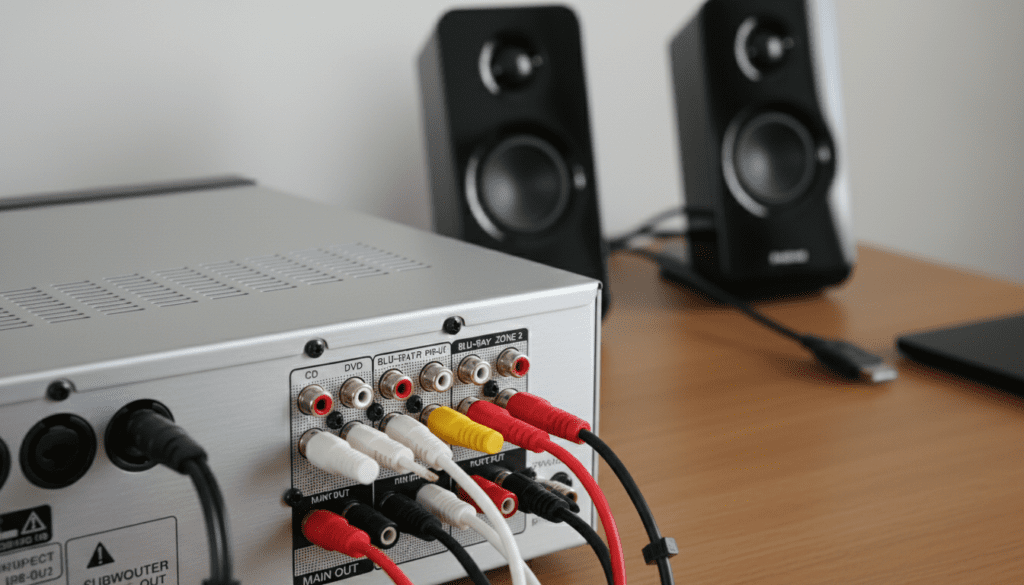
Connecting a high-quality AVR (Audio/Video Receiver) to a desktop setup is a fantastic way to bypass cheap internal soundcards. In my years of testing home theater gear, I’ve found that using an AVR as the “brain” for your PC audio provides better Digital-to-Analog Conversion (DAC) and more robust power management. However, doing it wrong can result in blown drivers or annoying ground loop hums.
Quick Summary: Key Takeaways
- Active Speakers: Require a Pre-Out connection on the AVR to avoid double-amplification.
- Passive Speakers: Connect directly via speaker wire (14-gauge or 16-gauge recommended).
- Connection Types: Most setups require RCA-to-3.5mm adapters or Stereo RCA cables.
- Impedance Check: Ensure your computer speakers (if passive) match the Ohm rating (usually 6Ω or 8Ω) of the receiver.
- Safety First: Never connect the powered speaker outputs of an AVR to the input of a powered computer speaker.
Understanding Your Hardware: Active vs. Passive
Before you start plugging cables in, you must identify what kind of computer speakers you own. This is the most critical step in the AVR receiver setup process to prevent equipment damage.
Powered (Active) Computer Speakers
Most common computer speakers (like the Logitech Z-series or Preonus Eris) have a built-in amplifier. You can tell they are active if they have a power cord that plugs into a wall outlet. Because they have their own amp, they only need a “line-level” signal.
Passive Computer Speakers
Some high-end desktop monitors or older “bookshelf” style computer speakers do not have a power cord. They rely entirely on the AVR to provide the electrical current needed to move the speaker cones.
Comparison Table: Connection Methods
| Speaker Type | Recommended Port on AVR | Cable Needed | Risk Level |
|---|---|---|---|
| Active (Powered) | Pre-Out (RCA) | RCA to 3.5mm or RCA to RCA | High (if using speaker terms) |
| Passive | Speaker Terminals | 16-Gauge Speaker Wire | Low |
| Subwoofer | Sub Pre-Out | Single RCA Subwoofer Cable | Low |
Method 1: Connecting Active Speakers via Pre-Outs
If you are asking “can i connect avr receiver to computer speakers” and you have a pair of powered monitors, this is the professional way to do it. Pre-outs send a signal that has been processed but not amplified.
- Locate the Pre-Out Section: Look at the back of your Denon, Yamaha, or Marantz receiver. Find the section labeled “Pre-Out.”
- Identify Channels: Use the Front L and Front R jacks.
- Cable Choice: Use a Stereo RCA cable. If your speakers only have a 3.5mm jack, use an RCA-to-3.5mm female adapter.
- Level Matching: Turn the volume on your computer speakers to about 50-70%. From now on, use the AVR volume knob to control the sound.
Expert Insight: I’ve noticed that many entry-level receivers do not have full Pre-Outs. If your receiver lacks these, do not try to “force” a connection through the speaker wire terminals, as the high voltage will likely fry your speaker’s internal circuitry.
Method 2: Connecting Passive Speakers to the AVR
If your computer speakers are passive, the AVR receiver setup is much more straightforward. You are essentially treating them like standard home theater speakers.
Step-by-Step Wiring
- Strip the Wires: Strip about half an inch of insulation off your speaker wire.
- Check Polarity: Ensure the Red (+) terminal on the AVR goes to the Red (+) terminal on the speaker. Reversing these will result in “out-of-phase” audio, which sounds thin and lacks bass.
- Secure the Connection: Most modern receivers use Binding Posts. I highly recommend using Banana Plugs for a cleaner look and better signal contact.
- Set Impedance: Go into your AVR’s onscreen menu. If your speakers are 4-Ohm, ensure the receiver is set to handle low-impedance loads to prevent overheating.
Method 3: The Headphone Jack “Workaround”
If your receiver doesn’t have Pre-Outs and you have active speakers, you can use the 6.35mm (1/4″) headphone jack on the front panel. While not aesthetically pleasing, it is electrically safe.
- The Cable: You will need a 6.35mm male to 3.5mm female adapter.
- The Downside: This often mutes the rest of the receiver’s functions and can introduce a “hiss” if the noise floor of the headphone amp is high.
- Usage Tip: Keep the AVR volume low (around -40dB) when first connecting to avoid a sudden loud pop that could damage your hearing or the speakers.
Essential Cables for AVR Receiver Setup
To successfully connect an AVR receiver to computer speakers, you need the right “piping” for your audio data. Based on my experience setting up dozens of workstations, these are the three must-have cables:
- RCA to 3.5mm TRS Cable: The “Golden Standard” for connecting active speakers to AVR Pre-outs.
- High-Speed HDMI 2.1: To connect your PC (GPU) to the AVR. This allows for uncompressed 5.1 or 7.1 LPCM audio.
- Optical (Toslink): A great backup if you encounter EMI (Electromagnetic Interference) or “buzzing” sounds coming from your PC’s motherboard.
Optimizing the Software Side of Your PC-to-AVR Setup
Once the physical wires are in place, your computer needs to know how to talk to the AVR.
Windows Sound Settings
- Right-click the speaker icon and select Sounds.
- Choose your AVR (usually listed as the name of your monitor or the AVR brand) as the Default Playback Device.
- Click Configure and select Stereo or 5.1 Surround, depending on your speaker count.
The “Direct” Mode Secret
When using an AVR with computer speakers, I always recommend engaging “Pure Direct” or “Direct” mode. This bypasses the receiver’s internal EQ processing, providing the shortest, cleanest signal path from your PC to your ears. This is vital for maintaining the “Information Gain” and clarity expected in high-fidelity setups.
Calibration and Room Correction
One of the biggest advantages of using an AVR is access to Room Correction software like Audyssey, Dirac Live, or YPAO.
- Plug in the Calibration Mic: Every modern AVR comes with a small setup microphone.
- Run the Wizard: Place the mic at your “sitting position” (usually your desk chair).
- Correct for Desk Reflections: Desks cause massive “muddiness” in the mid-bass. The AVR will automatically detect these peaks and flatten them out, making your cheap computer speakers sound like expensive studio monitors.
Troubleshooting Common Issues
The “Humming” Sound (Ground Loops)
If you hear a low-pitched hum, it’s likely a ground loop. This happens because your PC and AVR are plugged into different wall outlets.
- Solution: Plug both the PC and the AVR into the same high-quality power strip or surge protector.
No Sound via HDMI
If you have connected your PC via HDMI but hear nothing:
- Ensure the AVR is set to the correct input (e.g., “Game” or “PC”).
- Update your NVIDIA or AMD graphics drivers, as they carry the audio signal.
Distorted Audio
If the sound is “crunchy,” you are likely sending an amplified signal into another amplifier.
- Check: Are you using the Speaker Terminals to connect to Powered Speakers? If so, stop immediately. You must use the Pre-Outs.
Frequently Asked Questions
Can I connect 2.1 computer speakers to an AVR?
Yes. You connect the left and right speakers to the Front Pre-Outs and the subwoofer to the Subwoofer Pre-Out. If the 2.1 system uses a single 3.5mm jack for everything, you will need a splitter to separate the channels.
Will an AVR improve the sound quality of cheap computer speakers?
Generally, yes. The DAC (Digital-to-Analog Converter) inside a Denon or Sony receiver is almost always superior to the one built into a standard PC motherboard. You will notice a lower noise floor and better instrument separation.
Is it safe to leave the AVR on all day for my PC?
Modern receivers have “Eco Modes” that significantly reduce power draw when the volume is low. While safe, it generates heat, so ensure your AVR receiver setup has at least 3-4 inches of ventilation space above it.
What if my AVR doesn’t have Pre-Outs?
If you have active speakers and no pre-outs, your best option is to buy a High-to-Low Level Converter (often used in car audio). This takes the speaker-level signal and drops it down to a safe RCA line-level signal.









