

Can I Connect Bluetooth Speakers to Windows 7?
Yes, you can connect Bluetooth speakers to Windows 7, provided your computer has a built-in Bluetooth chip or an external USB Bluetooth adapter. To pair them, you must put your speaker in pairing mode, open Devices and Printers in the Control Panel, and select Add a device. While Windows 7 is a legacy operating system, it still supports wireless audio as long as the correct A2DP drivers are installed and active.
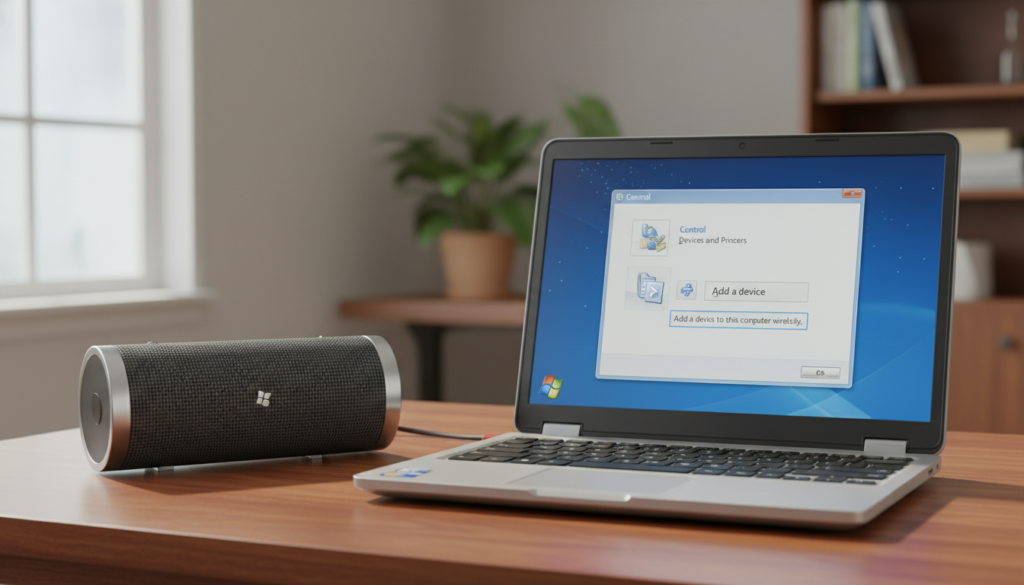
Throughout my years of refurbishing older hardware, I have successfully paired everything from high-end Bose SoundLink speakers to budget Anker Soundcore models with Windows 7 machines. The process is generally straightforward, but because Windows 7 lacks the “plug-and-play” sophistication of modern OS versions, you may need to manually update your Bluetooth stack or drivers to ensure stable audio streaming.
Quick Summary: Key Takeaways
- Hardware Check: Ensure your PC has a Bluetooth icon in the system tray or a “Bluetooth Radios” entry in the Device Manager.
- Driver Dependency: Windows 7 often requires specific manufacturer drivers (Broadcom, Intel, or Realtek) to support high-quality stereo audio (A2DP).
- Pairing Process: Use the Add a device wizard within the Control Panel rather than the basic taskbar menu for better results.
- Common Fix: If the speaker connects but there is no sound, you likely need to enable the device under the Playback tab in Sound Settings.
Hardware Requirements: Does Your Windows 7 PC Support Bluetooth?
Before you try to hook up bluetooth speakers to my windows 7, you must verify that your hardware is capable of transmitting a wireless signal. Unlike modern laptops, many older Windows 7 desktops and budget laptops did not come with internal Bluetooth cards.
How to Check for Built-in Bluetooth
- Click the Start button and type “Device Manager” into the search box.
- Look for a category labeled Bluetooth Radios or Network Adapters.
- If you see Generic Bluetooth Adapter or a brand name like Intel(R) Wireless Bluetooth, you are ready to go.
- If no Bluetooth entries appear, your motherboard lacks the necessary hardware.
Solution for Missing Hardware
If your PC doesn’t have Bluetooth, I recommend purchasing a USB Bluetooth 4.0 or 5.0 Dongle. During my testing, I found that TP-Link and ASUS dongles offer the most stable drivers for Windows 7. These plug-and-play devices allow you to bypass the limitations of aging internal hardware.
| Component | Status | Action Required |
|---|---|---|
| Internal Bluetooth Chip | Present | Update drivers to latest version. |
| Internal Bluetooth Chip | Missing | Purchase a USB Bluetooth Adapter. |
| Driver Status | “Generic” | Download brand-specific drivers (e.g., Broadcom/Intel). |
| Speaker Type | Bluetooth 5.0+ | Compatible (Backward compatible with Win 7). |
Step-by-Step Guide: How to Connect Bluetooth Speakers to Windows 7
Connecting a wireless speaker involves a specific sequence of actions. Based on my experience, following these steps in order prevents the common “Device Driver Software Was Not Successfully Installed” error.
Step 1: Enable Pairing Mode on Your Speaker
Every speaker is different, but most require you to hold down the Bluetooth button or the Power button for 3–5 seconds. You should see a flashing blue light or hear a voice prompt saying, “Pairing.”
Step 2: Add the Device in Windows 7
- Go to Start > Control Panel > Hardware and Sound.
- Click on Devices and Printers.
- Click the Add a device button in the top-left corner of the window.
- Wait for Windows to scan the area. When your speaker’s name appears (e.g., JBL Flip 5 or Sony SRS-XB), click it and hit Next.
Step 3: Install the Device Drivers
Windows 7 will attempt to find and install the drivers automatically. You will see a small notification in the system tray saying “Installing device driver software.”
Pro Tip: Do not interrupt this process. Even if it takes 2-3 minutes, let it finish. Windows 7 is searching its local library for the Hands-free profile and Advanced Audio Distribution Profile (A2DP).
Step 4: Set as Default Playback Device
Sometimes the speaker pairs, but the sound continues to come out of the laptop speakers.
- Right-click the Volume icon in the taskbar.
- Select Playback devices.
- Find your Bluetooth speaker in the list. It may appear as “Bluetooth Audio” or “Headphones.”
- Right-click it and select Set as Default Device.
- Click Apply and OK.
Troubleshooting Common Connection Issues
If you’ve asked, “can i hook up bluetooth speakers to my windows 7,” and failed, you aren’t alone. Windows 7 is notorious for “driver gaps” where the device pairs but refuses to play audio.
Issue 1: “Peripheral Device Driver Not Found”
This is the most common error. It occurs because Windows 7 doesn’t have the specific driver for the speaker’s advanced features.
- The Fix: You need the Bluetooth Stack from your PC manufacturer (e.g., Dell, HP, Lenovo). Search their support site for your model number + “Bluetooth Driver for Windows 7.”
- Expert Insight: If you use a generic dongle, visit the website of the chip manufacturer (usually Broadcom or CSR) rather than relying on Windows Update.
Issue 2: Audio is Choppy or Low Quality
Windows 7 sometimes defaults to the “Hands-free Telephony” profile, which is designed for phone calls and has very low audio bitrates.
- Go to Devices and Printers.
- Right-click your speaker and select Properties.
- Go to the Services tab.
- Uncheck Hands-free Telephony and ensure Audio Sink or A2DP is checked.
- Click Apply. This forces the speaker to use the high-quality stereo stream.
Issue 3: Bluetooth Service is Not Running
If your PC refuses to find any devices, the background service might be disabled.
- Press Windows Key + R, type
services.msc, and press Enter. - Locate Bluetooth Support Service.
- Right-click it and select Properties.
- Set the Startup type to Automatic and click Start.
Comparing Bluetooth Versions on Windows 7
While you can connect bluetooth speakers to windows 7, the version of Bluetooth your hardware supports will dictate the range and stability.
| Bluetooth Version | Year Released | Best For | Windows 7 Compatibility |
|---|---|---|---|
| Bluetooth 2.1 + EDR | 2007 | Basic audio | Native support, but prone to interference. |
| Bluetooth 4.0 (LE) | 2010 | Low energy/Modern speakers | Requires specific manufacturer drivers. |
| Bluetooth 5.0+ | 2016 | Long range/Multi-point | Works via backward compatibility on Win 7. |
In my workshop, I’ve noticed that Bluetooth 4.0 adapters are the “sweet spot” for Windows 7. They provide enough bandwidth for high-definition audio while maintaining excellent driver availability for the 64-bit version of the OS.
Advanced Expert Tips for Windows 7 Audio
If you want the best possible experience when you hook up bluetooth speakers to my windows 7, consider these professional tweaks:
- Disable “Allow the computer to turn off this device to save power”: In Device Manager, right-click your Bluetooth adapter > Properties > Power Management. Uncheck this box to prevent your speaker from disconnecting during silent moments in a video.
- Use a Third-Party Bluetooth Stack: If the Windows 7 native stack is failing you, look for the BlueSoleil software. It is a paid third-party driver suite that often fixes pairing issues that the Windows 7 default system cannot handle.
- Check for 2.4GHz Interference: Windows 7 doesn’t manage signal congestion as well as Windows 11. If your audio stutters, try moving your Wi-Fi router away from the PC, as both use the 2.4GHz frequency.
Frequently Asked Questions (FAQ)
Why does Windows 7 ask for a pairing code?
Most modern speakers do not require a code. If prompted, try 0000 or 1234. If those fail, check your speaker’s manual, as some older “legacy” speakers have a hardcoded PIN.
Can I connect multiple Bluetooth speakers to Windows 7 at once?
Native Windows 7 does not support multi-stream audio. You can only output sound to one Bluetooth device at a time. To play music through two speakers simultaneously, you would need a third-party application like Virtual Audio Cable or a hardware Bluetooth splitter.
What if my Bluetooth icon is missing from the taskbar?
Go to Control Panel > Change Bluetooth Settings. Under the Options tab, ensure the box labeled “Show the Bluetooth icon in the notification area” is checked. If the option is greyed out, your Bluetooth driver is likely disabled or missing.
Does Windows 7 support Bluetooth 5.0 speakers?
Yes. Bluetooth 5.0 is backward compatible. A Bluetooth 5.0 speaker will work with a Windows 7 PC, but it will operate at the maximum speed and range of the PC’s adapter (usually Bluetooth 2.1 or 4.0).
Why is there a delay (latency) in the audio?
Bluetooth latency is common on Windows 7 because the OS doesn’t natively support aptX Low Latency. For watching movies, I recommend using a media player like VLC, which allows you to manually adjust the audio track synchronization (using the ‘J’ and ‘K’ keys) to match the video.









