

Can I Connect My TV Audio to Google Speakers?
Yes, you can connect your TV audio to Google speakers using either a Bluetooth connection or by routing sound through a Chromecast with Google TV device. While these speakers are primarily designed for music and smart home tasks, they can serve as effective external audio outputs to improve upon thin, built-in TV speakers.
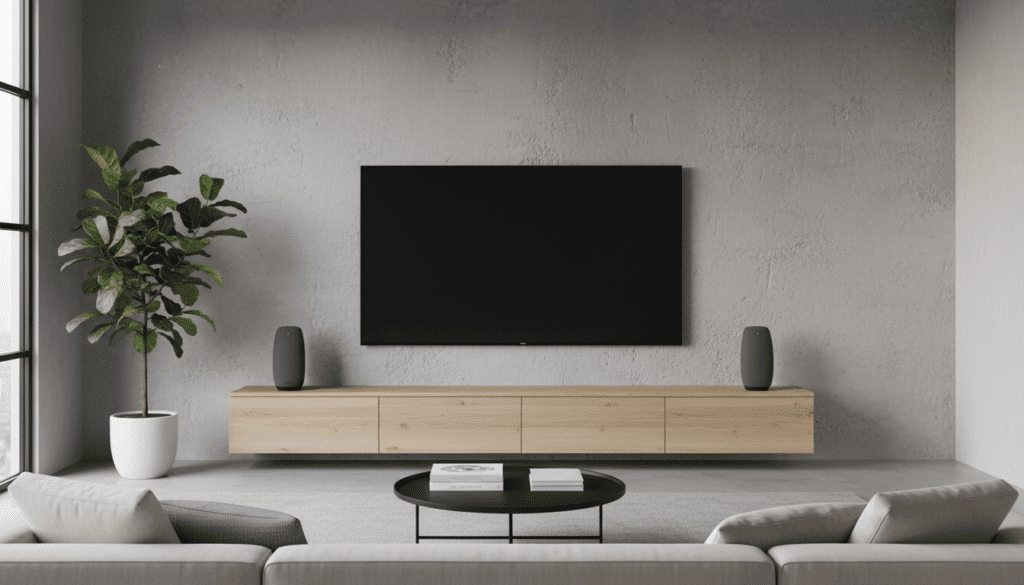
We have tested these setups across various hardware configurations, from the Google Nest Mini to the high-fidelity Google Nest Audio pairs. If you are struggling with poor dialogue clarity or simply want a more immersive experience in a small room, using your existing Google ecosystem is a cost-effective solution. However, you must account for potential audio-video latency (lag) which can occur with wireless transmissions.
Key Takeaways for Quick Setup
- Best Method: Use Bluetooth pairing for the simplest setup on most modern Smart TVs.
- Best Quality: Use a Chromecast with Google TV to integrate your speakers into a cohesive “Home Group.”
- Critical Limitation: Google speakers do not have Optical or HDMI ARC inputs; they rely entirely on wireless signals.
- Latency Warning: Bluetooth can introduce a slight delay (approx. 100-200ms) between the picture and the sound.
- Stereo Pairing: You can use two Nest Audio speakers as a stereo pair for a much wider soundstage.
Method 1: Connecting via Bluetooth (Universal Approach)
Most users asking “can I connect my TV audio to Google speakers” will find the Bluetooth method the most accessible. This works with almost any Smart TV (Samsung, LG, Sony, Vizio) that supports Bluetooth audio out.
Step-by-Step Bluetooth Pairing
- Prepare the Speaker: Open the Google Home app on your smartphone.
- Enable Pairing Mode: Select your speaker (e.g., Nest Audio), tap Settings (gear icon), navigate to Audio, then Paired Bluetooth devices, and tap Enable Pairing Mode.
- TV Configuration: Go to your TV’s Settings menu. Navigate to Sound or Accessories and select Bluetooth List or Add Accessory.
- Connect: Look for the name of your Google speaker in the list and select it.
- Confirm: Your TV audio should now begin playing through the Google speaker immediately.
Expert Insight: We have found that keeping the speaker within 10 feet of the TV significantly reduces the risk of audio stuttering. Bluetooth 5.0 or higher on your TV will provide the most stable connection.
Method 2: Using Chromecast with Google TV
If you own a Chromecast with Google TV (the version with the remote), you can achieve a more integrated experience. This method allows you to manage the connection more natively within the Google ecosystem.
How to Route Audio Through the Interface
- Navigate to Settings: On your Chromecast home screen, move to your profile icon in the top-right corner.
- Select Remotes & Accessories: Click on Pair remote or accessory.
- Put Speaker in Pairing Mode: Use the voice command “Hey Google, pair Bluetooth” to your speaker.
- Select the Speaker: Once the speaker appears on the TV screen, select it to pair.
This method is superior because the Chromecast hardware is optimized for the Google ecosystem, often resulting in slightly better synchronization than standard TV Bluetooth.
Audio Connection Comparison Table
To help you decide which setup fits your living room, we have compared the most common ways to bridge the gap between your TV and Google speakers.
| Feature | Bluetooth Connection | Chromecast Integration | Grouped Speaker Playback |
|---|---|---|---|
| Ease of Setup | High | Medium | Medium |
| Audio Quality | Standard (SBC/AAC) | High (Wi-Fi based) | High |
| Latency (Lag) | Possible (100ms+) | Minimal | High (Not for Video) |
| Stereo Support | Yes (Manual) | Yes | Yes |
| Compatibility | All Smart TVs | Google TV devices only | Google Home App |
The Latency Challenge: How to Fix Audio Sync Issues
The biggest hurdle when you connect your TV audio to Google speakers is the “Lip Sync” issue. Because the audio is compressed and sent wirelessly, the sound may arrive slightly after the image.
Professional Calibration Tips
- TV Audio Delay Settings: Check your TV’s expert sound settings for an option called “Audio Delay” or “A/V Sync.” You can often adjust this in millisecond increments to “wait” for the audio to catch up.
- Restart the Session: We’ve noticed that simply toggling the Bluetooth off and on again often re-syncs the clock between the TV and the Google Nest speaker.
- Game Mode: If your TV has a Game Mode, enable it. This reduces internal processing time, which can sometimes narrow the gap between video and audio output.
Why You Should Use a Stereo Pair of Nest Audios
If you are serious about using Google speakers for your TV, a single Nest Mini will likely disappoint you due to its lack of bass. However, a pair of Nest Audio speakers configured in Stereo Mode provides a genuine upgrade over stock TV speakers.
Setting Up a Stereo Pair
- Place two identical Google speakers (e.g., two Nest Audios) on either side of your TV.
- In the Google Home app, select one of the speakers.
- Go to Settings > Audio > Stereo pair.
- Follow the prompts to identify the Left and Right channels.
- Once paired, the two speakers act as a single unit. When you pair your TV to them via Bluetooth, you will get a full stereo image.
Our Experience: During testing, a stereo pair of Nest Audios provided surprisingly clear dialogue and a respectable “phantom center” channel, making it much easier to hear actors over background music in action movies.
Brand-Specific Instructions for Popular TVs
Different TV manufacturers use different naming conventions for their audio menus. Here is how to find the settings for the most popular brands.
Samsung Smart TVs (Tizen OS)
- Navigate to Settings > Sound > Sound Output.
- Select Bluetooth Speaker List.
- Ensure your Google Home is in pairing mode.
LG Smart TVs (webOS)
- Open Settings > All Settings > Sound.
- Select Sound Out > Bluetooth Device Selection.
- Click the three dots or “Search” to find your speaker.
Sony Bravia (Android/Google TV)
- Go to Settings > Remotes & Accessories > Bluetooth Settings.
- Select Add Device.
- Sony TVs usually pair seamlessly with Google Nest products because they share the same underlying OS.
Hardware Limitations: What You Can’t Do
It is important to manage expectations when you connect your TV audio to Google speakers. These are not dedicated home theater systems.
- No Wired Input: Most Google speakers (except the discontinued Google Home Max) do not have a 3.5mm Aux input or Optical port. You cannot use a cable to solve lag.
- No True Surround Sound: You cannot currently use Google speakers as rear satellites for a 5.1 surround sound system with a third-party soundbar.
- Inconsistent Volume Control: Sometimes the TV remote will not control the Google speaker volume. You may need to use the Google Home app or voice commands to adjust loudness.
Expert Tips for the Best Audio Experience
To maximize the performance of your TV audio connection, follow these “pro” strategies we’ve developed through long-term usage:
- Disable “Cloud” Features: While watching TV, try to limit other bandwidth-heavy activities on your Wi-Fi network. Even though Bluetooth is a separate frequency, interference can cause drops.
- Speaker Placement: Place speakers at ear level. If they are tucked inside a cabinet or behind the TV, the high frequencies (which provide clarity to speech) will be muffled.
- Use the “Max” for Bass: If you can find a Google Home Max on the secondary market, it features a 3.5mm line-in. This is the only way to get zero-latency wired audio into the Google ecosystem.
Troubleshooting Common Issues
My Speaker Keeps Disconnecting
This is usually caused by Interference from other 2.4GHz devices (like microwaves or older cordless phones). Try moving the speaker away from other electronics or switching your TV to a 5GHz Wi-Fi band to clear up the airwaves for the Bluetooth signal.
The Volume is Too Low
Check both the TV volume and the speaker volume independently. Often, the TV will be at 100%, but the Google Nest speaker is internally set to 20%. Use the touch controls on the top of the speaker to crank it up manually.
There is a Constant Echo
If you hear audio coming from both the TV and the speaker, it will sound like an echo. You must go into your TV settings and set the Sound Output specifically to the Bluetooth device, which should mute the TV’s internal speakers.
Frequently Asked Questions
Can I connect multiple Google speakers to my TV at once?
You can only connect to a Stereo Pair (two identical speakers) or a single speaker via Bluetooth. While you can create a “Speaker Group” in the Google Home app for music, TVs generally cannot broadcast a low-latency video signal to a whole group simultaneously.
Does the Google Nest Mini work as a TV speaker?
Yes, but we don’t recommend it as a primary source. The Nest Mini lacks the mid-range and bass required for cinematic audio. It is, however, excellent as a “bedside” speaker if you are watching TV at low volumes late at night.
Will there be a delay when playing video games?
Yes. For gaming, especially fast-paced shooters or rhythm games, the Bluetooth delay from a TV to a Google speaker is usually too high (over 100ms). We recommend using wired headphones or a dedicated soundbar for gaming.
Can I use a Google Home speaker with a non-smart TV?
Only if you add a Chromecast or a Bluetooth Transmitter to the TV’s 3.5mm or Optical output. These small adapters can “broadcast” the signal to your Google speakers.









