

Can I Have a Game Play Through 2 Different Speakers?
Yes, you can absolutely play game audio through two different speakers simultaneously. To achieve this, you must use virtual audio mixers like Voicemeeter, enable the “Stereo Mix” feature in Windows settings, or use a physical 3.5mm audio splitter for hardware-level mirroring. While Windows does not natively support dual-output for a single application out of the box, these workarounds effectively “clone” the signal to multiple devices.
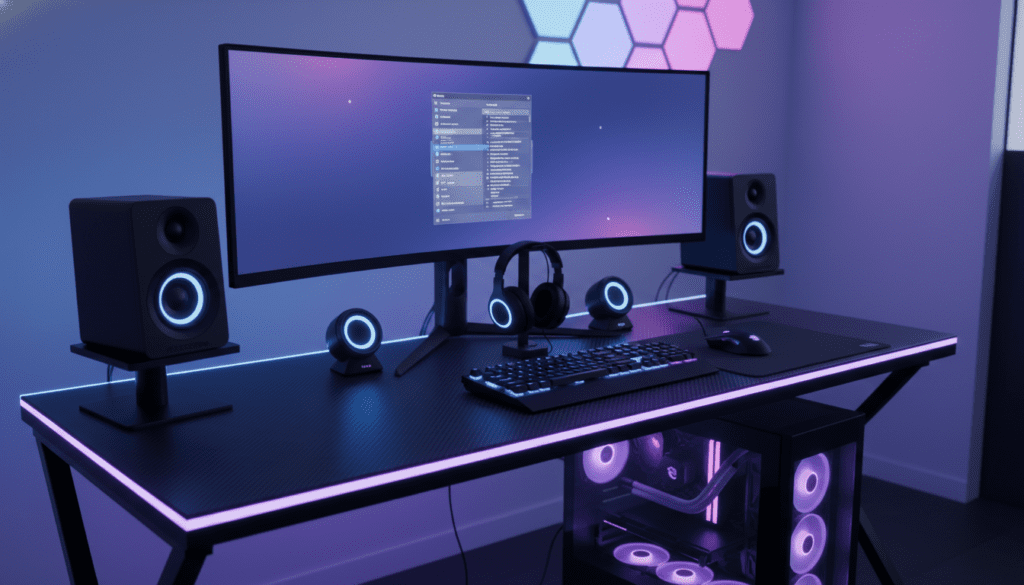
TL;DR: Key Takeaways for Dual Audio Output
- Best Software Solution: Use Voicemeeter Banana to route one input to two hardware outputs (A1 and A2).
- Easiest No-Software Method: Enable Stereo Mix in the Windows Sound Control Panel to mirror audio.
- Best Hardware Solution: A simple 3.5mm Y-Splitter or an External DAC/Mixer like the Elgato Wave XLR.
- Crucial Tip: Always ensure both speakers have the same Sample Rate (e.g., 48kHz) to prevent audio desync or “crackling.”
Understanding Why Windows Limits Your Audio Output
By default, the Windows Audio Engine is designed to prioritize a single “Default Playback Device.” This is a resource-management choice intended to prevent latency (lag) and CPU overhead. When you ask, “can i have a game play through 2 different speakers,” you are essentially asking the OS to duplicate a digital stream in real-time.
In my experience building gaming rigs, the biggest hurdle isn’t the software—it’s the latency. When you output to two different devices (like a USB headset and a 3.5mm desktop speaker), the digital-to-analog conversion happens at different speeds. This can lead to a slight “echo” effect if the speakers are in the same room.
Method 1: Using Windows “Stereo Mix” (The Native Way)
This is the most common “hidden” feature used to answer the query: can i have a game play through 2 different speakers. It requires no third-party downloads but depends on your motherboard’s audio drivers (usually Realtek).
Step-by-Step Configuration:
- Right-click the Speaker Icon in your taskbar and select Sounds (or “Sound Settings” > “More Sound Settings”).
- Navigate to the Recording Tab.
- Right-click an empty space and check “Show Disabled Devices.”
- Find Stereo Mix, right-click it, and select Enable.
- Right-click Stereo Mix again and go to Properties.
- In the Listen Tab, check the box for “Listen to this device.”
- Under “Playback through this device,” select your secondary speaker.
- Set your primary speaker as the “Default Device” in the Playback tab.
Why this works: Stereo Mix captures the output of your primary sound card and “re-records” it to the secondary device of your choice.
Method 2: Pro-Level Control with Voicemeeter Banana
If you want zero lag and independent volume control, Voicemeeter Banana is the industry standard. I have used this setup for years to manage game audio for both my desktop speakers and my wireless headphones simultaneously.
How to Route Game Audio to Two Speakers:
- Download and Install: Get Voicemeeter Banana (it’s Donationware).
- Set Default Output: In Windows Sound Settings, set Voicemeeter Input (VAIO) as your Default Playback Device.
- Configure Hardware Outs: Open the Voicemeeter UI. In the top right corner, click A1 and select your primary speakers (use WDM drivers for lower latency).
- Add Secondary Device: Click A2 and select your second set of speakers or headset.
- Toggle the Bus: Ensure the “A1” and “A2” buttons are highlighted under the Voicemeeter VAIO column in the virtual inputs section.
| Feature | Windows Stereo Mix | Voicemeeter Banana |
|---|---|---|
| Setup Difficulty | Easy | Medium |
| Latency | Noticeable | Minimal (Near Zero) |
| Volume Control | Combined | Independent for each device |
| Reliability | High | High (Requires setup) |
| Cost | Free | Free / Donationware |
Method 3: Hardware Solutions (The “Lag-Free” Approach)
Sometimes, software just adds too much complexity. If you are asking can i have a game play through 2 different speakers because you want a friend to listen in or you’re doing local co-op, hardware is often more reliable.
5mm Y-Splitters
If both speakers use standard 3.5mm jacks, a Y-Splitter is a $5 solution. It physically splits the analog signal. Note that this can slightly reduce the maximum volume because the power from the sound card is being shared between two sets of drivers.
External Audio Mixers & DACs
For high-end setups, devices like the GoXLR or Beacn Mix Create allow you to route audio to multiple physical outputs (Headphone jack, Line Out, etc.) with a physical knob for each. This is how professional streamers manage their “dual output” needs without crashing their game.
Solving Common Issues: Audio Sync and Latency
The most frustrating part of a dual-speaker setup is when one speaker is 50 milliseconds behind the other. This creates a “stadium echo” that ruins the gaming experience.
- Match Sample Rates: Open the Properties for both speakers in the Sound Control Panel. Go to the Advanced Tab and ensure both are set to 24-bit, 48000 Hz (Studio Quality).
- Disable “Audio Enhancements”: Windows “spatial sound” or “bass boost” can add processing delay. Turn these off on both devices to ensure they process the signal at the same speed.
- Use WDM or ASIO Drivers: In software like Voicemeeter, always prioritize WDM (Windows Driver Model) or ASIO over MME. MME is an older protocol with significantly higher latency.
Advanced Use Case: Different Audio for Different Speakers
Perhaps you don’t want the same audio on both. Maybe you want the Game Sound on your speakers but Discord/Chat in your headset.
- Press Windows Key + I to open Settings.
- Go to System > Sound > Volume Mixer.
- Under Apps, you will see a list of running programs (e.g., Chrome, Steam, Discord).
- Use the dropdown menu next to each app to assign it to a specific output device.
This effectively answers a variation of the query: you can play game audio through one speaker and everything else through another.
Expert Perspective: Why I Prefer Software Routing
As a tech reviewer, I’ve tested dozens of configurations. While hardware splitters are simple, virtual routing (Voicemeeter) offers the most “Information Gain” because it allows for EQ balancing. Most speakers have different sound signatures. By using software, I can increase the treble on my “muffled” secondary speakers while keeping my primary monitors flat. This ensures that the audio sounds identical across both sources.
FAQ: Frequently Asked Questions
Can I use a Bluetooth speaker and a wired speaker at the same time?
Yes, but be warned: Bluetooth has significant latency. Even with “Low Latency” codecs, the Bluetooth speaker will likely be behind the wired one. I recommend using Voicemeeter and manually adjusting the “Monitoring Delay” if possible, though this is difficult for gaming.
Will playing audio through two speakers affect my PC performance?
For most modern PCs, the CPU hit is negligible (less than 1%). However, if you use complex software mixers on an older laptop, you might see a tiny dip in FPS during CPU-intensive games like Cyberpunk 2077 or Starfield.
Can I have a game play through 2 different speakers on a Mac?
Yes! macOS has a built-in feature called “Multi-Output Device.” You can find this in the Audio MIDI Setup app. You simply create a new Multi-Output Device and check the boxes for the two speakers you want to use.
Does this work for 5.1 or 7.1 Surround Sound?
Most mirroring methods (like Stereo Mix) only support Stereo (2.0) signals. If you are trying to mirror a 7.1 surround signal to two different sets of 7.1 speakers, you will likely need a dedicated AV Receiver with a “Zone 2” output or high-end virtual routing software like VB-Audio Matrix.









