

Can I Hook Studio Speakers to Computer with a Mixer?
Yes, you can hook studio speakers to a computer with a mixer by routing your computer’s audio output into the mixer’s input channels and connecting the mixer’s Main Out or Control Room outputs to your active studio monitors. This configuration allows you to manage multiple audio sources, such as microphones and instruments, through a single tactile interface while providing a centralized volume control for your speakers.
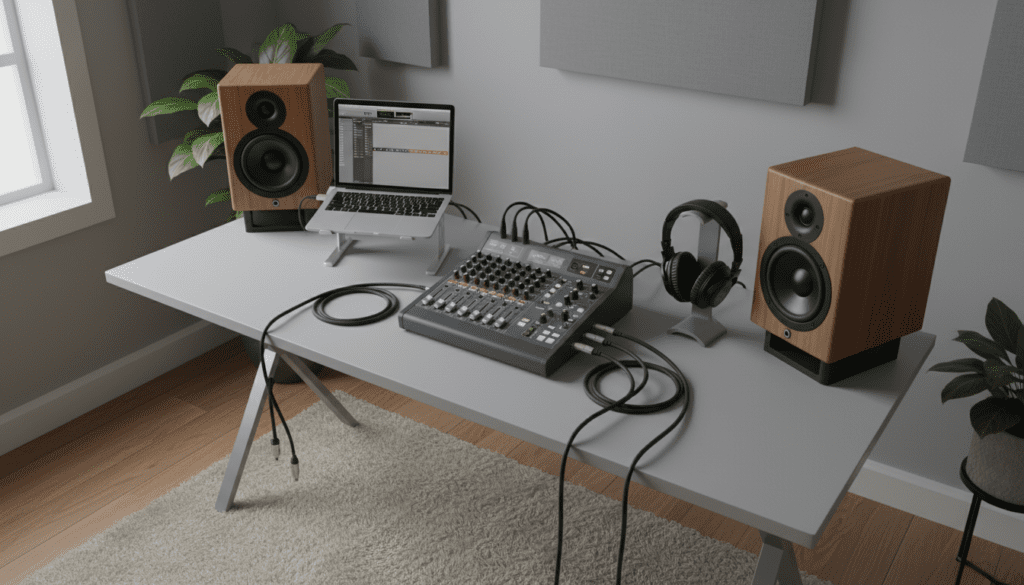
For most modern setups, you will either use a USB Mixer that acts as its own audio interface or a traditional Analog Mixer connected via a 3.5mm-to-RCA/TRS cable to your computer’s sound card. During my years of setting up project studios, I have found that using a mixer as the central hub significantly improves workflow efficiency, especially when you need to switch between recording a podcast and monitoring a DAW (Digital Audio Workstation) without swapping cables.
Quick Summary: Key Takeaways
- Connectivity: You can connect via USB (digital) or 3.5mm to 1/4″ TRS cables (analog).
- Active vs. Passive: Ensure your speakers are Active (powered); otherwise, you need an external amplifier between the mixer and speakers.
- Balanced Cables: Always use XLR or TRS cables to prevent “60-cycle hum” and electrical interference.
- Gain Staging: Keep your computer volume at 80-90% and use the mixer’s Main Fader to control the actual listening level.
- Interface Benefits: A USB mixer eliminates the need for a separate audio interface, saving desk space and money.
Understanding the Basics: Mixers and Studio Monitors
Before you start plugging in cables, it is vital to understand the “signal flow” of your studio. The goal is to get audio from your computer into the mixer, and then from the mixer into your speakers.
If you are asking, “can i hook studio speakers to computer with a mixer?” you likely want more control than a simple volume knob provides. A mixer allows you to EQ your monitors, plug in a dedicated talkback mic, and blend computer audio with external hardware like synthesizers or drum machines.
The Two Main Types of Mixer Setups
- USB Mixers (Digital): These function as an Audio Interface. You simply plug a USB cable from the mixer to your PC or Mac. The computer sees the mixer as a “Sound Output Device.”
- Analog Mixers: These require an intermediary connection. You run a cable from your computer’s Headphone Jack (or a separate interface) into the Line Inputs of the mixer.
| Feature | USB Mixer | Analog Mixer |
|---|---|---|
| Connection Type | USB-A or USB-C | 3.5mm, RCA, or 1/4″ TRS |
| Ease of Setup | High (Plug & Play) | Medium (Requires extra cables) |
| Sound Quality | High (Digital Clarity) | Variable (Depends on PC Soundcard) |
| Best For | Podcasters & DAW Users | Budget setups & Old hardware |
Essential Equipment Needed for the Setup
To successfully hook studio speakers to a computer with a mixer, you need the right “signal chain” components. In my experience, the biggest mistake beginners make is using “unbalanced” cables, which leads to annoying static and buzzing sounds.
The Mixer
Brands like Yamaha (MG Series), Mackie (ProFX), and Behringer (Xenyx) are industry standards. Look for a mixer with at least two “Main Out” ports, usually labeled as XLR or 1/4″ Balanced TRS.
Studio Monitors (Speakers)
Most modern studio monitors, like the KRK Rokits or Yamaha HS5s, are Active Speakers. This means they have built-in amplifiers. If your speakers have a power cord, they are active.
Necessary Cables
- From Computer to Mixer: A USB 2.0/3.0 cable (for USB mixers) OR a 3.5mm to Dual 1/4″ TS Breakout Cable (for analog).
- From Mixer to Speakers: Two XLR-to-XLR cables or two 1/4″ TRS-to-TRS balanced cables.
Step-by-Step Guide: How to Hook Studio Speakers to Your Computer
Follow these steps in order to prevent “popping” your speakers, which can damage the delicate tweeters.
Step 1: Power Management
Ensure your computer, mixer, and speakers are all turned off. Set all faders and “Gain” knobs on the mixer to their lowest position. This prevents a sudden surge of signal from damaging your gear.
Step 2: Connect the Computer to the Mixer
- For USB Mixers: Connect the USB cable. Your computer should automatically recognize the device. Go to Settings > Sound and select your mixer as the “Output Device.”
- For Analog Mixers: Plug the 3.5mm end of your breakout cable into the computer’s green headphone jack. Plug the two 1/4″ ends into a Stereo Channel on the mixer (e.g., Channels 3/4 or 5/6).
Step 3: Connect the Mixer to the Studio Speakers
Locate the Main Outputs on the back or top of the mixer. Connect the Left Output to your Left Speaker and the Right Output to your Right Speaker. I highly recommend using XLR cables here because they lock in place and offer superior noise rejection.
Step 4: Initial Power Up
- Turn on the Computer.
- Turn on the Mixer.
- Turn on the Studio Speakers last.
Step 5: Calibrate the Levels (Gain Staging)
Play a high-quality audio track on your computer. Set the computer’s software volume to 100%. Slowly raise the Channel Fader on the mixer until the “Level Meter” hits 0dB (Green lights). Finally, raise the Main Mix fader until you reach a comfortable listening volume.
Why Use a Mixer Instead of a Simple Interface?
You might wonder if it’s worth the extra desk space. While a dedicated Audio Interface (like a Focusrite Scarlett) is great for pure recording, a mixer offers unique advantages for a “multi-purpose” setup.
- Tactile Control: Adjusting a physical fader is much faster than using a mouse during a live stream or recording session.
- Hardware EQ: Most mixers have physical knobs for High, Mid, and Low frequencies. I use this to “tame” the bass in my room depending on the time of day.
- Multiple Inputs: If you have a computer, a record player, and a synthesizer, you can plug them all into the mixer and hear them through your studio speakers simultaneously without changing wires.
- Zero-Latency Monitoring: You can hear your microphone directly through the mixer’s circuitry before it even hits the computer, eliminating the “lag” that often frustrates vocalists.
Troubleshooting Common Issues
Even with the best gear, you might encounter hurdles when you hook studio speakers to a computer with a mixer.
Eliminating Hiss and Hum
If you hear a constant buzz, you likely have a Ground Loop. This happens when the computer and mixer are plugged into different wall outlets.
Solution: Plug all your studio gear into a single high-quality Power Conditioner or surge protector.
No Sound from Speakers
Check the “Source” or “Routing” buttons on your mixer. Many USB mixers have a button labeled “USB to Main” or “2-TK to Mix.” If this button isn’t pressed, the mixer won’t send the computer’s digital audio to the speakers.
Distorted Audio
If the sound is “crunchy,” your input gain is too high. Check the Clip or Peak lights on your mixer channels. If they are flashing Red, turn down the Gain knob and compensate by turning up the Main Mix or the volume on the speakers themselves.
Frequently Asked Questions
Can I use an analog mixer with a laptop?
Yes, but since most laptops have combined mic/headphone jacks, you may need a USB Sound Card adapter or a 3.5mm TRS to Dual 1/4″ TS cable to send the signal to the mixer. Ensure you aren’t plugging into a “Mic In” on the laptop, as this is mono and will sound terrible.
Do I need an amplifier if I use a mixer?
Only if your studio speakers are Passive. Active (powered) monitors connect directly to the mixer. Passive speakers require a power amplifier to sit between the mixer’s outputs and the speaker’s inputs.
Is a USB mixer better than an XLR interface?
It depends on your goal. If you only record one microphone at a time, an XLR Interface usually has better “Preamps.” However, if you want to control your entire desk’s audio (gaming, music, instruments) without opening software, a USB Mixer is the better choice.
What cables provide the best sound quality?
For the connection between the mixer and speakers, Balanced TRS or XLR cables are the gold standard. They use three wires to cancel out external electromagnetic interference, which is essential if your cables are running near power bricks or computer monitors.
Can I record my mixer’s output back into the computer?
Yes. If you have a USB Mixer, it acts as a two-way street; it sends audio to your speakers and receives audio from your inputs to record into your DAW. If you have an Analog Mixer, you would need to run the “Tape Out” or “Rec Out” into your computer’s “Line In” port.









