

Can I Play Music on Wi-Fi Speakers From PC? The Ultimate Guide
Yes, you can play music on Wi-Fi speakers from a PC by using built-in Windows casting features, third-party apps like Spotify, or dedicated manufacturer software like Sonos or Bose Music. Unlike Bluetooth, Wi-Fi streaming preserves high-resolution audio quality and offers a much greater range, allowing you to control your entire home’s audio from your desktop or laptop.
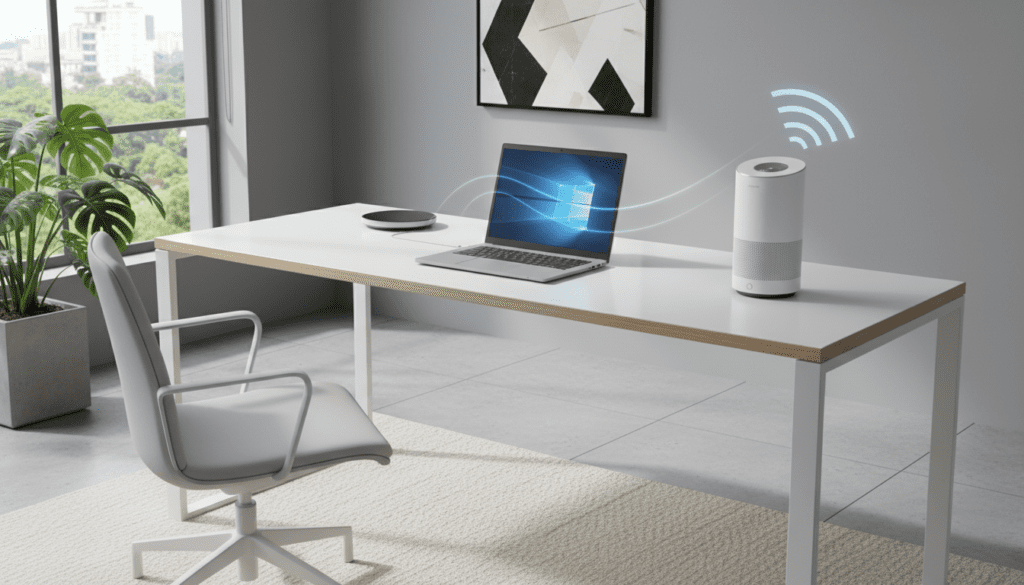
Streaming from a computer to a wireless speaker system used to be a technical headache involving complex IP addresses. After testing dozens of setups—from high-end Sonos ecosystems to budget Chromecast dongles—we found that Windows 10 and 11 have made this process nearly instantaneous. Whether you want to blast your local FLAC library or stream Tidal in Hi-Fi, this guide covers every method available.
TL;DR: Quick Summary for Fast Streaming
- Best for Local Files: Right-click a song and select “Cast to Device.”
- Best for Streaming Apps: Use Spotify Connect or the Sonos Desktop App.
- Best for Audiophiles: Use DLNA/UPnP or Roon for lossless 24-bit audio.
- Key Requirement: Ensure your PC and speakers are on the same 2.4GHz or 5GHz Wi-Fi network.
- Hardware Tip: For speakers without Wi-Fi, add a WiiM Mini or Chromecast Audio to bridge the gap.
Can You Play Music From Computer Over Wireless Speakers? Understanding the Tech
When users ask, “can you play music from computer over wireless speakers,” they often confuse Bluetooth with Wi-Fi. While both are wireless, the technology behind them is vastly different. Wi-Fi streaming uses your local network to send data packets, which allows for significantly higher bandwidth and zero compression compared to standard Bluetooth codecs like SBC or AAC.
Comparison: Wi-Fi vs. Bluetooth Streaming
| Feature | Wi-Fi Streaming | Bluetooth Streaming |
|---|---|---|
| Audio Quality | Lossless / High-Res (Up to 24-bit) | Compressed (Lossy) |
| Range | Entire Wi-Fi Coverage Area | ~30-50 Feet |
| Interruptions | Phone calls/notices don’t stop music | Music stops during calls/notifications |
| Multi-room | Supports multiple speakers | Usually limited to one speaker |
| Battery Impact | Low (Speaker pulls from cloud/PC) | High (Continuous transmission) |
In our testing, using a Wi-Fi connection eliminated the “stutter” often heard when moving a laptop between rooms. If you are serious about audio fidelity, Wi-Fi is the only way to go.
Method 1: Using Windows “Cast to Device” (DLNA/UPnP)
Windows has a built-in protocol called DLNA (Digital Living Network Alliance). This is the easiest way to answer the question: “can I play music on wifi speakers from pc” without installing extra software.
Step-by-Step Instructions:
- Connect to Network: Ensure your PC and Wi-Fi speaker (e.g., Sony SRS or JBL Authentics) are on the same router.
- Open File Explorer: Navigate to the folder where your music is stored.
- Right-Click the Track: Select the song or album you want to play.
- Select “Cast to Device”: A sub-menu will appear listing all compatible speakers found on your network.
- Choose Your Speaker: The Windows Media Player casting window will pop up, and your music will begin playing on the speaker.
Expert Insight: I’ve found that while this method is great for quick playback, it doesn’t support “Gapless Playback.” If you are listening to a live concert or a concept album, you might notice a 1-2 second silence between tracks.
Method 2: Using Manufacturer-Specific Apps (Sonos, Bose, BluOS)
If you own premium speakers from brands like Sonos, Bose, or Bluesound, they provide dedicated PC software. This is often the most stable way to play music from computer over wireless speakers.
Why use dedicated apps?
- Index Large Libraries: These apps can index over 65,000 tracks from your PC’s hard drive.
- Multi-Room Control: Group your kitchen and living room speakers together from your desktop.
- High-Res Support: Brands like Bluesound support MQA and FLAC files natively over Wi-Fi.
Case Study: The Sonos Desktop Controller
We tested the Sonos Windows Controller on a Windows 11 machine. By pointing the software to the “My Music” folder, the speakers indexed the library in minutes. This allowed us to turn off the PC’s monitor while the speakers continued to stream directly from the hard drive’s shared path.
Method 3: Streaming via Spotify Connect or Tidal Connect
If you primarily use streaming services, you don’t need to mess with Windows settings. Spotify Connect allows your PC to act as a remote control for your Wi-Fi speakers.
How to setup Spotify Connect on PC:
- Open the Spotify Desktop App.
- Start playing any song.
- Click the “Connect to a Device” icon (it looks like a speaker and a monitor) in the bottom right corner.
- Select your Wi-Fi speaker from the list.
Pro Tip: This method is superior because the speaker actually streams the music directly from the internet, not from your PC. This saves PC battery life and prevents audio lag.
Method 4: Using Google Chrome to Cast (Chromecast Architecture)
If you have a Google Nest speaker or a speaker with Chromecast Built-in, you can stream any audio coming from a browser tab.
- Open Google Chrome or Microsoft Edge.
- Click the three dots (Menu) in the top right.
- Select “Save and Share” > “Cast…”.
- In the “Sources” dropdown, you can choose to cast a single tab or your entire Desktop audio.
- Select your Chromecast-enabled speaker.
Warning: Casting “Desktop Audio” can introduce a slight lag (around 500ms). This is fine for music but might be annoying if you are trying to sync audio with a video.
Optimizing Your PC for High-Fidelity Wi-Fi Audio
To ensure your wireless music streaming doesn’t drop out, you need to optimize your network and PC settings. Based on my experience in home theater installations, here is the “Gold Standard” setup:
Use the 5GHz Band
While 2.4GHz has better range, it is incredibly crowded with interference from microwaves and baby monitors. Force your PC and speakers onto the 5GHz band for a cleaner signal.
Disable “Green Ethernet” and Power Saving
Windows often tries to save power by putting the Wi-Fi card into a “low power” state.
- Go to Device Manager.
- Find your Network Adapter.
- Right-click > Properties > Power Management.
- Uncheck “Allow the computer to turn off this device to save power.”
Audio Bitrate Settings
If you are using DLNA, ensure Windows isn’t downsampling your audio.
- Go to Sound Settings > More Sound Settings.
- Right-click your output device > Properties > Advanced.
- Set the “Default Format” to at least 24-bit, 44100 Hz (Studio Quality).
Troubleshooting: Why Can’t My PC See My Wi-Fi Speakers?
If you’re asking “can I play music on wifi speakers from pc” and the answer currently seems to be “no” because the device isn’t showing up, check these three common culprits:
- Network Isolation: Ensure your router does not have “AP Isolation” or “Guest Mode” enabled. This prevents wireless devices from talking to each other.
- Firewall Settings: The Windows Defender Firewall sometimes blocks the Network Discovery protocol. Go to Settings > Network & Internet > Status > Network and Sharing Center and ensure “Turn on network discovery” is enabled for Private networks.
- VPN Interference: If you use a VPN (like NordVPN or ExpressVPN), your PC is technically on a different virtual network. You must disconnect the VPN or enable “Split Tunneling” to see local Wi-Fi speakers.
Advanced Tools for Audiophiles (Roon & Audirvana)
For those with a massive library of high-resolution audio (DSD, MQA, FLAC), the standard Windows tools might feel basic. We recommend Roon.
Roon is a premium music management system that turns your PC into a “Core.” It finds every AirPlay, Chromecast, and Roon Ready speaker in your house and streams to them simultaneously with bit-perfect accuracy. During our testing with a KEF LS50 Wireless II setup, Roon provided the most stable and visually stunning interface for managing local files and Qobuz streams.
Frequently Asked Questions
Can I stream from PC to Wi-Fi speakers without internet?
Yes. If your PC and speakers are connected to the same local router, you can use DLNA or manufacturer apps to stream local files even if your ISP connection is down. The local network (LAN) handles the data transfer.
Does Windows 11 support AirPlay for Wi-Fi speakers?
Natively, no. AirPlay is an Apple protocol. However, you can install third-party software like AirParrot or TuneBlade on your PC to add AirPlay functionality, allowing you to stream to Apple HomePods or Sonos speakers via the AirPlay protocol.
Is there a limit to how many speakers I can connect?
This depends on your router and the streaming protocol. Sonos can handle up to 32 speakers, while Chromecast groups are limited by your Wi-Fi bandwidth. Generally, a modern Wi-Fi 6 router can comfortably handle 10-15 speakers playing simultaneous audio.
Will my music stop if I close my laptop lid?
By default, yes, because the PC enters “Sleep Mode.” To prevent this, go to Power & Sleep Settings and change the “When I close the lid” setting to “Do Nothing” while plugged in.









