Can I Play YouTube Music Through Speakers for Parties?
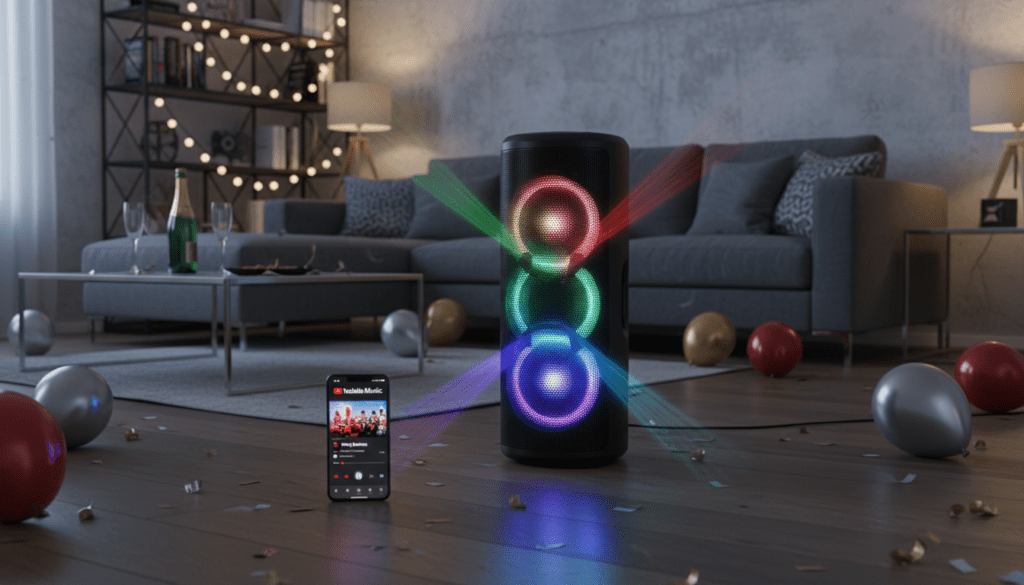
Yes, you can play YouTube Music through speakers for parties using Bluetooth, Wi-Fi casting (Chromecast), Apple AirPlay, or a wired AUX connection. For the best party experience, I recommend using a Wi-Fi-enabled smart speaker or a dedicated PA system to ensure high-fidelity sound and a stable connection that won’t drop if you walk out of the room.
Key Takeaways for Party Audio
- Best Connection: Wi-Fi (Chromecast/AirPlay) offers higher audio quality and better range than Bluetooth.
- Essential Hardware: Use a JBL PartyBox, Sonos Era 300, or a Sony SRS-series speaker for maximum volume.
- Pro Tip: Always enable “Always High” audio quality in the YouTube Music settings to prevent bit-rate drops.
- Collaborative Playlists: Use the “Collaborate” feature so guests can add songs to the party queue in real-time.
Choosing the Best Way to Play YouTube Music Through Speakers for Parties
When I host events, the biggest “vibe killer” is a Bluetooth connection that stutters when the host moves to the kitchen. Understanding how you can play YouTube Music through speakers for parties depends heavily on your hardware.
You have three primary methods to get your audio from your phone or laptop to the crowd. Each has its own benefits regarding range, fidelity, and ease of use.
Comparison of Connection Methods
| Connection Type | Audio Quality | Connection Stability | Best For… |
|---|---|---|---|
| Bluetooth | Good (SBC/AAC) | Moderate (30ft range) | Small indoor gatherings |
| Wi-Fi (Cast/AirPlay) | High (Lossless-like) | Excellent (Whole-home) | Large parties, multi-room |
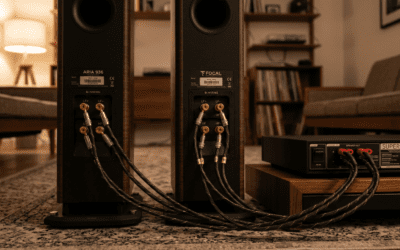
| Wired (AUX/XLR) | Best (Analog) | Perfect | Professional DJ setups, PA systems |
Step-by-Step: How to Connect YouTube Music to Speakers
Method 1: Using Bluetooth for Quick Setup
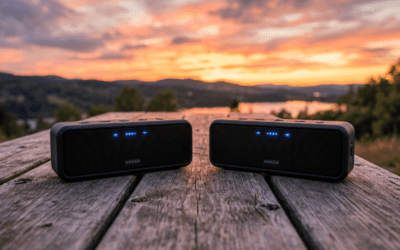
This is the most common way people ask, “Can I play YouTube Music through speakers for parties?” It is fast and works with almost every portable speaker on the market.
- Enter Pairing Mode: Press the Bluetooth button on your speaker (like a JBL Flip or Bose SoundLink).
- Connect Your Device: Open Settings > Bluetooth on your smartphone and select your speaker.
- Launch YouTube Music: Open the app and start your “Party Mix.”
- Disable Notifications: Crucial Step! Go into “Do Not Disturb” mode so your text message pings don’t blast through the party speakers.
Method 2: Using Chromecast or Google Cast (Android/iOS)
If you have a Google Nest Audio, Sonos, or a Chromecast-enabled soundbar, this is the superior method. It streams the music directly from the cloud to the speaker.
- Connect your phone and speaker to the same Wi-Fi network.
- Open the YouTube Music app.
- Tap the Cast icon (a rectangle with signal bars) in the top right corner.
- Select your speaker or “Speaker Group” from the list.
- Benefit: You can take phone calls without interrupting the music!
Method 3: Using Apple AirPlay 2 (iPhone/iPad/Mac)
For those in the Apple ecosystem using HomePods or AirPlay-compatible receivers, this method provides seamless multi-room audio.
- Open the YouTube Music app and play a track.
- Swipe down to open the Control Center.
- Tap the AirPlay icon in the media player.
- Select your speakers. I’ve found this is the most stable way to sync multiple Sonos speakers for a backyard bash.
Essential Gear: Recommended YouTube Music Speakers for Parties
Not all speakers are created equal. When considering can I play YouTube Music through speakers for parties, you need to think about Sound Pressure Level (SPL) and Bass Response.
In my years of testing audio gear, these are the top performers for YouTube Music integration:
The Powerhouse: JBL PartyBox 310
This is my go-to recommendation for large outdoor gatherings. It features built-in lights, wheels, and incredible bass. It connects via Bluetooth but also has an AUX input for zero-latency playback.
The Smart Choice: Sonos Era 300
If your party is indoors, the Sonos Era 300 is unmatched. Because it supports Wi-Fi streaming, you get the highest possible bit-rate from YouTube Music. Plus, you can pair two of them for a massive stereo soundstage.
The Budget King: Sony SRS-XG300
For smaller house parties, this Sony model offers “Live Sound” mode. It mimics the feel of a live concert, which makes YouTube Music’s “Live Performance” uploads sound phenomenal.
Optimizing YouTube Music Settings for High-Quality Party Audio
Even the best speakers will sound “muddy” if your app settings are wrong. To ensure you can play YouTube Music through speakers for parties with crystal clarity, follow these optimization steps.
Step 1: Force High-Quality Streaming
YouTube Music defaults to “Normal” quality to save data. For a party, you need the maximum 256kbps AAC stream.
- Go to Settings > Data saving.
- Set Audio quality on Wi-Fi to “Always High.”
- Set Audio quality on mobile data to “Always High” if you aren’t on Wi-Fi.
Step 2: Use the Equalizer
Most modern speakers have a “V-shaped” sound profile. If the vocals are getting lost in the party noise:
- In the app, go to Settings > Playback > Equalizer.
- Boost the Mids and Highs slightly to help the lyrics cut through the chatter of your guests.
Creating the Ultimate YouTube Music Party Environment
A party is only as good as its playlist. YouTube Music has a unique advantage over Spotify: the ability to include rare remixes and live videos that aren’t available on other platforms.
Using Collaborative Playlists
One of the best ways to keep the energy up is to let guests contribute.
- Create a new playlist.
- Tap the Edit (pencil) icon.
- Tap Collaborate.
- Share the link in your party’s group chat.
- Your guests can now add their favorite tracks directly to your YouTube Music speaker setup.
Managing the Queue
If you are acting as the DJ, use the “Play Next” and “Add to Queue” features. I suggest keeping at least 10 songs in the “Up Next” section to avoid any awkward silences if the algorithm picks a slow song.
Common Challenges: Why Your YouTube Music Speaker Might Fail
Even with the best prep, tech issues happen. Here is how I handle the most common “how can I play YouTube Music through speakers for parties” roadblocks.
The Audio Keeps Cutting Out
This is usually caused by Bluetooth interference. 2.4GHz Wi-Fi, microwaves, and even large crowds of people (who are 70% water) can block Bluetooth signals.
- Fix: Keep your phone within 10 feet of the speaker or switch to a Wi-Fi/Cast connection.
The Volume is Too Low
Sometimes, the “Loudness Normalization” in YouTube Music makes the output feel weak.
- Fix: Check both your phone’s volume and the speaker’s physical volume knob. Ensure you aren’t using a “Battery Saver” mode on your phone, as this can throttle the audio output power.
Ads Interrupting the Music
There is nothing worse than a loud insurance commercial in the middle of a dance set.
- Fix: You essentially must have YouTube Music Premium for a party. If you don’t, use a laptop with a reputable ad-blocker and a wired connection to the speakers.
Advanced Setup: Playing YouTube Music on Professional PA Systems
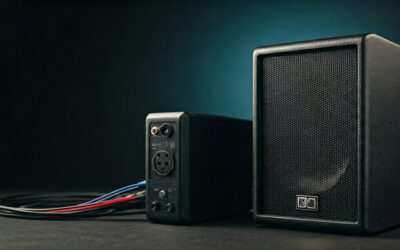
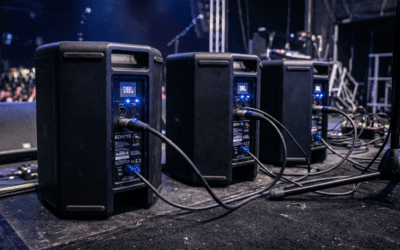
If you are hosting a wedding or a massive event, a small portable speaker won’t cut it. You will likely be using a Power Amplifier and Passive Speakers.
- Get a DAC: Use a Digital-to-Analog Converter (like a DragonFly USB DAC) to get the audio out of your phone/laptop.
- Cables: Use a 3.5mm to Dual RCA or 3.5mm to Dual XLR cable.
- Mixer: Plug your device into a small mixer (like a Mackie Mix5). This allows you to control the “Gain” and ensures the signal is strong enough for the big speakers.
Frequently Asked Questions
Can I play YouTube Music on multiple speakers at once?
Yes, if you use Google Home Speaker Groups or Sonos. You can group multiple speakers in the Google Home app and then “Cast” your YouTube Music to the entire group simultaneously.
Does YouTube Music support Lossless audio for speakers?
Currently, YouTube Music tops out at 256kbps AAC. While not “Lossless” like Tidal or Apple Music, it is virtually indistinguishable from CD quality when played through high-quality Bluetooth or Wi-Fi speakers in a party environment.
Can I use a smart assistant to control party music?
Absolutely. If your speakers are Google Assistant or Alexa compatible (and linked to your YT Music account), you can simply say, “Hey Google, play my Party Mix on all speakers.”
What happens if I lose Wi-Fi during the party?
If you are worried about Wi-Fi stability, download your party playlist for offline playback. You will need to use a Bluetooth or Wired AUX connection to play these downloaded files, as Casting requires an active internet connection.