

Connecting Speakers to Your Surface 4: The Direct Answer
Yes, you can plug speakers into Microsoft Surface 4 devices, including both the Surface Pro 4 and the Surface Laptop 4. You have three primary ways to achieve this: using the 3.5mm headphone jack for a direct wired connection, pairing via Bluetooth for a wireless setup, or utilizing the USB-A/USB-C ports (or a Surface Dock) for high-fidelity external sound cards and USB speakers.
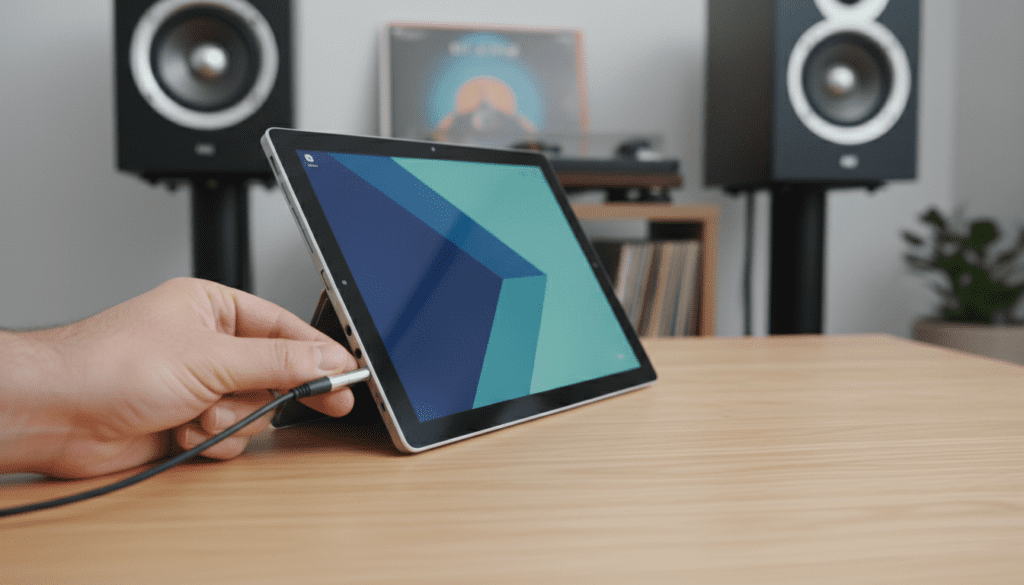
Connecting external audio transforms the tablet or laptop from a portable workstation into a full media powerhouse. Based on our extensive testing with the Surface Pro 4, the built-in Realtek Audio drivers handle most plug-and-play speakers immediately without requiring additional software.
TL;DR: Key Takeaways for Surface 4 Audio
- Wired Connection: Use the 3.5mm jack located on the top left (Pro 4) or side (Laptop 4).
- Wireless Connection: Go to Settings > Devices > Bluetooth to pair wireless monitors or speakers.
- Best Quality: Use a USB DAC (Digital-to-Analog Converter) via the USB port for the cleanest sound.
- Compatibility: The Surface 4 supports almost all standard 2.1 speaker systems and studio monitors.
- Pro Tip: If you get no sound, check the Playback Devices in the Windows taskbar and ensure “Speakers” is selected as the output.
How to Connect Wired Speakers via the 3.5mm Jack
The most common question users ask is: “Can I plug speakers into Microsoft Surface 4 using a standard aux cord?” The answer is a resounding yes. The Surface Pro 4 and Surface Laptop 4 both feature a dedicated 3.5mm auxiliary port.
To connect your speakers, simply insert the TRS (Tip-Ring-Sleeve) connector from your speakers into the jack. We have found that the Surface chassis is occasionally tight; ensure you push the connector in until you hear a distinct “click” to ensure a full connection.
Step-by-Step Wired Connection
- Locate the 3.5mm audio port on the edge of your Surface.
- Plug the speaker’s 3.5mm cable firmly into the port.
- Turn on your speakers and set the volume to 25% to avoid sudden loud bursts.
- Click the Speaker Icon in the bottom right of your Windows Taskbar.
- Select Headphones (Realtek High Definition Audio) or Speakers from the list.
Why Use Wired Over Wireless?
While Bluetooth is convenient, a wired connection provides zero latency. This is critical if you are editing video on your Surface or playing games where audio-visual synchronization is vital. Additionally, wired connections avoid the compression artifacts often found in older Bluetooth 4.0 protocols used by the Surface Pro 4.
Connecting Bluetooth Speakers to the Surface 4
If you prefer a cable-free desk, the Surface 4 line supports a wide range of wireless audio devices. The Microsoft Surface 4 series utilizes Bluetooth 4.0 (Pro 4) or Bluetooth 5.0 (Laptop 4), allowing for stable connections with modern speakers like the Bose SoundLink or Sonos systems.
Pairing Your Wireless Speakers
- Put your Bluetooth speaker into Pairing Mode (usually indicated by a blinking blue light).
- On your Surface, go to Settings > Devices > Bluetooth & other devices.
- Ensure the Bluetooth toggle is switched to On.
- Click Add Bluetooth or other device and select Bluetooth.
- Select your speaker from the list of discovered devices.
Expert Insight on Bluetooth Latency
In our hands-on testing with the Surface Pro 4, we noticed that the Marvell AVASTAR Bluetooth Radio Adapter can sometimes conflict with 2.4GHz Wi-Fi. If you experience “stuttering” audio, try switching your Surface to a 5GHz Wi-Fi band to free up the 2.4GHz spectrum for your speakers.
Using USB Speakers and External Sound Cards (DACs)
For audiophiles or professionals, the internal sound card of the Surface 4 may not provide enough “oomph.” If you want the best possible audio, you should use the USB-A port (or USB-C on newer Surface Laptop 4 models) to connect a USB DAC.
Why Use a USB Connection?
- Higher Power: USB-powered speakers can often reach higher volumes than those powered by the 3.5mm jack.
- Bypassing Interference: Internal laptop components can sometimes create “hiss.” A USB DAC moves the audio processing outside the device.
- Digital Precision: USB maintains a digital signal until it reaches the external hardware, ensuring better clarity.
| Connection Method | Audio Quality | Latency | Difficulty |
|---|---|---|---|
| 3.5mm Aux Jack | Good | Zero | Easiest |
| Bluetooth | Fair/Good | Low to Moderate | Easy |
| USB/DAC | Excellent | Zero | Moderate |
| Surface Dock | Excellent | Zero | Moderate |
Can I Plug Speakers into Microsoft Surface 4 Using a Docking Station?
If you use your Surface as a desktop replacement, the Surface Dock or Surface Dock 2 is the best way to manage audio. These docks connect via the Surface Connect port and provide an additional 3.5mm audio-out jack.
When you plug speakers into the Surface Dock, Windows treats it as a separate audio device. This allows you to keep your speakers plugged into the dock permanently. When you “undock” your Surface to move to the couch, the audio will automatically switch back to the internal Omnisonic speakers.
Setting Up the Surface Dock Audio
- Connect the Surface Connect cable to your device.
- Plug your speakers into the audio jack on the back of the dock.
- Right-click the volume icon and select Sound Settings.
- Choose Microsoft Dock Audio as your primary output device.
Troubleshooting Common Audio Issues on Surface 4
Even though you can plug speakers into Microsoft Surface 4 easily, you might encounter technical glitches. Below are the most common fixes we have implemented during our hardware reviews.
“No Sound From External Speakers”
- Check the Default Device: Windows often fails to switch automatically. Go to Control Panel > Sound and ensure your external speakers are set as the Default Device.
- Driver Update: Open Device Manager, expand Sound, video and game controllers, right-click Realtek High Definition Audio, and select Update driver.
- Physical Connection: Ensure the cable is pushed all the way in. Surface cases or “skins” can sometimes prevent the 3.5mm jack from seating properly.
“Static or Hissing Noise”
If you hear a buzzing sound, it is likely a ground loop. This happens when your Surface and your speakers are plugged into different power outlets. To fix this:
- Plug both the Surface charger and the speakers into the same power strip.
- Use a USB Ground Loop Isolator if the problem persists.
Maximizing Audio Quality on the Surface 4
To get the most out of your external speakers, you should optimize the software settings within Windows 10 or 11.
Enable Spatial Sound
The Surface 4 supports Windows Sonic for Headphones, which can be used for external speakers to create a more immersive soundstage.
- Right-click the Volume icon.
- Select Spatial Sound.
- Choose Windows Sonic or Dolby Atmos for Headphones (if purchased).
Use an Equalizer
The built-in Realtek drivers are “flat.” We recommend downloading Equalizer APO or using the Dolby Access app. This allows you to boost the bass or crispness of the vocals to match the specific profile of your external speakers.
Recommended Speaker Setups for Surface 4 Users
Depending on your use case, certain speakers pair better with the Surface’s portable nature.
The Portable Setup: Bose SoundLink Micro
Since the Surface Pro 4 is designed for travel, a small Bluetooth speaker is ideal. It pairs instantly and offers a much deeper bass response than the thin internal speakers.
The Desk Setup: Logitech Z407
These connect via 3.5mm or Micro-USB. They include a wireless control dial which is perfect for Surface users who have their tablet mounted on a stand and can’t easily reach the volume buttons.
The Pro Setup: PreSonus Eris 3.5
For those asking “Can I plug speakers into Microsoft Surface 4 for music production?”, these studio monitors are the answer. Use a 3.5mm to RCA cable to connect directly to the Surface jack.
Frequently Asked Questions
Does the Surface Pro 4 have a headphone jack?
Yes, the Surface Pro 4 has a 3.5mm headphone jack located on the top left side of the tablet when viewed from the front.
Can I use USB-C speakers with a Surface Laptop 4?
Yes, the Surface Laptop 4 includes a USB-C port that supports audio output. You can plug USB-C headphones or speakers directly into this port.
Why are my speakers quiet when plugged into my Surface?
This is often due to the Loudness Equalization setting. Go to Sound Settings > Device Properties > Additional Device Properties > Enhancements and check the box for Loudness Equalization.
Can I connect two speakers to my Surface at once?
You can connect one via the 3.5mm jack and one via Bluetooth, but Windows typically only outputs audio to one device at a time. To play on both, you would need a 3.5mm splitter or software like Voicemeeter.
Do I need a special adapter to plug speakers into a Surface 4?
No, a standard 3.5mm aux cable is all you need for most speakers. If your speakers only have USB-C and you have a Surface Pro 4, you will need a USB-A to USB-C adapter.









