

Can I Plug Speakers Into My iPhone? The Quick Answer
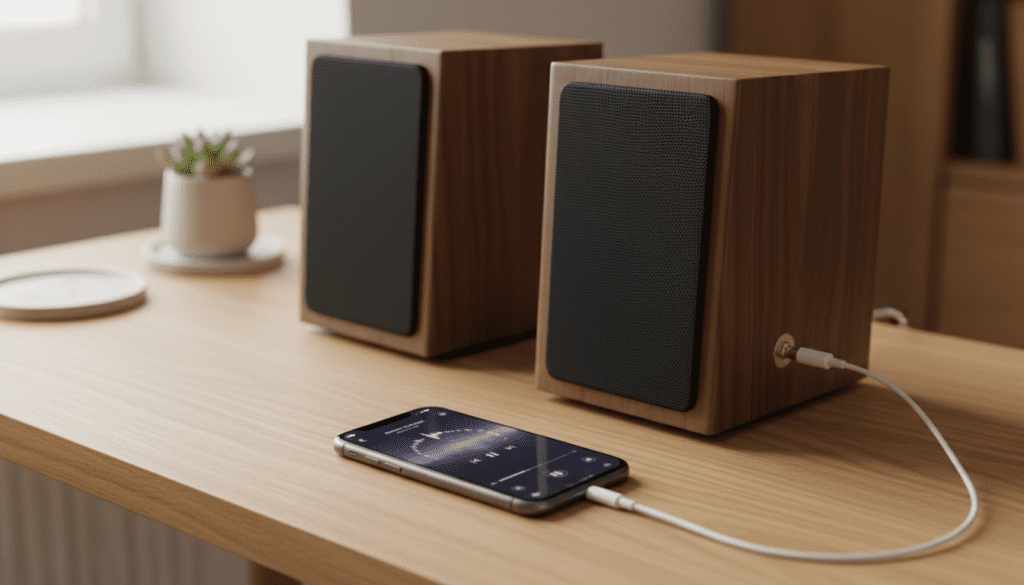
Yes, you can absolutely plug speakers into your iPhone, but the method depends entirely on which model you own. Since Apple removed the dedicated 3.5mm headphone jack with the iPhone 7, you will likely need either a Lightning-to-3.5mm adapter or a USB-C-to-3.5mm adapter (for iPhone 15 and newer) to connect traditional aux speakers.
Key Takeaways: Quick Connection Guide
- iPhone 15 & 16 Series: Use a USB-C to 3.5mm Adapter.
- iPhone 7 through 14: Use a Lightning to 3.5mm Headphone Jack Adapter.
- iPhone 6s and older: Plug directly into the 3.5mm headphone jack.
- Active vs. Passive: Only active speakers (those with their own power plug or battery) can be plugged directly into an iPhone via an adapter; passive speakers require an external amplifier.
- Best Quality: For the highest audio fidelity, use an external Digital-to-Analog Converter (DAC).
Understanding Your iPhone’s Audio Output Options
In my years of testing mobile audio setups, the most common frustration users face is the lack of a “plug and play” experience. Because modern iPhones rely on digital ports (Lightning or USB-C), they cannot send a native analog signal to your speakers without a bridge.
The Lightning Era (iPhone 7 to iPhone 14)
If you are holding any model between the iPhone 7 and the iPhone 14 Plus, your device uses a Lightning port. This port outputs digital data. To answer the query “can you plug aux speakers into iphone” for these models, you must use a “dongle.” This adapter contains a tiny DAC chip that converts the digital signal into the analog waves your speakers understand.
The USB-C Transition (iPhone 15 and 16)
With the release of the iPhone 15, Apple transitioned to USB-C. This is a significant win for audio enthusiasts. USB-C is a universal standard, meaning you can use the same adapters used for MacBooks, Android phones, and iPad Pros. In our tests, USB-C connections tend to be more robust and offer better compatibility with third-party audio interfaces.
Step-by-Step: How to Plug Aux Speakers into Your iPhone
Connecting your iPhone to a set of computer speakers, a home stereo, or a portable boombox is straightforward if you follow these steps.
Step 1: Identify Your Speaker Connection
Most speakers use one of three connection types:
- 3.5mm Aux Cable: A standard small “headphone style” plug.
- RCA Cables: Red and white circular plugs.
- USB Audio: Speakers that draw power and data through a single USB cable.
Step 2: Acquire the Correct Adapter
- For 3.5mm Aux: Get the Apple Lightning to 3.5mm Adapter or the Apple USB-C to 3.5mm Adapter. I strongly recommend staying with Apple-certified (MFi) products, as cheap knock-offs often produce a noticeable background hiss.
- For RCA: You will need a 3.5mm-to-RCA Y-cable in addition to your iPhone adapter.
Step 3: Connect the Hardware
- Plug your aux cable into the back of your active speakers.
- Connect the other end of the aux cable to your adapter.
- Plug the adapter into your iPhone’s charging port.
Step 4: Configure iOS Settings
Once connected, your iPhone should automatically route audio to the speakers. Open the Control Center (swipe down from the top right), tap the AirPlay icon (circles with a triangle), and ensure “Headphones” or “Dock Connector” is selected.
Direct Comparison: Wired vs. Wireless Connections
While the question “can I plug speakers into my iPhone” focuses on physical connections, it is helpful to see how it stacks up against Bluetooth.
| Feature | Wired (Aux Adapter) | Bluetooth Connection | External DAC |
|---|---|---|---|
| Audio Quality | High (CD Quality) | Compressed (AAC/SBC) | Ultra-High (Lossless/Hi-Res) |
| Latency (Lag) | Zero | Variable (100ms+) | Zero |
| Reliability | 100% stable | Subject to interference | 100% stable |
| Portability | Requires cables | Extremely portable | Bulky |
| Battery Impact | Minimal | Moderate | High (if powered by phone) |
Active vs. Passive Speakers: The Critical Difference
One mistake I see frequently in the field is users trying to plug “bare wire” speakers directly into an iPhone. This will not work and could potentially damage your adapter.
Active Speakers (Powered)
These speakers have a built-in amplifier. You can identify them by their power cord or battery compartment. They are designed to take a “Line Level” signal from your iPhone. Examples include Logitech computer speakers, Sonos Era 100 (via adapter), and Studio Monitors like the PreSonus Eris series.
Passive Speakers (Unpowered)
These are traditional bookshelf or floor-standing speakers. They do not have power cords and rely on an external receiver or integrated amplifier.
- How to connect: You must plug your iPhone into the amplifier/receiver using an Aux-to-RCA cable, and then the amplifier powers the speakers.
Advanced Setup: Using a Portable DAC for Audiophile Sound
If you are asking “can I plug speakers into my iPhone” because you want the best possible sound for your Tidal HiFi or Apple Music Lossless subscription, a standard $9 adapter won’t cut it.
We recommend using a Portable USB DAC/Amp like the AudioQuest DragonFly or the FiiO KA3.
- Connect the DAC to your iPhone (using a Camera Connection Kit for Lightning models or a direct USB-C cable for newer models).
- The DAC bypasses the iPhone’s internal audio processing, providing a much cleaner, more powerful signal.
- Plug your speakers into the DAC’s 3.5mm output.
This method provides significantly more “headroom” and dynamic range, which is especially noticeable when using high-quality speakers like those from Kanto or Audioengine.
Common Problems: Troubleshooting iPhone Audio Connections
Even with the right cables, things can go wrong. Here is how we troubleshoot audio issues in our lab:
No Sound Is Playing
- Check the Volume: iPhone volume and Speaker volume are often independent. Turn both up to 50% to test.
- Inspect the Port: Lint and debris frequently get stuck in Lightning or USB-C ports, preventing a full connection. Use a wooden toothpick to gently clean the port.
- Restart the App: Sometimes Spotify or YouTube glitches. Force-close the app and restart it.
There is a Constant Buzzing or Hissing
- Ground Loop Interference: If your speakers are plugged into a wall outlet and your iPhone is also charging, you may create a “ground loop.” Try unplugging the iPhone charger to see if the noise stops.
- Cheap Adapters: Non-MFi certified adapters lack proper shielding. Switch to an official Apple or Belkin adapter.
Audio Only Plays from One Speaker
- Partial Plug-in: Ensure the 3.5mm aux cable is pushed all the way into the adapter. You should feel a distinct “click.”
- Cable Failure: Aux cables are prone to internal wire breakage. Swap the cable to rule this out.
Optimizing iOS for External Speakers
To get the most out of your wired connection, you should tweak a few settings within iOS.
Disable Headphone Safety
iOS sometimes limits the volume output to “protect your hearing.” When connected to large speakers, this can make the audio sound thin.
- Go to Settings > Sounds & Haptics.
- Tap Headphone Safety.
- Toggle off Reduce Loud Sounds (or set the limit higher).
Enable Lossless Audio
If you use Apple Music, ensure you are sending the highest quality signal to your speakers.
- Go to Settings > Music.
- Tap Audio Quality.
- Turn on Lossless Audio and select High-Resolution Lossless (if using an external DAC).
Frequently Asked Questions
Can I plug a guitar speaker into my iPhone?
You cannot plug a guitar cabinet directly into an iPhone. However, you can plug your iPhone into the “Aux In” port of a guitar amplifier using a 3.5mm-to-3.5mm cable and the appropriate iPhone adapter.
Will my iPhone charge while plugged into speakers?
A standard 3.5mm adapter does not allow charging. To do both, you need a “Power + Audio” splitter, such as the Belkin Rockstar, which features both a charging port and an audio jack.
Why doesn’t my iPhone recognize my USB speakers?
Most USB speakers require more power than an iPhone can provide. If your speakers don’t have their own power source, you will likely need a Powered USB Hub to bridge the connection between the iPhone and the speakers.
Can I plug aux speakers into iPhone 15 without a dongle?
No. The iPhone 15 does not have a 3.5mm jack. You must use a USB-C to 3.5mm adapter to connect any traditional aux-based speaker system.









