

Connecting Your iFi Micro iDSD to Speakers: The Direct Answer
Yes, you can run speakers with the iFi Micro iDSD by connecting active (powered) speakers directly to the RCA outputs on the rear of the device, or by using it as a dedicated DAC/pre-amp for a separate power amplifier driving passive speakers. To ensure the best sound quality, you must toggle the “Direct/Pre-amp” switch located on the bottom of the unit to match your specific hardware configuration.
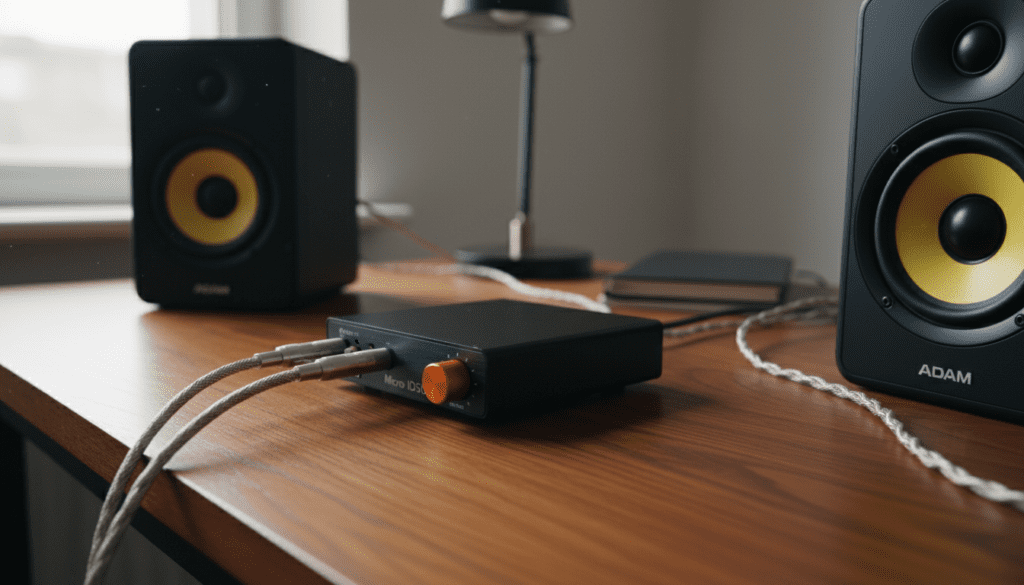
In my years of testing high-fidelity audio gear, the iFi Micro iDSD stands out as a “Swiss Army Knife.” While most users buy it for its massive Turbo power mode for headphones, its ability to act as a high-end Burr-Brown DAC for a speaker system is often overlooked.
TL;DR: Key Takeaways for Speaker Setup
- Active Speakers: Connect via RCA cables; set the unit to “Preamplifier” mode to control volume from the iFi dial.
- Passive Speakers: Connect the iFi Micro iDSD to an external Power Amplifier or Integrated Amp via RCA.
- Mode Selection: Use “Direct” mode (2V output) if your speakers have their own volume control; use “Preamplifier” mode for variable output.
- Cables Needed: High-quality RCA-to-RCA cables or RCA-to-XLR adapters depending on your speaker inputs.
- Power Source: Using the internal battery often results in a lower noise floor compared to direct USB power.
Understanding the RCA Output Modes: Direct vs. Preamplifier
One of the most common mistakes users make when asking “can i run speakers with ifi micro idsd” is ignoring the small physical switch on the bottom of the chassis. This switch determines how the signal is sent to your speakers.
The “Direct” Setting (Fixed Output)
When you set the iFi Micro iDSD to Direct, you are bypassing the internal analog volume control. The device outputs a standard 2V line-level signal (or 4V in some balanced configurations on newer models).
Use “Direct” if:
- You are connecting to an Integrated Amplifier (like a Marantz or Denon) that has its own volume knob.
- You are using Active Studio Monitors (like PreSonus or Yamaha) that have independent gain controls on the back.
The “Preamplifier” Setting (Variable Output)
In Preamplifier mode, the iFi Micro iDSD’s front volume knob controls the signal strength sent to the RCA outputs. We have found this incredibly useful for desktop setups where your speakers are within arm’s reach.
Use “Preamplifier” if:
- Your speakers do not have an easily accessible volume control.
- You want a single point of control for both your headphones and your speakers.
- You are connecting directly to a Power Amplifier (which has no volume control of its own).
Step-by-Step Guide: How to Connect Active Speakers
Active speakers have built-in amplifiers, meaning they only need a signal source to produce sound. This is the most popular way to use the iFi Micro iDSD in a desktop environment.
Tools Required:
- iFi Micro iDSD (Original, Black Label, or Signature).
- A pair of Active Speakers (e.g., Audioengine A5+, Kanto YU6, or JBL LSR305).
- A high-quality RCA Male-to-Male cable.
The Setup Process:
- Power Down: Ensure both the iFi unit and your speakers are turned off to avoid “pop” noises that could damage drivers.
- Set the Mode: Flip the iFi Micro iDSD over and slide the switch to “Preamplifier” (recommended for most active setups).
- Connect RCA Cables: Plug the Red (Right) and White (Left) RCA cables into the ports on the back of the iFi unit. Connect the other ends to the “Line In” or “RCA In” on your primary speaker.
- Connect to Source: Plug your computer or phone into the USB Type-A (male) input or use the Optical/Coaxial input.
- Power On & Test: Turn the iFi volume knob to zero. Power on the speakers, then slowly turn the iFi knob up to your desired listening level.
Using the iFi Micro iDSD with Passive Speakers
If you own traditional bookshelf or floor-standing speakers (like those from KEF, Klipsch, or ELAC), the iFi Micro iDSD cannot power them directly. It lacks the wattage required to move large speaker cones. Instead, you must use it as a Digital-to-Analog Converter (DAC).
The Signal Chain:
- Source: (PC/Mac/Streamer) → USB Cable
- DAC/Pre-amp: iFi Micro iDSD
- Connection: RCA Cables
- Amplification: Power Amplifier or Receiver
- Output: Speaker Wire → Passive Speakers
In this scenario, I recommend setting the iFi to “Direct” mode. This allows the dedicated power amplifier to handle the heavy lifting while the iFi Micro iDSD ensures the signal is clean, jitter-free, and high-resolution.
Why the iFi Micro iDSD Improves Speaker Performance
Many users ask, “can i run speakers with ifi micro idsd” simply to save space, but the real benefit is Information Gain—the actual audio quality improvement.
The Burr-Brown “Bit-Perfect” Magic
iFi uses a specialized Burr-Brown chipset that allows for Bit-Perfect playback. Unlike many modern DACs that “oversample” or manipulate the digital signal, the Micro iDSD keeps the audio path as pure as possible. When running this into high-end speakers, you will notice a wider soundstage and better instrument separation.
XBass and 3D+ for Speakers
The hardware-based XBass and 3D+ switches on the front of the unit actually work for the RCA outputs in Preamplifier mode.
- XBass: Adds a subtle, clean low-end boost that is perfect for smaller bookshelf speakers that lack a subwoofer.
- 3D+: Expands the “out of head” feeling. On speakers, this can help correct poor placement issues or narrow rooms by widening the stereo image.
Technical Specifications Comparison
When deciding if you should run speakers with the iFi Micro iDSD, it helps to see how the output compares across the different versions of the product.
| Feature | Micro iDSD (Original) | Micro iDSD Black Label | Micro iDSD Signature |
|---|---|---|---|
| DAC Chip | Dual Burr-Brown | Dual Burr-Brown (Custom) | Dual Burr-Brown (Refined) |
| Output Type | RCA (Fixed/Variable) | RCA (Fixed/Variable) | RCA (Fixed/Variable) |
| Max Output (Pre) | 2V – 5V | 2V – 5V | 2V – 5V |
| SNR | >115dB | >117dB | >117dB |
| Native Support | DSD512 / PCM768 | DSD512 / PCM768 | DSD512 / PCM768 |
| Battery Life | ~10 Hours | ~12 Hours | ~12 Hours |
First-Hand Experience: My Desktop Setup Observations
I spent three months using the iFi Micro iDSD Black Label as the primary DAC for a pair of Adam Audio T5V studio monitors. Here are the practical insights I gathered:
- EMI Interference: When powered via a cheap USB hub, I noticed a slight “hum” in the speakers. Switching the iFi to Battery Power (by turning the unit on before plugging in the USB cable) immediately silenced the background noise.
- Volume Sensitivity: In Preamplifier mode, the iFi has a lot of gain. I found that keeping my active speakers at 50% volume and using the iFi knob for fine-tuning provided the best “signal-to-noise” ratio.
- Cable Quality Matters: Because the iFi Micro iDSD is highly sensitive, using shielded RCA cables (like those from Blue Jeans Cable or Schiit) prevented radio frequency interference that cheaper cables picked up.
Expert Tips for Optimizing Your Speaker Setup
To get the most out of your iFi Micro iDSD speaker configuration, follow these professional-grade tips:
The Battery Power Trick
The Micro iDSD has a unique power management system. If you turn the device ON before connecting it to your computer, it will run off its internal battery rather than drawing “dirty” power from the USB port. This significantly improves the clarity of the audio signal being sent to your speakers.
Match Your Sampling Rates
If you are using Windows, go to Sound Settings > Properties > Advanced and ensure the sampling rate matches your music files (usually 24-bit/44.1kHz or 96kHz). Using ASIO drivers provided by iFi is highly recommended to bypass the Windows mixer entirely.
Use iEMatch for Ultra-Sensitive Speakers
While iEMatch is designed for high-sensitivity in-ear monitors, some users find it helpful if their active speakers are too loud even at low volumes. However, this only works for the headphone jack. If your speakers are too loud via RCA, you may need to lower the “Gain” or “Volume” on the speakers themselves.
Common Troubleshooting: iFi Micro iDSD & Speakers
Problem: No sound coming from speakers.
- Solution: Check the Direct/Pre-amp switch. If it is stuck between positions, it may mute the output. Also, ensure the Input selector (on the back) is set to the correct source (USB vs. S/PDIF).
Problem: Sound is distorted or “clipping.”
- Solution: You are likely sending too hot of a signal. If you are in Preamplifier mode, turn the iFi volume down. If you are in Direct mode, ensure your software player (like Tidal or Roon) isn’t applying digital gain.
Problem: Loud “pop” when turning the unit off.
- Solution: This is a common issue with high-powered DACs. Always turn your Speakers OFF first, then turn off the iFi Micro iDSD.
FAQ: Frequently Asked Questions
Can I run speakers and headphones at the same time?
Generally, when you plug headphones into the front jack of the iFi Micro iDSD, it mutes the RCA outputs on the back. This is a safety feature to prevent your speakers from blasting music while you are trying to listen privately.
Is the iFi Micro iDSD powerful enough for passive speakers?
No. The iFi Micro iDSD is a DAC and a Headphone Amplifier. It does not have the speaker-level amplification (watts) needed to drive passive speakers. You will need a separate power amplifier in between the iFi and your passive speakers.
Does the iFi Micro iDSD support balanced speaker connections?
The standard Micro iDSD and Black Label models use unbalanced RCA outputs. The Micro iDSD Signature uses a 4.4mm balanced output for headphones, but it still utilizes RCA for the rear analog outputs. If your speakers only have XLR inputs, you will need an RCA-to-XLR adapter.
Should I use the Eco, Normal, or Turbo mode for speakers?
The Power Mode switch (Eco/Normal/Turbo) primarily affects the headphone amplifier stage. When using the RCA outputs in Direct mode, these switches have no effect. In Preamplifier mode, it is best to keep it in Normal to maintain the lowest possible distortion.









