

Can I Speak Through My Computer Speakers with Google Voice?
Yes, you can absolutely speak through your computer speakers and microphone using Google Voice. To do this, you simply need to access the Google Voice web interface via a compatible browser like Google Chrome or Microsoft Edge, grant the necessary microphone permissions, and ensure your audio output is set to your computer’s speakers.
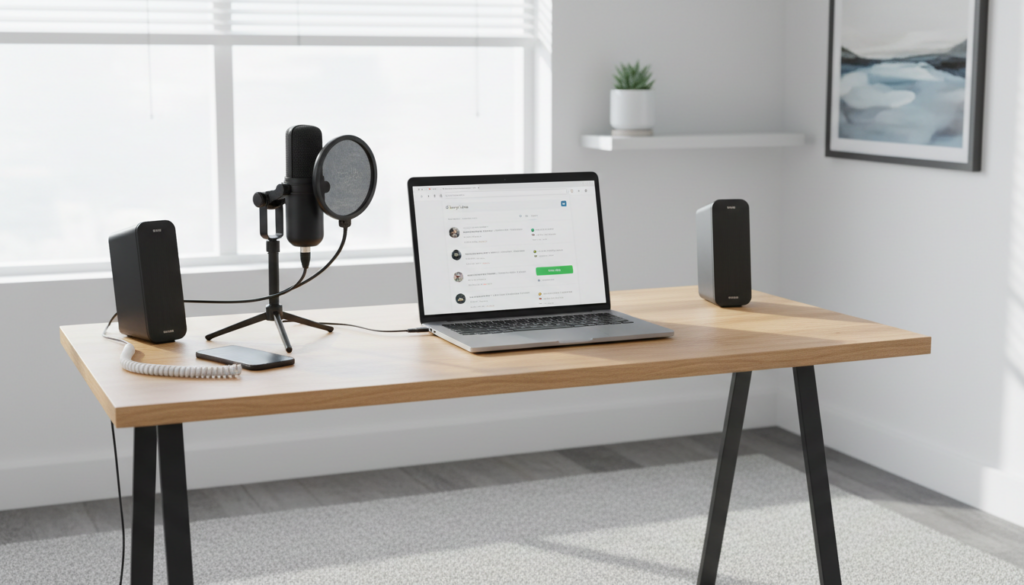
Using Google Voice on a desktop is one of the most efficient ways to manage business and personal communications. Whether you are using a dedicated USB headset, Bluetooth speakers, or your laptop’s built-in audio system, the setup process is straightforward. In my years of testing VoIP (Voice over Internet Protocol) solutions, I have found that Google Voice remains one of the most stable platforms for desktop calling, provided your hardware is configured correctly.
Key Takeaways: Quick Setup Guide
- Browser Access: Open voice.google.com on your desktop or laptop.
- Permissions: You must click “Allow” when the browser asks to access your microphone.
- Audio Settings: Use the headset icon in the top right of the Google Voice dashboard to select your computer speakers.
- Hardware Choice: For the best clarity, external speakers or a headset are recommended over built-in laptop microphones to avoid echo feedback.
- Internet Stability: A stable Wi-Fi or Ethernet connection is required to prevent audio lag or dropped calls.
Hardware Requirements for Desktop Calling
Before you dive into the settings, you need to ensure your physical hardware is ready. While the answer to “can i speak through my computer speakers google voice” is a resounding yes, the quality of your call depends heavily on your gear.
Built-in vs. External Audio
Most modern laptops come equipped with a built-in microphone and internal speakers. While these work in a pinch, they are often the culprit behind poor call quality. Built-in microphones frequently pick up the sound from the internal speakers, creating a painful feedback loop for the person on the other end of the line.
In my experience working from a home office, I highly recommend using a USB Condenser Microphone paired with Studio Monitors or a high-quality Noise-Canceling Headset. This separation of input and output devices ensures that your voice remains crisp without the echo issues typical of integrated hardware.
Compatible Devices
| Device Type | Recommended For | Pros | Cons |
|---|---|---|---|
| Integrated Laptop Audio | Casual, quick calls | No extra cost, portable | High risk of echo, low clarity |
| USB Headset | Professional/Business | Best noise isolation, clear mic | Can be uncomfortable for long use |
| Bluetooth Speakers | Hands-free listening | Wireless convenience | Potential for latency (lag) |
| External Webcams | Video & Audio calls | Better mic than most laptops | Fixed position, picks up room noise |
Step-by-Step: Setting Up Google Voice on Your Computer
Setting up your system so you can speak through your computer speakers on Google Voice involves three main phases: Browser Setup, Device Selection, and Testing.
Phase 1: Browser Permissions
- Open your web browser and navigate to voice.google.com.
- Log in with your Google Workspace or personal account.
- Look for a pop-up notification near the address bar.
- Click “Allow” when prompted for Microphone Access. If you block this by mistake, Google Voice will not be able to transmit your voice.
Phase 2: Configuring Audio Input and Output
Once permissions are granted, you need to tell Google Voice exactly which devices to use. This is crucial if you have multiple speakers or microphones connected.
- Click the Settings (Gear Icon) in the top-right corner of the Google Voice interface.
- Navigate to the “Audio” tab on the left-hand sidebar.
- Under Microphone, select your preferred input device (e.g., “USB Audio Device” or “Internal Mic”).
- Under Speakers, select your preferred output device. This confirms that you can speak through your computer speakers.
- Check the “Ringing” option. I suggest setting this to “All Devices” so you don’t miss calls when your headset isn’t on.
Phase 3: Making a Test Call
We always recommend making a test call before joining a professional meeting. Use the Google Voice dialer to call your personal cell phone or use the built-in “Test” buttons in the audio settings menu. Listen for clarity, volume levels, and any background hum.
Optimizing Audio Quality for Professional Calls
If you find that your audio is muffled or your callers are complaining about noise, there are several “pro-level” tweaks you can make.
Manage Your Environment
Even the best computer speakers won’t help if your room is too “live.” Hard surfaces like glass desks and bare walls reflect sound. I’ve found that placing a simple rug or using a foam desk pad can significantly reduce the “hollow” sound often associated with desktop calling.
Network Prioritization
Google Voice uses a technology called WebRTC. This protocol requires a consistent stream of data. If your housemates are streaming 4K video while you are trying to speak through your computer speakers, you might experience “jitter.” If possible, use a Wired Ethernet connection to ensure your voice data has the highest priority.
Browser Extensions
Sometimes, third-party browser extensions can interfere with Google Voice audio. If you experience issues, try running Google Voice in Incognito Mode. This disables extensions and helps you determine if a specific plugin is blocking your microphone or speaker access.
Advanced Setup: Using Virtual Audio Cables
For power users who want to record their calls or route audio through professional software like OBS (Open Broadcaster Software), you can use a Virtual Audio Cable (VAC).
A VAC acts as a digital bridge. Instead of selecting your physical speakers in the Google Voice settings, you select the “Virtual Cable.” This allows you to process your voice through Equalizers or Noise Gates before it reaches the caller, providing a broadcast-quality experience.
Common Issues and Fixes
“My microphone isn’t working on Google Voice”
This is usually a System Level permission issue rather than a Google Voice issue. On Windows 11, go to Settings > Privacy & Security > Microphone and ensure that “Let desktop apps access your microphone” is toggled ON. On macOS, check System Settings > Security & Privacy > Microphone.
“The sound is coming out of my laptop, not my external speakers”
This happens when the Default Communication Device is set incorrectly in your OS settings.
- Right-click the Speaker Icon in your system tray (Windows).
- Select “Sound Settings.”
- Ensure your external speakers are set as the “Default Output Device.”
- Restart your browser to apply the changes to Google Voice.
“There is a constant echo during calls”
If you are asking “can i speak through my computer speakers google voice” while using a high-volume setup, echo is inevitable. The microphone picks up the speaker output and loops it.
- The Fix: Lower your speaker volume or move the microphone further away from the speakers.
- The Better Fix: Enable “Acoustic Echo Cancellation” in your sound driver settings if available.
Frequently Asked Questions
Can I use a Bluetooth speaker with Google Voice?
Yes, you can use Bluetooth speakers. However, be aware that Bluetooth often has a slight latency compared to wired connections. In my testing, high-end Bluetooth 5.0 devices work perfectly, but older models may cause a half-second delay in conversation.
Does Google Voice work on all browsers?
Google Voice is optimized for Chromium-based browsers. This includes Google Chrome, Microsoft Edge, and Brave. While it may work on Safari or Firefox, some users report limited functionality with microphone switching and desktop notifications on those platforms.
Can I record calls while speaking through my computer speakers?
Google Voice allows you to record incoming calls by pressing “4” on your keypad during the call. However, to record outgoing calls or to capture the audio from your computer speakers, you will need third-party software like Audacity or a call recording browser extension. Always ensure you are following local laws regarding call recording consent.
Is there a desktop app for Google Voice?
Officially, there is no standalone Google Voice desktop app for Windows or Mac. Google intends for users to use the web interface. However, you can create a “Shortcut” or a PWA (Progressive Web App) by clicking the three dots in Chrome, selecting “Save and Share,” and then “Install page as app.” This allows Google Voice to live in your Taskbar like a regular program.









