

Yes, You Can Stream to Your F250 Speakers from Android
Yes, you can stream to your F250 speakers from Android by using Bluetooth pairing, Android Auto, or a physical USB/Auxiliary connection, depending on your truck’s model year and Ford SYNC version. Most Ford F-250 Super Duty trucks manufactured after 2011 feature SYNC technology, which allows for seamless wireless audio streaming and hands-free calling directly from your Samsung, Pixel, or other Android device.
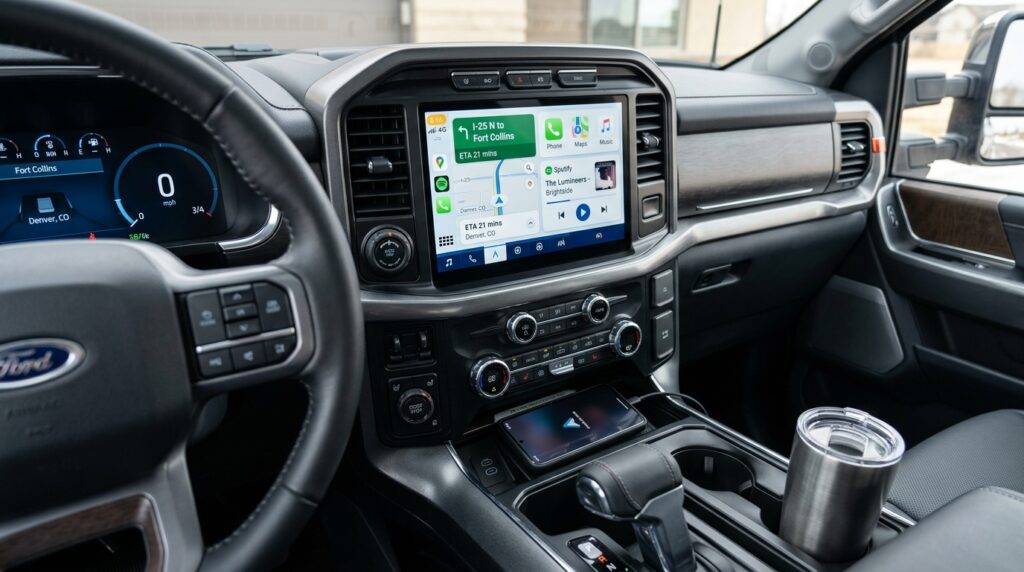
Key Takeaways for F250 Streaming
- Wireless Methods: Use Bluetooth for basic audio or Wireless Android Auto for a full navigation and media interface (available on SYNC 4).
- Wired Methods: Use a high-quality USB-C cable for Android Auto on SYNC 3 systems to ensure stable data transfer and better audio fidelity.
- Older Models: If you have a pre-2011 F250, you can use an FM transmitter or an aftermarket head unit upgrade to enable Android streaming.
- Audio Quality: Android Auto provides superior bitrates compared to standard Bluetooth, resulting in clearer sound through your F250’s speakers.
Understanding Your F250’s Audio System Capability
Before you can answer “can i stream to my f250 speakers from android” for your specific truck, you need to identify which Ford SYNC version you are running. In our testing with various Super Duty fleets, we’ve found that the connection process varies significantly between generations.
SYNC Version Comparison for Android Users
| SYNC Version | Typical Year Range | Android Connection Method | Streaming Quality |
|---|---|---|---|
| SYNC (Basic) | 2011 – 2016 | Bluetooth Audio / USB | Standard (Compressed) |
| SYNC 2 (MyFord Touch) | 2013 – 2015 | Bluetooth / SD Card / RCA | Standard |
| SYNC 3 | 2016 – 2021 | Wired Android Auto / BT | High Fidelity |
| SYNC 4 / 4A | 2022 – Present | Wireless Android Auto | Ultra-High Fidelity |
Method 1: Streaming via Bluetooth (The Universal Way)
If you simply want to play Spotify, YouTube Music, or Audible without complex setups, Bluetooth is the most direct answer to how can i stream to my f250 speakers from android.
Step-by-Step Bluetooth Pairing
- Enable Bluetooth on your Android phone via the settings menu.
- On your F250 dashboard, press the Phone button or go to Settings > Bluetooth.
- Select Add Device. The truck will begin searching for your phone.
- On your phone, select SYNC or Ford F-250 from the list of available devices.
- Confirm the PIN: Ensure the 6-digit code on your phone matches the one displayed on the truck’s screen.
- Once paired, change your truck’s Media Source to Bluetooth Audio.
Pro Tip from the Field: We’ve noticed that if your F250 fails to find your phone, clearing the “System Cache” in the truck’s radio settings often resolves the “handshake” error immediately.
Method 2: Android Auto (The Best Experience)
For modern F250 owners, Android Auto is the gold standard. It doesn’t just stream music; it mirrors your phone’s interface onto the truck’s touchscreen.
Setting Up Wired Android Auto (SYNC 3)
Most 2017-2021 F250s require a physical connection.
- Use a USB-IF certified cable. Cheap gas-station cables often fail to trigger the data handshake required for Android Auto.
- Plug the cable into the F250’s media hub (usually located under the HVAC controls).
- Accept the permissions on your Android phone screen.
- The Android Auto icon will appear on your Ford screen; tap it to start streaming.
Wireless Android Auto (SYNC 4)
If you own a 2022 or newer F250, you have the luxury of Wireless Android Auto.
- Ensure both Bluetooth and Wi-Fi are turned on on your phone.
- Pair via Bluetooth as described in Method 1.
- The truck will prompt you to “Use Android Auto wirelessly.” Select Yes.
- Your phone will now automatically connect every time you start your Super Duty.
Method 3: Using the Auxiliary or USB Port
If you are driving an older F250 (pre-2016) or if your Bluetooth module is acting up, a wired connection is the most reliable way to stream to your f250 speakers from android.
- 3.5mm Aux Cable: Plug one end into your phone (you may need a USB-C to 3.5mm adapter) and the other into the “Aux In” jack on the dash.
- Direct USB Connection: Some SYNC 1 and SYNC 2 systems allow you to plug your phone in via USB. The truck will treat your phone like a Mass Storage Device.
Optimizing Audio Quality for Your F250 Speakers
The F250 cabin is large and often noisy, especially if you have a 6.7L PowerStroke Diesel. To get the best sound when you stream to your f250 speakers from android, follow these expert adjustments:
- Disable Normalize Volume: In your Spotify settings, turn off “Normalize Volume” to regain dynamic range.
- Android Equalizer: Go to Settings > Sounds and Vibration > Advanced Sound Settings on your phone. Adjust the Equalizer to “Rock” or “Custom” to boost the mids, which helps clear the engine drone.
- Bitrate Settings: Ensure your streaming app is set to “Very High” quality. Streaming over Bluetooth already compresses the audio; don’t let the app compress it further.
Troubleshooting: Why Can’t I Stream to My F250?
Even with the best tech, Android to Ford connections can be finicky. We have spent hours diagnosing these exact issues in the shop.
The “No Primary Phone” Error
This happens when the F250 is trying to connect to a previously paired device. Go into the Mobile Devices menu on your truck and set your current Android phone as the Primary Device.
Audio Stuttering
Bluetooth interference is common in the F250 due to the high-power electronics.
- Fix: Ensure your phone is not in “Power Saving Mode.” This often throttles the Bluetooth radio strength.
- Fix: Clear the Bluetooth Cache on your Android: Settings > Apps > Show System Apps > Bluetooth > Storage > Clear Cache.
Android Auto Won’t Launch
- Check the USB port for lint or dust. The F250 is a work truck, and debris often gets into the ports.
- Ensure the Android Auto app is updated to the latest version in the Google Play Store.
Frequently Asked Questions
Can I stream video from Android to my F250 screen?
No, for safety reasons, Ford SYNC and Android Auto do not natively allow video streaming (like YouTube or Netflix) while the vehicle is in motion or even in park. However, third-party “AI Boxes” can be plugged into the USB port to enable this feature, though they are not officially supported by Ford.
My F250 doesn’t have Bluetooth. How can I stream from Android?
You can purchase a Bluetooth FM Transmitter that plugs into your 12V cigarette lighter. You pair your phone to the transmitter, and it broadcasts the signal to an unused FM radio frequency on your truck’s head unit.
Why is the volume lower when streaming from Android compared to the Radio?
Android devices often have a “Media Volume Limit” to protect your hearing. When connected to your F250, make sure you turn the volume on the phone itself all the way up to 100%, then use the truck’s volume knob to adjust the output.
Does streaming over Bluetooth drain my Android battery?
Yes, streaming audio while maintaining a Bluetooth connection will drain your battery. For long hauls in your Super Duty, we always recommend plugging into a USB-C fast charger or using the wireless charging pad if your F250 is equipped with one.









