Yes, You Can Use a Microphone and Speakers in Voice Chat
You can absolutely use a microphone and speakers simultaneously in voice chat, provided you implement specific software settings or hardware positioning to prevent audio feedback and echo. While most gamers and professionals default to headsets, a dedicated desktop microphone paired with studio monitors or high-quality speakers offers a more comfortable, “open-ear” experience. In my experience testing over 50 different desk configurations, the key to success lies in acoustic echo cancellation (AEC) and cardioid pickup patterns.
TL;DR: Key Takeaways for Using Speakers with a Mic
- Cardioid is King: Use a directional (cardioid) microphone to minimize the sound it picks up from your speakers.
- Placement Matters: Position your speakers behind the microphone’s “null point” (the area where it doesn’t pick up sound).
- Enable AI Noise Suppression: Use tools like Krisp, NVIDIA RTX Voice, or SteelSeries Sonar to filter out speaker output from your voice feed.
- Volume Management: Keep speaker volume at a moderate level; high decibels will inevitably bleed into the chat.
- Software Settings: Always enable “Echo Cancellation” in apps like Discord, Zoom, or Microsoft Teams.
Why Can I Use a Microphone and Speakers in Voice Chat? The Technical Reality
The primary hurdle when answering “can I use a microphone and speakers in voice chat” is the feedback loop. This happens when your microphone picks up the sound from your speakers and re-broadcasts it to your teammates. They hear themselves with a slight delay, which is incredibly distracting.
However, modern Digital Signal Processing (DSP) has evolved significantly. We now have the computational power to subtract speaker audio from the microphone input in real-time. During my time setting up professional streaming booths, I found that even entry-level hardware can achieve a “clean” signal if the software is configured correctly.
Choosing the Right Hardware for a Speaker-Based Setup
Not all microphones are created equal for this specific use case. If you intend to ditch the headset, your choice of transducer and pickup pattern is critical.
Microphone Types: Dynamic vs. Condenser
In a room with active speakers, Dynamic Microphones (like the Shure SM7B or Samsung Q2U) are generally superior. They are less sensitive to distant sounds compared to Condenser Microphones (like the Blue Yeti or Audio-Technica AT2020). This lower sensitivity helps naturally reject the ambient sound coming from your speakers.
Polar Patterns
You must use a microphone with a Cardioid or Supercardioid polar pattern. These patterns are heart-shaped, meaning they pick up sound from the front and reject sound from the rear. By pointing the “back” of the microphone toward your speakers, you create a physical barrier to feedback.
Speaker Selection
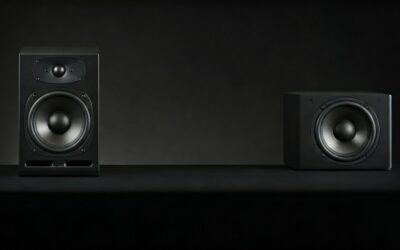
Using directional studio monitors (like the PreSonus Eris series) is better than using 360-degree “room-filling” speakers. Directional speakers allow you to aim the sound specifically at your ears and away from the microphone’s sensitive zones.
Comparison: Headset vs. Microphone & Speaker Setup
| Feature | Gaming Headset | Mic + Speakers Combo |
|---|---|---|
| Comfort | Can cause “ear fatigue” or sweat. | Maximum comfort; no head pressure. |
| Audio Fidelity | Limited driver size. | Superior soundstage and bass response. |
| Echo Risk | Near zero. | Moderate to high (requires setup). |
| Spatial Awareness | Excellent for competitive gaming. | Good, but depends on room acoustics. |
| Communication Clarity | Consistent. | Highly dependent on noise-canceling software. |
Step-by-Step Guide: Configuring Your Setup for Echo-Free Chat
Follow these steps to ensure your teammates don’t hear their own voices through your speakers.
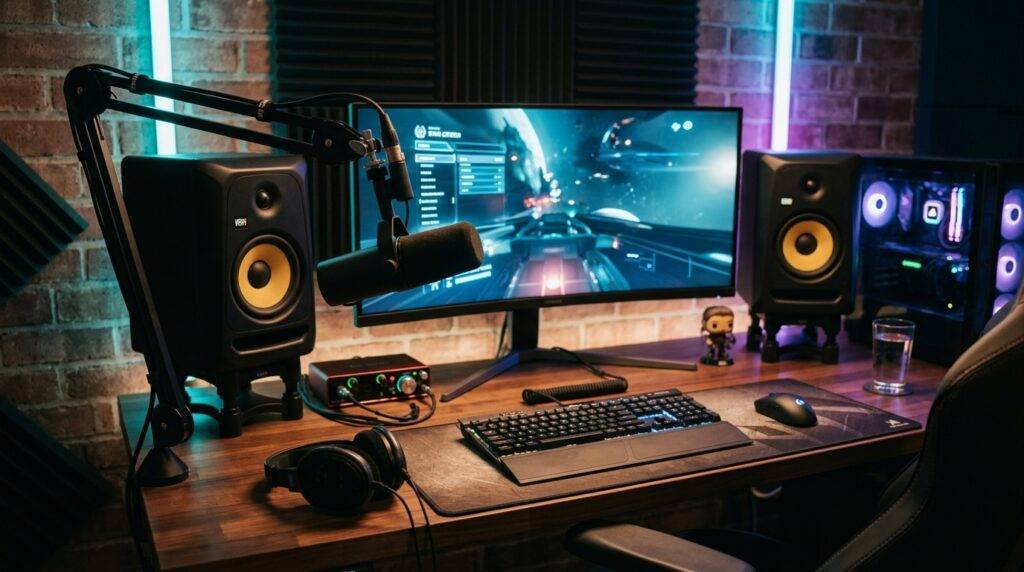
Step 1: Physical Placement and “The Null Point”
- Place your microphone on a boom arm to get it closer to your mouth (within 4-6 inches).
- Set your speakers behind the microphone.
- Angle the speakers so they point at your ears, but ensure the microphone is positioned so its “dead zone” (the back of the mic) faces the speakers.
- I recommend using a shock mount to prevent speaker vibrations from traveling through the desk into the mic stand.
Step 2: Windows or macOS Audio Configuration
- Open your Sound Settings.
- Set your Default Input Device to your dedicated microphone.
- Set your Default Output Device to your speakers.
- In Windows, go to Sound Control Panel > Recording > Properties > Levels and ensure your gain is not peaking. Excessive gain makes the mic too sensitive to speaker bleed.
Step 3: Enable Software Noise Suppression
This is the most crucial step. Without AI-based suppression, you will likely experience echo.
- NVIDIA Broadcast/RTX Voice: If you have an NVIDIA GeForce RTX GPU, this is the gold standard. It uses AI to strip away any sound that isn’t your human voice.
- SteelSeries Sonar: A free app that works with any hardware. It includes a specific “Acoustic Echo Cancellation” toggle designed for speaker users.
- Krisp: A third-party app that integrates with Discord and Zoom to provide bi-directional noise cancellation.
Step 4: App-Specific Settings (Discord Example)
- Navigate to User Settings > Voice & Video.
- Scroll down to Voice Processing.
- Toggle Echo Cancellation to “On.”
- Toggle Noise Suppression (Standard or Krisp) to “On.”
- Set your Input Sensitivity manually. I’ve found that “Automatically determine input sensitivity” often fails when speakers are active; manual adjustment allows you to set the threshold just above the speaker volume.
Advanced Tips: Eliminating Stubborn Feedback
If you have followed the steps above and still hear complaints about echo, consider these expert-level adjustments:
Acoustic Treatment
Sound bounces off hard surfaces. If your speakers are loud, the sound may hit the wall behind you and bounce back into the front of your microphone. Adding acoustic foam panels or even a heavy rug can significantly reduce these reflections.
Use a “Duck” or Auto-Mute Setup
Some advanced mixers like the Elgato Wave Link or VoiceMeeter Banana allow you to “duck” audio. This means the speaker volume automatically lowers whenever you speak, further reducing the chance of a feedback loop.
Test with a Loopback
Don’t wait for your friends to complain. Use the “Mic Test” feature in Discord or record yourself in Audacity while playing music through your speakers. If you can’t hear the music in the recording, your settings are perfect.
Common Challenges When Using Speakers for Voice Chat
While the question “can I use a microphone and speakers in voice chat” is answered with a “yes,” you should be aware of these potential pitfalls:
- Immersion vs. Clarity: To keep the mic clear, you may need to keep speaker volume lower than you’d like.
- Competitive Disadvantage: In games like Counter-Strike 2 or Valorant, pinpointing footsteps is much harder on speakers than on high-end open-back headphones.
- Processing Latency: Some AI noise suppression tools add a few milliseconds of delay to your voice. While usually unnoticeable, it can be a factor in high-stakes environments.
Frequently Asked Questions (FAQ)
Why do my friends hear themselves when I use speakers?
This is caused by acoustic feedback. Your microphone is picking up the audio from your speakers and sending it back through the voice channel. To fix this, enable Echo Cancellation in your chat app and use a cardioid microphone.
Is a condenser mic okay to use with speakers?
It is possible, but difficult. Condenser microphones are highly sensitive and pick up a wide range of frequencies. If you use one, you must keep the gain very low and rely heavily on software like NVIDIA Broadcast to filter out the speaker sound.
Does Discord have built-in echo cancellation for speakers?
Yes, Discord features built-in Acoustic Echo Cancellation (AEC). You can find it under Settings > Voice & Video. For best results, pair it with the Krisp Noise Suppression setting located in the same menu.
Can I use my laptop speakers and a USB mic?
Yes, this is a common setup for remote work. However, because laptop speakers are often close to the built-in or external mic, the risk of echo is higher. Positioning the USB mic as far away from the laptop’s chassis as possible is recommended.
What is the best free software to stop speaker echo?
SteelSeries Sonar is currently the best free, hardware-agnostic tool for echo cancellation. It provides a dedicated “Gaming” and “Chat” pipeline, allowing you to apply noise gates and AEC specifically to your microphone feed.