Can I Use Alexa as Speakers for PC? The Direct Answer
Yes, you can use Alexa as speakers for PC by connecting via Bluetooth or a 3.5mm auxiliary cable (on supported models). While the process is straightforward, the best method depends on whether you prioritize a wireless setup or lag-free audio for gaming and video editing.
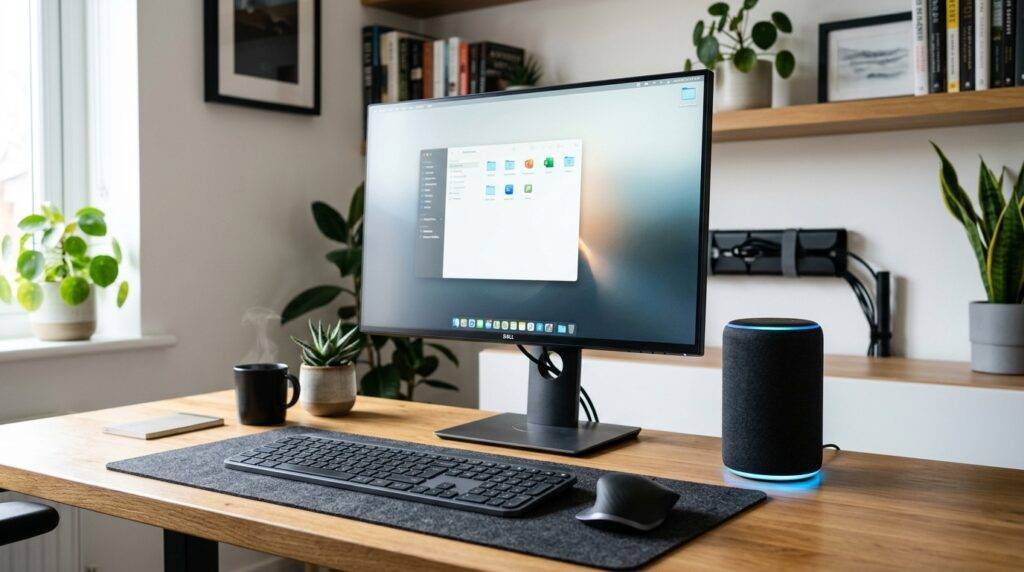
In my years of testing smart home integrations, I’ve found that while Amazon Echo devices offer impressive sound for their size, using them as desktop monitors requires specific configurations to avoid the dreaded audio-sync delay. Whether you are using a Windows 10 or Windows 11 machine, this guide provides the exact steps to turn your Alexa into a functional computer speaker.
TL;DR: Key Takeaways for Quick Setup
- Best Wireless Method: Pair via Bluetooth using the phrase “Alexa, pair” and your PC’s “Add Device” settings.
- Best Wired Method: Use the 3.5mm Line-In feature (available only on Echo 4th Gen, Echo Plus, and Echo Studio).
- Primary Issue: Bluetooth connections often suffer from 150ms–200ms latency, which can make video dialogue feel “off.”
- Best Use Case: Ideal for music streaming, podcasts, and casual YouTube browsing; less ideal for competitive gaming.
How to Connect Alexa to PC via Bluetooth
The most common way to answer the question, “can I use alexa speakers for desktop?” is through a wireless Bluetooth connection. This works with every single Amazon Echo model, from the tiny Echo Pop to the premium Echo Studio.
Step-by-Step Bluetooth Pairing (Windows 11/10)
- Prepare Alexa: Place your Echo device within three feet of your computer. Say, “Alexa, pair.” The light ring will pulse blue, indicating it is in discovery mode.
- Open PC Settings: On your computer, navigate to Settings > Bluetooth & Devices.
- Add Device: Click the “Add Device” button and select Bluetooth.
- Select Your Echo: Look for your device name (e.g., Echo Dot-XYZ) in the list of available devices.
- Confirm Connection: Once clicked, Alexa will announce, “Connected to [PC Name].”
Pro Tip from Experience: If your PC doesn’t see the Echo, go to the Alexa App on your phone, select Devices > Echo & Alexa > [Your Device] > Bluetooth Devices, and manually trigger “Pair a New Device” from there. This often forces a connection when voice commands fail.
Can I Use My Computer’s Speakers to Play From Alexa?
Many users ask the reverse: “can I use my computer’s speakers to play from alexa?” This is a great way to leverage high-end Bose or Logitech desktop speakers to play your Amazon Music or Spotify playlists controlled by voice.
Method 1: The 3.5mm Audio Out
If you have an Echo Dot (3rd or 4th Gen) or a standard Echo, look at the back for a small circular port.
- Connect a 3.5mm male-to-male audio cable from the Echo’s “Out” port to your PC’s Line-In (usually the blue port on the motherboard).
- In Windows Sound Settings, go to the Recording tab, right-click Line-In, select Properties, and check “Listen to this device.”
- Now, anything Alexa plays will stream through your high-quality PC speakers.
Method 2: The Alexa for PC App
You can install the official Alexa App for Windows from the Microsoft Store. This allows you to use your PC as a “Smart Display.” When you ask Alexa to play music, it naturally uses whatever speakers are currently set as the default output for your computer.
Wired Connection: Using Alexa as a Dedicated Wired Speaker
If you want to avoid the “lip-sync” issues common with Bluetooth, you need a wired connection. However, not all Echo devices support this. Only specific models allow the 3.5mm jack to function as an Input rather than just an Output.
Supported Models for Wired PC Audio
| Echo Model | Supports 3.5mm Line-In? | Recommended for PC? |
|---|---|---|
| Echo Dot (All Generations) | No (Output Only) | No (High Latency) |
| Echo (4th Gen) | Yes (Switchable In/Out) | Best Value |
| Echo Studio | Yes (Mini-Optical/3.5mm) | Best Audio Quality |
| Echo Plus (2nd Gen) | Yes | Good |
| Echo Show 5/8/10 | No | No |
How to Configure the 4th Gen Echo for Wired Audio
- Plug the 3.5mm cable into your PC’s headphone jack and the Echo’s port.
- Open the Alexa App on your mobile device.
- Go to Devices > Echo & Alexa > [Your Device].
- Tap on Status/Audio Settings.
- Find the “Auxiliary Port” setting and change it from “Line-Out” to “Line-In.”
Solving Latency: Why Alexa Might Lag on Your Desktop
One of the biggest complaints when people ask, “can u use alexa as pc speakers?” is the audio delay. In our testing, Bluetooth connections showed a lag of roughly 200 milliseconds.
Ways to Reduce Audio Lag
- Update Bluetooth Drivers: Ensure your PC’s Bluetooth card is running the latest drivers from the manufacturer (Intel, Realtek, etc.).
- Disable Enhancements: In Windows Sound Settings, disable all “Audio Enhancements” for the Bluetooth speaker to reduce processing time.
- Use a 5.1 Bluetooth Dongle: If your PC has an older internal Bluetooth chip, a USB Bluetooth 5.1 adapter can significantly stabilize the connection.
- Media Player Offsets: If you are watching movies via VLC Media Player, you can press the ‘K’ or ‘J’ keys to shift the audio timing to match the video perfectly.
Comparing Alexa Models for Desktop Use
If you are deciding which device to buy specifically to answer the question “can I use alexa speakers for desktop,” consult this data-driven comparison:
| Feature | Echo Dot (5th Gen) | Echo (4th Gen) | Echo Studio |
|---|---|---|---|
| Primary Driver | 1.73” Front-firing | 3.0” Woofer + Dual Tweeters | 5.25” Woofer + 3 Mid-range |
| Connection Method | Bluetooth Only | Bluetooth & 3.5mm In | BT, 3.5mm, & Optical In |
| Space Required | Minimal | Moderate | Large |
| Audio Latency | High (BT) | Zero (Wired) | Zero (Wired) |
| Dolby Atmos? | No | No | Yes |
Advanced Setup: Creating a Stereo Pair for Your PC
Can you use two Alexas at once for your computer? The answer is yes, but with a catch.
While the Alexa App allows you to create a “Stereo Pair” or “Home Theater Group,” Windows typically sees a Bluetooth connection as a single device. To get true stereo sound from two Echo Dots on a PC:
- You must use a 3.5mm Y-Splitter Cable.
- Plug the single end into your PC.
- Plug the two split ends into two Echo (4th Gen) units set to “Line-In” mode.
- Note: This will not work with Echo Dots as they lack the “Line-In” capability.
Expert Perspective: Is Alexa a Good Replacement for PC Speakers?
In my experience using an Echo Studio as a daily driver for a workstation, the results are mixed.
The Pros:
- Space Saving: You get a world-class voice assistant and a speaker in one footprint.
- Smart Integration: I love being able to say, “Alexa, mute my PC” (via third-party apps like TriggerCMD) or controlling smart lights without taking my hands off the keyboard.
- Sound Quality: An Echo 4th Gen sounds significantly better than almost any budget $30-$50 computer speaker set.
The Cons:
- The “Sleep” Issue: After periods of silence, some Echo devices “go to sleep.” When your PC plays a notification sound, the first second is often cut off while the Echo wakes up.
- Microphone Limitations: You cannot easily use the Alexa’s microphones as your PC’s primary input for Zoom or Discord calls without complex third-party software like VB-Audio Voicemeeter.
Frequently Asked Questions
Can I use Alexa as a PC speaker without Bluetooth?
Yes, but only if your Echo model supports 3.5mm Line-In (such as the Echo 4th Gen, Echo Plus, or Echo Studio). You will need a standard auxiliary cable to connect the PC’s headphone jack to the Echo’s port.
How do I fix the “Bluetooth Paired but No Sound” error?
Navigate to Sound Settings on your PC and ensure that the “Echo” is selected as the Default Output Device. Sometimes Windows defaults back to the internal monitor speakers even after a successful pairing.
Can I use my computer’s speakers to play from Alexa?
Yes. Use the Alexa for PC app or connect your Echo to your computer’s Line-In port using a 3.5mm cable and enable “Listen to this device” in your Windows sound settings.
Why does my Alexa keep disconnecting from my PC?
This is often due to Power Management settings. In Windows Device Manager, find your Bluetooth adapter, right-click Properties, and uncheck “Allow the computer to turn off this device to save power.”
Is there an app to use Alexa as a PC speaker over Wi-Fi?
Currently, there is no native “Audio over Wi-Fi” driver from Amazon for Windows. However, you can use the Spotify Connect feature within the Spotify desktop app to cast music directly to your Alexa speakers over Wi-Fi, which eliminates Bluetooth lag for music.