Can I Use Microphone Slot for Speakers? The Short Answer
No, you generally cannot use a microphone slot for speakers because microphone ports are designed to receive low-voltage input signals, while speaker ports are designed to send higher-voltage output signals. While some modern Realtek Audio drivers allow for “Jack Retasking,” plugging speakers into a dedicated, non-configurable mic port will result in mono sound, extreme distortion, or complete silence.
Understanding the Technical Gap: Mic Level vs. Line Level
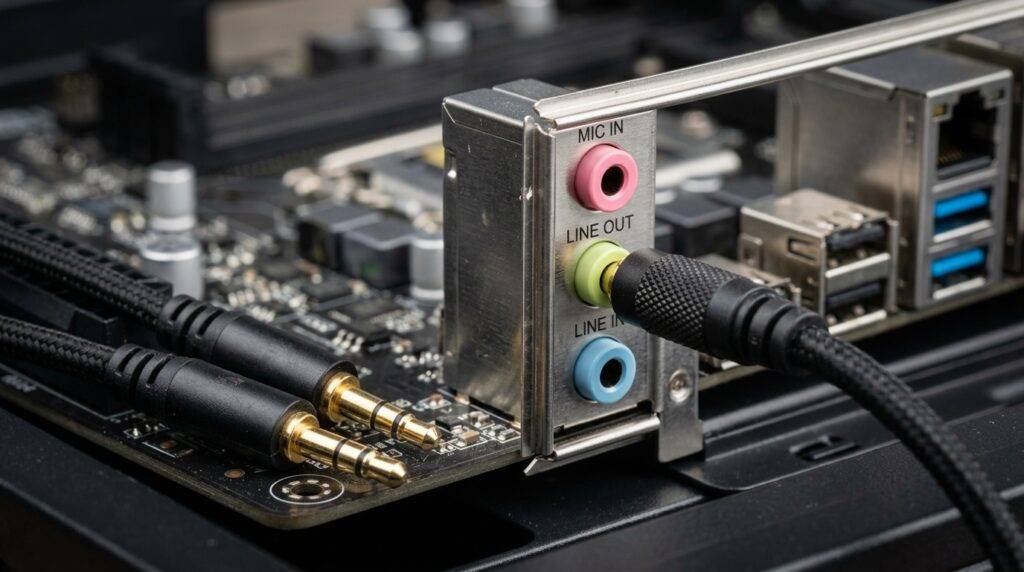
To understand why you might ask, “can i use microphone slot for speakers,” we have to look at the electrical engineering behind your PC’s sound card. These two ports are not just different colors (pink vs. green); they are wired with completely different internal circuitry.
Input vs. Output Directionality
A microphone slot is an “Input” port. It is designed to take an electrical signal generated by a microphone diaphragm and send it into the computer for processing. Conversely, a speaker port (Line Out) is an “Output” port, sending processed data out to your hardware.
Signal Voltage Differences
Microphones produce a very weak signal, often measured in millivolts (mV), known as Mic Level. The microphone slot contains a pre-amplifier to boost this tiny signal. Speakers, however, require a Line Level signal, which is significantly stronger.
Mono vs. Stereo Wiring
Most microphone slots are wired for mono (single channel) or for “plug-in power” (DC voltage for electret mics). Speakers require a stereo signal (Left and Right channels). If you manage to get sound out of a mic port, it will almost certainly be mono, meaning you lose the spatial depth of your music or games.
The Exception: How Audio Jack Retasking Works
In my years of troubleshooting studio hardware, I have found one major exception to this rule. Many modern motherboards equipped with High Definition Audio (HD Audio) and Realtek chipsets feature “Jack Retasking” or “Universal Jack” technology.
What is Jack Retasking?
This is a software-level feature that allows the computer to change the internal wiring of a physical 3.5mm port. When you plug a device in, the Realtek Audio Manager may pop up and ask, “Which device did you plug in?”
If you select “Front Speaker Out” while plugged into the pink slot, the software reconfigures that port’s behavior.
Hardware Requirements for Retasking
| Feature | Traditional AC’97 Audio | Modern HD Audio (Realtek/VIA) |
|---|---|---|
| Port Color Coding | Strict (Pink=Mic, Green=Speaker) | Flexible (Software Defined) |
| Sense Circuits | No | Yes (Detects impedance changes) |
| Software Control | None | Full Retasking Support |
| Voltage Switching | Impossible | Possible via Controller |
Step-by-Step: Testing if You Can Use Microphone Slot for Speakers
If your primary green speaker jack is broken, follow these steps to see if your hardware supports using the microphone slot for speakers.
Step 1: Install Official Audio Drivers
Don’t rely on the generic Windows “High Definition Audio Device” driver. Go to your motherboard manufacturer’s website (e.g., ASUS, MSI, Gigabyte) and download the specific Realtek Audio Console or Realtek Audio Manager.
Step 2: Enable “Jack Detection”
- Open the Realtek Audio Console.
- Look for “Device Advanced Settings.”
- Ensure the option “Enable Jack Detection when device is plugged in” is turned ON.
Step 3: Perform the Physical Connection
Plug your speakers into the Pink (Mic) port. On a compatible system, a notification should appear in the bottom right corner of your screen asking what was plugged in.
Step 4: Assign the Output
From the list of options in the pop-up, select “Speaker Out” or “Front Speaker Out.” Windows will now reroute the stereo output signal to the physical microphone hardware.
Why You Shouldn’t Force the Connection
I have seen many users try to force a connection using adapters or by simply cranking the volume. Here is why I advise against this if your software doesn’t natively support it:
- High Impedance Mismatch: Microphones have high impedance, while speakers (especially unpowered ones) have low impedance. This mismatch can cause the sound card to overheat or the audio to sound “tinny” and thin.
- Risk of Static and Hiss: Because the microphone port is connected to a pre-amp, it is highly sensitive to electrical interference. Even if you get sound, you will likely hear a constant background hiss.
- Potential Hardware Damage: While rare, some microphone ports provide DC “Plug-in Power” (around 3V to 5V) to power small condenser mics. Sending this DC voltage into a pair of speakers not designed for it could theoretically damage the voice coils over time.
Best Alternatives When Your Speaker Jack is Broken
If you found that you can i use microphone slot for speakers but the quality is unbearable, don’t worry. There are cheap, effective ways to fix this without replacing your motherboard.
USB Sound Cards (The “Best Value” Fix)
For less than $10, you can buy a USB to 3.5mm Adapter. These devices contain their own digital-to-analog converter (DAC).
- Pros: Instant plug-and-play; bypasses broken internal ports.
- Cons: Takes up a USB port.
Bluetooth Transmitters
If your PC has Bluetooth, you can connect to Bluetooth Speakers or use a Bluetooth receiver plugged into your old wired speakers.
- Pros: Wireless convenience; no ports required.
- Cons: Possible “latency” (delay) in gaming.
Front Panel vs. Rear Panel
Most desktop PCs have two sets of audio jacks. If the green jack on the back of your PC is broken, try the headphone jack on the front of the case. These are usually wired to the same sound chip but use different physical connectors.
TL;DR / Key Takeaways
- Can you use it? Only if your motherboard supports Jack Retasking via software (like Realtek Audio Console).
- Physical Hardware: By default, mic ports are input/mono, while speakers are output/stereo.
- Risk: plugging speakers into a non-retaskable mic port results in poor sound quality and potential impedance issues.
- The Fix: If your speaker port is dead, a USB Sound Card is the most reliable and affordable solution.
Pro Tips for Managing Your PC Audio I/O
- Keep Drivers Updated: Audio retasking frequently breaks after Windows updates. Always keep your Realtek or Creative drivers current.
- Check BIOS Settings: Sometimes the “Front Panel Audio” type is set to AC’97 in the BIOS. Change this to HD Audio to enable better port sensing features.
- Avoid Adapters: “Mic-to-Speaker” physical adapters rarely work because they cannot change the internal direction of the signal.
Frequently Asked Questions (FAQ)
Can I plug a headset with one plug into the microphone slot?
No, a single-plug headset (TRRS) requires a “Combo Jack.” If you plug it into a standard microphone slot, only the microphone will work, and you will hear no audio in the headphones. You will need a PC Headset Splitter.
Why does my microphone slot work as a speaker port automatically?
Some laptops use a Combo Port (identified by a headset icon with a mic). These ports are designed to be bi-directional and automatically detect whether you have plugged in a microphone, speakers, or a headset.
Does using the mic slot for speakers reduce sound quality?
Yes. Even with Jack Retasking, the microphone circuit often has a higher “noise floor” than the dedicated speaker out. This means you may hear more background static during quiet moments in music or movies.
Is it safe to try plugging them in?
Yes, it is generally safe to test it. You won’t “blow up” your computer by plugging speakers into a mic jack, but you should keep the volume low during the initial test to avoid a sudden burst of feedback or distortion.
Can I use a microphone slot for speakers on a Mac?
Older MacBooks allowed you to switch the line-in port to a line-out port in the System Preferences > Sound menu. However, modern Macs have consolidated these into a single combo jack that handles both automatically.