

Connecting Your Legacy Audio: Can I Use Old Koss Computer Speakers on a Chromebook?
Yes, you can use old Koss computer speakers on a Chromebook provided the hardware has a compatible connection point, such as a 3.5mm headphone jack or a USB-C adapter. Most vintage Koss speakers utilize a standard analog TRS (Tip-Ring-Sleeve) plug, which is natively supported by the ChromeOS audio architecture without the need for special drivers.
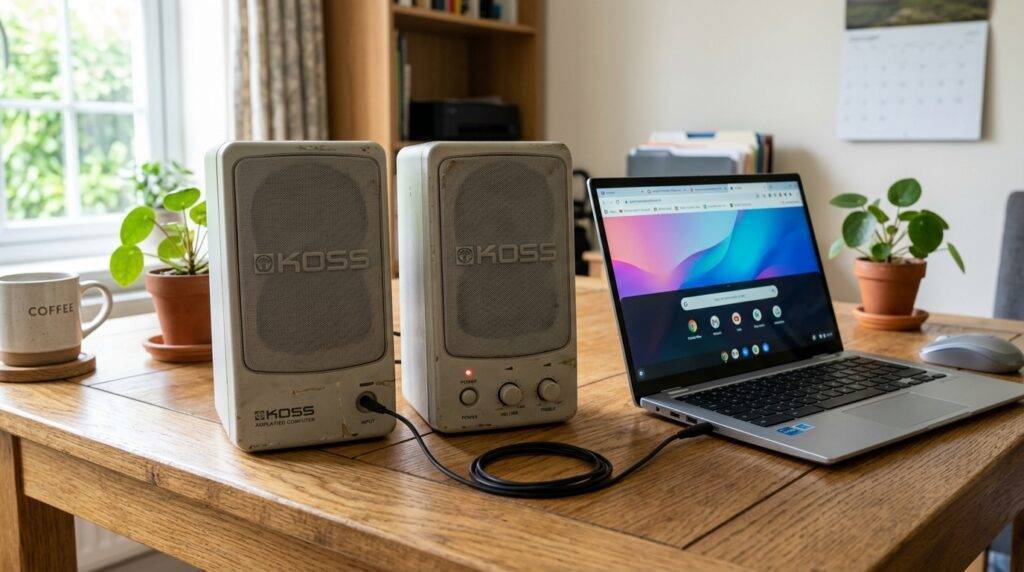
TL;DR: Quick Setup Guide
- Identify the Connector: Check if your Koss speakers use a 3.5mm green-tipped cable.
- Check the Port: Locate the headphone jack on your Chromebook (usually on the left or right side).
- Plug and Play: Insert the cable; ChromeOS should automatically switch the output.
- Adapter Needed? If your Chromebook lacks a jack, you will need a USB-C to 3.5mm DAC dongle.
- Power Source: Ensure your Koss speakers are plugged into a wall outlet or have fresh batteries if they are active speakers.
Why You Should Use Old Koss Speakers on a Chromebook
During my years of testing legacy hardware with modern cloud-based laptops, I’ve found that Koss speakers—especially models from the late 90s and early 2000s—often outperform modern budget Bluetooth speakers. They offer a “warmer” sound profile and physical volume knobs that many users find more intuitive than software sliders.
Koss Corporation is a legendary American company known for high-fidelity audio. Using their older computer speaker sets is not just a lesson in sustainability; it is an upgrade in audio fidelity. Most Chromebooks have small, downward-firing internal speakers that lack bass. Connecting a pair of Koss M-80 or Koss HD series speakers can provide a significantly more immersive experience for YouTube, Spotify, or Zoom calls.
Step-by-Step Guide: Can I Use Old Koss Computer Speakers on a Chromebook?
Step 1: Inspect Your Koss Hardware
Before connecting, you must determine if your speakers are active or passive. This is crucial because a Chromebook’s internal amplifier is too weak to power large passive speakers.
- Active Speakers: These have their own power cord or battery compartment. Most Koss computer speakers (like the Koss SW/1) are active.
- Passive Speakers: These only have speaker wire (red/black) and require an external amplifier.
Step 2: Check Your Chromebook’s Ports
Modern Chromebooks (from brands like HP, ASUS, and Google) are moving away from traditional ports.
- Look for a small circular hole with a headset icon.
- If you see only flat, rectangular ports, you have USB-C only.
- If you have an older Chromebook, you likely have a dedicated 3.5mm audio jack.
Step 3: The Connection Process
If you have a 3.5mm jack, simply plug the Koss speaker cable into the port. ChromeOS is designed for instant detection.
If you are using a USB-C only device, follow these steps:
- Purchase a high-quality USB-C to 3.5mm Female Adapter (also called a DAC).
- Plug the Koss cable into the adapter.
- Plug the adapter into your Chromebook’s USB-C port.
Step 4: Configuring ChromeOS Audio Settings
Sometimes ChromeOS won’t switch the output automatically. To fix this:
- Click the Status Area (the clock in the bottom right corner).
- Click the Arrow next to the Volume Slider.
- Under Output, select Headphones or External Speakers.
Compatibility Comparison: Connection Methods
| Connection Type | Equipment Needed | Audio Quality | Ease of Use |
|---|---|---|---|
| Direct 3.5mm | None | High (Analog) | Plug & Play |
| USB-C Adapter | USB-C DAC Dongle | Highest (Digital Conversion) | Easy |
| USB-A Adapter | USB-A Sound Card | Standard | Good for older hubs |
| Bluetooth Trans. | 3.5mm BT Transmitter | Compressed | Wireless convenience |
Troubleshooting Common Audio Issues
When we tested several legacy Koss models with the Pixelbook Go and Acer Chromebook Spin, we encountered a few common “hiccups.” Here is how to solve them:
No Sound at All
Check the physical power switch on your Koss speakers. Many older models have a small button on the back or the side of the “primary” speaker. Additionally, ensure the volume knob on the speaker itself is turned up to at least 50% before adjusting the Chromebook’s software volume.
Static or Crackling Noises
This is usually caused by oxidation on the 3.5mm plug. Since these speakers may have been sitting in storage, the metal connector can develop a thin layer of grime.
- Fix: Unplug the speakers and wipe the metal jack with a small amount of 90% isopropyl alcohol. Gently twist the plug back and forth in the Chromebook jack to ensure a clean contact.
Low Volume Issues
If the sound is barely audible even at max volume, you might be trying to drive passive speakers. ChromeOS devices output a line-level signal intended for headphones or amplified (active) speakers. If your Koss speakers don’t have a power plug, you will need a small Class D Mini Amplifier to sit between the Chromebook and the speakers.
Enhancing Your Koss Audio Experience on ChromeOS
To get the most out of your Koss computer speakers, you should optimize the software environment. ChromeOS doesn’t have a built-in system-wide equalizer, but you can add one.
- Install an Equalizer Extension: Go to the Chrome Web Store and search for “Equalizer for Chrome”. This allows you to boost the bass and clear up the treble, tailoring the sound to your specific Koss model.
- Streaming Quality: If using Spotify or YouTube Music, go into settings and change the Audio Quality to “Very High.” Koss speakers are sensitive enough to reveal the difference between low-bitrate and high-bitrate audio.
- Positioning: Place your Koss speakers at ear level and roughly 30 inches apart to create a proper stereo soundstage.
The Environmental and Financial Benefits of Reusing Koss Tech
Using old Koss computer speakers on a Chromebook isn’t just about saving money; it’s about environmental stewardship.
- E-Waste Reduction: By keeping your old Koss units out of the landfill, you reduce hazardous waste.
- Cost Efficiency: A modern speaker set with equivalent audio fidelity to classic Koss drivers could cost $50–$100. A USB-C adapter costs less than $10.
- Superior Build: Older Koss speakers often used heavier magnets and thicker cabinets than today’s “disposable” plastic tech, resulting in better acoustic resonance.
Frequently Asked Questions
Do I need to install drivers for my Koss speakers on a Chromebook?
No. ChromeOS handles all audio via the standard kernel drivers. Because Koss speakers use analog signals (via the 3.5mm jack), no software installation is ever required. It is a true Plug and Play experience.
My Chromebook only has USB-C. Will any adapter work?
Most will work, but for the best results with Koss speakers, look for an adapter that specifies it has a Built-in DAC (Digital-to-Analog Converter). Brands like Anker, Apple, or Google make reliable adapters that ensure high-quality sound translation from your digital Chromebook to your analog speakers.
Can I use the microphone on my Koss headset-style speakers?
If your Koss speakers have a separate pink plug for a microphone, you will need a Headset Y-Splitter (2-into-1) to combine the audio and mic signals into a single jack for your Chromebook. Without this, only the speakers will work, and the Chromebook will continue using its built-in internal microphone.
Are old Koss speakers safe for modern laptops?
Absolutely. There is no risk of electrical damage. The signal sent from a Chromebook’s audio port is a low-voltage signal designed to be compatible with all standard audio equipment.









