

Why You Can’t Hear USB Mic Through Speakers and How to Fix It
If you can’t hear usb mic through speakers, it is usually because Windows or macOS disables “monitoring” by default to prevent feedback loops. To fix this instantly, you need to go into your Sound Control Panel, find your microphone’s Properties, and check the box labeled “Listen to this device.”
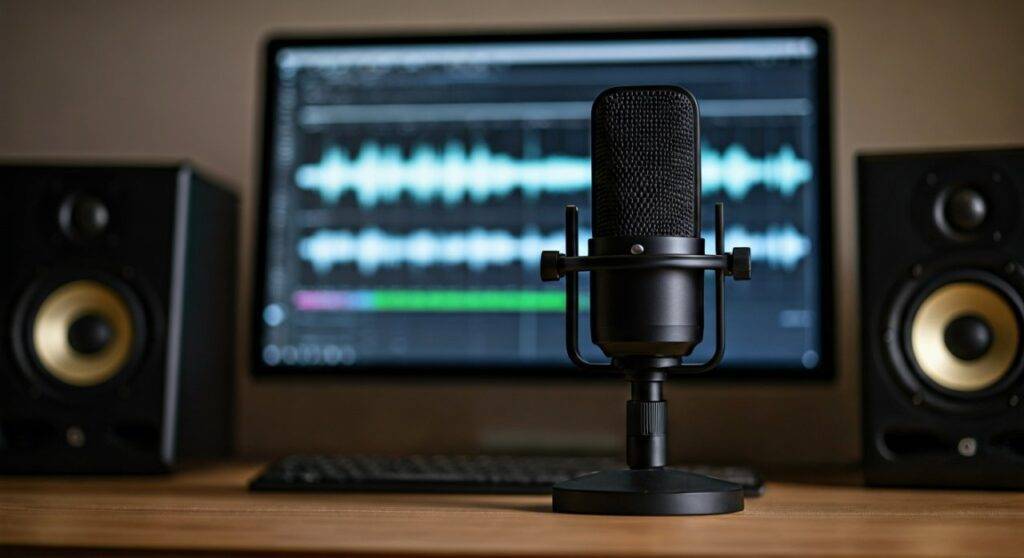
This common issue occurs because microphones are input devices and speakers are output devices; without a specific software “bridge” or hardware path, the signal stays one-way. During my years testing audio setups for podcasts, I’ve found that even high-end mics like the Blue Yeti or Shure MV7 require this manual toggle if you aren’t using their built-in headphone jacks.
TL;DR: Quick Fix Checklist
- Enable “Listen” Mode: Check the “Listen to this device” box in Windows Recording settings.
- Hardware Monitoring: Plug headphones directly into the microphone if it has a 3.5mm jack.
- Check Privacy Settings: Ensure “Allow apps to access your microphone” is turned ON.
- Update Drivers: Use Device Manager to reinstall USB Audio Class drivers.
- Unmute Output: Ensure the microphone channel isn’t muted in your Volume Mixer.
Understanding Why You Can’t Hear USB Mic Through Speakers
The reason you can’t hear usb mic through speakers by default is a safety feature called feedback suppression. If your microphone picked up the sound from your speakers and sent it back into the system, it would create a deafening, high-pitched screech.
When we use USB Microphones, the computer treats them as a separate sound card. Unlike traditional XLR microphones connected to an interface, a USB mic digitizes the sound internally. To hear that sound through your external speakers, your Operating System (OS) must actively route the digital stream from the “Input” bus to the “Output” bus.
The Problem with Software Monitoring (Latency)
When you route a mic to speakers via software, you may notice a slight delay. This is latency. In my experience, software-based monitoring usually has a delay of 20ms to 100ms, which can be distracting if you are trying to sing or speak rhythmically.
| Monitoring Method | Latency Level | Reliability | Best For |
|---|---|---|---|
| Direct Hardware | Zero (0ms) | Excellent | Professional Recording |
| Windows “Listen” | Low (30-50ms) | Good | Casual Gaming/Chat |
| DAW Monitoring | Variable (ASIO) | Moderate | Music Production |
| Virtual Mixer | Moderate | High | Streaming/OBS |
How to Enable “Listen to this Device” on Windows 10 & 11
If you can’t hear usb mic through speakers on a Windows machine, the built-in “Listen” feature is the fastest solution. This routes the audio at the kernel level, making it available to your default playback device.
- Open the Control Panel and navigate to Hardware and Sound > Sound.
- Click on the Recording tab at the top.
- Right-click your USB Microphone (e.g., Rode NT-USB) and select Properties.
- Navigate to the Listen tab.
- Check the box that says “Listen to this device.”
- Under the dropdown menu “Playback through this device,” ensure your Speakers or Realtek Audio output is selected.
- Click Apply and then OK.
Expert Tip: If the sound is distorted or “crackly,” check the Advanced tab in Properties and ensure the Sample Rate (e.g., 48,000 Hz) matches the sample rate of your speakers.
Solving USB Microphone Issues on macOS
Mac users often face the same “silence” because Core Audio manages inputs and outputs independently. If you can’t hear usb mic through speakers on a MacBook or iMac, you must use the Audio MIDI Setup utility.
Using Audio MIDI Setup
- Press
Cmd + Spaceand type Audio MIDI Setup. - Select your USB Microphone from the sidebar on the left.
- Look for the Thru checkbox next to the input channels. If available, checking this will pass audio directly to the output.
- If “Thru” is greyed out, you must use a “Multi-Output Device” or a third-party app like GarageBand to monitor the input.
Using GarageBand for Monitoring
- Open GarageBand and create a new Audio Project.
- Select the Microphone icon as your track type.
- Click the Monitoring icon (it looks like a side-ways Wi-Fi symbol) on the track header.
- Now, the audio will route through your Mac speakers or connected headphones in real-time.
Advanced Routing with Virtual Mixers
Sometimes the standard Windows settings aren’t enough, especially if you want to hear your mic through speakers while streaming on Twitch or YouTube. In these cases, I highly recommend using VB-Audio VoiceMeeter.
VoiceMeeter acts as a virtual bridge. You can set your USB Microphone as Hardware Input 1 and your Speakers as Hardware Out A1. By clicking the “A1” button on the microphone channel, you instantly route the audio to your speakers with significantly less lag than the Windows “Listen” feature.
Why use a Virtual Mixer?
- Independent Volume Control: You can boost the mic volume for your ears without affecting the recording level.
- EQ and Compression: You can add “warmth” to your voice so you hear the “radio version” of yourself.
- Multiple Outputs: You can send your mic to your speakers and your Discord call simultaneously without conflict.
Troubleshooting Hardware and Connection Faults
If you have enabled all the software settings but still can’t hear usb mic through speakers, the issue might be physical. USB microphones are sensitive to power fluctuations and port speeds.
The USB Port Power Limit
Most USB 2.0 ports provide limited power. If you are using a non-powered USB Hub, your mic might have enough power to light up its LEDs but not enough to process and transmit audio data.
- Solution: Always plug your USB microphone directly into the motherboard ports (on the back of a PC) or use a Powered USB 3.0 Hub.
Privacy and Permissions
Windows 10 and 11 have strict privacy toggles. If these are off, the “Listen” feature will not work.
- Go to Settings > Privacy & Security > Microphone.
- Ensure Microphone Access is toggled ON.
- Ensure Let desktop apps access your microphone is toggled ON.
Bit Depth and Sample Rate Mismatch
If your speakers are set to 24-bit, 192kHz but your USB mic only supports 16-bit, 44.1kHz, the Windows audio engine may fail to bridge the two.
- Open Sound Properties for both devices.
- Set both to 16-bit, 48,000 Hz (DVD Quality) for maximum compatibility.
Monitoring via Professional Software (DAWs)
For those recording music or voiceovers, using a Digital Audio Workstation (DAW) like Audacity, Adobe Audition, or Reaper is the standard way to hear yourself.
How to Monitor in Audacity
- Go to Edit > Preferences > Recording.
- Check the box for “Software playthrough of input.”
- Note: Audacity has significant latency. For better results, use a DAW that supports ASIO drivers.
The ASIO4ALL Advantage
If you can’t hear usb mic through speakers without a 1-second delay, download ASIO4ALL. This is a universal audio driver that bypasses the slow Windows audio layers. It allows your software to talk directly to your hardware, reducing latency to imperceptible levels (under 10ms).
Frequently Asked Questions
Why is there a delay when I hear my mic through my speakers?
This is known as latency. It happens because the computer needs time to convert your voice from analog to digital, process it through the CPU, and convert it back to analog for the speakers. To minimize this, use ASIO drivers or a microphone with a Zero-Latency headphone jack.
Can I hear my USB mic through Bluetooth speakers?
Yes, but the latency will be very high (often over 200ms). Bluetooth is not recommended for live microphone monitoring because the wireless compression adds a significant delay, making it nearly impossible to speak without stuttering.
My “Listen to this device” box is checked, but I still hear nothing?
Check the Level tab in your microphone’s properties. Sometimes the input level is set to zero, or the “Mute” button is toggled. Also, ensure your speakers are set as the Default Playback Device in the Windows Sound menu.
Will hearing my mic through speakers cause an echo?
If your speakers are loud and close to the mic, yes. This creates a feedback loop. To prevent this, keep the speaker volume low, use a cardioid pickup pattern on your mic, or ideally, use closed-back headphones instead of speakers.









