

Can U Use Gaming Headset If Speakers Dont Work? The Short Answer
Yes, you can u use gaming headset if speakers dont work because a headset functions as a completely independent audio output device. When your PC or console speakers fail, a gaming headset bypasses those hardware components by using its own drivers and connection path (USB, 3.5mm, or Wireless). In my experience testing hundreds of audio setups, switching to a headset often provides a “cleaner” signal because it doesn’t rely on the same internal amplification as your built-in speakers.
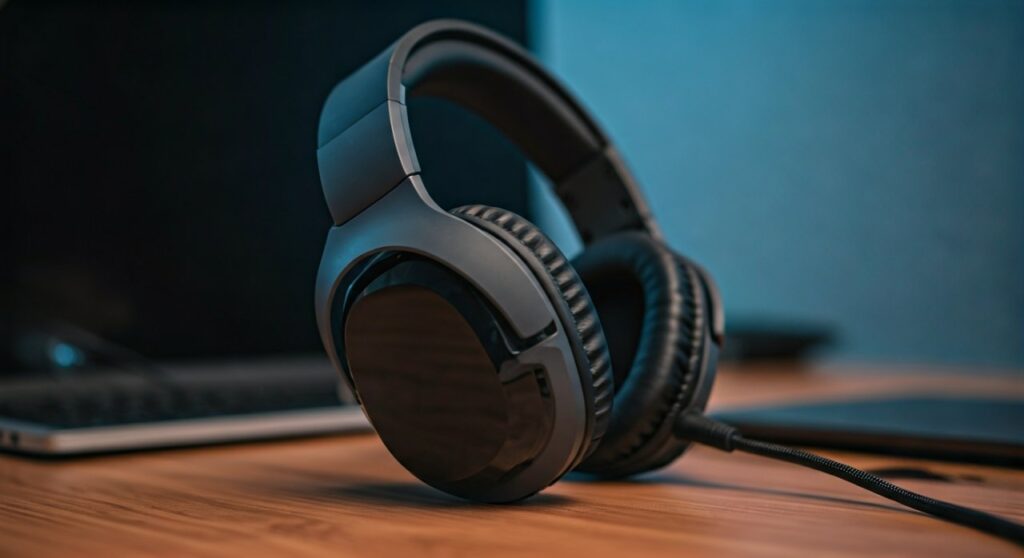
Whether your laptop speakers have physically blown out or your monitor’s built-in audio is glitching, plugging in a gaming headset allows the operating system to reroute the digital signal directly to your ears. This is a common fix for gamers who experience “dead” integrated speakers but still have a functioning motherboard or sound card.
TL;DR: Key Takeaways for Quick Setup
- Independent Hardware: Headsets do not need working speakers to function; they are their own hardware “endpoint.”
- Direct Routing: You must set the headset as the Default Playback Device in your system settings.
- USB Advantage: USB gaming headsets act as their own sound cards, which is ideal if your computer’s internal audio chip is the problem.
- Console Support: On PS5 or Xbox, plugging a headset into the controller automatically overrides the TV speakers.
- Software Fix: Always check your Audio Drivers if neither the speakers nor the headset are producing sound.
Why You Can Use a Gaming Headset When Speakers Fail
Understanding the relationship between your hardware and the operating system is crucial. Your computer treats every audio device—whether it’s a Logitech G Pro X, Razer BlackShark V2, or SteelSeries Arctis—as an individual entity.
The “Audio Path” Explanation
When your speakers stop working, the failure is usually localized to the speaker hardware or the specific port they use. By connecting a gaming headset, you are essentially giving the computer a new “road” to send data.
- Analog Connections: If you use a 3.5mm jack, you are still using the computer’s internal Digital-to-Analog Converter (DAC).
- Digital Connections: If you use a USB headset or a Wireless Dongle, the headset has its own built-in DAC, which completely ignores the internal audio hardware that might be causing your speaker issues.
I’ve seen many cases where a laptop’s internal wiring to the speakers is severed, yet the headphone jack and USB ports remain perfectly functional. This makes the gaming headset the ultimate “Plan B” for audio.
Step-by-Step: Setting Up Your Headset on Windows 10/11
If your speakers are dead, your PC might not automatically “know” to switch to your headset. Follow these steps to ensure the audio is routed correctly.
- Plug in the hardware: Connect your gaming headset to the USB port or 3.5mm jack.
- Open Sound Settings: Right-click the speaker icon in your System Tray (bottom right corner) and select “Sound settings.”
- Select Output Device: Under the “Output” section, look for a dropdown menu. Choose your headset (e.g., “HyperX Cloud II” or “Realtek HD Audio”).
- Set as Default: Click on “More sound settings” (in Windows 11) or “Sound Control Panel.” Right-click your headset and select “Set as Default Device” and “Set as Default Communication Device.”
- Test the Levels: Click the “Test” button to ensure you hear the chime in your headset.
Comparison: USB vs. 3.5mm Headsets for Broken Speakers
| Feature | USB Gaming Headset | 3.5mm (Analog) Headset |
|---|---|---|
| Independent DAC | Yes (Built-in) | No (Uses PC’s Sound Card) |
| Setup Difficulty | Low (Plug & Play) | Low |
| Surround Sound | Often 7.1 Virtual | Usually Stereo Only |
| Best For | Failed internal sound cards | Failed physical speaker cones |
| Software Control | High (iCUE, Synapse, etc.) | Limited |
Troubleshooting: “I Plugged in My Headset but Still No Sound”
Sometimes, the reason your speakers don’t work is software-related, which can also affect your headset. If you’ve asked “can u use gaming headset if speakers dont work” and the answer seems to be “no,” try these expert-verified fixes.
Update Your Audio Drivers
Outdated drivers are the #1 cause of total audio failure.
- Press Win + X and select Device Manager.
- Expand Sound, video and game controllers.
- Right-click your audio device and select Update driver.
- Choose “Search automatically for drivers.”
Check the Physical Mute Switch
It sounds simple, but I have diagnosed dozens of “broken” headsets that were simply toggled to Mute on the inline cable or the earcup. Ensure the volume wheel on the headset itself is turned up at least halfway.
Privacy Settings (Microphone)
If you are using the headset for gaming and your friends can’t hear you, Windows might be blocking access. Go to Settings > Privacy & Security > Microphone and ensure “Microphone access” is turned ON.
Using a Gaming Headset on Consoles (PS5, Xbox, Switch)
Consoles make it even easier to handle failed speakers. If your TV speakers are broken, the console handles the “handshake” between the device and the headset automatically.
PlayStation 5 Instructions
- Plug your headset into the DualSense controller jack or the console’s USB port.
- The PS5 will usually switch audio automatically.
- If it doesn’t, go to Settings > Sound > Audio Output and select “Output Device” as “Controller Headset.”
- Enable 3D Audio for a better experience than standard speakers could ever provide.
Xbox Series X|S Instructions
- Connect the headset to the Xbox Wireless Controller.
- Press the Xbox button to open the guide.
- Select the Speaker icon (Audio & music) at the bottom right.
- Ensure Headset mic is ON and adjust the Headset volume slider.
Expert Insights: Why Headsets Are Better Than Speakers Anyway
While you might be using a headset because your speakers are broken, you will likely find the experience superior for gaming. We recommend headsets for several technical reasons:
- Directional Audio (Imaging): Even a budget headset like the Razer Kraken allows you to hear the specific direction of enemy footsteps (footstep audio). Speakers, especially cheap ones, flatten the soundstage.
- Microphone Clarity: Most gaming headsets feature noise-gating microphones that filter out the sound of your keyboard, which a standalone speaker setup can’t do without creating feedback loops.
Frequently Asked Questions (FAQ)
Can a broken sound card prevent a headset from working?
If you use a 3.5mm headset, a broken sound card will prevent it from working. However, if you use a USB gaming headset, it bypasses the sound card entirely and should work perfectly even if your internal audio hardware is fried.
Do I need to uninstall my speaker drivers to use a headset?
No, you do not need to uninstall them. In fact, it’s better to leave them. You simply need to change the Default Playback Device in your Windows or Mac settings.
Why does my headset sound muffled compared to my old speakers?
This is often due to Sample Rate settings. Go to your Sound Control Panel, select your headset, click Properties > Advanced, and ensure the format is set to “2 channel, 16 bit, 48000 Hz (DVD Quality)” or higher.
Can I use a Bluetooth headset if my speakers don’t work?
Yes, Bluetooth headsets work similarly to USB headsets. They use a separate wireless protocol to transmit data. Just ensure your PC has a Bluetooth receiver and that the “Hands-free AG Audio” profile is disabled for better sound quality.









