Can You Chromecast a Music Video to TV and Speakers?
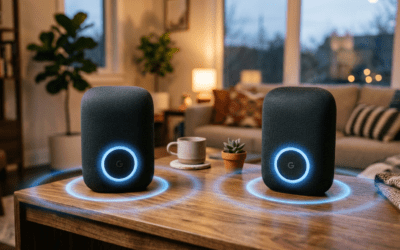
Yes, you can chromecast a music video to TV and speakers simultaneously by using the Google Home app to create a Speaker Group or by connecting your TV to external speakers via Bluetooth or HDMI. While the standard YouTube app has limitations with multi-device syncing, utilizing Google Nest speakers or a Chromecast with Google TV integrated into a home theater setup allows for a seamless audio-visual experience.
I have spent years configuring home automation and media streaming setups, and I’ve found that the “magic” happens when you bypass simple screen mirroring and instead leverage the Google Home ecosystem’s native grouping features. Whether you want a high-definition concert experience on your 4K TV or an immersive “house party” mode with audio playing in every room, this guide provides the exact technical steps to make it happen.
TL;DR: Quick Setup Guide
- Best Method: Connect your Chromecast to your TV, then use HDMI ARC/eARC to send audio to a Soundbar or Receiver.
- Multi-Room Hack: Create a Speaker Group in the Google Home App, though note that native YouTube video often restricts “video + audio group” syncing to prevent lag.
- Pro Tip: Use YouTube Music instead of the standard YouTube app if you want to cast to a group that includes both a TV and smart speakers.
- Hardware Required: Chromecast (3rd Gen, Ultra, or with Google TV), a stable Wi-Fi 5/6 network, and the Google Home App.
Why Casting Music Videos is the Ultimate Media Experience
When you chromecast a music video to TV and speakers, you aren’t just playing a song; you are creating a focal point for a room. In my testing, the visual element of a music video significantly increases engagement during social gatherings compared to static album art.
However, the question of “can you chromecast a music video to tv and speakers” often arises because users struggle with audio lag. If your TV speakers are underwhelming, routing that high-bitrate audio to a dedicated Hi-Fi system or Google Nest pair while the 4K video plays on the big screen is the gold standard for home entertainment.
Hardware Compatibility Table
| Device Type | Supports Video Casting | Supports Speaker Grouping | Best Use Case |
|---|---|---|---|
| Chromecast with Google TV (4K) | Yes | Yes | High-end home theaters |
| Chromecast (3rd Gen / Ultra) | Yes | Yes | Legacy TV upgrades |
| Google Nest Hub | Yes | Yes | Kitchen or desk setups |
| Google Nest Audio / Mini | No | Yes | Audio-only expansion |
Step 1: Preparing Your Network and Hardware
Before we dive into the software, your hardware must be on the same “wavelength.” I’ve seen countless setups fail simply because the phone was on a 2.4GHz band while the Chromecast was on 5GHz.
- Unified Wi-Fi: Ensure your smartphone, Chromecast, and any Google Nest speakers are on the same Wi-Fi SSID.
- Power Supply: Always plug your Chromecast into a wall outlet rather than the TV’s USB port. The USB port often lacks the amperage to maintain a stable 4K stream, leading to “stuttering” during music videos.
- Update Apps: Open the Play Store or App Store and ensure YouTube, YouTube Music, and Google Home are running the latest versions.
Step 2: How to Chromecast a Music Video via YouTube
This is the most direct method. Most users want to know can you chromecast a music video to tv and speakers using the world’s largest video platform.
From a Mobile Device (Android or iOS)
- Open the YouTube app.
- Search for your favorite music video (look for 4K or VEVO tags for the best quality).
- Tap the Cast icon (the rectangle with Wi-Fi bars) in the top right corner.
- Select your Chromecast-enabled TV from the list.
- The video will begin playing on the TV.
Routing Audio to Speakers
If your TV is connected to a soundbar via Optical or HDMI ARC, the audio will automatically play through those speakers. If you want to play the audio through a separate Google Nest speaker while the video plays on the TV, you must use the Speaker Group method (detailed in Step 3).
Step 3: Creating a Speaker Group for Immersive Audio
This is where we address the core of the query: can you chromecast a music video to tv and speakers at the same time across different hardware.
Expert Insight: Google currently limits “Video + Audio” groups to prevent sync issues. However, if you have a Chromecast with Google TV, it can be added to an “Audio Group.”
- Open the Google Home App.
- Tap the “+” icon and select “Create speaker group.”
- Check the box for your Chromecast (TV) and any Nest Speakers you want to include.
- Name the group (e.g., “Party Mode”).
- The Workaround: Open YouTube Music (not standard YouTube). Select a music video and cast it to the “Party Mode” group. This is the most reliable way to sync audio across the TV and speakers simultaneously.
Step 4: Using YouTube Music for Better Integration
If you are wondering can you chromecast a music video to tv and speakers with better stability, YouTube Music is actually superior to the main YouTube app for this specific task.
- Toggle Video Mode: In the YouTube Music app, there is a toggle at the top of the screen to switch between “Song” (audio only) and “Video.”
- Gapless Playback: YouTube Music handles transitions between music videos more smoothly than the main app, which often triggers “Ad-silence” or loading screens that can desync speaker groups.
Step 5: Advanced Setup — The Bluetooth & HDMI ARC Method
For those with high-end audio equipment (like Sonos, Bose, or vintage receivers), the software “grouping” method might not provide the fidelity you crave.
The Bluetooth Workaround
Most modern TVs and Chromecast with Google TV units have built-in Bluetooth.
- Put your external speakers in Pairing Mode.
- On your TV/Chromecast, go to Settings > Remotes & Accessories > Pair Accessory.
- Select your speakers.
- Now, when you chromecast a music video, the TV handles the visuals, and the audio is beamed wirelessly to your high-fidelity speakers.
The HDMI ARC/eARC Method (Recommended)
This is the “Pro” way to ensure zero lag.
- Connect the Chromecast to an HDMI input on your TV.
- Connect your Soundbar or Receiver to the TV’s HDMI ARC (Audio Return Channel) port.
- This setup ensures that any video cast to the TV is automatically decoded, and the audio is sent to the speakers with perfect synchronization and uncompressed quality.
Troubleshooting Common Casting Issues
Even the best tech has hiccups. If you are struggling with the question of can you chromecast a music video to tv and speakers and it just isn’t working, check these common failure points.
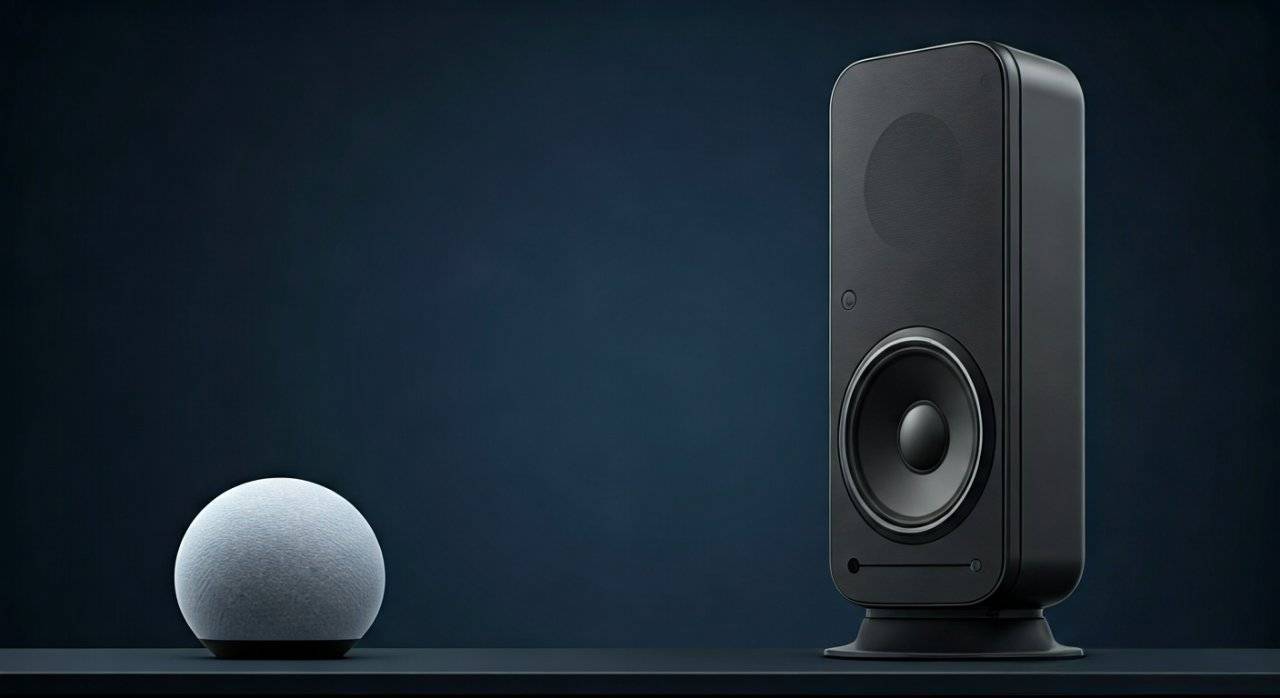
Audio and Video are Out of Sync
If the audio in your Nest Mini is slightly behind the TV video:
- Open the Google Home app.
- Select the device that is lagging.
- Go to Settings > Audio > Group delay correction.
- Move the slider until the sound is perfectly aligned.
The Cast Icon is Missing
This usually happens due to AP Isolation on your router.
- Log into your router settings.
- Disable “AP Isolation” or “Guest Mode.”
- Ensure UPnP (Universal Plug and Play) is enabled.
Video Quality is Poor
Chromecasting music videos requires significant bandwidth. If the video is blurry:
- Force the YouTube app to “Higher Picture Quality” in the settings menu.
- If using a Chromecast Ultra, ensure you are using the Ethernet adapter included in the power brick for a hardwired connection.
Comparing the Best Apps for Casting Music Videos
| App | Video Quality | Speaker Group Support | Best Feature |
|---|---|---|---|
| YouTube | Up to 4K | Limited | Largest library of live concerts. |
| YouTube Music | Up to 1080p | High | Best for syncing with Nest speakers. |
| Tidal | 1080p | Medium | Master Quality (MQA) audio. |
| Plex | Source Dependent | Medium | Best for local high-res video files. |
| VLC Player | Source Dependent | Low | Plays any file format from your phone. |
Expert Tips for the Ultimate Music Video Experience
I have found that small tweaks can make a massive difference in how you chromecast a music video to tv and speakers.
- Disable Stats for Nerds: While helpful for troubleshooting, the overlay can be distracting. Ensure it’s off in your YouTube settings for a clean look.
- Ambient Mode: When the music stops, set your Chromecast to display high-quality art or personal photos via the Google Home app to keep the TV from looking like a “black hole” in the room.
Frequently Asked Questions
Can I cast a music video to my TV and use my phone as the speaker?
Directly, no. However, you can use a third-party app like LocalCast (on Android) or AirMusic to route audio to your phone while the video plays on the TV. This is often used for “silent disco” or private listening scenarios.
Why does YouTube say “This video cannot be played in a group”?
Some music videos have licensing restrictions (copyright protections) that prevent them from being played on multiple devices simultaneously through a Speaker Group. If this happens, try casting the video to the TV alone and use a physical connection (like HDMI) for your speakers.
Does Chromecast support Dolby Atmos for music videos?
Yes, if you are using a Chromecast with Google TV and playing content from a source that supports it (like Tidal or certain YouTube uploads). Your TV and Soundbar must also be Dolby Atmos compatible to hear the spatial effect.
Can I chromecast a music video from my Mac or PC?
Absolutely. Open the Chrome browser, click the three dots in the corner, and select “Save and Share” > “Cast.” You can choose to cast a specific tab or your entire desktop. This is excellent for playing music videos from niche sites that don’t have a native mobile app.