Can You DJ With Laptop and Speakers? The Short Answer
Yes, you can you dj with laptop and speakers using only the hardware you likely already own. By utilizing DJ software and a specialized stereo-to-mono splitter cable or an audio interface, you can mix tracks, preview songs in your headphones, and output the master audio to your speakers without needing a physical DJ controller.
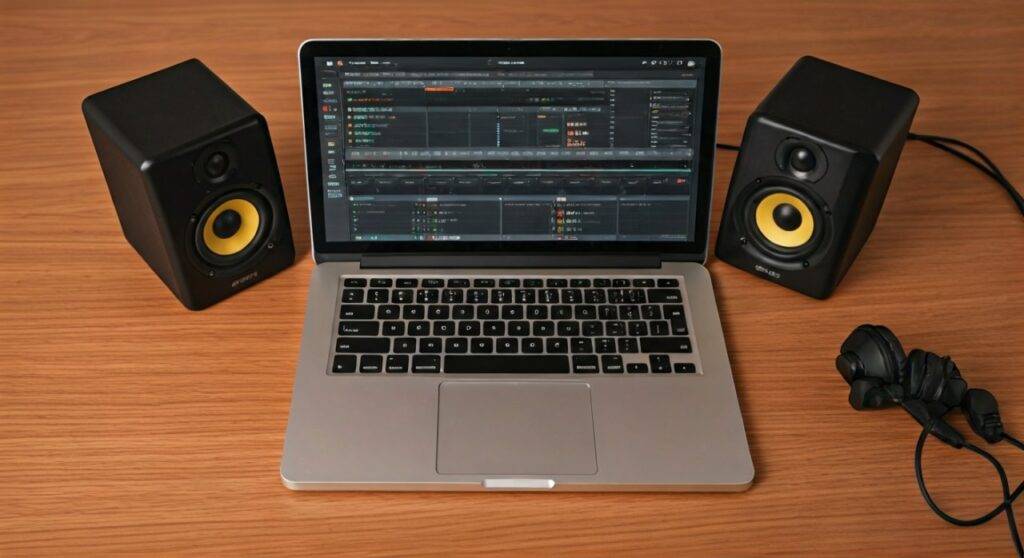
In my decade of experience performing at everything from house parties to club venues, I’ve found that starting with a laptop-only setup is the best way to master the fundamentals of beatmatching and phrase mixing before investing in expensive gear. While a controller adds tactile control, your laptop is the actual “brain” of the operation.
Quick Start: Key Takeaways for Laptop DJing
- Software is Mandatory: You need a Digital Audio Workstation (DAW) or dedicated DJ software like VirtualDJ, Serato DJ Lite, or Rekordbox.
- The “Splitter” Trick: To hear the next song in your headphones while the current song plays on speakers, you need a DJ Splitter Cable if you don’t have an external soundcard.
- Audio Latency: Keeping your laptop’s Buffer Size low (around 128 or 256 samples) ensures there is no delay between your actions and the sound.
- Organized Library: Success depends on high-quality MP3s (320kbps) or WAV files and properly analyzed BPM (Beats Per Minute) tags.
The Essential Gear List: Hardware Requirements
If you are wondering can you dj with laptop and speakers effectively, the secret lies in how you route your audio. You cannot simply plug speakers into your headphone jack and expect to “cue” (preview) the next track without the audience hearing it.
The Laptop (The Core)
You don’t need a top-tier MacBook Pro, but your machine should have at least 8GB of RAM and an SSD. In our testing, older laptops with mechanical hard drives often stutter when loading large “uncompressed” audio files.
Speakers (The Output)
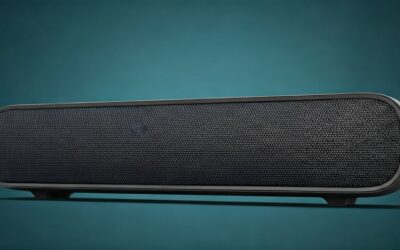
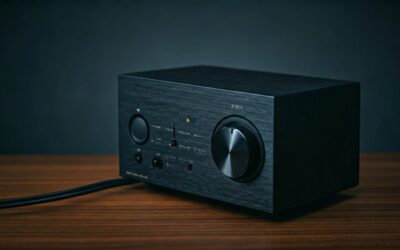
Any powered speakers will work. If you are just starting, Studio Monitors like the PreSonus Eris 3.5 or KRK Rokits are ideal because they provide a “flat” response, letting you hear the mix accurately.
The DJ Splitter Cable (The Essential Hack)
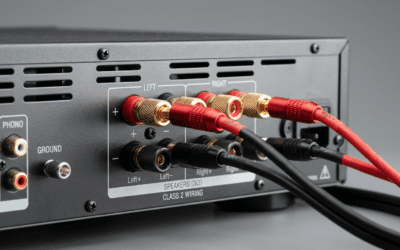
Since most laptops have only one audio output, a DJ Splitter Cable (like the Traktor DJ Cable) is vital. It splits your stereo output into two mono signals: one for your headphones (to cue the next track) and one for your speakers (the master output).
| Component | Minimum Requirement | Recommended Choice |
|---|---|---|
| Processor | Intel i5 or AMD Ryzen 5 | Intel i7 or Apple M2/M3 |
| Memory (RAM) | 8GB | 16GB |
| Storage | 256GB SSD | 1TB SSD |
| Cable | 3.5mm Aux Cable | DJ Splitter Cable or USB Audio Interface |
Choosing the Best DJ Software for Your Laptop
To answer “how can you dj with laptop and speakers,” we must look at the software interface. The software simulates two turntables and a mixer on your screen.
VirtualDJ (Best for Beginners)
VirtualDJ is the most accessible software for laptop-only users. Its “Home” version is free, and it features a highly intuitive interface that allows you to map your computer keyboard to various DJ functions like EQ kills and crossfading.
Rekordbox (The Industry Standard)
If you eventually want to play in professional clubs, Rekordbox is the ecosystem used by Pioneer DJ. It has a powerful “Export Mode” and “Performance Mode” that works flawlessly with just a mouse and keyboard.
Serato DJ Lite (The Professional Choice)
Serato is known for its rock-solid stability. While the “Pro” version usually requires hardware, Serato DJ Lite allows for “Practice Mode,” which is specifically designed for people who want to dj with laptop and speakers without a controller connected.
Step-by-Step Guide: How to Set Up Your Laptop DJ Rig
Follow these steps to get your audio flowing correctly from your computer to your ears and the dancefloor.
Step 1: Install and Analyze Your Music
Download your software of choice. Before playing, you must Analyze your tracks. This process calculates the BPM and creates a Beatgrid, which allows the software to keep two songs perfectly in sync.
Step 2: Configure the Audio Routing
Go to the Preferences or Audio Settings menu in your software.
- If using a Splitter Cable: Enable “Split Output” or “Mono Split.” Assign the Master to the Left channel and Headphones (Cue) to the Right channel.
- If using an Audio Interface: Select your interface as the “Audio Device.” Assign Output 1/2 to your Speakers and Output 3/4 to your Headphones.
Step 3: Map Your Keyboard Shortcuts
Since you don’t have a controller, your keyboard is your instrument. We recommend mapping these keys immediately:
- Spacebar: Play/Pause.
- Left/Right Arrows: Load track to Deck A or Deck B.
- F/G keys: Crossfader movement.
- 1, 2, 3 keys: Low, Mid, and High frequency EQ kills.
Mastering the Mix: Essential Techniques Without a Controller
You might think can you dj with laptop and speakers and still sound professional? Yes, but you must rely on your eyes and ears more than a traditional DJ would.
Visual Beatmatching
Since you are using a mouse, use the Parallel Waveforms feature in your software. By aligning the “peaks” (the kicks and snares) of two waveforms visually, you can ensure the songs are in sync before you even slide the crossfader.
Using the Sync Button (Without Guilt)
In a laptop-only environment, using the Sync Button is a practical necessity. It frees up your hands to focus on EQing and Effects (like Reverb or Echo) rather than manually adjusting the pitch slider with a mouse, which is notoriously difficult.
Phrase Mixing
Every 16 or 32 bars, a song changes (an instrument is added or removed). Always start your transition at the beginning of a new phrase. This makes the transition feel natural to the audience, even if your “laptop-only” transition is simple.
Common Challenges When DJing With a Laptop
While we have established that you can you dj with laptop and speakers, there are three common “pain points” we encounter during live setups.
- Audio Latency (Delay): If you press “Play” and hear the sound half a second later, your Buffer Size is too high. Decrease it in the audio settings until the delay disappears, but not so low that the audio starts “crackling.”
- Lack of Physical Knobs: Mixing two songs’ basslines simultaneously is hard with a mouse. We suggest using “Auto-Gain” settings to keep volumes consistent across different tracks.
- Cable Interference: Laptop power bricks often cause a “buzzing” sound in speakers. If this happens, try using a Ground Loop Isolator between your laptop and your speakers.
Frequently Asked Questions
Can I DJ using just a Bluetooth speaker?
We do not recommend Bluetooth speakers for DJing. Bluetooth technology introduces significant audio lag (latency), making it impossible to time your transitions or beatmatch accurately. Always use a wired connection (Aux/RCA).
Do I need an expensive sound card to start?
No. While a Focusrite Scarlett or Traktor Audio 2 interface improves sound quality, a $10 DJ Splitter Cable is sufficient for learning the basics of how to dj with laptop and speakers.
Is it “cheating” to DJ without a controller?
Absolutely not. Many world-class producers started by clicking buttons on a screen. DJing is about track selection and crowd reading, not just how many expensive knobs you can turn.
What is the best free software for laptop DJing?
Mixxx is the best completely free, open-source software. Unlike the “Lite” versions of paid software, Mixxx gives you full access to all features, including recording your sets, without a subscription.