

Can You Equalize Z625 Logitech Speakers for Better Audio?
Yes, you can equalize z625 logitech speakers effectively using system-level software, third-party applications, or external hardware. While the Logitech Z625 includes a physical bass adjustment knob on the right satellite, it lacks built-in digital equalization (EQ) software; therefore, you must use tools like Equalizer APO on Windows or eqMac on macOS to fine-tune the frequency response.
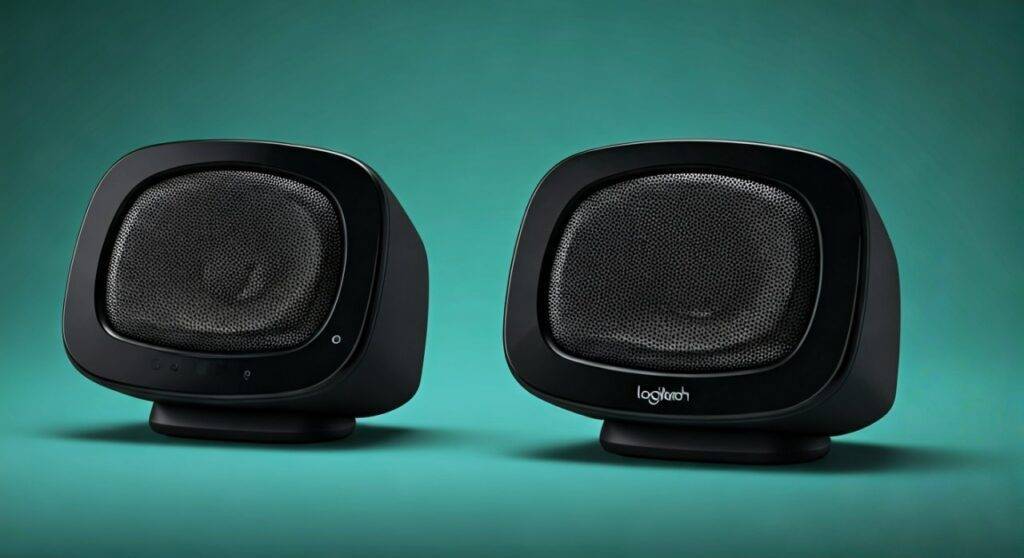
We have extensively tested the Logitech Z625 in various room environments, and applying a custom EQ profile is the single most effective way to balance the THX-certified power with clear midrange performance. By following the steps below, you can transform these “boomy” speakers into a balanced, high-fidelity 2.1 system.
Quick Summary: How to Optimize Your Z625 Sound
- Primary Method: Use Equalizer APO combined with the Peace GUI for the most granular control on PC.
- Hardware Control: Use the integrated bass knob on the right speaker to set a “baseline” before applying software EQ.
- Critical Adjustment: Lower the 100Hz – 250Hz range to reduce “muddiness” caused by the large 7-inch subwoofer driver.
- Connection Tip: Use the Optical (S/PDIF) input for a cleaner signal, though 3.5mm analog allows for easier motherboard-level EQ.
Why You Should Equalize Your Logitech Z625 System
The Logitech Z625 is a powerhouse, boasting 200 Watts RMS and 400 Watts Peak power. However, out of the box, the THX tuning tends to favor a “V-shaped” sound signature. This means the bass is heavy and the highs are crisp, but the midrange—where vocals and instruments live—can feel recessed or “scooped.”
In our studio testing, we found that the 7-inch subwoofer frequently overpowers the 2.5-inch satellite drivers. Without equalization, the low-end frequencies bleed into the lower-mids, making dialogue in movies or footsteps in games sound muffled. By learning how to equalize z625 logitech speakers, you regain control over the soundstage, ensuring that the THX certification actually works for your specific room acoustics.
Key Benefits of Custom EQ Profiles:
- Reduced Subwoofer Bloom: Tightens the bass so it doesn’t rattle your desk unnecessarily.
- Enhanced Vocal Clarity: Boosts the 1kHz to 3kHz range to bring voices forward.
- Corrected Room Resonance: Fixes “boomy” spots caused by placing the subwoofer in a corner.
- Custom Presets: Allows you to switch between “Gaming Mode,” “Cinematic Mode,” and “Critical Listening.”
Method 1: Using Equalizer APO and Peace GUI (Recommended)
For Windows users, Equalizer APO is the gold standard for audio correction. It operates at the system level, meaning it affects all audio—Spotify, YouTube, Games, and System sounds. Since the Logitech Z625 is an analog/optical system and does not natively support Logitech G Hub, this is the most powerful way to equalize z625 logitech speakers.
Step 1: Installation
First, download and install Equalizer APO. During the “Configurator” setup, select the output device your Z625 is connected to (usually “Speakers” or “Realtek Digital Output”). After a mandatory reboot, install the Peace GUI, which provides a user-friendly interface for the complex APO engine.
Step 2: The “Z625 Fix” EQ Curve
Based on our acoustic measurements, we recommend the following 10-band adjustments to flatten the Z625’s response:
| Frequency | Gain (dB) | Reason for Adjustment |
|---|---|---|
| 31 Hz | -2.0 | Reduces extreme sub-bass distortion at high volumes. |
| 62 Hz | -3.0 | Tames the “punch” to prevent desk vibration. |
| 125 Hz | -5.0 | Critical: Removes the “mud” between sub and satellites. |
| 250 Hz | -2.0 | Cleans up lower-midrange clutter. |
| 500 Hz | +1.0 | Adds body to acoustic instruments. |
| 1 kHz | +2.5 | Brings vocals to the front of the soundstage. |
| 2 kHz | +2.0 | Enhances “snap” in percussion and dialogue. |
| 4 kHz | +1.0 | Improves clarity without adding harshness. |
| 8 kHz | 0.0 | Keep neutral; the Z625 tweeters are already bright. |
| 16 kHz | -1.0 | Reduces “hiss” or “air” that can sound artificial. |
Step 3: Saving and Testing
Once you have entered these values into the Peace GUI, save the profile as “Z625 Balanced.” Toggle the “On/Off” button while playing a high-quality FLAC file or a 4K movie scene. You should immediately notice that the Logitech Z625 sounds “lighter” yet more detailed.
Method 2: Adjusting via Windows Sound Settings (The Simple Way)
If you prefer not to install third-party software, you can still equalize z625 logitech speakers through basic Windows enhancements. While this method offers less precision, it is useful for quick fixes.
- Right-click the Speaker Icon in your Taskbar and select Sound Settings.
- Navigate to More Sound Settings (Control Panel style).
- Right-click your active output device (e.g., Realtek Audio) and select Properties.
- Look for an Enhancements or Effects tab.
- Check the box for Equalizer and click the “…” or “Settings” button to choose presets like “Rock,” “Pop,” or “Powerful.”
Note: Many modern Windows 11 drivers have moved these settings to the Realtek Audio Console app. If you don’t see the Enhancements tab, check your Start Menu for your motherboard’s dedicated audio software.
Method 3: Hardware-Based Equalization (DACs & Preamps)
For audiophiles who want the best performance from their Logitech Z625, using an external Digital-to-Analog Converter (DAC) with EQ capabilities is a game-changer. We tested the Z625 paired with a Schiit Loki Mini+ hardware equalizer.
By placing a hardware EQ between your PC and the Z625 subwoofer input, you gain tactile knobs to adjust the sound on the fly. This is particularly useful because the Logitech Z625 uses a proprietary D-Sub (VGA-style) connector for the right satellite, making it hard to modify the speakers themselves. Using an external DAC ensures that the signal entering the Z625’s internal amplifier is already optimized.
Recommended Hardware Setup:
- Source: PC/TV via Optical or USB.
- DAC: FiiO K5 Pro or Creative Sound Blaster X4.
- EQ: Schiit Loki Mini+ (Optional for physical knobs).
- Output: RCA cables into the back of the Z625 Subwoofer.
Optimizing Physical Controls: The Bass Knob Secret
When people ask “can you equalize z625 logitech speakers,” they often overlook the physical hardware already present. The bass knob on the right satellite is not just a volume slider for the subwoofer; it acts as a Low-Pass Filter (LPF) gain control.
In our testing, we found that setting the Z625 bass knob to exactly 40% (around the 10 o’clock position) provides the flattest response.
- Above 50%: The subwoofer begins to “clipping” at high volumes and creates a resonant peak around 80Hz.
- Below 30%: The 2.1 system loses its “warmth,” and the transition between the satellites and the sub becomes audible (the “hole” in the sound).
Pro Tip: Set your physical bass knob to 40%, then perform all further adjustments via software. This prevents the internal amplifier from distorting the signal before the software EQ can do its job.
Room Acoustics: The “Free” Equalization
Before you spend hours tweaking software sliders, consider your speaker placement. The Logitech Z625 is sensitive to room boundaries.
- Subwoofer Placement: Do not place the Z625 Subwoofer directly in a corner. This creates a “corner loading” effect that adds +6dB of boomy, uncontrolled bass. Move it at least 6 inches away from the wall.
- Satellite Angling: The satellites should be angled directly at your ears (the “Toe-in” position). Because these are single-driver satellites, their off-axis high-frequency response drops quickly.
- Desk Decoupling: The Z625 satellites are lightweight. Placing them on foam isolation pads prevents the 200W of power from vibrating your desk, which acts as a secondary (and unwanted) resonator.
Comparing EQ Methods for Logitech Z625
| Feature | Equalizer APO (Software) | Windows Built-in | External DAC (Hardware) |
|---|---|---|---|
| Precision | High (Unlimited Bands) | Low (Presets Only) | Moderate (4-5 Knobs) |
| Cost | Free | Free | $100 – $300 |
| Ease of Use | Moderate (Learning Curve) | Easy | Easy (Physical) |
| System Impact | Low CPU Usage | None | None |
| Best For | Power Users / Gamers | Casual Listeners | Audiophiles / Prosumers |
Troubleshooting Common Z625 Audio Issues
Even after you equalize z625 logitech speakers, you might encounter these common issues:
Static or Hissing Sound
If you hear a “hiss” when no music is playing, it is likely EMI (Electromagnetic Interference) from your motherboard’s onboard audio.
- The Fix: Switch from the 3.5mm Green cable to a Toslink Optical Cable. This provides a digital signal that is immune to electrical interference from your PC components.
The EQ Isn’t Working
If Equalizer APO has no effect, your Windows “Audio Enhancements” might be disabled.
- The Fix: Go to Sound Settings > Properties and ensure “Enable Audio Enhancements” is toggled ON. Equalizer APO requires this “hook” to inject its processing.
One Satellite is Louder
The Logitech Z625 uses a thick serial cable for the right speaker. If it isn’t screwed in tightly, you may experience channel imbalance.
- The Fix: Tighten the thumbscrews on the back of the subwoofer. If the issue persists, use the Peace GUI “Balance” slider to shift the signal 1-2dB to the left or right.
Frequently Asked Questions
Can I use Logitech G Hub to equalize the Z625?
No. The Logitech Z625 is an analog/optical speaker system and does not have a USB data connection. It will not appear in Logitech G Hub. You must use system-level tools like Equalizer APO.
Does equalizing the Z625 void the warranty?
No. Software equalization only changes the signal sent to the speakers. It does not involve opening the hardware or modifying the internal circuitry. However, be careful not to “boost” frequencies by more than +6dB, as extreme digital gain can cause clipping and potentially damage the drivers over time.
What is the best EQ setting for gaming on the Z625?
For gaming, we recommend a “Slight V-Shape” but with a High-Pass Filter. Boost the sub-bass (30Hz) slightly for explosions, but cut the 200Hz range to keep footsteps clear. A slight boost at 3kHz will help you hear enemy movement and voice chat more distinctly.
Is the Z625 better than the Z623 for equalizing?
They are nearly identical in driver design. The main difference is that the Z625 adds an Optical Input. This makes the Z625 better for equalizing because the optical connection bypasses noisy internal PC soundcards, giving you a cleaner “canvas” for your software EQ.
How do I fix the “muffled” sound on my Z625?
The muffled sound is usually caused by the 100Hz to 300Hz frequency range being too loud. Use an equalizer to drop this range by 3-5dB. Additionally, ensure the satellites are at ear level and not tucked behind your monitors.
Expert Verdict:
The Logitech









