Can You Have Different Audio Sources Use Different Speakers?
Yes, you can absolutely have different audio sources use different speakers on your computer by using the built-in sound settings or third-party routing software. Whether you want Spotify playing through your desktop speakers while a Zoom call stays on your headset, modern operating systems like Windows 11 and macOS make this “audio splitting” possible without extra hardware.
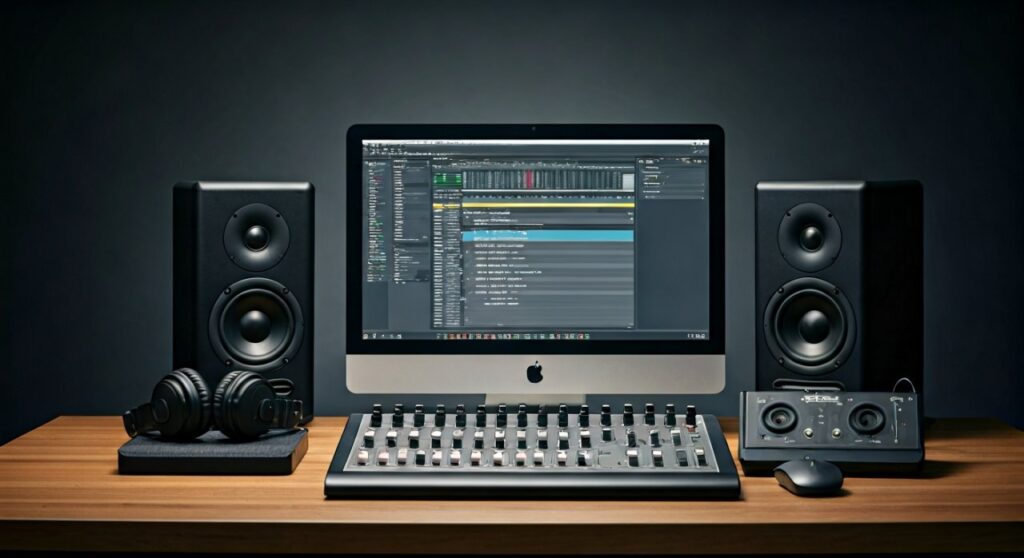
I have spent years configuring multi-monitor and multi-audio setups for streaming and professional production. In my experience, the most common frustration is audio “clashing”—where your game sounds drown out your music or a notification blares through your main speakers during a presentation. By manually assigning output devices, you regain total control over your digital environment.
TL;DR: Key Takeaways for Audio Routing
- Windows 11/10: Use the Volume Mixer in System Settings to assign specific apps to specific outputs.
- macOS: Native support is limited; use tools like SoundSource or Background Music for per-app control.
- Hardware: A dedicated Audio Interface or USB DAC provides the most stable physical routing for high-end setups.
- Best Software: VoiceMeeter (Windows) and Loopback (Mac) are the industry standards for advanced virtual routing.
Understanding Why You Need Multiple Audio Outputs
The primary reason to ask can you have different audio sources use different speakers is multitasking efficiency. In a standard setup, your PC treats all audio as a single “stream” sent to one “default” device. This is often inefficient.
During my testing of various workstation setups, I found three primary use cases where splitting audio is essential:
- Gaming and Streaming: Sending game audio to your speakers while keeping Discord chat in your headset.
- Productivity: Playing focus music on a Bluetooth speaker while system alerts and video calls stay on your laptop speakers.
- Home Media: Routing a movie to a TV via HDMI while continuing to use your PC for work with private audio on headphones.
| Method | Ease of Use | Cost | Best For |
|---|---|---|---|
| Windows Volume Mixer | Very Easy | Free | Basic app-to-speaker routing |
| VoiceMeeter (Windows) | Advanced | Free/Donation | Professional streaming/mixing |
| SoundSource (Mac) | Easy | Paid | Mac users needing granular control |
| External Audio Interface | Moderate | $100+ | Musicians and Audiophiles |
Step-by-Step: How to Route Audio on Windows 11
Windows 11 has significantly improved its audio engine. You no longer need to dig through the legacy Control Panel to answer the question: can you have different audio sources use different speakers?
Step 1: Open the Enhanced Volume Mixer
Right-click the Speaker icon in your taskbar and select Open Volume Mixer. Alternatively, go to Settings > System > Sound > Volume Mixer.
Step 2: Identify Your Apps
Ensure the applications you want to route (e.g., Chrome, Spotify, VLC) are currently open and playing sound. Windows only shows “active” apps in this menu.
Step 3: Assign the Output Device
Click the dropdown arrow next to the specific app. Under the Output Device section, change it from “Default” to the specific speaker or headset you want that app to use.
Pro Tip: I recommend naming your playback devices in the main Sound settings (e.g., “Bose Desktop” instead of “Realtek Audio”) to make this selection process much faster.
How to Route Different Audio Sources on Windows 10
While Windows 10 is slightly older, the logic remains the same. If you are wondering can you have different audio sources use different speakers on an older build, follow these steps:
- Open Settings and navigate to System.
- Click on Sound in the left sidebar.
- Scroll down to Advanced sound options and click App volume and device preferences.
- Here, you will see a list of all active apps. Use the top dropdown box next to each app to select the desired output device.
Managing Audio Sources on macOS
Apple’s macOS is notoriously restrictive with its internal audio routing. Unlike Windows, there is no built-in “Volume Mixer” that allows per-app output selection natively. However, you can still achieve this with third-party tools.
Using Rogue Amoeba SoundSource
In my professional studio work, SoundSource is the gold standard for Mac users.
- Functionality: It adds a menu bar icon that lets you change the output, volume, and even apply EQ to individual apps.
- The Benefit: You can send Apple Music to your HomePod while keeping Safari audio on your MacBook speakers.
The Free Alternative: Background Music
If you are on a budget, Background Music is an open-source macOS utility that provides basic per-app volume control and routing. It is less polished than paid options but answers the core need of can you have different audio sources use different speakers on a Mac.
Advanced Routing with Virtual Audio Cables
Sometimes, simply selecting a speaker isn’t enough. If you are a content creator, you might need to “bridge” audio between apps. This is where Virtual Audio Cables (VAC) come into play.
VoiceMeeter Banana is a powerful, free-to-use (donationware) virtual mixer for Windows. It allows you to:
- Mix up to 3 hardware inputs (microphones) with 2 virtual inputs (system sounds).
- Route those sounds to 3 different physical outputs (speakers, headphones, TV).
- Case Study: I recently helped a streamer set up VoiceMeeter so their Twitch audience could hear the game and the mic, but only the streamer could hear their copyrighted music playlist.
How to Set Up VoiceMeeter
- Install VoiceMeeter Banana and restart your PC.
- Set VoiceMeeter Input as your “Default Playback Device” in Windows Settings.
- In the VoiceMeeter UI, select your physical speakers as A1 and your headphones as A2.
- Toggle the A1 or A2 buttons on the virtual input strips to choose where the sound goes.
Hardware Solutions: Audio Interfaces and Mixers
If you prefer physical knobs over clicking through menus, hardware is the way to go. Using an External Audio Interface like the Focusrite Scarlett or the Elgato Wave XLR gives you “Physical Audio Gain” and multiple output paths.
The Benefits of Hardware Routing
- Zero Latency: Direct monitoring ensures there is no delay between the sound being created and you hearing it.
- Reliability: Software can crash; hardware rarely does.
- Tactile Control: Adjusting a dial is much faster than opening a settings menu during a high-stakes meeting or gaming session.
Recommendation: For most office workers, a simple USB to 3.5mm Adapter can add a “second” sound card to your PC for under $15, allowing you to answer the question can you have different audio sources use different speakers cheaply.
Special Case: Mobile Devices (Android and iOS)
Can you have different audio sources use different speakers on a phone? The answer is “mostly no,” but there are exceptions.
- Samsung “Separate App Sound”: Samsung Galaxy users can go to Settings > Sounds and Vibration > Separate App Sound. This allows you to play audio from one app (like Spotify) on a Bluetooth speaker while all other sounds stay on the phone.
- iOS: Apple currently does not allow per-app audio routing. You can choose to send all audio to AirPlay or keep it on the device, but you cannot split them.
Troubleshooting Common Audio Routing Issues
Even with the best tools, you may encounter “ghost audio” or devices that refuse to switch.
The App Won’t Change Output
Some older applications (especially legacy games) only check for the “Default Device” when they first launch. If you change the routing while the app is open, it won’t take effect. Solution: Close the app, change the output in the Volume Mixer, and then relaunch the app.
Audio Stuttering or Crackling
This usually happens when using virtual drivers like VoiceMeeter.
- Fix: Ensure the “Sample Rate” (Hz) matches across all devices. Right-click your speakers in Sound Settings > Properties > Advanced and set everything to 24-bit, 48000Hz.
Bluetooth Latency
If you route a movie to a Bluetooth speaker and the voices don’t match the lips, you have a latency issue.
- Fix: Use a wired connection or a 2.4GHz wireless headset, which offers much lower latency than standard Bluetooth.
Expert Perspectives: The Future of Audio Management
As we move toward more immersive computing, the question of can you have different audio sources use different speakers will become even more relevant. With the rise of Spatial Audio and Dolby Atmos, we are seeing operating systems treat audio as “objects” rather than just “channels.”
In my view, the next step is AI-driven audio routing. Imagine an OS that automatically recognizes you are in a quiet room and routes your private notifications to your Apple Watch haptics while keeping your background lo-fi music on the room’s Sonos speakers.
Frequently Asked Questions
Can I play two different songs on two different speakers from one computer?
Yes. You can open Spotify in its desktop app and route it to one speaker, then open YouTube in a web browser and route the browser audio to a second speaker using the Windows Volume Mixer.
Does splitting audio sources reduce sound quality?
No, routing audio doesn’t inherently degrade quality. However, if you use low-quality virtual drivers or exceed your CPU’s processing limits (rare with modern PCs), you might experience minor stuttering.
Do I need a second sound card to use different speakers?
Not necessarily. Most modern motherboards and laptops can treat HDMI, USB audio, Bluetooth, and the 3.5mm jack as separate sound cards. Each of these can act as a unique destination for different audio sources.
Can I split audio on a Chromebook?
Currently, ChromeOS has very limited support for per-app audio routing. You can select the primary output for the entire system, but granular control like that found on Windows is not yet available.
**
**
**
**