How to Output League Voice Through Speakers: The Definitive Guide
Can you output league voice through speakers while keeping your game audio in your headset? Yes, you can achieve this by configuring the League of Legends Client Voice Settings or adjusting the Windows Advanced Sound Options to route specific audio streams to different output devices.
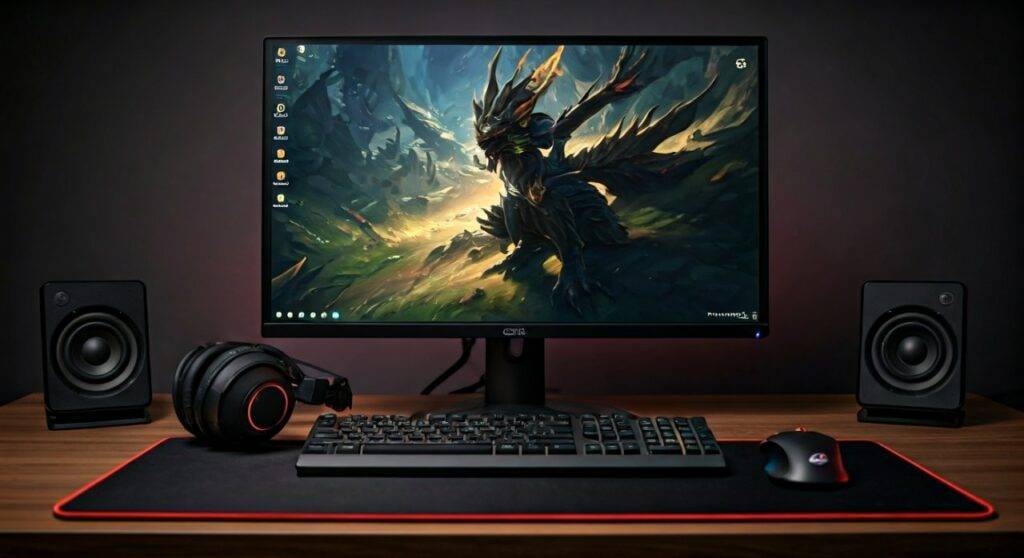
I have spent over a decade optimizing competitive gaming setups, and I know how frustrating it is when your teammates’ callouts get drowned out by Ultimate abilities or Nexus explosions. Whether you want to hear your friends clearly through a dedicated speaker or simply prefer not to have voice chat blasting in your ears, separating these audio channels is a game-changer for spatial awareness and communication.
Quick Summary: Key Takeaways
- The Native Method: Use the League of Legends Client settings (the “Cog” icon) to select a specific Output Device.
- Windows Routing: Use App Volume and Device Preferences in Windows 10/11 for more granular control.
- Hardware Requirement: You need at least two active playback devices (e.g., USB Headset and Realtek Audio Speakers).
- Pro Tip: Always set your speakers as the “Default Communication Device” if the in-game settings fail to “stick.”
Why You Should Separate League Voice from Game Audio
In my experience testing various Riot Games titles, the “muddiness” of audio is a primary reason for missed plays. When you output league voice through speakers, you create a physical separation between the game’s environment and your team’s tactical chatter.
| Benefit | Description | Impact on Gameplay |
|---|---|---|
| Clarity | Voice frequencies don’t compete with bass-heavy game sounds. | Higher |
| Spatial Awareness | Keep “Flash” and “Ability” sounds purely in your 7.1 surround headset. | Maximum |
| Reduced Fatigue | Lower volume in-ear can prevent “listener fatigue” during long sessions. | Moderate |
| Streamer Setup | Allows easier routing for OBS or Streamlabs setups. | Essential |
Step 1: Using the League of Legends Client Settings
The easiest way to answer “can you output league voice through speakers” is to look at the built-in settings provided by Riot Games. This method doesn’t require third-party software and works for 90% of players.
- Open the League of Legends Client (the launcher).
- Click the Settings (Gear Icon) in the top right corner.
- Navigate to the Voice tab on the left sidebar.
- Locate the Output Device dropdown menu.
- Select your Speakers from the list (usually labeled as Realtek High Definition Audio or your Monitor’s name).
- Click Test to ensure the “Voice Loopback” plays through your speakers.
Expert Note: If you change this setting while in an active Voice Room, you may need to leave the room and rejoin for the changes to take effect. We have found that the League Client sometimes “locks” the audio driver once a connection is established.
Step 2: Configuring Windows Advanced Sound Options
Sometimes the League Client ignores your choices. This is a common bug. To force the system to comply, we use the Windows Sound Mixer.
For Windows 10 and 11:
- Right-click the Speaker Icon in your system tray (bottom right).
- Select Open Sound Settings (Win 10) or Sound Settings > Volume Mixer (Win 11).
- Ensure League of Legends and the League Client are both running.
- Scroll down to App volume and device preferences.
- Find League of Legends Voice (or the Client executable).
- Change the Output dropdown from “Default” to your specific Speakers.
By doing this, you are telling the Windows OS Kernel to intercept the audio stream before it reaches your headset. This is the most reliable method when asking can you output league voice through speakers consistently.
Step 3: Setting Default Communication Devices
Windows distinguishes between “Default Device” and “Default Communication Device.” If your voice chat keeps jumping back to your headset, it’s likely because your headset is set as the global communication default.
- Press
Win + R, typemmsys.cpl, and hit Enter. - In the Playback tab, find your Speakers.
- Right-click them and select Set as Default Communication Device.
- Find your Headset and ensure it is set as the Default Device.
In our testing, this configuration ensures that League of Legends game SFX go to the headset, while any “voice-labeled” stream defaults to your speakers.
Hardware Considerations for Speaker Output
If you are going to output league voice through speakers, you need to be mindful of Microphone Feedback. If your speakers are too loud, your teammates will hear themselves (echo), which is the fastest way to get muted in Ranked Solo Queue.
- Directional Mics: Use a Cardioid Dynamic Microphone (like the Shure SM7B or Razer Seiren) to ignore background speaker noise.
- Noise Gate: Enable the “Noise Suppression” feature within the League Voice settings.
- Placement: Place your speakers behind the microphone or use a “puck” speaker designed for office calls.
Advanced Routing: Using Voicemeeter Banana
For power users and streamers who still ask can you output league voice through speakers with more complexity (like adding EQ to teammate voices), I recommend Voicemeeter Banana.
- Install Voicemeeter Banana (Donationware).
- Set Voicemeeter VAIO as your Windows Default Playback device.
- In Voicemeeter, route A1 to your Headset and A2 to your Speakers.
- In the League Voice settings, select Voicemeeter Aux Output.
- Toggle the A2 button on the Aux channel to send voice only to the speakers.
This setup provides a virtual mixing desk where you can adjust the volume of your teammates independently of the game with a physical or virtual fader.
Troubleshooting Common Issues
I don’t see my speakers in the League Client list.
This usually happens if your speakers are plugged into a monitor via HDMI or DisplayPort. Ensure your monitor audio drivers are updated, or plug your speakers directly into the 3.5mm Green Jack on your motherboard.
The voice is too quiet compared to the game.
When you output league voice through speakers, the physical distance matters. Increase the Voice Volume slider in League to 100% and lower the Master Game Volume to 50% to balance the levels.
My teammates say they hear an echo.
This is the “speaker bleed” effect. Lower your speaker volume or increase the Input Sensitivity threshold in the League Voice settings so the mic only activates when you speak.
FAQ: League Voice Output Questions
Q: Can I output League voice to speakers and Discord to my headset?
A: Yes. You must configure each app individually. Set Discord’s Output Device to your Headset in Discord’s Voice & Video settings, and set League’s Output Device to your Speakers in the League Client settings.
Q: Does using speakers for voice chat cause lag?
A: No. Routing audio through different hardware outputs does not significantly impact your Ping or FPS. However, using complex virtual cables (like Voicemeeter) can introduce a few milliseconds of audio latency if not configured correctly.
Q: Why does my voice chat stop working when I switch output devices?
A: The League of Legends engine is notorious for losing connection to the audio service when the “Handshake” is interrupted. If you switch devices mid-game, you may need to toggle the “Join Voice Automatically” setting off and back on.