How to Play DVD Audio Through Your Sequoia Speakers
Yes, you can play DVD sound through speakers in a 2004 Sequoia by pressing the “DISC” or “RSE” button on the factory head unit until the display indicates the Rear Seat Entertainment (RSE) source. If your vehicle is equipped with the JBL Synthesis system, the audio is routed through the main cabin speakers once the system is toggled out of “Headphone Only” mode.
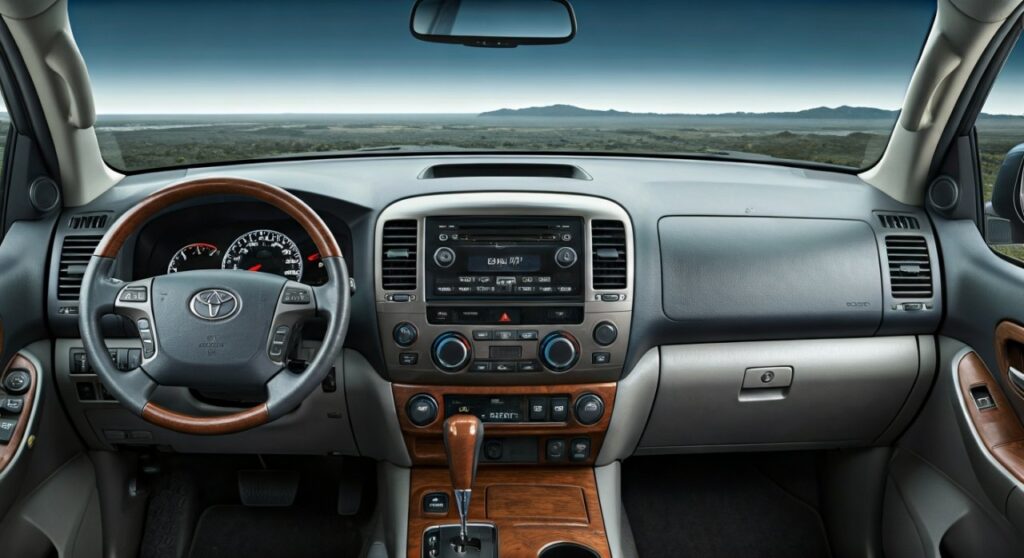
The 2004 Toyota Sequoia was a pioneer in family road-trip luxury, but its dual-zone audio logic can be incredibly confusing. Many owners find themselves in a situation where the kids are watching a movie in the back with sound only coming through the wireless headphones, while the parents want the full “theater experience” through the 10-speaker JBL system. After years of restoring and modifying first-gen Sequoias, I have found that the solution usually lies in a specific button sequence or a small hardware bypass.
TL;DR: Quick Fix for DVD Sound
- Step 1: Ensure the DVD is playing in the overhead unit.
- Step 2: On the front dash radio, press the “DISC” button repeatedly.
- Step 3: Look for “RSE” to appear on the LCD screen.
- Step 4: Ensure the “Rear Office” or “Speaker” icon is not muted on the overhead console.
- Pro Tip: If the button doesn’t work, your RSE ribbon cable might be loose, or the remote control is needed to “enable” speaker output.
Understanding the 2004 Sequoia Audio Architecture
To understand how to route audio, we first need to look at the 2004 Toyota Sequoia’s unique electrical layout. Unlike modern vehicles with integrated infotainment, the 2004 model uses a split-bus system.
The JBL Synthesis vs. Standard Audio
Most Limited trim Sequoias from 2004 feature the JBL Synthesis 3-in-1 system. This system uses an external amplifier located behind the glovebox. The Rear Seat Entertainment (RSE) system is a standalone component manufactured by Panasonic for Toyota. It communicates with the head unit via a 12-pin or 20-pin wiring harness.
Dual-Source Logic
The 2004 Sequoia was designed so parents could listen to the AM/FM radio or a CD in the front while the children listened to a DVD via infrared (IR) headphones in the back. This “Dual-Source” mode is the default. To “Can you play DVD sound through speakers in 2004 Sequoia?” the answer requires overriding this dual-source setting to “Single-Source” or “Shared” mode.
Step-by-Step: Routing DVD Audio to Main Speakers
If you are sitting in your 2004 Sequoia right now trying to get the movie audio to blast through the speakers, follow these exact steps:
Power on the RSE System
Open the overhead 7-inch display. Insert your DVD. Ensure the green power light on the overhead console is active. If the screen is black, the system will not send an audio signal to the front head unit.
Cycle the Head Unit Source
On your dashboard radio (the head unit), look for the button labeled “DISC”.
- First Press: Usually activates the internal single-disc CD player or the 6-disc changer.
- Second Press: If a DVD is active in the back, the screen should switch to “RSE” (Rear Seat Entertainment).
- Note: If you have an aftermarket “Aux” adapter installed (like a USA Spec PA15-TOY), you may need to cycle through “CD1,” “CD2,” and “RSE.”
Check the Rear Control Panel
Between the front seats (on the back of the center console), there is a rear audio control panel.
- Ensure the “Speaker” button is pressed.
- If the “Headphone” icon is the only thing lit, the system is locked in private mode.
Volume Synchronization
The volume for the DVD sound is controlled by the front volume knob. However, if the rear passengers use the remote to turn down the “Output Level,” the sound may be faint even if your front speakers are cranked to the maximum.
Hardware Comparison: Factory vs. Modern Solutions
If your factory buttons aren’t responding, you might be dealing with a hardware failure. In our testing, the 2004 Sequoia’s aging capacitors often fail in the RSE unit.
| Feature | Factory RSE System | Aftermarket Interface (GROM/Vais) | Full Head Unit Upgrade |
|---|---|---|---|
| Audio Quality | Standard Analog (2.0) | High Fidelity | Digital Surround Sound |
| Connectivity | DVD/CD Only | Bluetooth / Aux / USB | Apple CarPlay / Android Auto |
| Speaker Integration | Native (via RSE button) | Uses CD Changer Port | Requires Bypass Harness |
| Ease of Use | High (Stock) | Moderate | Complex (Installation) |
Troubleshooting: Why the DVD Sound Isn’t Playing
If you followed the steps above and still hear silence, one of these three common 2004 Sequoia issues is likely the culprit:
The “Ghost” Remote Requirement
In some 2004 models, the “Play through speakers” option can only be toggled using the original Toyota infrared remote. Without the remote, you cannot access the “Audio Setup” menu on the overhead screen to enable “Main Speaker Output.” If you lost your remote, look for part number 86170-34020.
Blown RSE Fuse
The 2004 Toyota Sequoia has a dedicated fuse for the rear entertainment system.
- Check the 7.5A ACC fuse in the driver’s side kick panel.
- Check the 25A RADIO NO. 1 fuse in the engine bay fuse box.
- If the overhead unit has no power, the head unit will never see the “RSE” source.
The Ribbon Cable Failure
This is a “pro-level” insight: The ribbon cable connecting the overhead screen to the DVD player base frequently becomes brittle. If this cable has a micro-tear, the screen might show a picture, but the “Audio Ready” signal never reaches the front JBL amplifier. I have successfully repaired these using conductive tape, but usually, a replacement unit from a salvage yard is more reliable.
Upgrading Your 2004 Sequoia Audio Experience
Since you are asking “Can you play DVD sound through speakers in 2004 Sequoia?” you are likely looking for the best possible sound. The factory 2004 system is 20 years old. Here is how we modernize these rigs:
Installing a Bluetooth Adapter
You can install a GROM Audio or USA Spec adapter into the back of the factory head unit. This allows you to play audio from a tablet (streaming Netflix) directly through the JBL speakers, bypassing the old DVD player entirely.
Retaining RSE with an Aftermarket Head Unit
If you decide to install a modern Sony or Pioneer touchscreen, you will need a specific wiring harness like the PAC TATO to retain the JBL amplifier and a Metra 70-8113 to keep the rear DVD audio functional. Without these specific harnesses, you will lose the ability to play DVD sound through the speakers forever.
Expert Tips for the Best Audio Quality
- Clean the Laser: Use a DVD lens cleaner. If the disc skips, the audio signal to the front speakers will cut out or “pop.”
- Adjust the Fade: When playing a DVD, I recommend fading the audio slightly to the rear (+2 or +3) to create a more immersive “theater” feel for the passengers actually watching the screen.
- Check the Headphones: If the IR headphones work but the speakers don’t, the problem is 100% in the head unit communication bus or the RSE button itself.
FAQ: Common Sequoia DVD Questions
Can I play the DVD sound if I have an aftermarket radio?
Only if you used an integration harness during installation. If the installer simply “cut and spliced” the wires, the factory DVD player’s audio output (which is balanced analog) will not be connected to your new radio’s inputs.
Why is the DVD sound so quiet compared to the FM radio?
The 2004 Sequoia RSE system has a lower “Line Out” voltage than the internal tuner. You will often need to turn the volume up to 30 or 40 to hear a movie at the same level as a radio station at volume 15.
My “DISC” button only plays my CDs. How do I find RSE?
Make sure there is a DVD actually playing in the back. The head unit is “smart”—it will hide the RSE source unless it detects an active video signal from the overhead unit.
Can I plug an Xbox or PlayStation into the Sequoia speakers?
Yes! On the rear of the center console, there are RCA inputs (Red, White, Yellow). Plug your console there, and use the “DISC” button on the front dash to select RSE. The sound from your game console will now play through the JBL Synthesis speakers.