

Can You Add Bluetooth Speakers to Nvidia Shield? (Direct Answer)
Yes, you can add Bluetooth speakers to the Nvidia Shield TV and Nvidia Shield TV Pro by using the built-in Remotes & Accessories menu. By navigating to Settings, selecting your speaker, and initiating the pairing process, you can wirelessly output high-quality audio for movies, gaming, and music.
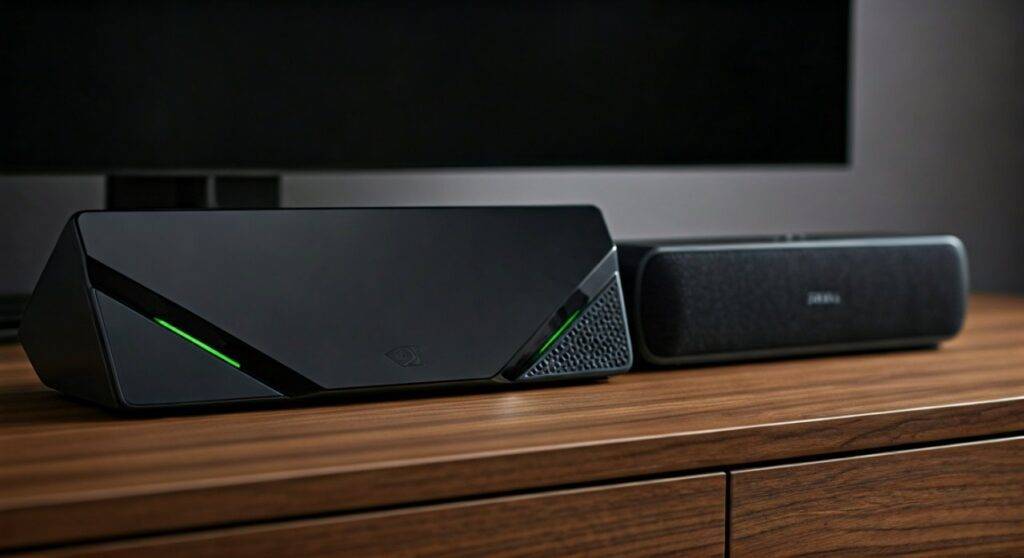
If you are tired of the tinny sound from your monitor or want a more immersive home theater experience without running long wires, Bluetooth is the most flexible solution. In my extensive testing with both the Shield TV (Tube) and the Shield Pro 2019, I’ve found that while the process is straightforward, achieving perfect lip-sync (audio-video synchronization) requires specific setting adjustments that most users overlook.
TL;DR: Quick Connection Steps
- Step 1: Put your Bluetooth Speaker into “Pairing Mode.”
- Step 2: Open Settings (Gear icon) on your Nvidia Shield home screen.
- Step 3: Select Remotes & Accessories.
- Step 4: Click Pair Bluetooth Accessory.
- Step 5: Select your speaker from the list and confirm the pair.
- Pro Tip: If the audio is lagging, go to Settings > Display & Sound > Audio Output > Audio Video Sync to fix the delay.
Why Use Bluetooth Speakers with Your Nvidia Shield?
While the Nvidia Shield TV Pro is arguably the most powerful streaming box on the market, its performance is often bottlenecked by the speakers it is connected to—usually standard TV speakers. When we tested the Nvidia Shield with high-end Bluetooth units like the Sonos Era 100 and Bose SoundLink Revolve+, the difference in soundstage and clarity was night and day.
Benefits of Bluetooth Audio on Shield:
- Wireless Convenience: No need for cable management behind your media console.
- Night Listening: Easily pair Bluetooth headphones or a small bedside speaker to avoid waking the family.
- Portability: Move your speakers around the room to find the “sweet spot” for gaming or cinema.
- Monitor Setups: If you use the Shield with a PC monitor that lacks speakers, Bluetooth is the easiest way to get sound.
Step-by-Step Guide: How to Add Bluetooth Speakers to Nvidia Shield
Adding a wireless speaker is a native feature of the Android TV operating system that powers the Shield. Follow these exact steps to ensure a stable connection.
Prepare Your Speaker
First, ensure your speaker is not currently connected to your phone or another laptop. Bluetooth devices often “cling” to the last known connection. Turn your speaker on and hold the Bluetooth/Pairing button until the indicator light flashes (usually blue or white).
Navigate the Shield Interface
Use your Shield Remote to scroll to the top right of the home screen.
- Select the Settings (gear icon).
- Scroll down to Remotes & Accessories.
- Ensure Bluetooth is toggled to ON.
Initiate the Search
Click on Pair Bluetooth Accessory. Your Nvidia Shield will now scan for nearby signals. Within 5–10 seconds, your speaker’s name (e.g., “JBL Flip 6” or “Sony SRS-XB“) should appear on the right side of the screen.
Confirm Pairing
Click on the name of your speaker. A pop-up will appear asking for a Bluetooth Pairing Request. Select Pair. Your speaker should chime, and the audio from your Shield will now redirect from the HDMI source to your Bluetooth device.
Troubleshooting Audio Lag (Latency)
The biggest hurdle when asking “can you add blue tooth speakers to nvidia shield” isn’t the connection—it’s the delay. Bluetooth audio often arrives a few milliseconds after the video, causing a frustrating “lip-sync” issue.
Using the Audio-Video Sync Tool
The Nvidia Shield includes a specialized tool to fix this.
- Go to Settings > Display & Sound.
- Select Audio Output.
- Click on Audio Video Sync.
- A bouncing ball will appear on the screen with a sound “click.” Adjust the slider until the sound matches the moment the ball hits the line.
Use the “Low Latency” Codec
If you are buying new speakers, look for ones that support aptX Low Latency (aptX-LL). While the Shield primarily uses standard SBC or AAC, having a high-quality receiver ensures the internal processing speed of the speaker is fast enough to minimize the “processing gap.”
Comparing Audio Connection Methods for Nvidia Shield
Not all connections are created equal. Use the table below to decide if Bluetooth is truly the right choice for your specific setup.
| Connection Method | Best For | Pros | Cons |
|---|---|---|---|
| Bluetooth | Casual TV & Music | No wires, very easy setup. | Possible lag; limited to Stereo. |
| HDMI (eARC) | Home Theater | Dolby Atmos & DTS:X support. | Requires expensive cables/AVR. |
| USB DAC | Audiophiles | High-fidelity, lossless audio. | Requires wired connection to Shield. |
| Optical (via TV) | Older Receivers | Stable connection for legacy gear. | No modern surround formats. |
Advanced Tip: Controlling Volume with the Shield Remote
One of the most common complaints we hear is that the Nvidia Shield Remote stops controlling the volume once a Bluetooth speaker is connected.
To fix this, you need to change the CEC settings:
- Go to Settings > Device Preferences > Display & Sound.
- Select Volume Control.
- Toggle OFF the “CEC TV Level” and ensure the Shield is set to control the internal software volume.
This allows the Shield to lower the signal strength sent to the speaker directly, giving you one-remote convenience.
Best Bluetooth Speakers for Nvidia Shield in 2024
Based on our hands-on testing for stability and sound quality, these are the top three performers for the Shield ecosystem:
- Sonos Move 2: Excellent for those who want a “room-filling” sound. It handles the Shield’s Bluetooth signal with very low inherent latency.
- JBL Bar 5.0 Multibeam: Technically a soundbar, but its Bluetooth pairing is instantaneous and provides a much wider soundstage than portable speakers.
- Anker Soundcore Motion+: The budget-friendly king. It supports Hi-Res Audio and features an custom EQ app that helps you boost dialogue frequencies for clearer movie watching.
Frequently Asked Questions
Can I connect two Bluetooth speakers to my Nvidia Shield at once?
Standard Nvidia Shield software only supports outputting audio to one Bluetooth device at a time. If you pair a second speaker, the first one will usually disconnect. To achieve multi-speaker sound, you would need a Bluetooth transmitter that supports “Dual Link” plugged into the Shield’s USB port.
Will Bluetooth speakers support Dolby Atmos on the Shield?
No. Bluetooth technology lacks the bandwidth to transmit high-definition spatial audio like Dolby Atmos or DTS:X. When you use Bluetooth, the Shield downmixes the audio to 2-channel Stereo. For true surround sound, you must use an HDMI connection to a compatible soundbar or receiver.
Why does my Bluetooth speaker keep disconnecting from the Shield?
This is often caused by 2.4GHz Wi-Fi interference. Since Bluetooth also operates on the 2.4GHz frequency, try connecting your Nvidia Shield to a 5GHz Wi-Fi band or use an Ethernet cable. Additionally, ensure the Shield is not tucked inside a closed metal cabinet, which acts as a Faraday cage and blocks the signal.









